
1. Introduction
This manual provides detailed instructions for the setup, operation, and maintenance of your Irfora Portable Receipt Printer, model MP210. This compact thermal printer is designed for various applications, offering wireless Bluetooth and USB connectivity for compatibility with Android, iOS, and Windows systems. It utilizes 58mm thermal paper for efficient and clear printing without the need for ink cartridges.

Figure 1: Irfora MP210 Portable Receipt Printer with a thermal paper roll.
2. What's in the Box
Please check the package contents upon unboxing. If any items are missing or damaged, contact customer support.
- 1 x Thermal Printer (MP210)
- 1 x Thermal Paper Roll
- 1 x USB Cable
- 1 x User Manual (This document)

Figure 2: Contents of the Irfora MP210 package, including the printer and USB cable.
3. Specifications
The following table details the technical specifications of the Irfora MP210 Portable Receipt Printer.
| Feature | Detail |
|---|---|
| Model | MP210 |
| Dimensions | 121 x 83.5 x 54.8 mm (4.76 x 3.29 x 2.16 inches) |
| Printing Method | Thermal dot line printing |
| Resolution | 203dpi, 8 dots/mm |
| Printing Speed (Max) | 70mm/s |
| Paper Width | 58mm |
| Valid Printing Width | 48mm |
| Paper Thickness | 60~80μm |
| Paper Roller Diameter | ≤40mm |
| Interface | Bluetooth (BT) and USB |
| Character Set Font | ASCII: 9×17, 12×24, Multiple code pages support |
| Barcode Symbologies | 1D: UPC-A, UPC-E, EAN8, EAN13, CODE39, ITF, CODEBAR, CODE128, CODE93; 2D: QR code |
| Graphics Support | Bitmap printing with different density and user-defined bitmap printing (Max. 40K per bitmap, Max. 64K total) |
| Battery | 1500mAh/7.4V rechargeable Li-ion battery |
| Battery Life (Full Charge) | 350~300m (printing density ≤12.5%) or 250~300mm (printing density ≤25%) |
| Supported Systems | Android, iOS, Win7/Win8/Win10 |

Figure 3: Visual representation of key specifications for the Irfora MP210 printer.
4. Setup
4.1 Battery Installation and Charging
The printer comes with a rechargeable Li-ion battery. Before first use, ensure the battery is properly installed and fully charged.
- Open the battery compartment cover on the bottom of the printer.
- Insert the 1500mAh/7.4V Li-ion battery, ensuring the contacts align correctly.
- Close the battery compartment cover securely.
- Connect the printer to a 5V/1A power adapter (not included) using the provided USB cable to charge. The charging indicator light will show the charging status.

Figure 4: Battery compartment and rechargeable Li-ion battery for the MP210 printer.
4.2 Paper Roll Installation
The printer uses 58mm thermal paper rolls.
- Open the paper compartment cover by pressing the release button or latch.
- Insert the thermal paper roll with the printing side facing the print head. Ensure the paper feeds smoothly.
- Pull a small amount of paper out past the print head.
- Close the paper compartment cover firmly until it clicks into place.
4.3 Driver and Software Installation
For optimal performance, ensure the correct drivers are installed on your Windows system. For mobile devices, compatible applications are required.
- Windows Drivers: Download the necessary drivers from the official support websites:
- Mobile App Compatibility: The printer is compatible with various mobile applications. Ensure your chosen app supports external thermal printers. Examples include:
- Loyverse (Retail/Clothing)
- iREAP (Retail/Inventory)
- CasierStock (Shopping/Inventory Management)
- Kyte (Mobile Sales)
Note: Verify compatibility with your specific cellphone and software version.
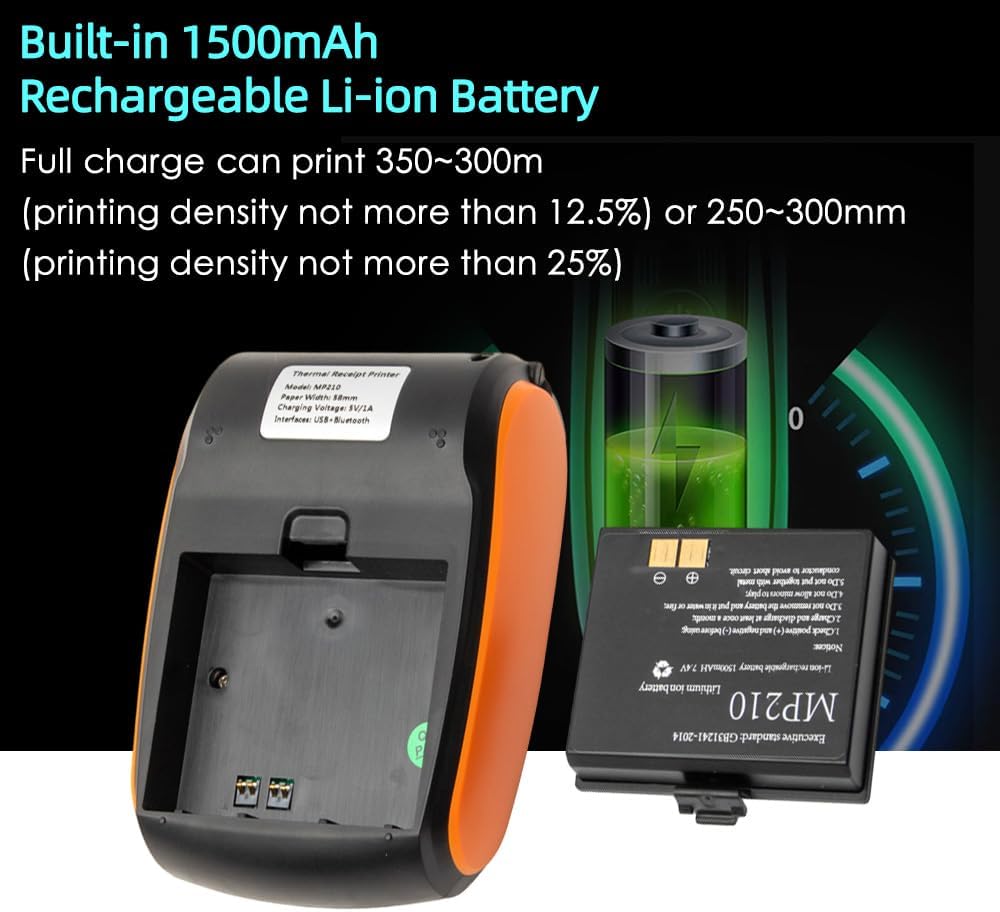
Figure 5: Examples of mobile applications compatible with the Irfora MP210 printer.
5. Operating Instructions
5.1 Power On/Off
- Power On: Press and hold the power button (usually marked with a power symbol) until the indicator light illuminates.
- Power Off: Press and hold the power button again until the indicator light turns off.
5.2 Bluetooth Connection
To connect the printer wirelessly via Bluetooth:
- Ensure the printer is powered on and within range of your mobile device (Android/iOS).
- On your mobile device, go to Bluetooth settings and enable Bluetooth.
- Search for available devices. The printer should appear as "MP210" or a similar name.
- Select the printer to pair. If prompted for a PIN, enter "0000" or "1234" (common default PINs).
- Once paired, open your compatible printing application and select the MP210 as the target printer.

Figure 6: The MP210 printer supports both Bluetooth and USB connections for versatile use.
5.3 USB Connection
To connect the printer to a Windows computer via USB:
- Ensure the printer drivers are installed on your computer (refer to Section 4.3).
- Connect the printer to your computer using the provided USB cable.
- The computer should recognize the printer. You can then select it from your printing preferences in any application.
5.4 Printing
Once connected, you can initiate printing from your chosen application.
- Open the document or receipt you wish to print in your application.
- Select the print option (e.g., File > Print).
- Choose the Irfora MP210 printer from the list of available printers.
- Adjust any print settings as needed (e.g., number of copies).
- Click "Print" to send the job to the printer.
6. Maintenance
6.1 Cleaning the Print Head
Regular cleaning of the print head ensures optimal print quality and extends the printer's lifespan.
- Turn off the printer and disconnect it from any power source.
- Open the paper compartment cover.
- Gently wipe the thermal print head (the dark strip) with a cotton swab lightly dampened with isopropyl alcohol.
- Allow the print head to dry completely before closing the cover and powering on the printer.
Caution: Do not touch the print head with bare hands as oils can affect print quality. Avoid using abrasive materials or harsh chemicals.
6.2 Battery Care
- Charge the battery fully before first use.
- Avoid completely draining the battery frequently to prolong its life.
- If storing the printer for an extended period, charge the battery to about 50% and store in a cool, dry place. Recharge every 3-6 months.
- Use only the provided USB cable for charging.
7. Troubleshooting
This section addresses common issues you might encounter with your Irfora MP210 printer.
7.1 Printer Does Not Power On
- Check Battery: Ensure the battery is correctly installed and fully charged. Connect the printer to a power source and try again.
- Battery Contacts: Verify that any protective tape has been removed from the battery contacts.
- Power Button: Ensure you are pressing and holding the power button for a sufficient duration (typically 2-3 seconds).
7.2 Cannot Connect via Bluetooth
- Printer On: Confirm the printer is powered on and its Bluetooth indicator light is active.
- Device Bluetooth: Ensure Bluetooth is enabled on your mobile device.
- Proximity: Make sure the printer is within close range of your device.
- Unpair/Re-pair: If previously paired, try "forgetting" or "unpairing" the printer from your device's Bluetooth settings, then attempt to pair again.
- PIN Code: Double-check the PIN code (default usually "0000" or "1234").
- App Compatibility: Ensure your printing application supports Bluetooth printing and is configured to use the MP210.
7.3 Poor Print Quality or Blank Pages
- Paper Roll: Check if the thermal paper roll is installed correctly with the printing side facing the print head. Thermal paper has a specific side that reacts to heat.
- Paper Type: Ensure you are using thermal paper, not regular paper.
- Print Head Cleanliness: A dirty print head can cause faded or blank lines. Refer to Section 6.1 for cleaning instructions.
- Battery Level: Low battery can affect print quality. Charge the printer fully.
7.4 Printer Not Recognized by Computer (USB)
- Drivers: Confirm that the correct Windows drivers are installed (refer to Section 4.3).
- USB Cable: Try a different USB port or cable to rule out a faulty connection.
- Printer On: Ensure the printer is powered on.
8. Warranty and Support
For information regarding warranty coverage, technical support, or service, please refer to the warranty card included with your product or contact Irfora customer service through their official website or the retailer where the product was purchased.
Please have your model number (MP210) and purchase details ready when contacting support.