
Introduction
The Keychron K3 Max is an advanced QMK/VIA wireless custom mechanical keyboard designed for versatility and performance. Featuring a compact 75% layout, it offers seamless connectivity across multiple devices and operating systems. This manual provides comprehensive instructions for setting up, operating, maintaining, and troubleshooting your K3 Max keyboard.
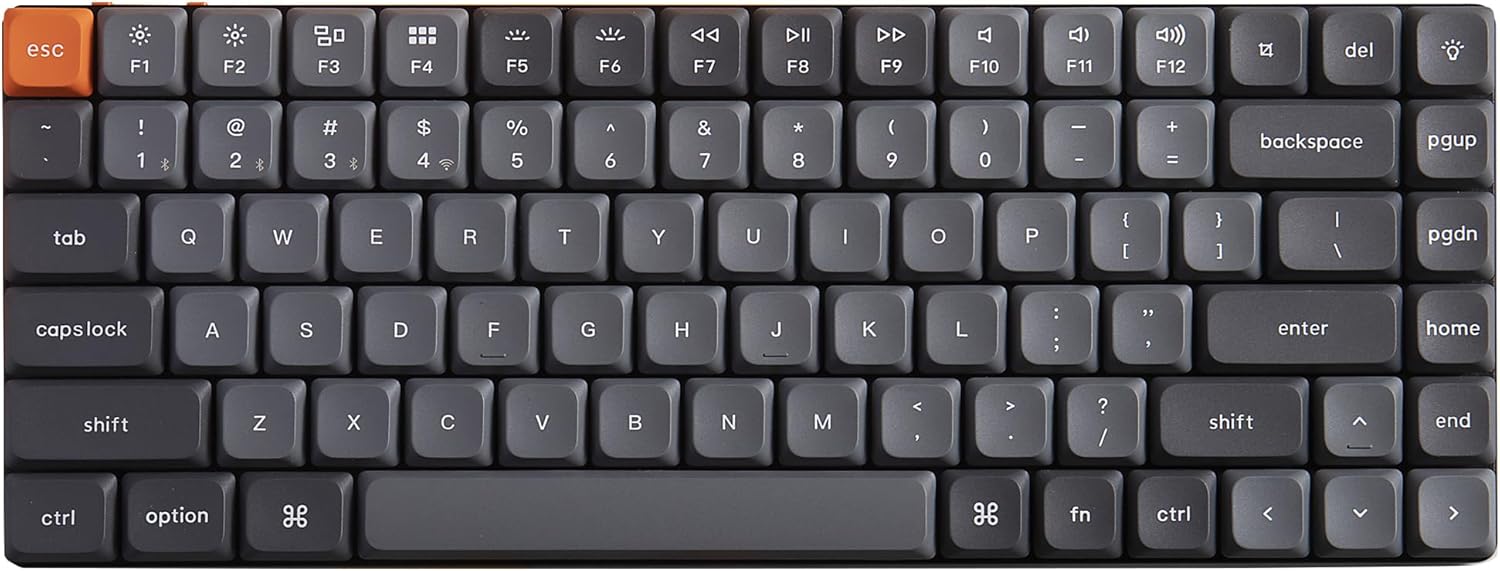
Image: Top-down view of the Keychron K3 Max keyboard, highlighting its compact 75% layout and keycap colors.
Setup
The K3 Max offers three versatile connection modes: 2.4 GHz wireless, Bluetooth 5.1, and wired USB-C. This allows for flexible use across various devices.
1. 3-Mode Connection
- 2.4 GHz Wireless: For optimal gaming performance with a rapid 1000 Hz polling rate, use the included 2.4 GHz dongle. Plug the dongle into your device and switch the keyboard to 2.4 GHz mode.
- Bluetooth 5.1: Connect up to three devices simultaneously (computer, phone, tablet). Switch the keyboard to Bluetooth mode and pair it with your devices.
- Wired USB-C: For a direct and stable connection, use the provided USB-C cable. This mode also charges the keyboard.

Image: The Keychron K3 Max keyboard demonstrating its 3-mode connection capabilities.
2. Operating System Compatibility
The K3 Max is designed to be fully compatible with both macOS and Windows operating systems, and also supports Linux. It includes keycaps for both Windows and macOS layouts.

Image: The Keychron K3 Max keyboard positioned on a desk, indicating its compatibility with Windows and macOS.
Operating Instructions
1. QMK & VIA Programming
The K3 Max supports QMK/VIA, allowing you to remap any key, create macros, and customize keyboard layouts. Simply connect the keyboard to your device via cable and use the VIA software (available for macOS, Windows, or Linux) to drag and drop your desired commands.

Image: The VIA software interface, demonstrating its capabilities for customizing the Keychron K3 Max keyboard.
2. Hot-Swappable Switches
The K3 Max features hot-swappable sockets, allowing you to change mechanical switches without soldering. This enables easy customization of your typing experience. Use the included switch puller to carefully remove switches.

Image: A close-up view of the Keychron K3 Max keyboard with keycaps and switches removed, illustrating its hot-swappable design.
3. RGB Backlight Settings
The keyboard features charming RGB backlighting with 22 different types of lighting effects. You can cycle through these effects or choose a static color backlight mode to suit your preference. The double-shot PBT keycaps are designed for durability and excellent oil resistance.
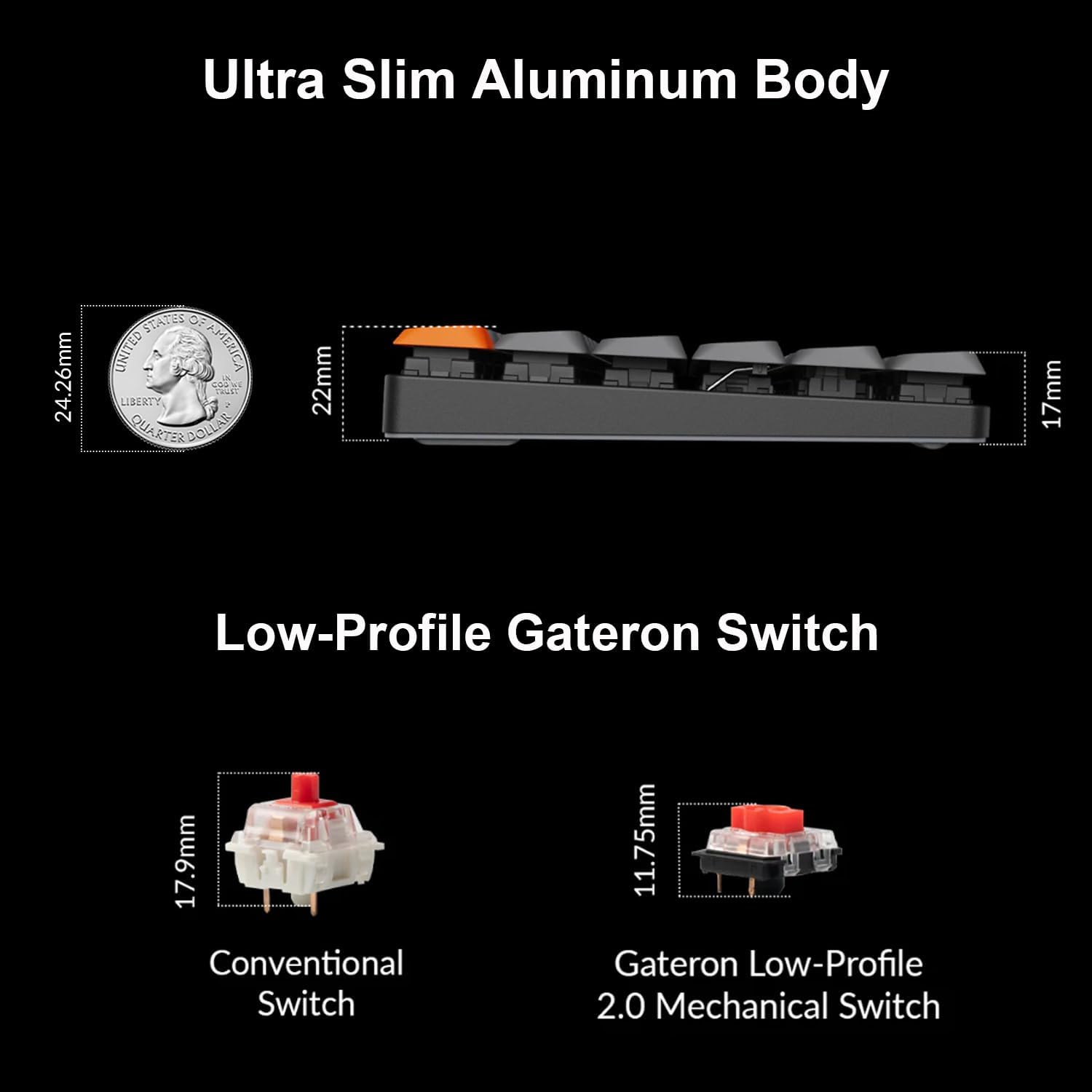
Image: The Keychron K3 Max keyboard displaying its customizable RGB backlighting.
Design Features
1. Ultra-Slim Aluminum Body
The K3 Max boasts an ultra-slim aluminum body, contributing to its sleek profile and robust build quality. This design choice ensures both aesthetics and durability.

Image: A visual representation of the keyboard's ultra-slim design and a comparison of switch profiles.
2. Ergonomic Support
The keyboard is designed with ergonomic support, offering three levels of adjustable typing angles. This allows users to find a comfortable position that reduces strain during extended use.

Image: Side views illustrating the adjustable typing angles of the Keychron K3 Max for ergonomic comfort.
Maintenance
Proper maintenance ensures the longevity and optimal performance of your Keychron K3 Max keyboard.
- Cleaning Keycaps: Use a soft, damp cloth to wipe down the keycaps. For deeper cleaning, remove the keycaps using a keycap puller and wash them with mild soap and water. Ensure they are completely dry before reattaching.
- Cleaning the Keyboard Body: Use a microfiber cloth to gently wipe the keyboard body. For dust and debris between keys, use compressed air.
- Switch Care: Avoid spilling liquids on the keyboard. If a switch feels inconsistent, you can hot-swap it with a new one.
- Storage: When not in use for extended periods, store the keyboard in a dry, dust-free environment.
Troubleshooting
If you encounter issues with your Keychron K3 Max, refer to the following common troubleshooting steps:
- Keyboard Not Responding:
- Ensure the keyboard is sufficiently charged.
- Check the connection mode switch (2.4G/Cable/BT) on the side of the keyboard.
- For 2.4 GHz, ensure the dongle is securely plugged in and the keyboard is in 2.4 GHz mode.
- For Bluetooth, ensure the keyboard is paired correctly and selected as the active device. Try re-pairing if necessary.
- For wired connection, try a different USB-C cable or port.
- Random Key Presses or Double Inputs:
- This can sometimes occur due to firmware issues or interference. Ensure your keyboard's firmware is up to date by checking the official Keychron website.
- If the issue is related to RGB lighting being on, try disabling RGB or using a static color mode to see if the problem persists.
- Consider performing a factory reset (refer to Keychron's official support for specific instructions for your model).
- If a specific switch is causing the issue, try hot-swapping it with a known working switch from a less used key.
- Backlight Not Working or Inconsistent:
- Ensure the keyboard is sufficiently charged.
- Cycle through backlight modes using the designated key combination (refer to your keyboard's quick start guide or Keychron's website).
- If only certain LEDs are affected, it might indicate a faulty LED or switch.
- VIA Software Not Detecting Keyboard:
- Ensure the keyboard is connected via USB-C cable. VIA typically requires a wired connection for configuration.
- Make sure you are using the correct VIA firmware for your specific K3 Max model.
- Try restarting the VIA software and your computer.
If these steps do not resolve your issue, please contact Keychron customer support for further assistance.
Specifications
| Feature | Detail |
|---|---|
| Product Dimensions | 12.05 x 4.57 x 0.28 inches |
| Item Weight | 1.85 pounds |
| Manufacturer | Keychron |
| ASIN | B0CNVZF6PK |
| Item model number | K3M-H1 |
| Batteries | 1 Lithium Ion batteries required. (included) |
| Brand | Keychron |
| Compatible Devices | Laptop, Tablet |
| Connectivity Technology | USB-C, 2.4 GHz Wireless, Bluetooth 5.1 |
| Keyboard Description | Mechanical |
| Recommended Uses For Product | Gaming |
| Special Feature | Customizable Display Keys, Hot-Swappable |
| Color | Red Switch (variant) |
| Number of Keys | 84 |
| Keyboard backlighting color support | RGB |
| Style | Modern |
Note: Specifications are subject to change without notice.
Warranty and Support
Keychron products typically come with a limited warranty. For detailed warranty information, terms, and conditions, please refer to the official Keychron website or the warranty card included with your product.
For technical support, troubleshooting assistance, or warranty claims, please contact Keychron customer service through their official website: www.keychron.com.


