
TOSING G6PRO
TOSING G6 Pro Karaoke Machine User Manual
Model: G6PRO
Introduction
Thank you for choosing the TOSING G6 Pro Karaoke Machine. This versatile device combines a 20W Bluetooth speaker with wireless microphones, designed for various uses including parties, church events, and personal entertainment. Featuring advanced DSP intelligent technology and a sensitive vocal pickup, the G6 Pro delivers clear, powerful sound for an immersive audio experience. This manual provides detailed instructions for setup, operation, maintenance, and troubleshooting to ensure optimal performance and longevity of your device.

Figure 1: TOSING G6 Pro Karaoke Machine
What's in the Box
- TOSING G6 Pro Karaoke Microphone with 20W Levitation PA Bluetooth Speaker
- USB Type-C Charging Cable
- User Manual
- (Potentially other accessories like a strap, not explicitly listed in "whats_in_the_box" but mentioned in images)
Key Features
- 20W Louder Speakers: Built-in dual symmetric PA levitation speakers covering a full frequency range (lowest to 70Hz) for abundant 3D stereo output and home theater enjoyment.
- DSP Chip Set: Advanced DSP intelligent technology ensures ultra-strong, long-distance lossless transmission, compatible with smartphones, tablets, TVs, PCs, car audio systems, projectors, and power amplifiers.
- 360-degree Sensitive 30mm Vocal Pickup: Features a 30mm large diameter dynamic pickup with 3 layers of noise reduction and filtering, ensuring pure, in-tune singing vocals.
- Accurate Adjustment by LCD: Easy control and adjustment of microphone volume, TWS duet function, and sound effects via a transparent LCD screen, providing clear working status.
- Portable Design: Ideal for both outdoor and indoor use, suitable for gatherings, parties, church events, karaoke nights, birthdays, weddings, and music hosting.
Setup
1. Charging the Device
Before first use, fully charge the TOSING G6 Pro. Connect the provided USB Type-C cable to the charging port on the device and the other end to a compatible USB power adapter (not included). The LCD screen will indicate charging status. A full charge typically takes approximately 2-3 hours.
2. Power On/Off
Press and hold the power button (usually located on the front panel near the LCD) for a few seconds to turn the device on or off. The LCD screen will illuminate upon power-on.

Figure 2: LCD Dynamic Screen for Visual Volume and Frequency Control
3. Bluetooth Pairing
- Turn on the TOSING G6 Pro. It will automatically enter Bluetooth pairing mode.
- On your smartphone, tablet, or other Bluetooth-enabled device, go to the Bluetooth settings.
- Search for "TOSING G6 Pro" (or similar name) in the list of available devices.
- Select the device to pair. A voice prompt will confirm successful connection.

Figure 3: Advanced DSP Intelligent Technology for Multi-media Compatibility
4. TWS (True Wireless Stereo) Duet Function
For an enhanced stereo experience, you can pair two TOSING G6 Pro microphones together.
- Ensure both G6 Pro units are powered on and not connected to any other Bluetooth device.
- On one of the units, press the "TWS" button. It will enter TWS pairing mode.
- The two units will automatically connect to each other. A voice prompt will confirm successful TWS pairing.
- Once TWS is established, connect your primary G6 Pro unit to your Bluetooth device as described in step 3. Audio will now play through both units in stereo.
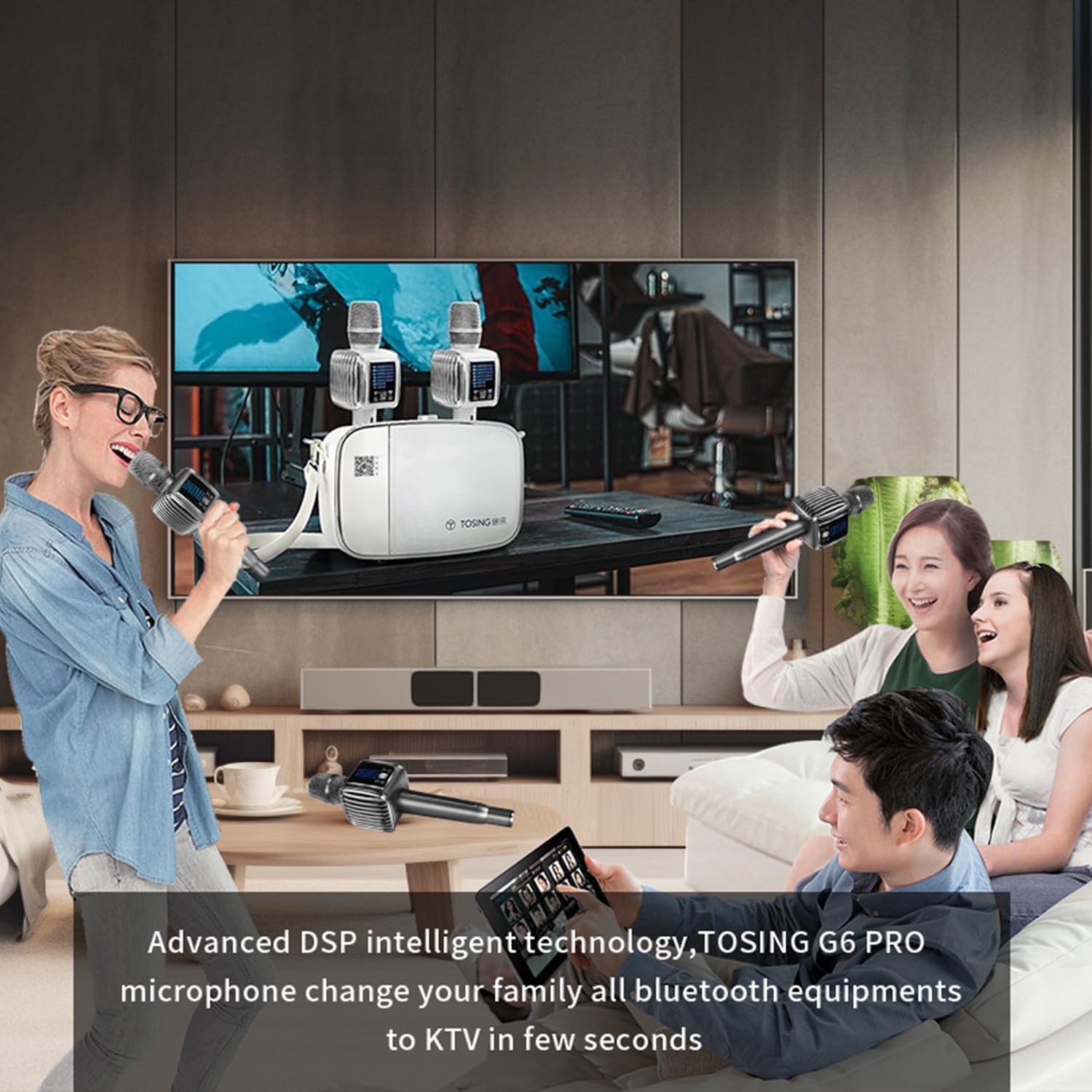
Figure 4: Advanced DSP intelligent technology allows transforming family Bluetooth equipment into a KTV system.
Operating Instructions
1. Volume Control
Use the "Vol+" and "Vol-" buttons on the device to adjust the microphone's volume. The LCD screen will visually display the current volume level.
2. Sound Effects
Press the "Effect" button to cycle through various sound effects such as Karaoke, Pop, Professional, and Original. Experiment to find the best effect for your singing style or environment.

Figure 5: Detailed Functionality of the TOSING G6 Pro Microphone
3. Audio Output
The G6 Pro features two symmetric PA levitation speakers for powerful 3D stereo sound. The 30mm dynamic vocal pickup ensures clear voice capture with noise reduction. For optimal sound, ensure the microphone is positioned correctly during use.

Figure 6: Experience 70Hz 3D Surround Super Bass for Home Theater Enjoyment

Figure 7: 360-degree Autotune Pickup Sound Design with 30mm Big Diameter, Noise Reduction and Filtering
4. Connecting to External Devices (AUX/USB)
In addition to Bluetooth, the G6 Pro supports 3.5mm Jack and USB Type-C connections for versatile compatibility with various audio sources and devices.
Maintenance
- Cleaning: Use a soft, dry cloth to clean the exterior of the device. Do not use abrasive cleaners or solvents.
- Storage: Store the device in a cool, dry place away from direct sunlight and extreme temperatures.
- Battery Care: To prolong battery life, avoid fully discharging the battery frequently. Charge the device regularly, even if not in use for extended periods.
- Microphone Care: Avoid dropping the microphone or exposing it to excessive moisture.
Troubleshooting
| Problem | Possible Cause | Solution |
|---|---|---|
| No power | Battery is low or dead. | Charge the device fully using the provided USB Type-C cable. |
| Cannot connect via Bluetooth | Bluetooth is off on your device; G6 Pro is already connected to another device; too far from the device. | Ensure Bluetooth is enabled. Disconnect from other devices. Move closer to the G6 Pro (within 10 meters). Restart both devices. |
| Poor sound quality / Distortion | Microphone too close to speakers; volume too high; interference. | Adjust microphone distance from speakers. Lower the volume. Move away from sources of interference. |
| TWS pairing failed | One or both units are already connected to another device. | Ensure both G6 Pro units are disconnected from all other Bluetooth devices before attempting TWS pairing. |
Specifications
| Feature | Detail |
|---|---|
| Model Number | G6PRO |
| Item Weight | 1.01 pounds |
| Product Dimensions | 8 x 14 x 8 inches |
| Batteries | 2 Lithium Polymer batteries (included) |
| Speaker Count | 2 |
| Power Source | Battery Powered |
| Connector Type | 3.5 mm Jack, USB Type C |
| Compatible Devices | Bluetooth speaker/stage speaker/amplifier, car audio/tablet/mp3, karaoke machine/pc/laptop/tv/lcd monitor |
| Special Feature | 20W levitation PA Bluetooth speaker, dynamic LCD screen, speakers with diaphragms integrated |
| Recommended Uses | Karaoke, Recording, Singing, Streaming |
Official Product Video
Video 1: Official product video demonstrating the TOSING G6 Pro microphone for adults karaoke singing machine. This video showcases the product's features and use cases.
Warranty and Support
For warranty information and technical support, please refer to the contact details provided on the product packaging or visit the official TOSING website. Keep your purchase receipt for warranty claims.
Ask a question about this manual
Ask about setup, troubleshooting, compatibility, parts, safety, or missing instructions. Manuals+ will review the question and use this page’s manual context to help answer it.