
CEL-FI G41-LP-1ant
CEL-FI GO G41 Cell Phone Booster User Manual
Model: G41-LP-1ant
1. Introduction
The CEL-FI GO G41 is an advanced cellular signal booster designed to significantly improve 4G and 5G cellular coverage within your home or office, covering areas up to 15,000 square feet. Utilizing 4th Generation IntelliBoost Chip technology, it provides an industry-leading 100 dB gain, ensuring strong and reliable signal for voice calls and data across AT&T, Verizon, and T-Mobile networks. This manual provides essential information for the proper installation, operation, and maintenance of your CEL-FI GO G41 system.
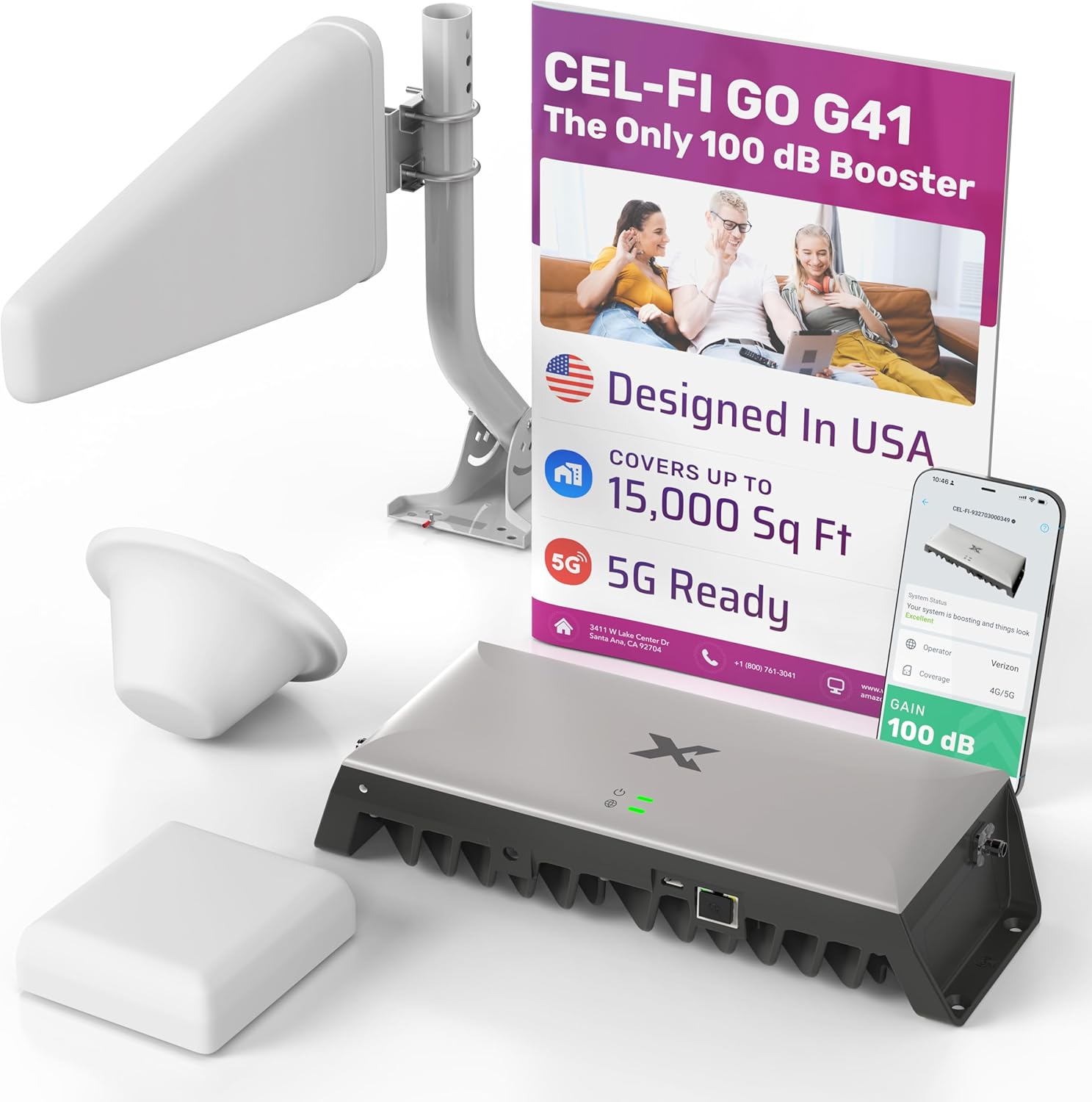
Figure 1.1: Overview of the CEL-FI GO G41 Cell Phone Booster kit, including the main booster unit, outdoor antenna, and indoor antenna components.
2. Safety Information
- Read all instructions carefully before installation and operation.
- Do not operate the device in wet or damp conditions.
- Ensure proper grounding for outdoor antenna installations, especially in areas prone to lightning. A lightning surge protector is recommended.
- Use only the power adapter and cables supplied or approved by the manufacturer.
- Do not attempt to open or repair the device. Refer all servicing to qualified personnel.
- Maintain a safe distance from the indoor antenna during operation to minimize RF exposure, as per FCC guidelines.
3. Package Contents
Verify that all items listed below are included in your CEL-FI GO G41 package:

Figure 3.1: Diagram illustrating the typical components included in a CEL-FI GO G41 kit.
- CEL-FI GO G41 Amplifier Unit: The main booster device.
- Indoor Antenna(s): Depending on your kit, this may be a panel antenna or dome antenna(s). Designed to cover 1,500 to 3,000 sq ft per antenna.
- Outdoor Antenna: Either a Directional Antenna (standard performance, simpler install) or a Griddy Antenna (ultra performance, harder to aim).
- RS400 Coax Cable(s): 30 ft lengths, quantity varies based on the number of indoor antennas.
- Signal Splitter: Included only in 2, 3, or 4-antenna kits.
- Lightning Surge Protector: For enhanced safety during outdoor antenna installation.
- Power Supply: AC/DC power adapter for the amplifier.
- Mounting Hardware: Brackets and fasteners for installation.
4. Setup and Installation
Proper installation is crucial for optimal performance. The CEL-FI GO G41 is designed for DIY installation, but professional assistance can be sought if needed.
4.1 Pre-Installation Check
Before beginning installation, ensure the following:
- Turn off your phone's Wi-Fi to accurately assess cellular signal.
- Check that you have at least 1 bar of existing cellular signal outside your home where the outdoor antenna will be placed.
- Verify 4G or 5G availability in the top bar of your phone in the area where the outdoor antenna will be located.

Figure 4.1: Visual guide for the simple DIY installation process and a compatibility chart for various carriers.
4.2 Installation Steps
- Aim Outdoor Antenna: Mount the outdoor antenna in a location with the strongest existing cellular signal, typically on the roof or an exterior wall. Aim it towards the nearest cell tower.
- Mount CEL-FI GO G41: Install the main amplifier unit in a central location within your home, away from direct sunlight and moisture. Ensure adequate ventilation.
- Install Indoor Antenna: Place the indoor antenna(s) in the area(s) where you need improved signal coverage. Ensure sufficient separation between the indoor and outdoor antennas to prevent oscillation.
- Connect Cables: Connect the outdoor antenna to the "Donor" port on the GO G41 unit and the indoor antenna(s) to the "Server" port(s) using the provided RS400 coax cables.
- Power On: Connect the power supply to the GO G41 unit and plug it into a power outlet. The unit will power on and begin optimizing.
4.3 Using the CEL-FI WAVE App
The CEL-FI WAVE app provides complete control and monitoring of your booster system from your smartphone. It is highly recommended for optimizing antenna placement and monitoring system performance.

Figure 4.2: Screenshots of the CEL-FI WAVE app interface, showing system status, band settings, and antenna position test features.
- Download the CEL-FI WAVE app from the App Store (iOS) or Google Play Store (Android).
- Connect your phone to the GO G41 via Bluetooth (if prompted).
- Use the app to perform an Antenna Position Test to fine-tune the outdoor antenna's direction for maximum signal.
- Monitor system status, signal strength, and coverage levels in real-time.
- Adjust booster settings and modes (e.g., Mobile or Stationary) as needed.
5. Operating the CEL-FI GO G41
Once installed and powered on, the CEL-FI GO G41 operates automatically to enhance your cellular signal. The system works by receiving weak cellular signals from the nearest cell tower via the outdoor antenna, amplifying them, and then re-broadcasting the strong signal indoors via the indoor antenna.

Figure 5.1: Diagram illustrating the signal flow from the outdoor antenna, through the booster, to the indoor antenna, providing enhanced coverage.
- Automatic Gain Control: The GO G41 features intelligent gain control, automatically adjusting its power output to prevent interference with the cellular network.
- Indicator Lights: Observe the LED indicator lights on the GO G41 unit for system status. Refer to the CEL-FI WAVE app or the full user guide for detailed explanations of light patterns.
- Coverage Area: The system is designed to cover up to 15,000 sq ft, providing whole-home coverage rather than just a single room.

Figure 5.2: Illustration demonstrating the CEL-FI GO G41's ability to provide comprehensive signal coverage throughout an entire home.
6. Maintenance
The CEL-FI GO G41 is designed for minimal maintenance. Follow these guidelines to ensure longevity and optimal performance:
- Cleaning: Gently wipe the booster unit and indoor antenna with a dry, soft cloth. Do not use liquid cleaners or abrasive materials.
- Cable Connections: Periodically check all cable connections to ensure they are secure and free from damage.
- Environmental Conditions: Ensure the booster unit is kept in a well-ventilated area, away from extreme temperatures, direct sunlight, and moisture.
- Firmware Updates: Check the CEL-FI WAVE app regularly for any available firmware updates for your device. Updates can improve performance and add new features.
7. Troubleshooting
If you experience issues with your CEL-FI GO G41, try the following troubleshooting steps:
| Problem | Possible Cause | Solution |
|---|---|---|
| No signal improvement | Insufficient signal at outdoor antenna; improper antenna aiming; insufficient separation between antennas. |
|
| Booster not powering on | Power supply issue; loose connection. |
|
| Intermittent signal boost | Oscillation (feedback loop); network congestion. |
|
| App not connecting to booster | Bluetooth issue; app permissions. |
|
For more detailed troubleshooting, consult the full user manual available on the CEL-FI website or through the CEL-FI WAVE app.
8. Specifications
Key technical specifications for the CEL-FI GO G41 Cell Phone Booster:
| Model Number | G41-LP-1ant |
| Brand | CEL-FI (by Nextivity) |
| Product Dimensions | 10.5 x 4.2 x 2.2 inches |
| Item Weight | 16.8 pounds |
| Coverage Area | Up to 15,000 square feet |
| Max Gain | 100 dB |
| Frequency Bands Supported | 700 MHz, 1700/2100 MHz (Supports 4G LTE and 5G NR) |
| Compatible Carriers | AT&T, Verizon, T-Mobile |
| Compatible Devices | Smartphones and other cellular devices |
| Included Components | Amplifier, Indoor Antenna(s), Outdoor Antenna, Coax Cables, Power Supply, Mounting Hardware, (Optional: Signal Splitter, Lightning Surge Protector) |
| Technology | 4th Generation IntelliBoost Chip |
9. Warranty and Support
For specific warranty details, please refer to the warranty card included with your product or visit the official CEL-FI (Nextivity) website. Warranty terms typically cover manufacturing defects for a specified period from the date of purchase.
For technical support, troubleshooting assistance, or to access the latest documentation and FAQs, please utilize the CEL-FI WAVE app or visit the Nextivity support portal online. Contact information for customer service is also available on the manufacturer's website.
- Manufacturer: Nextivity
- Online Resources: Refer to the official CEL-FI website for comprehensive support.
- CEL-FI WAVE App: Your primary tool for system monitoring and basic troubleshooting.
Related documentsG41-LP-1ant


Ask a question about this manual
Ask about setup, troubleshooting, compatibility, parts, safety, or missing instructions. Manuals+ will review the question and use this page’s manual context to help answer it.