
1. Introduction
This manual provides comprehensive instructions for the setup, operation, maintenance, and troubleshooting of your EDJO Ergonomic Wireless Keyboard. Designed for comfort and efficiency, this keyboard features a split layout, cushioned wrist rest, and versatile connectivity options to enhance your typing experience across multiple devices.
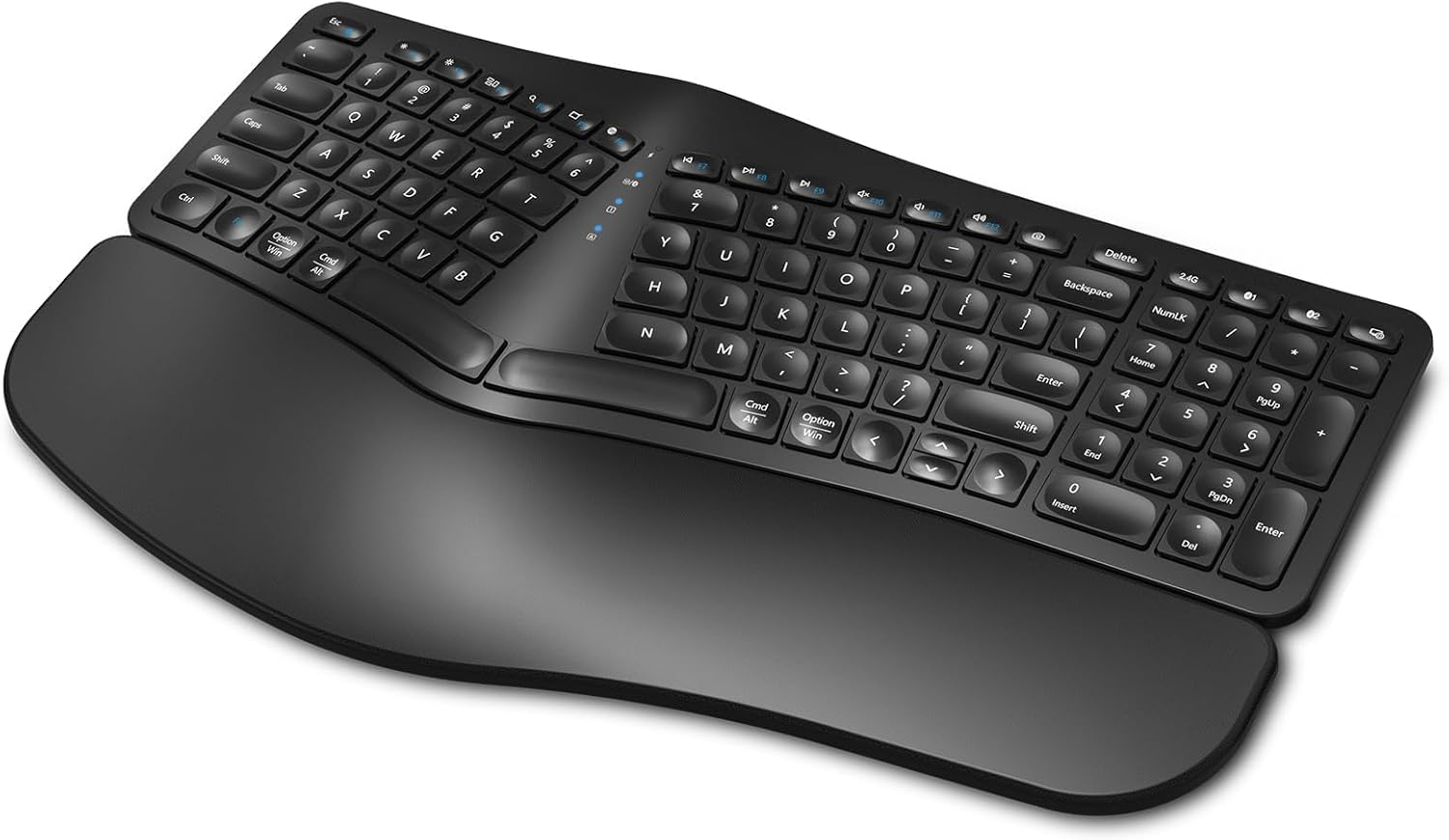
Figure 1: EDJO Ergonomic Wireless Keyboard
2. Package Contents
Verify that all items are present in the package:
- EDJO Ergonomic Wireless Keyboard
- USB-C Charging Cable
- 2.4G USB Wireless Receiver (stored on the back of the keyboard)
- User Manual (this document)
3. Product Overview
The EDJO Ergonomic Wireless Keyboard is engineered for user comfort and multi-device functionality. Key features include:
- Ergonomic Split Design: A curved layout and split key zones promote a natural hand and wrist posture, reducing strain during extended use.
- Cushioned Wrist Rest: An integrated soft pillow palm rest provides support, minimizing wrist flexion.
- Dual Wireless Connectivity: Seamlessly switch between 2.4G wireless (via USB receiver) and two Bluetooth channels (BT1, BT2) for up to three devices.
- Rechargeable Battery: Built-in 500mAh battery, rechargeable via USB-C, offering extended usage time.
- Quiet Typing: Scissor switches and drop-like keycaps ensure a silent and responsive typing experience.
- Multimedia Hotkeys: 12 dedicated hotkeys for quick access to common functions.
- Adjustable Stands: Four foldable stands allow for customizable keyboard tilt.
Video 1: EDJO Ergonomic Wireless Keyboard Overview
4. Setup
4.1. Charging the Keyboard
Before first use, it is recommended to fully charge the keyboard. Connect the provided USB-C charging cable to the charging port located on the top edge of the keyboard and to a USB power source. The charging indicator light will show the charging status.

Figure 2: USB-C Charging Port and Power Switch
4.2. 2.4G Wireless Connection
For a stable and fast connection to your computer:
- Locate the 2.4G USB wireless receiver stored in the compartment on the back of the keyboard.
- Plug the USB receiver into an available USB port on your computer.
- Turn on the keyboard using the power switch on the top edge.
- Press the '2.4G' button on the keyboard. The corresponding indicator light will illuminate, confirming the connection.

Figure 3: USB Receiver Location and Adjustable Stands
4.3. Bluetooth Connection (BT1, BT2)
The keyboard supports two Bluetooth connections (BT1 and BT2) for multi-device pairing:
- Turn on the keyboard using the power switch.
- Press and hold either the 'BT1' or 'BT2' button for 3-5 seconds until the corresponding indicator light flashes rapidly. This indicates pairing mode.
- On your device (PC, laptop, tablet, smartphone), enable Bluetooth and search for available devices.
- Select 'K960' (or similar name) from the list of found devices to pair.
- Once paired, the indicator light will stop flashing and remain steadily lit.
- Repeat steps 2-5 to pair a second Bluetooth device using the other 'BT' button.
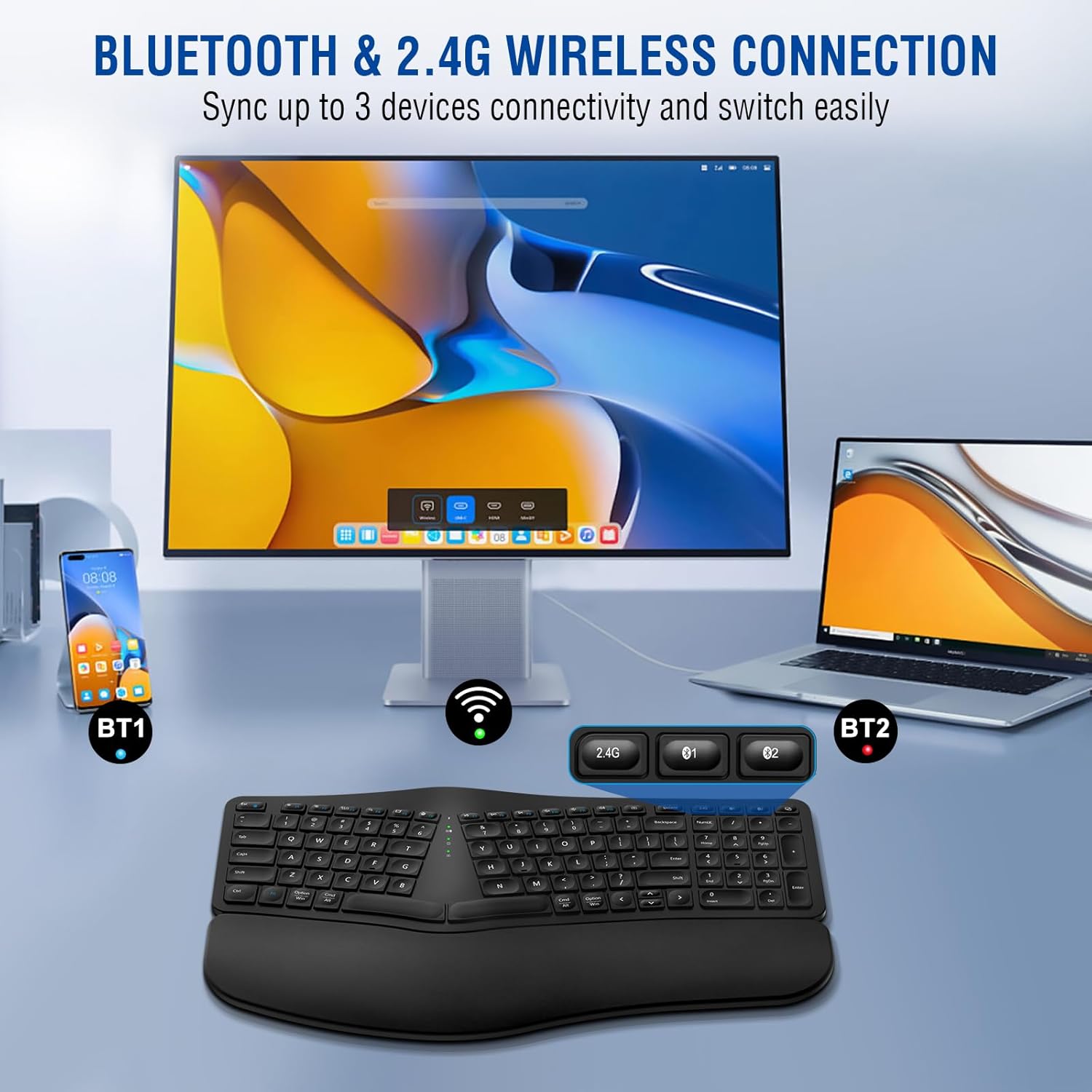
Figure 4: Multi-Device Connectivity via Bluetooth and 2.4G
5. Operation
5.1. Power On/Off
To turn the keyboard on or off, use the dedicated power switch located on the top edge of the keyboard (refer to Figure 2).
5.2. Switching Between Devices
To switch between connected devices (2.4G, BT1, BT2), simply press the corresponding button ('2.4G', 'BT1', or 'BT2') on the keyboard. The keyboard will connect to the selected device within a few seconds.
5.3. Multimedia Hotkeys
The keyboard features 12 multimedia hotkeys (F1-F12) that provide quick access to various functions. These functions may vary slightly depending on your operating system. Common functions include:
- Volume Control (Mute, Down, Up)
- Media Playback (Play/Pause, Previous, Next)
- Web Browser, Email, Search
- Screen Lock

Figure 5: Silent Key Design with Scissor Switches
5.4. Adjusting Keyboard Angle
The keyboard is equipped with four foldable stands on its underside. You can deploy these stands to adjust the tilt of the keyboard to your preferred ergonomic angle, promoting a more comfortable typing posture (refer to Figure 3).
6. Maintenance
To ensure the longevity and optimal performance of your keyboard:
- Cleaning: Use a soft, dry cloth to clean the keyboard surface. For stubborn dirt, a slightly damp cloth with mild soap can be used, ensuring no liquid enters the keycaps or internal components.
- Storage: Store the keyboard in a cool, dry place away from direct sunlight and extreme temperatures.
- Battery Care: Avoid fully discharging the battery frequently. Charge the keyboard when the low battery indicator appears.
7. Troubleshooting
| Problem | Possible Cause | Solution |
|---|---|---|
| Keyboard not responding | Low battery; Keyboard off; Incorrect connection mode; USB receiver not plugged in (2.4G) | Charge keyboard; Turn keyboard on; Select correct mode (2.4G, BT1, BT2); Plug in USB receiver |
| Bluetooth pairing failed | Keyboard not in pairing mode; Device Bluetooth off; Interference | Press and hold BT button until light flashes; Ensure device Bluetooth is on; Move closer to device, reduce interference |
| Keys not typing correctly | Connection issue; Software conflict | Reconnect keyboard; Restart device; Test on another device |
| Short battery life | Frequent use; Battery degradation | Ensure full charge; Keyboard enters sleep mode after 30 mins of inactivity to save power. Press any key to reactivate. |
8. Specifications
| Feature | Detail |
|---|---|
| Model | B0CNT6GP41 |
| Connectivity | 2.4G Wireless, Bluetooth (BT1, BT2) |
| Battery Capacity | 500mAh Lithium Ion (included) |
| Charging Port | USB-C |
| Operating Range | Up to 10 meters (33 feet) |
| Keyboard Layout | Ergonomic Split Design, Full-sized with Numeric Keypad |
| Key Type | Scissor Switches, Drop-like Keycaps |
| Wrist Rest | Cushioned (Soft Synthetic Leather, High-density Foam, Memory Foam) |
| Compatibility | Windows, Mac, Android, iOS (Laptop, PC, Smartphone, Tablet, Television) |
| Product Dimensions | 17.24 x 10.51 x 1.81 inches |
| Item Weight | 2.86 pounds |
| Included Components | USB Cable |

Figure 6: Cushioned Wrist Rest Construction

Figure 7: Wide Device Compatibility
9. Warranty and Support
The EDJO Ergonomic Wireless Keyboard comes with a 12-month warranty from the date of purchase. For any issues or inquiries, please contact EDJO customer support via Amazon email. We are committed to providing lifetime support for our products.
For further assistance, please refer to the contact information provided with your purchase or on the official EDJO product page.