
1. Introduction
This manual provides essential information for the safe and efficient operation of your NETUM PDA58-02 Portable Receipt Printer. Please read it thoroughly before using the device and keep it for future reference.
The NETUM PDA58-02 is a versatile portable terminal designed for various business applications. It integrates receipt printing, 1D barcode scanning, and supports multiple connectivity options including 3G, Wi-Fi, and Bluetooth 4.0. Running on Android 6.0, it offers a stable and user-friendly experience with its 5.5-inch IPS capacitive touch screen.
2. Safety Information
- Do not expose the device to extreme temperatures, direct sunlight, or high humidity.
- Avoid dropping or subjecting the device to strong impacts.
- Use only the original charger and accessories provided with the device.
- Do not attempt to disassemble or repair the device yourself. Contact qualified service personnel.
- Keep the device away from water and other liquids.
- Ensure proper ventilation when charging to prevent overheating.
3. Package Contents
Verify that all items are present in the package:
- NETUM PDA58-02 Portable Receipt Printer
- Charger Adapter (UK Plug)
- User Manual (English and Chinese)
- Thermal Printer Paper Roll (58 x 35mm)

Image: NETUM PDA58-02 printer and its accessories including charger, manual, and paper roll.
4. Product Overview
The NETUM PDA58-02 features a compact design with an integrated thermal printer and a large touch screen for easy interaction. It includes a built-in barcode scanner for efficient data capture.

Image: Front view of the NETUM PDA58-02 portable printer, showing the screen displaying time and date.

Image: NETUM PDA58-02 portable printer with the paper compartment open, showing a printed receipt.
5. Setup
5.1 Charging the Device
Before first use, fully charge the device. Connect the provided charger adapter to the DC charging port (12V 1.5A) on the device and plug it into a power outlet. The battery indicator will show charging status.
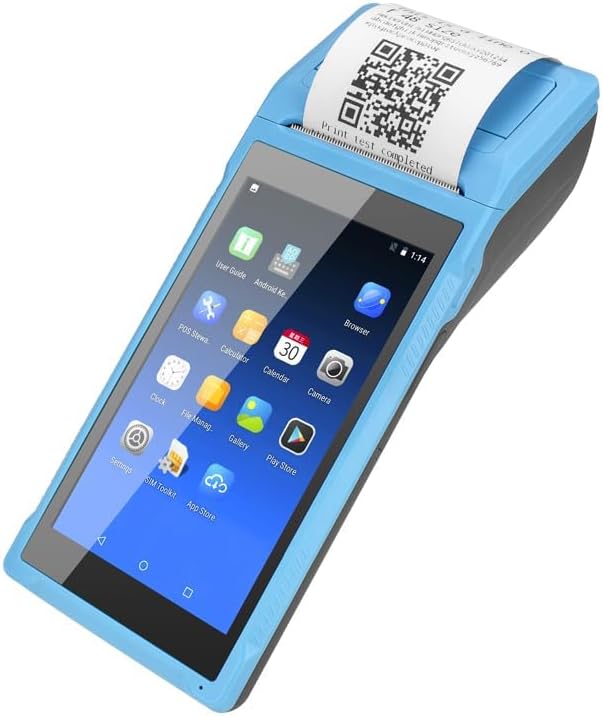
Image: Close-up of the charging port on the NETUM PDA58-02, with a charger cable connected, highlighting the 5000mAh rechargeable battery.
5.2 Loading Thermal Paper
- Open the printer cover by gently pushing the latch.
- Insert a 58 x 35mm thermal paper roll into the compartment, ensuring the printing side faces the print head.
- Pull a small amount of paper out past the cutter.
- Close the printer cover firmly until it clicks into place.
5.3 Powering On/Off
- To power on: Press and hold the power button until the screen lights up.
- To power off: Press and hold the power button, then select 'Power off' from the options on the screen.
6. Operating Instructions
6.1 Basic Navigation
The device runs on Android 6.0. Navigate the interface using the 5.5-inch capacitive touch screen. Swipe, tap, and use gestures similar to a standard Android smartphone.

Image: NETUM PDA58-02 portable printer displaying various Android application icons on its screen, indicating its smart functionality.
6.2 Connectivity
- Wi-Fi: Go to Settings > Wi-Fi to connect to available wireless networks (802.11 b/g/n).
- Bluetooth: Go to Settings > Bluetooth to pair with other Bluetooth 4.0 enabled devices.
- 3G: Insert a compatible SIM card (if applicable) and configure network settings under Settings > More > Mobile networks for 3G connectivity (GSM850/900/1800/1900, WCDMA B1).
- USB: Connect the device to a computer using the Micro USB 2.0 port for data transfer or charging.
6.3 Printing Receipts
The integrated thermal printer allows for fast receipt printing. Use compatible POS applications or built-in printing functions to generate receipts. Ensure paper is loaded correctly.
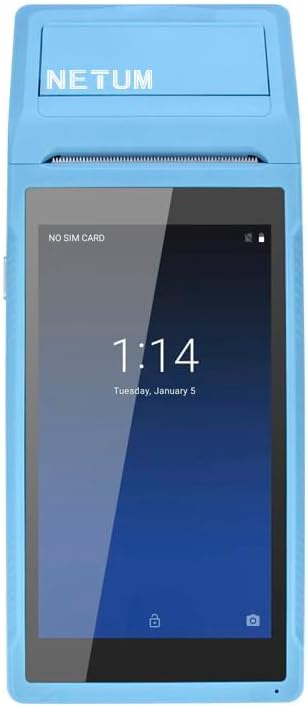
Image: NETUM PDA58-02 portable printer showing a receipt with a QR code being printed, demonstrating its receipt printing capability.
6.4 Barcode Scanning
The device supports 1D barcode scanning. Open the scanning application or a compatible POS application that utilizes the scanner. Point the scanner at the barcode to capture the data.
7. Maintenance
7.1 Cleaning the Device
Wipe the exterior of the device with a soft, dry cloth. For stubborn dirt, use a slightly damp cloth and then dry immediately. Do not use harsh chemicals or abrasive cleaners.
7.2 Print Head Cleaning
If print quality degrades, the thermal print head may need cleaning. Use a cotton swab lightly dampened with isopropyl alcohol to gently wipe the print head. Allow it to dry completely before use.
7.3 Battery Care
To prolong battery life, avoid fully discharging the battery frequently. Charge the device regularly. If storing the device for an extended period, charge it to about 50% and store in a cool, dry place.
8. Troubleshooting
- Device not powering on: Ensure the battery is charged. Connect the charger and try again. If the issue persists, contact support.
- Printer not printing: Check if thermal paper is loaded correctly and if the printer cover is closed. Verify that the application is sending print commands.
- Poor print quality: Clean the thermal print head as described in the Maintenance section. Ensure you are using suitable thermal paper.
- Connectivity issues (Bluetooth/Wi-Fi): Ensure Bluetooth/Wi-Fi is enabled in settings. Check if the device is within range of the network/paired device. Restart the device and try reconnecting.
- Touch screen unresponsive: Restart the device. If the problem continues, contact support.
9. Specifications
| Feature | Detail |
|---|---|
| Model | PDA58-02 |
| Color | Blue |
| Configuration | 3G + Camera |
| CPU | Quad-core 1.3GHz MT6580V/WA |
| RAM | 1GB |
| NAND Flash | 8GB |
| Operating System | Android 6.0 |
| Main Screen | 5.5 inch IPS Capacitive Touch Screen 1280*720 |
| Communication Method | 3G (supports all network types) |
| Rear Camera | 8MP |
| Battery | 7.4V, 5000mAh |
| Charging Interface | DC Charging, 12V 1.5A |
| Headphone Interface | Standard 3.5mm Headphone |
| OTG Support | Yes |
| USB Interface | Micro USB 2.0 x 1 |
| Audio System | Built-in Speaker, Buzzer, Microphone |
| Wi-Fi | 802.11 b/g/n |
| GSM | 850/900/1800/1900 |
| WCDMA | B1 |
| Bluetooth | Bluetooth 4.0 |
| Printing Technology | Thermal Printer |
| Paper Roll Size | 58 x 35mm (included) |
| Printer Dimensions (L x W x H) | 21.5 x 8.6 x 5.3 cm / 8.46 x 3.39 x 2.1 inches |
| Printer Weight | 462g / 16.3oz |
| Output Type | Monochrome |
| Max Mono Print Speed | 1 (unit not specified, likely pages/minute or lines/second) |
| Control Type | Android, Touch |
| Media Type | Labels |
| Scanner Type | Portable |
| Display Type | LCD |
| Compatible Devices | Smartphones |
| Additional Printer Functions | Scan |
| Number of Processors | 4 |
| Max Media Size | 5.5 x 8.5 inch |
| Duplex Printing | No |
| Hardware Interface | USB, USB 2.0 |
| Total USB Ports | 1 |
10. Warranty Information
NETUM products are covered by a manufacturer's warranty. Please refer to the warranty card included in your package or visit the official NETUM website for detailed warranty terms and conditions. Keep your purchase receipt as proof of purchase for warranty claims.
11. Support
For technical assistance, troubleshooting, or product inquiries, please contact NETUM customer support. Contact information can typically be found on the official NETUM website or in the warranty documentation.
Online Resources: Visit the NETUM official website for FAQs, software updates, and additional support materials.