
1. Introduction
Thank you for choosing the DYONDER Wired PC Controller. This manual provides essential information for the proper setup, operation, and maintenance of your new game controller. Please read this manual thoroughly before use to ensure optimal performance and longevity of the product.

Image 1.1: Users enjoying the DYONDER Wired PC Controller.
2. Product Overview and Compatibility
The DYONDER Wired PC Controller is designed for a wide range of gaming platforms, offering a reliable and responsive gaming experience. Its plug-and-play functionality ensures quick setup across various systems.
2.1 Wide Compatibility
This controller is compatible with Windows operating systems, Vista, PS3 consoles, Android TV boxes, and Tesla systems (Android 4.0 or above with OTG function required for Android devices). No additional drivers are typically needed for basic functionality.

Image 2.1: Overview of controller compatibility and key features.
2.2 Key Features
- Dual Vibrators: Embedded motors provide distinct feedback, enhancing game immersion.
- Ergonomic Design: Asymmetrical joystick layout for comfortable thumb positioning during extended play.
- Hall Trigger Buttons: Provides precise and durable trigger input.
- Turbo Function: Customize any button for rapid-fire input.
- Wired Connection: 2-meter (6.5 feet) USB cable for stable, lag-free gaming.
Video 2.1: A brief demonstration of the Pink PC Game Controller's design and features.
3. Setup Instructions
3.1 Connecting the Controller
- Locate an available USB port on your PC, PS3, Android TV Box, or Tesla system.
- Plug the USB connector of the DYONDER Wired PC Controller into the USB port.
- The system should automatically detect and install the necessary drivers. This process may take a few moments.
- Once installation is complete, the controller is ready for use.
Note: For Android TV Boxes or Tesla systems, ensure the device supports OTG (On-The-Go) functionality for USB peripheral connection.
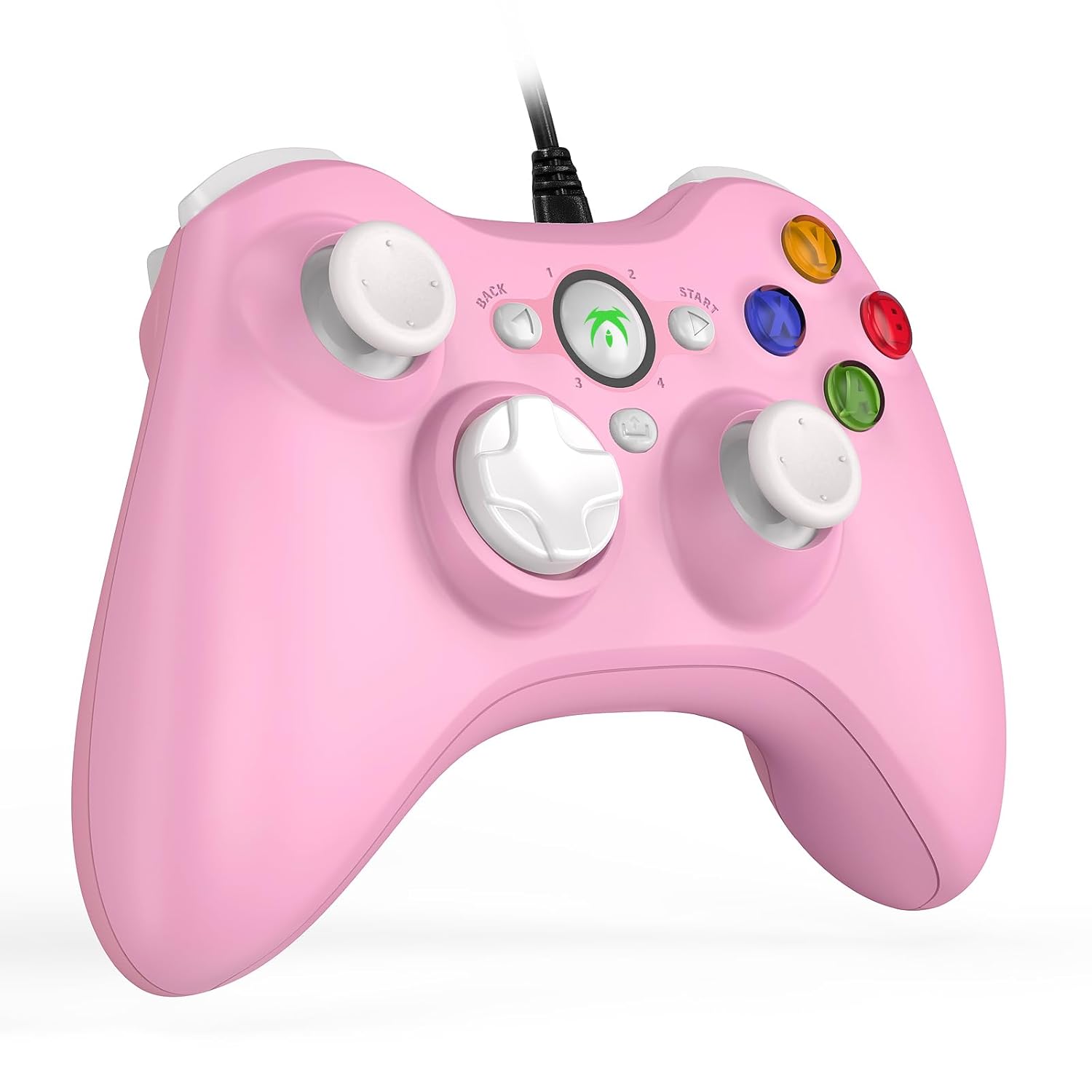
Image 3.1: The DYONDER Wired PC Controller with its USB cable.
4. Operating Instructions
4.1 Button Layout
The controller features a standard layout including two analog sticks, a D-pad, action buttons (A, B, X, Y), shoulder buttons (LB, RB), and triggers (LT, RT), along with Start, Back, and Guide buttons.

Image 4.1: Front view of the controller highlighting button placement.
4.2 Using the Turbo Function
The Turbo function allows for rapid, repeated input of a button press without continuous manual pressing. To activate:
- Press and hold the Turbo button.
- While holding Turbo, press the desired action button (e.g., A, B, X, Y, LB, RB, LT, RT) you wish to set for rapid fire.
- Release both buttons. The selected action button will now activate its Turbo function.
To deactivate the Turbo function for a specific button, repeat the steps above.

Image 4.2: Location of the Turbo button.
4.3 Dual Vibration Feedback
The controller features dual vibration motors that provide tactile feedback during gameplay. This enhances realism by simulating in-game events such as impacts, explosions, or engine rumble. Vibration intensity is typically controlled by the game itself.

Image 4.3: Illustration of the dual vibration mechanism.
4.4 Hall Trigger Buttons
The Hall Trigger buttons utilize magnetic sensors for input, offering greater precision and durability compared to traditional mechanical triggers. This results in smoother and more accurate control, especially in racing or shooting games.

Image 4.4: Detail of a Hall Trigger button.

Image 4.5: Hall Trigger vs. standard trigger comparison.
5. Maintenance
5.1 Cleaning
- Regularly wipe the controller with a soft, dry cloth to remove dust and grime.
- For stubborn dirt, slightly dampen the cloth with water or a mild, non-abrasive cleaner. Avoid excessive moisture.
- Do not use harsh chemicals, solvents, or abrasive materials, as these can damage the controller's finish.
5.2 Storage
- Store the controller in a cool, dry place away from direct sunlight and extreme temperatures.
- Avoid wrapping the cable too tightly around the controller to prevent damage to the wire or connection points.
6. Troubleshooting
If you encounter issues with your DYONDER Wired PC Controller, please refer to the following common solutions:
6.1 Controller Not Recognized
- Check USB Connection: Ensure the USB cable is securely plugged into both the controller and the device. Try a different USB port.
- Restart Device: Sometimes, a simple restart of your PC, console, or TV box can resolve connection issues.
- Test on Another Device: If possible, test the controller on another compatible device to determine if the issue is with the controller or the original device.
- Update Drivers: For PC, ensure your operating system's USB drivers are up to date. While typically plug-and-play, system updates can sometimes affect peripheral recognition.
6.2 Buttons or Joysticks Unresponsive
- Check Game Settings: Verify that the game you are playing supports controllers and that the input settings are correctly configured.
- Recalibrate (PC): On Windows, you can recalibrate game controllers through the 'Set up USB game controllers' option in the Control Panel.
- Inspect for Physical Damage: Check for any visible damage or debris obstructing the buttons or joysticks.
6.3 Vibration Not Working
- Game Support: Confirm that the game you are playing supports vibration feedback.
- In-Game Settings: Check the game's options menu to ensure vibration is enabled.
- System Settings: On some platforms, vibration can be disabled in system-level controller settings.
7. Specifications
| Model | B0CNSXM48W |
| Brand | DYONDER |
| Connectivity | Wired USB |
| Cable Length | 2 meters (6.5 feet) |
| Compatibility | Windows, Vista, PS3, Android TV Box (Android 4.0+ with OTG), Tesla |
| Features | Dual Vibration, Hall Trigger Buttons, Turbo Function, Ergonomic Design |
| Item Weight | 8.8 ounces |
| Package Dimensions | 6.5 x 5.04 x 2.83 inches |
8. Warranty and Support
8.1 Warranty Information
DYONDER products are manufactured with quality and care. For specific warranty details regarding your controller, please refer to the warranty card included with your purchase or visit the official DYONDER website. Keep your proof of purchase for warranty claims.
8.2 Customer Support
If you require further assistance, have questions, or encounter issues not covered in this manual, please contact DYONDER customer support. Contact information can typically be found on the product packaging, the official DYONDER website, or through your retailer.
We are committed to providing excellent service and support for our products.