
Seventour P10-3
Seventour P10-3 Wireless Car Stereo Instruction Manual
Model: P10-3 | Brand: Seventour
1. Introduction
This manual provides comprehensive instructions for the installation, operation, and maintenance of your Seventour P10-3 Wireless Car Stereo. This portable car stereo system offers advanced features including wireless Apple CarPlay and Android Auto, a built-in 4K front dash camera, a 1080P backup camera, mirror link functionality, GPS navigation support, Bluetooth connectivity, AUX, and FM radio audio output. Please read this manual thoroughly before using the device to ensure proper functionality and safety.
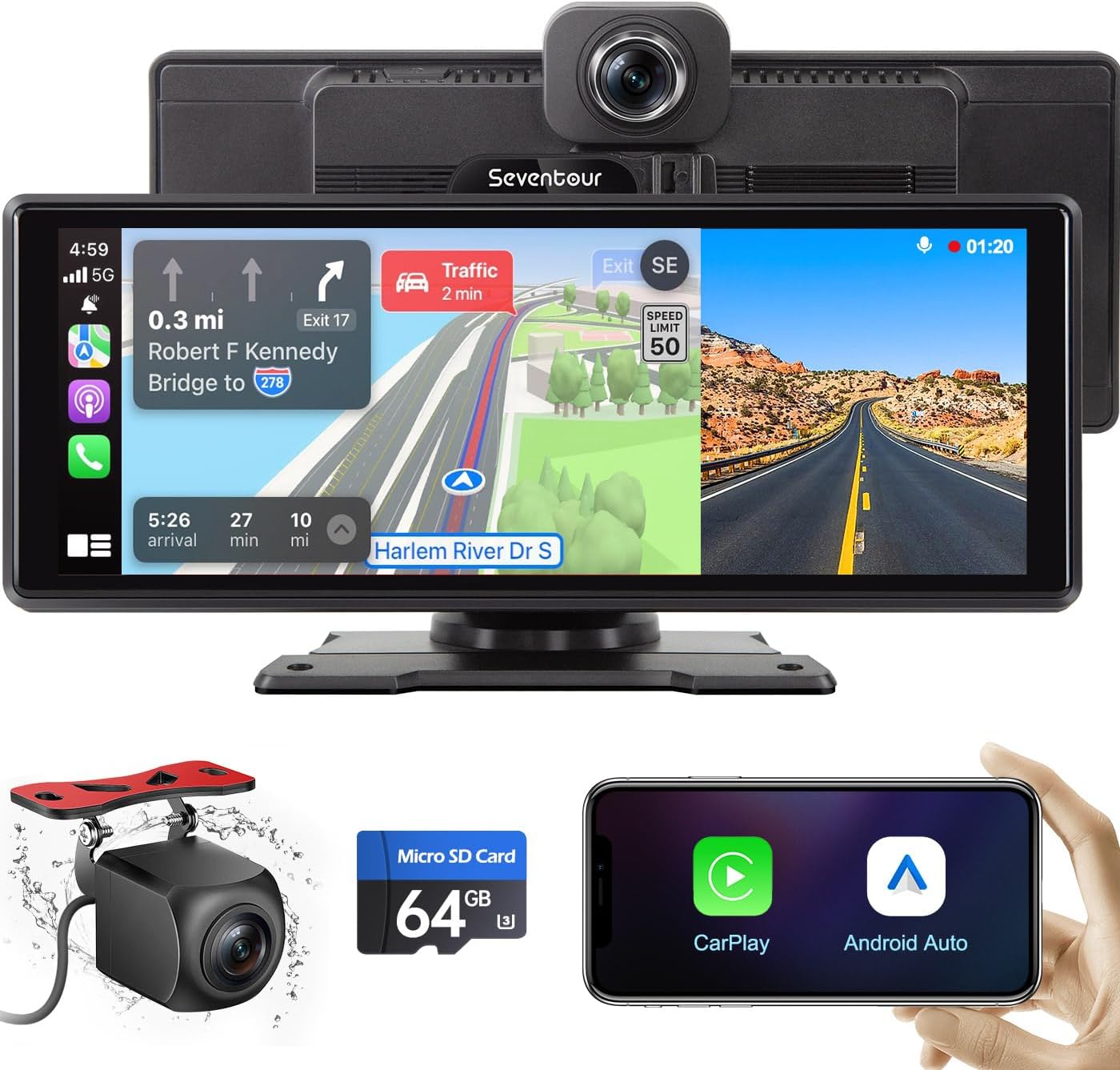
Image: The Seventour P10-3 Wireless Car Stereo system, showcasing the main display unit with integrated front camera, a separate backup camera, and a smartphone illustrating Apple CarPlay and Android Auto compatibility.
2. Product Features
- Wireless Apple CarPlay & Android Auto: Seamlessly integrate your smartphone for navigation, music, and voice control via Bluetooth and Wi-Fi. Supports both wireless and wired connections.
- Voice Control: Utilize Siri or Google Assistant for hands-free operation, enhancing driving safety.
- Integrated Dual Dash Cam: Features a built-in 4K front camera and a 1080P backup camera. Supports loop recording, gravity sensing, and real-time video playback on the 10.26-inch screen. Includes Forward Collision Warning and Lane Departure Warning functions.
- HD Touch Screen & Mirror Link: A responsive 10.26-inch high-definition touch screen. Supports AirPlay for iOS and Miracast for Android, allowing screen mirroring from your phone.
- Multiple Audio Output Options: Transmit audio to your car's speakers via Bluetooth, FM radio transmission, or AUX wired output. The unit also has built-in speakers.
- Real-time GPS Navigation: Shares real-time map data from your mobile phone, providing access to destinations, nearby maps, and current road conditions.

Image: Illustration of the integrated 4K front and 1080P rear dash cam system, demonstrating video capture quality and the split-screen display capability for simultaneous navigation and dash cam monitoring.

Image: The car stereo screen displaying the Apple CarPlay interface, highlighting its compatibility with iPhone devices for seamless integration of apps and features.

Image: The car stereo screen displaying the Android Auto interface, highlighting its compatibility with Android devices for seamless integration of apps and features.
3. What's in the Box
The Seventour P10-3 package includes the following components:
- 1 x Seventour P10-3 Car Stereo Unit (10.26-inch display with integrated front camera)
- 1 x Mount Bracket
- 1 x Cigarette Lighter Power Cable
- 1 x Backup Camera (Length: 11.5 ft)
- 1 x Type-C Cable
- 1 x AUX Audio Cable
- 1 x Micro SD Card (64GB)
- 1 x SD Card Reader
- 1 x User Manuals
- 1 x Bracket Adhesive Sticker

Image: A visual representation of all items included in the product packaging, detailing the main unit dimensions and accessories.
4. Setup and Installation
The Seventour P10-3 is designed for simple installation, adapting to various vehicle types.
4.1 Mounting the Unit
- Choose a Location: Select a suitable flat surface on your dashboard for mounting the unit. Ensure the location does not obstruct your view of the road or interfere with vehicle controls.
- Attach Mount Bracket: Secure the mount bracket to the chosen location using the provided adhesive sticker. Ensure the surface is clean and dry before applying the adhesive for optimal adhesion. The mount is adjustable for optimal viewing angles.
- Attach Stereo Unit: Slide the P10-3 stereo unit onto the mount bracket until it clicks securely into place.

Image: The adjustable mount bracket, demonstrating its flexibility for positioning the unit.
4.2 Power Connection
- Connect the cigarette lighter power cable to the P10-3 unit.
- Insert the other end of the cigarette lighter power cable into your vehicle's 12V-24V cigarette lighter socket. The unit will power on automatically.

Image: The cigarette lighter power adapter connected to a vehicle's power outlet.

Image: The P10-3 unit is suitable for various vehicle types, including sedans, SUVs, trucks, and RVs.
4.3 Backup Camera Installation (Optional)
For optimal functionality, professional installation of the backup camera is recommended. Ensure sufficient cable slack, especially for hatchbacks, to prevent damage when opening the trunk.

Image: The AHD 1080P backup camera view displayed on the screen, featuring parking assistance lines.
5. Operating Instructions
5.1 Connecting to Apple CarPlay / Android Auto
The P10-3 supports both wireless and wired connections for Apple CarPlay and Android Auto.
- Wireless Connection:
- Ensure Bluetooth and Wi-Fi are enabled on your smartphone.
- On the P10-3 unit, navigate to the CarPlay or Android Auto icon.
- Search for the P10-3's Bluetooth signal on your phone and pair. Follow any on-screen prompts to complete the connection.
- Wired Connection:
- Connect your smartphone to the P10-3 unit using a compatible USB cable (Type-C cable provided).
- The unit should automatically detect your phone and launch CarPlay or Android Auto.
5.2 Voice Control (Siri / Google Assistant)
Once connected to Apple CarPlay or Android Auto, you can activate your phone's voice assistant for hands-free control.
- To activate Siri (for Apple CarPlay) or Google Assistant (for Android Auto), use the designated voice command (e.g., "Hey Siri" or "Hey Google") or press the voice control button on the P10-3 screen if available.
- You can then issue commands for navigation, playing music, making calls, sending messages, and more.

Image: Examples of voice commands for Siri and Google Assistant, demonstrating hands-free operation.
5.3 Audio Output Methods
The P10-3 offers several ways to output audio to your car's speakers:
- Method I: Bluetooth Transmission (Recommended)
Connect the P10-3 to your car's original stereo system via Bluetooth. This method generally provides the best sound quality and allows for steering wheel control of volume.
- Method II: AUX Cable Connection
Use the provided AUX audio cable to connect the P10-3's AUX output to your car's AUX input. Select AUX as the audio source on your car's stereo.
- Method III: FM Radio Transmission
Tune the P10-3 to an unused FM frequency. Then, tune your car's FM radio to the same frequency to receive audio wirelessly.
- Built-in Speakers
The P10-3 has built-in speakers for direct audio playback, suitable for situations where external car speakers are not desired or available.

Image: Illustration of the various audio output methods available for connecting the P10-3 to your vehicle's sound system.
5.4 Dash Cam Operation
- The built-in 4K front camera and 1080P backup camera automatically begin recording when the device is powered on.
- Recordings are saved to the included 64GB Micro SD card. The system supports loop recording, overwriting the oldest files when the card is full.
- Gravity sensing (G-sensor) automatically locks video files in case of sudden impacts or collisions, preventing them from being overwritten.
- View and play recorded videos directly on the 10.26-inch screen.
- The unit also features Forward Collision Warning (FCW) and Lane Departure Warning (LDW) functions to assist with driving safety.

Image: Various display modes, including full-screen dash cam view and split-screen options for simultaneous navigation and camera monitoring.

Image: A close-up view of the dash cam interface on the P10-3 screen.

Image: The included 64GB Micro SD card for video storage.

Image: The system supports 24-hour parking monitoring, providing continuous surveillance.
5.5 Mirror Link Function
The Mirror Link function allows you to mirror your smartphone's screen onto the P10-3 display.
- For iOS devices, use AirPlay. For Android devices, use Miracast.
- Ensure your phone and the P10-3 are connected to the same Wi-Fi network or directly connected via USB.
- Activate the Mirror Link function on the P10-3 and follow the instructions on your smartphone to cast its screen.
5.6 GPS Navigation
When connected to Apple CarPlay or Android Auto, the P10-3 utilizes your smartphone's GPS capabilities.
- Access navigation applications (e.g., Apple Maps, Google Maps, Waze) directly from the CarPlay or Android Auto interface.
- The system provides real-time positioning, turn-by-turn directions, and traffic updates, ensuring smooth travel.
6. Maintenance
Proper maintenance ensures the longevity and optimal performance of your Seventour P10-3 unit.
- Cleaning: Use a soft, dry cloth to clean the screen and exterior of the unit. For stubborn smudges, slightly dampen the cloth with water or a screen-safe cleaner. Avoid abrasive materials or harsh chemicals.
- Temperature: Avoid exposing the unit to extreme temperatures, both hot and cold, for extended periods.
- Cable Management: Ensure all cables are neatly routed and secured to prevent damage or interference with driving.
- Software Updates: Periodically check the manufacturer's website for any available firmware or software updates to ensure the best performance and compatibility.
- SD Card Care: Regularly back up important dash cam footage from the Micro SD card. Format the SD card periodically (e.g., once a month) to maintain optimal recording performance and prevent data corruption.
7. Troubleshooting
This section addresses common issues you might encounter with your P10-3 unit.
| Problem | Possible Cause / Solution |
|---|---|
| Unit does not power on. |
|
| Cannot connect to Apple CarPlay / Android Auto wirelessly. |
|
| Microphone not working well / Call audio choppy. |
|
| Unit gets excessively hot. |
|
| FM transmission has static. |
|
| Unit does not turn off automatically. |
|
8. Specifications
| Feature | Detail |
|---|---|
| Model Number | P10-3 |
| Brand | Seventour |
| Display Size | 10.26 inches (Visible screen diagonal: 11" / 27 cm) |
| Front Camera Resolution | 4K |
| Backup Camera Resolution | 1080P |
| Connectivity Technology | Bluetooth, Wi-Fi (for CarPlay/Android Auto), AUX, FM |
| Special Features | GPS Navigation, Apple CarPlay, Android Auto, Mirror Link, Voice Control, Loop Recording, Gravity Sensing, Forward Collision Warning, Lane Departure Warning |
| Control Method | Touch, Voice |
| Mounting Type | Mount Bracket (Adhesive Sticker) |
| Color | BLACK |
| Item Weight | 2.53 pounds |
| Package Dimensions | 10.91 x 5.63 x 5.04 inches |
| Included Components | 1 radio unit, Mount Bracket, Cigarette Lighter Power Cable, Backup Camera, Type-C Cable, AUX Audio Cable, 64GB Micro SD Card, SD Card Reader, User Manuals, Bracket Adhesive Sticker |
9. Warranty and Support
Seventour is committed to providing excellent customer service and product support.
- Product Replacement: If there is any product quality issue within 6 months of purchase, Seventour promises to replace the product with a new one.
- Product Repair: The product can be repaired without any charge within 1 year of purchase.
- Customer Service: Seventour provides professional after-sales support. Customer emails are typically replied to within 12 hours.
Contact Information:
- Phone: +1 833 853 8881
- Email: help@seventour.vip

Image: Seventour Service Support details, including return, replacement, repair policies, and contact information.
Ask a question about this manual
Ask about setup, troubleshooting, compatibility, parts, safety, or missing instructions. Manuals+ will review the question and use this page’s manual context to help answer it.