
1. Introduction
The MIKO Mini Twin Pack consists of two AI-enhanced intelligent robots designed to foster STEM learning and education for children aged 5-12. These robots offer personalized learning experiences, interactive play, and secure communication features. This manual provides essential information for setting up, operating, maintaining, and troubleshooting your MIKO Mini robots.

Image: Two Miko Mini robots, showcasing their design and friendly digital faces.
2. Setup Guide
2.1 Unboxing and Initial Charge
- Carefully remove the MIKO Mini robots and all accessories from the packaging.
- Locate the charging cable. Connect the cable to the charging port on the MIKO Mini and plug the other end into a suitable power adapter (not included) or USB port.
- Allow the MIKO Mini to charge fully before first use. The indicator light will change to show charging status.
2.2 Powering On and App Connection
- Press and hold the power button on the MIKO Mini until it powers on.
- Download the Miko Parent App from your device's app store.
- Open the Miko Parent App and follow the on-screen instructions to create an account and connect your MIKO Mini robot to your home Wi-Fi network. This step is crucial for accessing content and features.
- Ensure your MIKO Mini is connected to a stable internet connection for optimal performance and content updates.

Image: A child holding a Miko Mini, demonstrating its portable size and ease of handling.
3. Operating Your MIKO Mini
3.1 Basic Interaction
MIKO Mini is primarily voice-controlled. To interact, simply say "Hey Miko" followed by your command or question. Miko will respond and guide you through various activities.
3.2 Accessing Content and Features
- Adaptive Learning: Miko's AI creates personalized learning plans in subjects like reading, writing, math, and communication.
- Exploration: Miko Mini provides access to content from international experts, introducing children to diverse cultures and ideas. Exclusive content from brands like Paramount Consumer Products and Disney is available.
- Interactive Apps: Engage with various apps such as the Spell Bee App for learning spelling.
- Video Calling: Miko Mini supports unlimited calling, allowing children to connect with approved contacts through the Miko Parent App.
- Physical Play: Miko Mini encourages movement with AI-infused games like Freeze Dance and Hide and Seek.
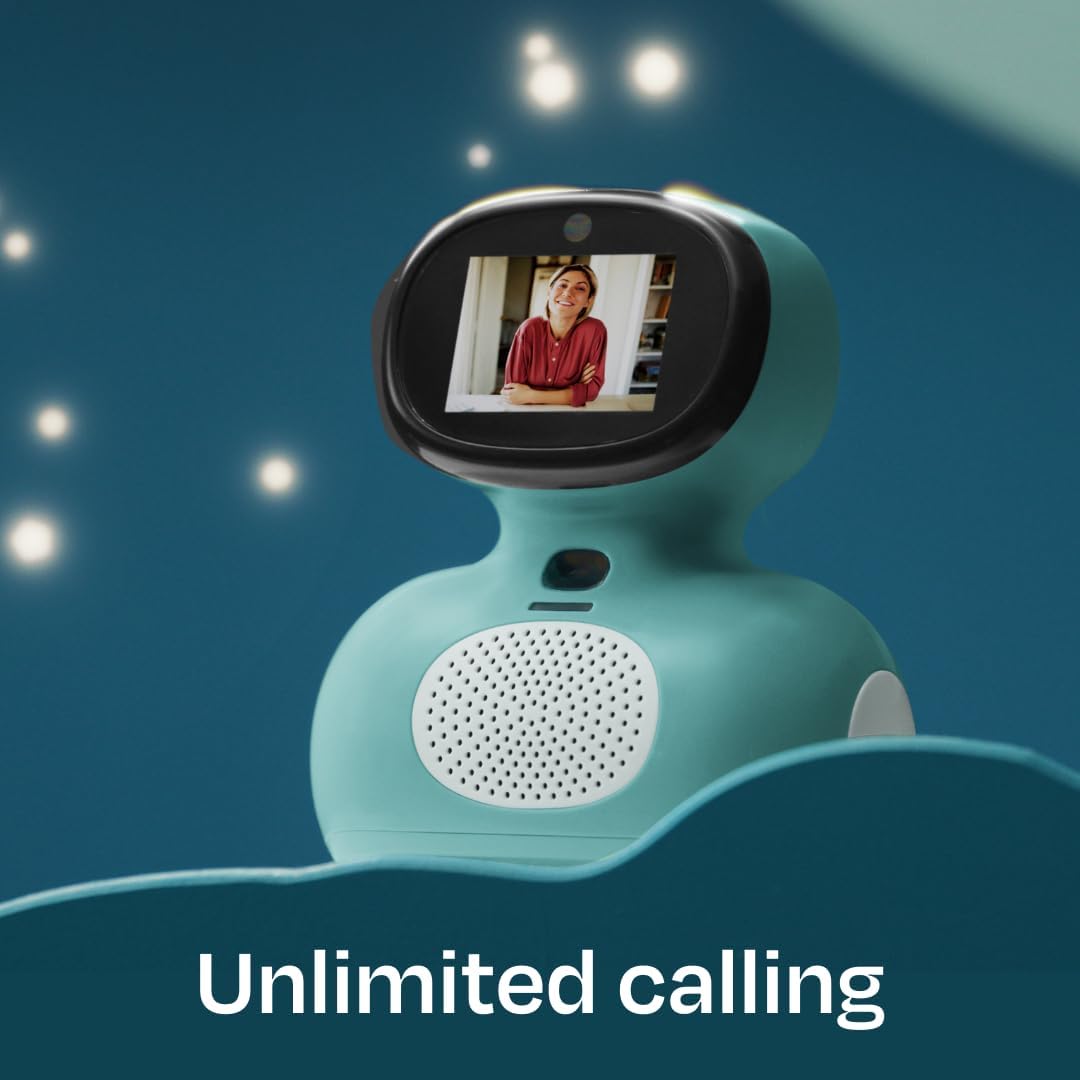
Image: Miko Mini demonstrating its video calling capability, connecting users visually.

Image: Children engaging with Miko Mini and the Spell Bee App on a tablet, highlighting educational interaction.
3.3 Miko Parent App
The Miko Parent App provides control and monitoring features:
- Set educational goals and customize settings.
- Track your child's progress through analytics.
- Manage security and privacy settings.
- Approve contacts for video calling.

Image: Miko Mini highlighting its secure, ad-free, and closed internet access environment.
4. Maintenance
4.1 Cleaning
- Use a soft, dry cloth to wipe the exterior of the MIKO Mini.
- Avoid using harsh chemicals, abrasive cleaners, or excessive moisture, as these can damage the device.
- Keep the speaker grilles and sensor areas free from dust and debris.
4.2 Charging Best Practices
- Always use the provided charging cable.
- Do not leave the MIKO Mini charging for extended periods after it is fully charged.
- Charge the device in a cool, dry place.
4.3 Software Updates
Ensure your MIKO Mini is connected to Wi-Fi regularly to receive automatic software updates. These updates provide new features, performance improvements, and security enhancements.
5. Troubleshooting
5.1 Common Issues
- MIKO Mini not turning on: Ensure the device is fully charged. Connect it to the charger and wait a few minutes before attempting to power on again.
- No response to voice commands: Check if the microphone is clear of obstructions. Ensure the robot is powered on and connected to Wi-Fi. Speak clearly and at a moderate volume.
- Connectivity issues: Verify your Wi-Fi network is active and the signal is strong. Restart your Wi-Fi router if necessary. Reconnect MIKO Mini to the Wi-Fi network via the Miko Parent App.
- App content not loading: Ensure your Miko Max subscription is active and your MIKO Mini has a stable internet connection.
5.2 Resetting the Device
If your MIKO Mini is unresponsive, you may perform a soft reset by pressing and holding the power button for approximately 10-15 seconds until the device powers off and then restart it. For persistent issues, consult the Miko Parent App for advanced troubleshooting options or contact customer support.
6. Specifications
| Feature | Detail |
|---|---|
| Product Dimensions | 7.2 x 6.5 x 9.8 inches |
| Recommended Age | 5 - 10 years |
| Model Number | Miko Mini Twin Pack |
| Key Hardware | Wide-Angle HD Camera, Microphone Array, Time of Flight Range Sensor, High Performance Speakers, Odometric Sensors, Rubberized Wheels |
| Body Material | Rugged ABS Body |
| Safety Certification | kidSAFE COPPA+ certified |

Image: Detailed view of Miko Mini's hardware and sensor components.
7. Miko Max Subscription and Support
7.1 Miko Max Subscription
The Miko Max subscription enhances your MIKO Mini experience with exclusive content and features:
- 30-Day Free Trial: Explore premium features for one month.
- 1-Year Paid Subscription: Designed for children aged 5-10, offering engaging, kid-friendly content, interactive games, and educational materials.
- Access: Use the Miko app on your phone or tablet to unlock over 30 premium apps with Miko Max.
- Renewal and Cancellation: The subscription renews automatically. You can pause or cancel anytime via the Miko app or by contacting customer support.

Image: Miko Mini showcasing integration with Miko Max content, including Disney Stories and other educational apps.
7.2 Customer Support
For further assistance, technical support, or inquiries regarding your Miko Max subscription, please refer to the help section within the Miko Parent App or visit the official MIKO website for contact information.