
CHROX X98K
Contents
CHROX X98K Android 13.0 TV Box User Manual
Model: X98K
Introduction
This user manual provides comprehensive instructions for the setup, operation, and maintenance of your CHROX X98K Android 13.0 TV Box. Please read this manual carefully before using the device to ensure optimal performance and safety.
Safety Information
- Use only the provided power adapter. Using unauthorized adapters may damage the device and void the warranty.
- Do not expose the device to water, moisture, or extreme temperatures.
- Avoid placing the device near heat sources or in direct sunlight.
- Do not attempt to disassemble or repair the device yourself. Refer all servicing to qualified personnel.
- Ensure proper ventilation around the device to prevent overheating.
Package Contents

The image displays all items included in the CHROX X98K Android TV Box package. This includes the main X98K Android 13.0 TV Box unit, a power adapter, an HD cable, a remote control, and the user manual.
Please check the box for the following items:
- 1 x CHROX X98K Android 13.0 TV Box
- 1 x Power Adaptor
- 1 x HD Cable
- 1 x Remote Control
- 1 x User Manual
If any items are missing or damaged, please contact customer support.
Product Overview

This image shows the CHROX X98K Android TV Box alongside its dedicated remote control. The TV box features a sleek, dark design with the "X98K" logo prominently displayed. The remote control is black with various navigation and control buttons.

The diagram illustrates the various ports and physical dimensions of the CHROX X98K Android TV Box. It highlights ports such as Optical, HDMI, Ethernet, USB, and AV, along with its compact dimensions of 104mm x 104mm x 21mm.
Device Ports and Indicators:
- HD (HDMI 2.0a): Connects to your TV or display for video and audio output.
- Ethernet (LAN): For wired network connection.
- USB 3.0 Port: For connecting high-speed USB devices.
- USB 2.0 Port: For connecting standard USB devices.
- DC 5V/2.5A: Power input port.
- AV Port: For connecting to older TVs using an AV cable (not included).
- Optical Port: For digital audio output.
- Micro SD Card Slot: For expanding storage (supports up to 64GB).
- Power Indicator (LED): Blue when ON, Red when in Standby.
Setup Guide
1. Connecting the Device
- Connect one end of the provided HD cable to the HD port on the TV Box and the other end to an available HDMI input on your television or display.
- Connect the power adapter to the DC 5V/2.5A port on the TV Box, then plug the adapter into a wall outlet.
- (Optional) For a wired internet connection, connect an Ethernet cable from your router to the Ethernet (LAN) port on the TV Box.
- (Optional) Insert a Micro SD card into the Micro SD Card Slot if you wish to expand storage.
2. Initial Power-On
- Turn on your television and select the correct HDMI input source that the TV Box is connected to.
- The TV Box will automatically power on once connected to power. The power indicator LED will turn blue.
- Follow the on-screen instructions for initial setup, including language selection and network configuration.
3. Network Connection
The CHROX X98K supports both wired (Ethernet) and wireless (Wi-Fi) connections.

This image highlights the Wi-Fi 6 capabilities of the X98K TV Box, demonstrating its faster speeds and enhanced security compared to older Wi-Fi standards. The device supports 2.4GHz and 5GHz dual-band Wi-Fi.
Wi-Fi Connection:
- From the home screen, navigate to Settings.
- Select Network & Internet.
- Turn on Wi-Fi and select your desired network from the list.
- Enter the Wi-Fi password if prompted and select Connect.
Ethernet Connection:
If you connected an Ethernet cable during setup, the device should automatically detect and use the wired connection. No further configuration is typically required.
Operating Instructions
Navigating the Android 13.0 Interface
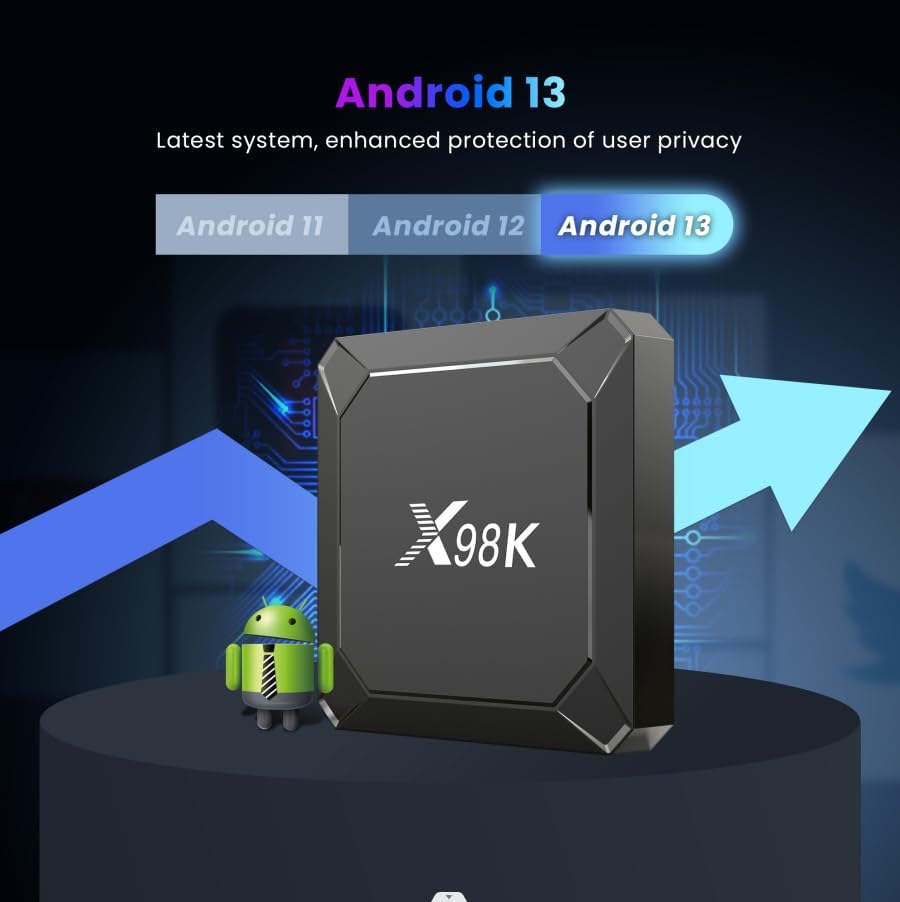
This image illustrates the evolution of the Android operating system, emphasizing that the X98K TV Box runs on the latest Android 13.0, which offers new features and enhanced user privacy protection.
The CHROX X98K runs on Android 13.0, providing a user-friendly interface. Use the included remote control to navigate:
- Directional Pad (D-Pad): Use the up, down, left, and right arrows to move between icons and menu options.
- OK Button: Confirms selections.
- Back Button: Returns to the previous screen.
- Home Button: Returns to the main home screen.
- Menu Button: Accesses context-sensitive menus (if available).
- Volume Buttons: Adjusts audio volume.
Installing and Uninstalling Applications
You can download and install applications from the Google Play Store or other authorized sources.
Installing Apps:
- Open the Google Play Store app from the home screen.
- Search for the desired application.
- Select the app and click Install.
Uninstalling Apps:
- Go to Settings > Apps.
- Select the app you wish to uninstall.
- Choose Uninstall and confirm.
Media Playback and Connectivity

This infographic summarizes the key features of the X98K TV Box, such as its Android 13.0 OS, support for 8K video codec, Bluetooth 5.0, H.265 decoding, HDR (HDR10+), and WiFi 6 connectivity.
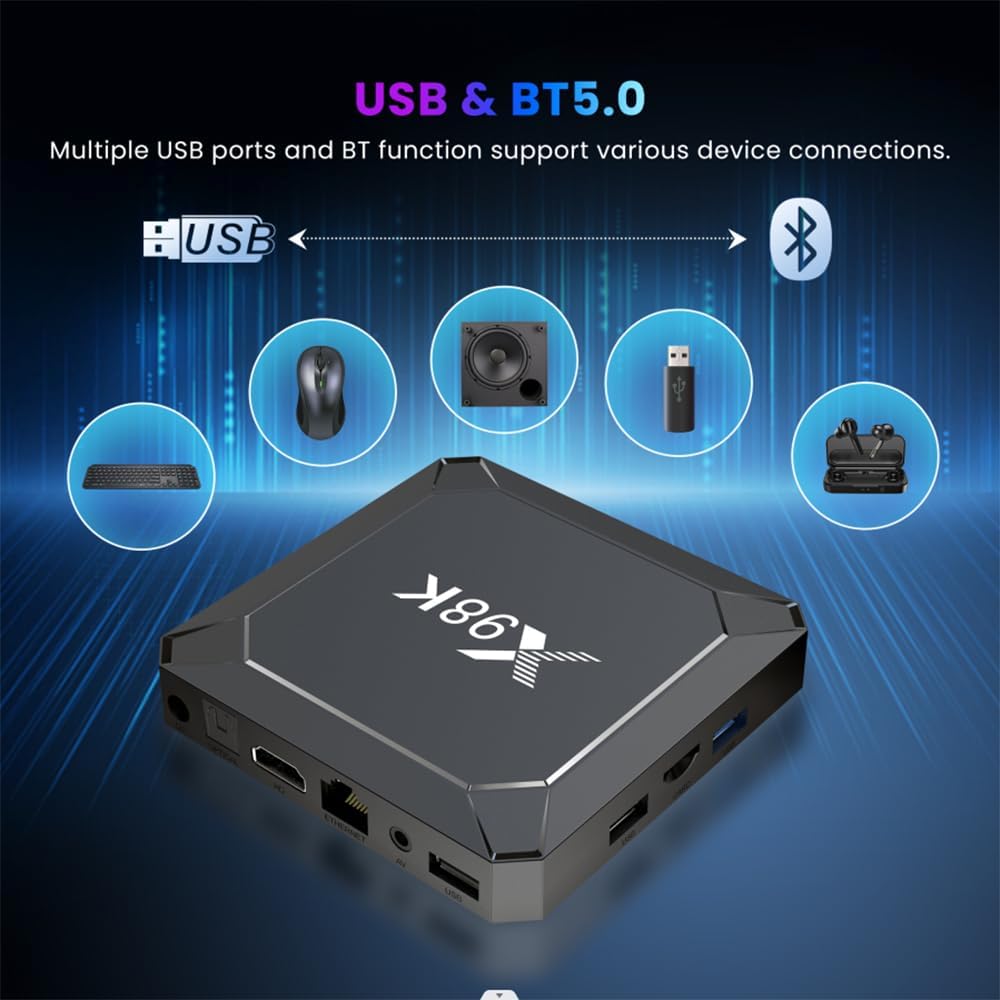
The image demonstrates the versatility of the X98K TV Box by showing multiple USB ports and Bluetooth functionality supporting various device connections, including a mouse, keyboard, speaker, USB drive, and headphones.
- 4K UHD and 3D Playback: The device supports 4K (3840x2160 pixel) video output and 3D video playback. Ensure your display supports these resolutions and features for optimal viewing.
- USB Devices: Connect USB flash drives, external hard drives, keyboards, or mice to the USB 2.0 or USB 3.0 ports for media playback or enhanced control.
- Bluetooth Connectivity: Pair Bluetooth devices such as headphones, speakers, or game controllers via the Bluetooth 4.0 (or 5.0 as per some images) settings. Go to Settings > Connected devices > Pair new device.
Maintenance
Cleaning
- Disconnect the power adapter before cleaning.
- Use a soft, dry cloth to wipe the exterior of the device.
- Do not use liquid cleaners or abrasive materials.
Software Updates
Periodically check for system updates to ensure your device has the latest features and security patches.
- Go to Settings > About device > System update.
- Follow the on-screen prompts to download and install any available updates.
Storage Management
To optimize performance, regularly manage your device's storage.
- Go to Settings > Storage to view storage usage.
- Uninstall unused applications.
- Clear cache data for apps that consume a lot of space.
- Utilize external storage (Micro SD card or USB drive) for media files.
Troubleshooting
| Problem | Possible Cause | Solution |
|---|---|---|
| No power | Power adapter not connected or faulty. | Ensure the power adapter is securely connected to the device and a working power outlet. Try a different outlet. |
| No display on TV | Incorrect HDMI input selected; HD cable loose or faulty. | Check that your TV is set to the correct HDMI input. Ensure the HD cable is securely connected at both ends. Try a different HD cable or HDMI port on your TV. |
| No Wi-Fi connection | Incorrect Wi-Fi password; router issue; device too far from router. | Verify the Wi-Fi password. Restart your router and the TV Box. Move the TV Box closer to the router or use an Ethernet cable. |
| Remote control not working | Low batteries; line of sight blocked. | Replace the batteries in the remote control. Ensure there are no obstructions between the remote and the TV Box. |
| Apps crashing or slow performance | Too many apps running; low storage; outdated software. | Close background apps. Clear app caches or uninstall unused apps. Check for system updates. Restart the device. |
Specifications

This image highlights the core components of the X98K TV Box, specifically the Rockchip RK3528 processor, which includes a Quad-core ARM Cortex A53 CPU and a Mali-450 GPU, ensuring powerful performance. It also shows available RAM (2GB/4GB) and ROM (16GB/32GB/64GB) configurations.
| Feature | Specification |
|---|---|
| Operating System | Android 13.0 |
| Chipset | RK3528A Quad-Core 64bit Cortex-A53 |
| GPU | Penta-Core Mali-450 |
| FLASH (ROM) | EMMC 32GB |
| SDRAM (RAM) | 4GB |
| USB Ports | 1 x USB 3.0, 1 x USB 2.0 |
| LAN | Ethernet 10/100M standard RJ-45 |
| Wireless | 2.4G /5G dual-band Wifi 802.11 a/b/g/n |
| Bluetooth | 4.0 |
| Card Reader | Micro SD cards, Maximum support 64G |
| DisplayPort | HD (HD 2.0a for 4k@60Hz) |
| Video Decoder Support | 4K VP9, H.265/H.264, VC-1, MPEG-1/2/4, VP6/8 |
| Video Output | 4K (3840x2160 pixel) High Definition |
| Power Supply | INPUT: 100-240V 50/60HZ OUTPUT: DC 5V/2.5A |
| Operating Temperature | -10℃ to 45℃ |
Warranty and Support
Warranty Information
Your CHROX X98K Android 13.0 TV Box comes with a standard manufacturer's warranty. Please refer to the warranty card included in your package or contact your retailer for specific warranty terms and conditions.
Customer Support
For technical assistance, troubleshooting, or any inquiries regarding your CHROX X98K TV Box, please contact CHROX customer support through the contact information provided on the product packaging or the official CHROX website.
When contacting support, please have your product model (X98K) and purchase details ready.
Documents and downloads
Ask a question about this manual
Ask about setup, troubleshooting, compatibility, parts, safety, or missing instructions. Manuals+ will review the question and use this page’s manual context to help answer it.