
1. Introduction
This manual provides detailed instructions for the installation, operation, and maintenance of your NUASI 4G LTE Outdoor Surveillance Camera. Please read this manual thoroughly before using the product to ensure proper function and safety.
The NUASI 4G LTE Outdoor Surveillance Camera is designed for remote outdoor monitoring where Wi-Fi access is unavailable. It operates on 3G/4G LTE networks and is ideal for locations such as farms, construction sites, vacation homes, and warehouses. The camera supports various European SIM card providers including Vodafone, Wind Tre, Telekom, Orange, SFR, Bouygues, and O2.
2. Package Contents
Verify that all items are present in your package:
- 2 x NUASI 4G Outdoor Solar Surveillance Cameras
- 2 x 32GB SD Memory Cards
- Mounting accessories (screws, wall plugs)
- User Manual
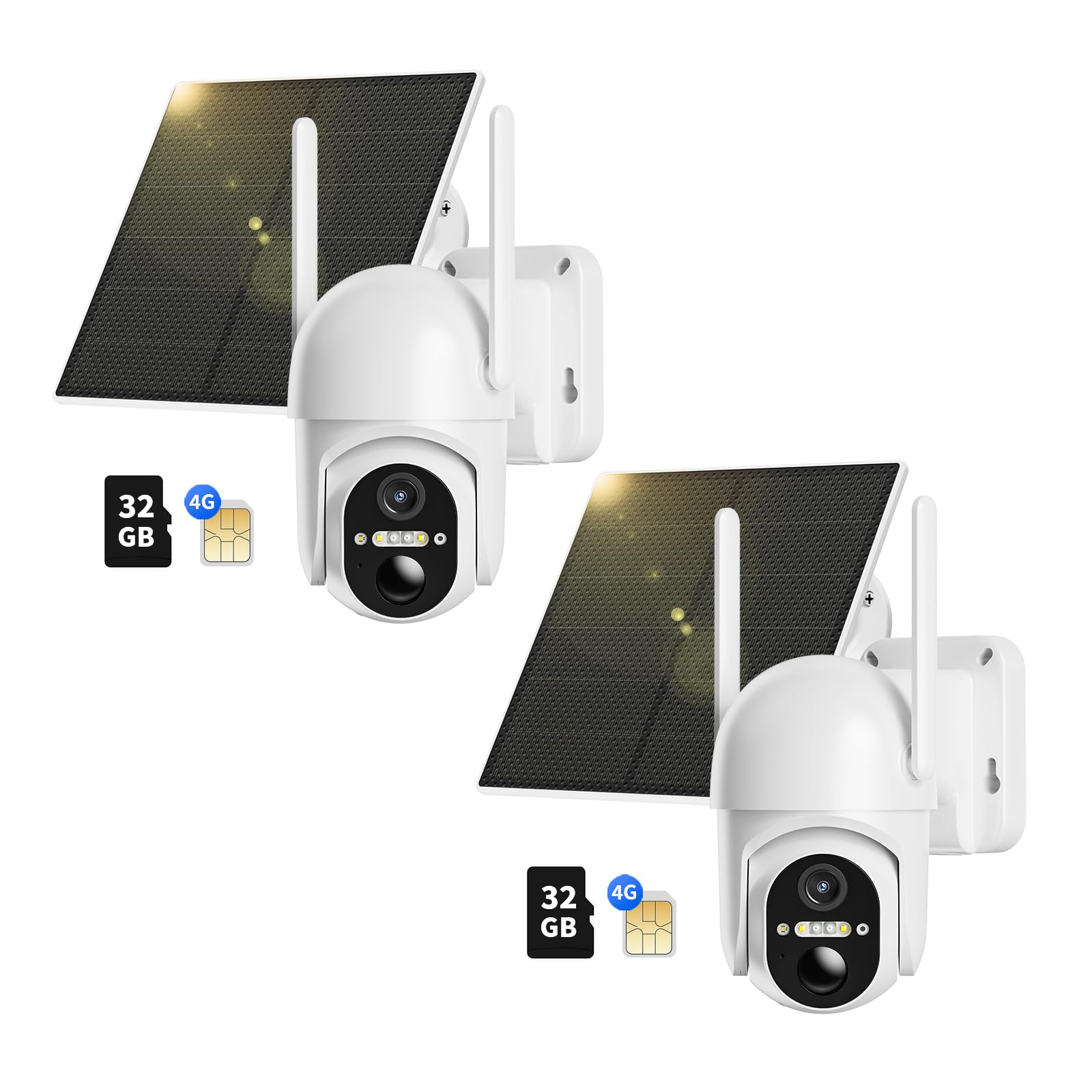
Image: Main product view of the NUASI 4G LTE Outdoor Surveillance Camera with its integrated solar panel.
3. Product Features
- 4G LTE Connectivity: Operates independently without Wi-Fi, using a SIM card for data transmission.
- Solar Powered: Equipped with a 6W high-efficiency solar panel and a 10400mAh battery for continuous operation.
- 2K Super HD Video: Captures clear 2K resolution video and images day and night.
- 360° PTZ Functionality: Pan 355°, Tilt 100°, and 4x digital zoom for comprehensive area coverage.
- 30m Color Night Vision: Integrated spotlight and advanced image sensor provide full-color night vision up to 30 meters.
- PIR Detection: Passive Infrared sensor for accurate motion detection.
- Two-Way Audio: Built-in microphone and speaker for communication.
- Local & Cloud Storage: Supports up to 128GB SD card storage (32GB included) and cloud storage options.
- IP66 Weatherproof: Durable design for outdoor use in various weather conditions.
- Mobile App Control: Remote access and control via the UBox app on smartphones and tablets.
4. Setup Guide
4.1. SIM Card and SD Card Installation
- Locate the SIM card and SD card slot on the camera. This is usually protected by a rubber cover.
- Carefully open the cover.
- Insert the provided 32GB SD card into the SD card slot. Ensure it is inserted correctly until it clicks into place.
- Insert a compatible 4G LTE SIM card into the SIM card slot. Ensure the SIM card is activated and has a data plan.
- Close the rubber cover firmly to maintain the camera's IP66 weatherproof rating.
Note: If using your own SIM card, ensure it is compatible with 3G/4G LTE networks in your region. The camera is compatible with most European providers like Vodafone, Wind Tre, Telekom, Orange, SFR, Bouygues, O2.
4.2. Charging the Camera
Before initial use, ensure the camera's internal battery is sufficiently charged. Connect the camera to a power source using a standard USB charger (not included) or allow the solar panel to charge it under direct sunlight for at least 3 hours.
4.3. App Installation and Camera Pairing
- Download the UBox app from the Apple App Store (for iOS devices) or Google Play Store (for Android devices).
- Open the UBox app and create an account or log in.
- Follow the in-app instructions to add a new device. This typically involves scanning a QR code on the camera or manually entering its ID.
- Ensure your smartphone is connected to the internet during the pairing process.

Image: UBox app available on Apple App Store and Google Play, shown on a smartphone.
4.4. Mounting the Camera
- Choose a suitable location for installation. The location should have good 4G LTE signal reception and receive ample direct sunlight for the solar panel.
- Use the provided mounting bracket and screws to securely attach the camera to a wall or pole.
- Adjust the camera angle to cover the desired surveillance area.
5. Operating Instructions
5.1. Live View and Playback
- Open the UBox app on your smartphone or tablet.
- Select the desired camera from your device list to view the live feed.
- Use the app interface to pan, tilt, and zoom the camera.
- Access recorded footage from the SD card or cloud storage through the playback function in the app.
5.2. Motion Detection and Alerts
- Configure motion detection sensitivity and alert settings within the UBox app.
- When motion is detected, the camera will record an event and send a notification to your paired device.
5.3. Two-Way Audio
- During live view, tap the microphone icon in the UBox app to speak through the camera's speaker.
- The camera's built-in microphone will capture audio from the surveillance area.
5.4. Data Privacy and Security
The camera utilizes AES algorithm for data encryption and ECDHE algorithm for strong key exchange, ensuring secure transmission and storage of your camera data.

Image: Shield icon symbolizing data privacy and security features.
6. Maintenance
- Cleaning: Regularly clean the camera lens and solar panel with a soft, damp cloth to ensure optimal performance. Avoid abrasive cleaners.
- Battery Health: Ensure the solar panel receives adequate sunlight to maintain battery charge. In prolonged periods of low sunlight, consider manually charging the camera.
- Firmware Updates: Check the UBox app periodically for available firmware updates to ensure your camera has the latest features and security enhancements.
- SIM Card Data: Monitor your SIM card data usage via the UBox app. If 80% of data is consumed, purchase additional mobile data through the app to prevent the camera from going offline.
7. Troubleshooting
- Camera is offline:
- Check the 4G LTE signal strength at the camera's location.
- Verify that the SIM card has an active data plan and sufficient data balance. Recharge data via the UBox app if necessary.
- Ensure the camera battery is charged. Check solar panel exposure or manually charge the camera.
- Restart the camera by powering it off and on.
- No video recording:
- Check if the SD card is properly inserted and not full. Format the SD card via the app if needed (this will erase all data).
- Verify cloud storage subscription status if using cloud storage.
- Ensure motion detection is enabled and configured correctly in the UBox app.
- Poor image quality:
- Clean the camera lens.
- Ensure there are no obstructions blocking the camera's view.
- Check network signal strength, as poor signal can affect streaming quality.
- Cannot pair camera with app:
- Ensure your smartphone is connected to the internet.
- Verify that the camera is powered on and in pairing mode (refer to app instructions).
- Try resetting the camera (refer to specific camera reset procedure, usually a button press).
8. Specifications
| Feature | Specification |
|---|---|
| Model Number | DENS-CB14S-2P-W1 |
| Brand | NUASI |
| Connectivity Technology | Wireless (Cellular 4G LTE) |
| Video Recording Resolution | 2K |
| Power Source | Solar Powered (with 10400mAh Lithium-polymer battery) |
| Special Features | Two-way audio, Photo sensor, PIR Detection, PTZ (Pan 355°, Tilt 100°), Color Night Vision |
| Compatible Devices | Smartphone, Tablet (via UBox app) |
| Dimensions (L x W x H) | 31 x 19 x 16 cm |
| Weight | 2.31 kilograms |
| Included Components | 2x Cameras, 2x 32GB SD Cards |
| IP Rating | IP66 (Weatherproof) |
| Max SD Card Support | 128GB |
9. Warranty and Support
9.1. Warranty Information
NUASI products typically come with a manufacturer's warranty. Please refer to the product packaging or your purchase receipt for specific warranty terms and duration. The warranty generally covers defects in materials and workmanship under normal use.
9.2. Customer Support
For technical assistance, troubleshooting, or warranty claims, please contact NUASI customer support. Contact information can usually be found on the product packaging, the official NUASI website, or through the seller's contact details on the platform where you purchased the product.
When contacting support, please have your product model number (DENS-CB14S-2P-W1) and purchase details ready.