
Introduction
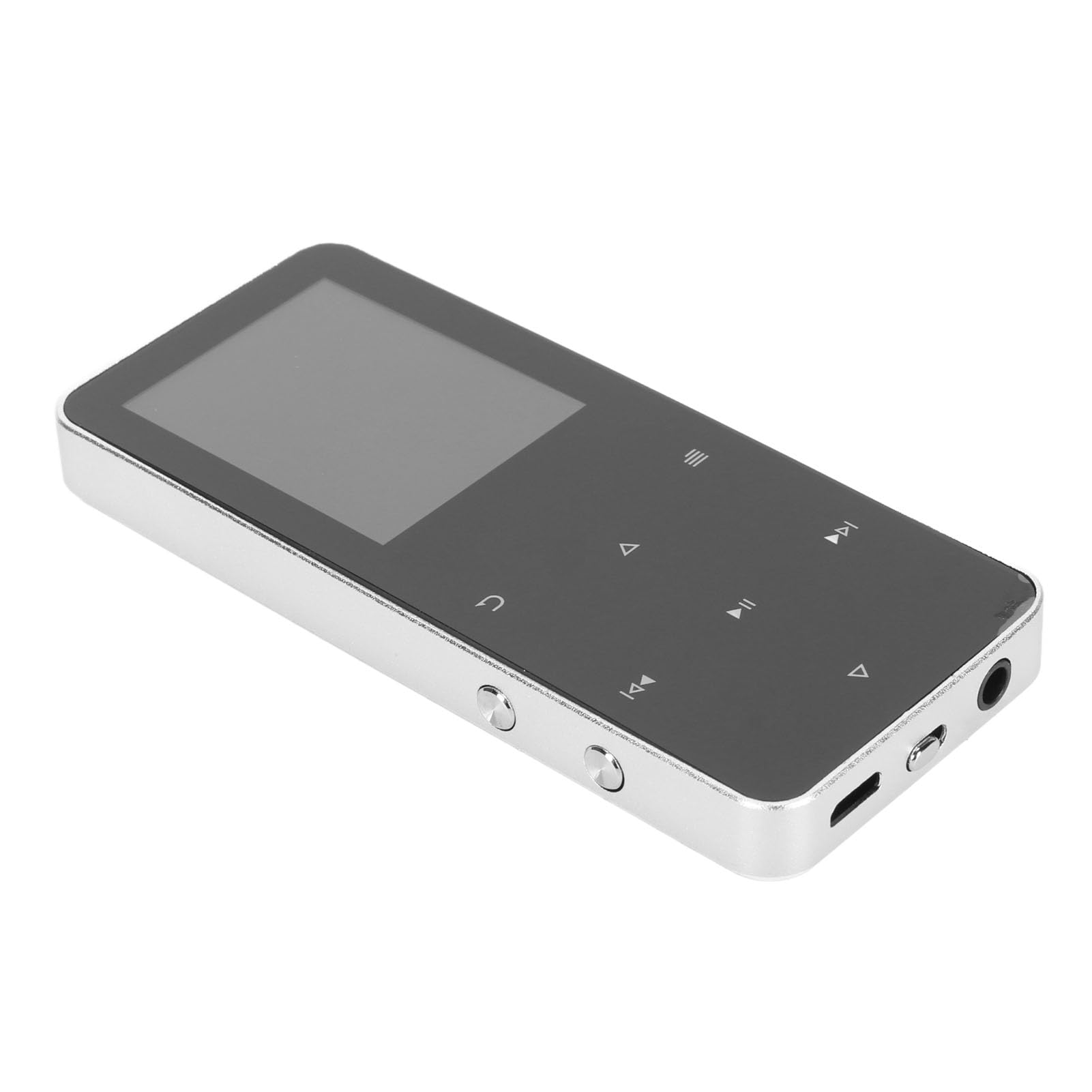
The Dpofirs Bluetooth MP3 Player (Model Dpofirs1q0sg2atrf-19) is a portable audio device designed for music playback, voice recording, FM radio, and e-book reading. It features a 1.8-inch color screen, touch buttons, and Bluetooth 4.2 connectivity for stable audio transmission. Its compact and lightweight design makes it suitable for various activities, including sports.
Key features include:
- Built-in Memory: Sufficient storage for songs, videos, and audiobooks. Expandable up to 128GB via memory card (not included).
- Bluetooth 4.2: Ensures fast and stable wireless data transmission and connection with stereo sound.
- Multi-functional: Beyond music, it supports FM radio, picture browsing, video playback, e-book reading (TXT format), voice recording, stopwatch, and dictionary functions. It can also function as a USB flash drive.
- Portable Design: Classic button design, compact, and lightweight, ideal for on-the-go use.
- Integrated Speaker: Features a built-in HiFi lossless HD speaker.
The Dpofirs MP3 Player is designed for portability, allowing users to enjoy music during activities like jogging.
Setup
- Charging the Device:
Connect the provided data cable to the MP3 player's charging port and the other end to a USB power source (e.g., computer USB port, USB wall adapter). The device will indicate charging status. Ensure the device is fully charged before first use.

The package includes the MP3 player, earphones, and a data cable for charging and data transfer.
- Inserting a Memory Card (Optional):
The device supports a memory card up to 128GB for expanded storage. Locate the memory card slot on the side of the player. Gently insert a compatible memory card until it clicks into place. Ensure the card is inserted in the correct orientation.

The memory card slot is located on the side of the device for easy access.
- Powering On/Off:
Press and hold the power button (usually located on the side or top) for a few seconds to turn the device on or off. The screen will illuminate upon startup.
- Connecting Earphones:
Plug the included earphones or your preferred 3.5mm jack earphones into the headphone port on the device.
Operating Instructions
Basic Navigation
The MP3 player features touch buttons for navigation. Use the directional buttons (up, down, left, right) to move through menus and the central button to select. The 'Back' or 'Return' button (often represented by a curved arrow or 'U' symbol) allows you to go back to the previous screen.

The device features a 1.8-inch color screen and intuitive touch buttons for easy navigation.
Music Playback
- From the main menu, select "Music".
- Browse your music library by artist, album, genre, or folder.
- Select a song to begin playback.
- Use the play/pause, next/previous track buttons to control playback.
- Adjust volume using the dedicated volume buttons (if present) or through the on-screen controls.
Bluetooth Connection
- Go to the "Bluetooth" menu from the main screen.
- Turn Bluetooth "On".
- The player will scan for nearby Bluetooth devices.
- Select your desired Bluetooth headphones or speaker from the list to pair.
- Once paired, audio will be routed through the Bluetooth device.
FM Radio
- Plug in wired earphones; they act as the antenna for the FM radio.
- Select "FM Radio" from the main menu.
- Use the scan function to find available radio stations.
- You can save your favorite stations for quick access.
Voice Recording
- Navigate to the "Recorder" or "Voice Record" function.
- Press the record button to start recording.
- Press the stop button to end and save the recording.
E-Book Reading
The device supports TXT format e-books. Transfer TXT files to the player's memory. Select "E-Book" from the menu, then choose the file you wish to read.
Maintenance
- Cleaning: Use a soft, dry cloth to clean the device's screen and body. Avoid using liquid cleaners or abrasive materials.
- Storage: Store the MP3 player in a cool, dry place away from direct sunlight, extreme temperatures, and humidity.
- Battery Care: To prolong battery life, avoid fully discharging the battery frequently. Charge the device regularly, even if not in use for extended periods.
- Avoid Impact: Protect the device from drops and impacts, which can damage internal components or the screen.
Troubleshooting
| Problem | Possible Cause | Solution |
|---|---|---|
| Device does not turn on. | Low battery or device is frozen. | Charge the device for at least 30 minutes. If still unresponsive, try a soft reset (refer to manual for specific reset instructions, if any, or hold power button for 10-15 seconds). |
| No sound from earphones. | Volume too low, earphones not properly connected, or faulty earphones. | Increase volume. Ensure earphones are fully plugged in. Test with another pair of earphones. |
| Bluetooth device not pairing. | Bluetooth on the player or external device is off, device is out of range, or already paired with another device. | Ensure Bluetooth is enabled on both devices. Place devices closer together. Disconnect from other Bluetooth devices. Try restarting both devices. |
| Cannot transfer files to the device. | Incorrect USB connection mode, driver issues, or full memory. | Ensure the device is connected to the computer in data transfer mode. Check if the memory (internal or external card) is full. Try a different USB port or cable. |
| FM Radio not receiving stations. | Earphones not plugged in (acting as antenna) or weak signal. | Ensure wired earphones are securely plugged in. Try scanning for stations in a different location with better signal reception. |
Specifications
- Item Type: MP3 Player
- Material: Aluminum Alloy
- Screen Type: 1.8 Inch Color Screen
- Battery Capacity: Built-in 300mAh Li-Ion Battery
- Music Formats Supported: MP3, WAV, WMA, FLAC, APE
- Video Formats Supported: AVI, AMA
- Picture Formats Supported: JPG, JPEG
- E-Book Format Supported: TXT
- Bluetooth Version: BT 4.2
- Other Functions: FM Radio, Voice Recording, Stopwatch, Dictionary, Built-in Speaker
- Memory Card Support: Up to 128 GB (Card not included)
- Model Name: Dpofirs1q0sg2atrf-19
- Color: SILVER
Warranty and Support
For warranty information and technical support, please refer to the documentation included with your purchase or contact Dpofirs customer service directly. Keep your purchase receipt as proof of purchase for warranty claims.
Contact Information: Please visit the official Dpofirs website or your retailer's support page for the most up-to-date contact details.