
1. Introduction
Thank you for choosing the GEEKOM A5 Mini PC. This manual provides essential information to help you get started, operate, and maintain your device. Please read this manual thoroughly before using the product and keep it for future reference.
2. Product Overview
2.1 Key Features
- Powerful Performance: Equipped with AMD Ryzen 7 5825U processor (8 Cores, 16 Threads, up to 4.5GHz) and Radeon Vega 8 Graphics.
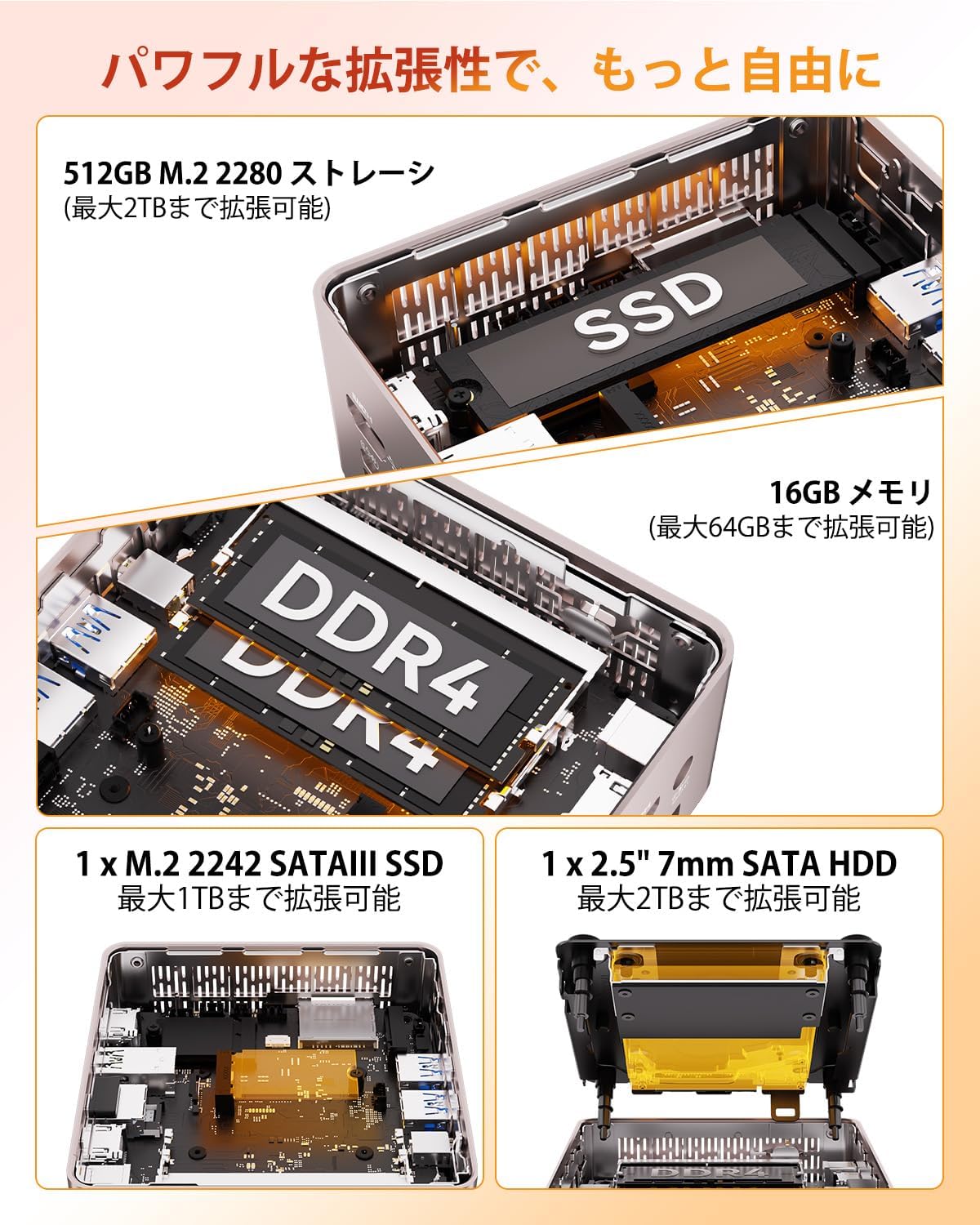
- Ample Memory & Storage: 16GB DDR4 RAM (expandable up to 64GB) and 512GB M.2 PCIe 3.0 SSD (expandable up to 2TB), with additional slots for 2.5-inch SATA SSD/HDD (up to 2TB) and M.2 2242 SATA SSD (up to 1TB).
- Efficient Cooling: Features the proprietary IceBlast 2.0 cooling system for quiet operation (as low as 25dB) and optimal temperature management.
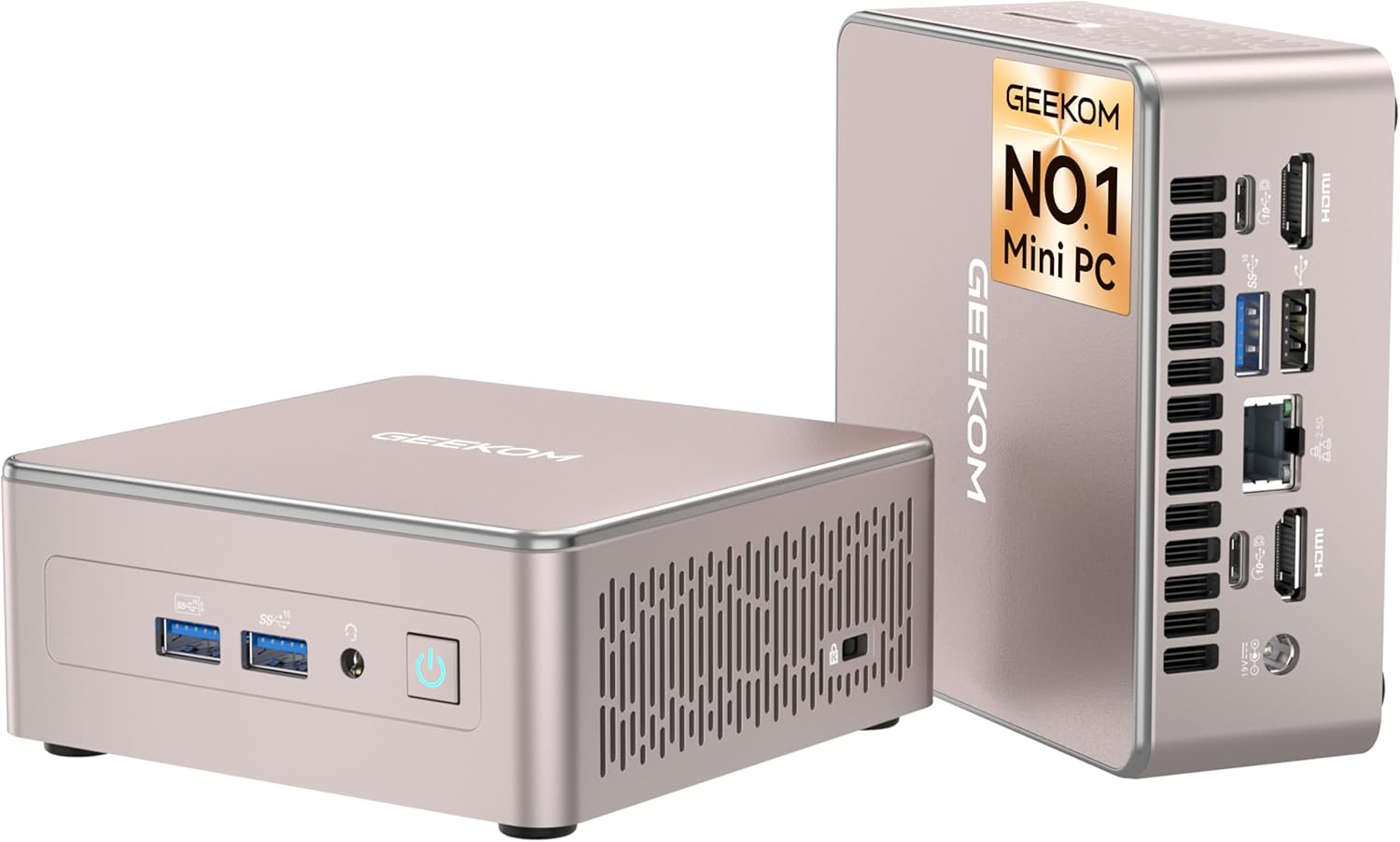
- Versatile Connectivity: Supports Dual HDMI 2.0 (4K), USB 3.2 Gen2 Type-C (8K), USB 3.2 Gen2 Type-A, USB 2.0, 2.5G LAN, SD card reader, and 3.5mm audio jack.
- Advanced Wireless: Integrated Wi-Fi 6 and Bluetooth 5.2 for stable and fast wireless connections.
- Pre-installed OS: Comes with Windows 11 Pro, supporting seamless switching with Linux and Ubuntu.
- Compact and Durable Design: All-metal body, lightweight (650g), and VESA mount compatible for flexible placement.
2.2 Components and Ports
The GEEKOM A5 Mini PC is designed for ease of use with clearly labeled ports and a compact form factor.

2.3 Package Contents
Upon unboxing, ensure all items listed below are present:
- GEEKOM A5 Mini PC
- Power Adapter
- HDMI Cable
- VESA Mount
- User Manual

3. Setup
3.1 Initial Connection
- Connect Display: Connect your monitor(s) to the HDMI ports or USB-C ports using appropriate cables. The GEEKOM A5 supports up to four displays simultaneously.
- Connect Peripherals: Plug in your keyboard, mouse, and other USB devices into the available USB ports.
- Connect Power: Connect the power adapter to the DC Jack on the Mini PC, then plug the power cord into an electrical outlet.
- Network Connection (Optional): For a wired connection, connect an Ethernet cable to the 2.5G RJ45 LAN port. For wireless, Wi-Fi 6 is available after initial setup.
3.2 First Boot and OS Setup
Press the power button on the front of the Mini PC. The system will boot up. Since Windows 11 Pro is pre-installed, you will be guided through the initial Windows setup process, including language selection, network configuration, and user account creation.

4. Operating Instructions
4.1 Power On/Off
- Power On: Press the power button once.
- Power Off: From Windows, go to Start > Power > Shut down. Alternatively, press and hold the power button for 5 seconds for a forced shutdown (not recommended for regular use).
4.2 Network Connectivity
The GEEKOM A5 supports both wired and wireless network connections.
- Wi-Fi 6: After Windows setup, click the network icon in the taskbar, select your Wi-Fi network, enter the password, and connect.
- Bluetooth 5.2: To connect Bluetooth devices, go to Windows Settings > Bluetooth & devices, and pair your device.
- 2.5G LAN: Plug an Ethernet cable into the RJ45 port for a high-speed wired connection.

4.3 Storage Expansion
The GEEKOM A5 offers flexible storage expansion options:
- M.2 2280 PCIe 3.0 SSD: The primary SSD slot supports up to 2TB.
- 2.5-inch SATA SSD/HDD: An additional slot for a 2.5-inch drive (up to 2TB).
- M.2 2242 SATA SSD: A third slot for an M.2 2242 SATA SSD (up to 1TB).
To install additional storage, refer to the detailed instructions in the full user manual or consult a qualified technician.
4.4 Multi-Display Setup
The GEEKOM A5 supports connecting multiple displays for enhanced productivity or entertainment.
- Dual HDMI 2.0 Ports: Connect two 4K monitors via HDMI.
- USB 3.2 Gen2 Type-C Ports: Connect additional monitors, including 8K displays, via the USB-C ports (requires compatible cables/adapters).
You can configure display settings (extend, duplicate, or second screen only) through Windows Display Settings.
5. Maintenance
5.1 General Care
- Keep the Mini PC in a clean, dry environment away from direct sunlight and extreme temperatures.
- Avoid placing heavy objects on top of the device.
- Do not block the ventilation openings.
5.2 Cleaning
Use a soft, dry cloth to clean the exterior of the Mini PC. For stubborn marks, a slightly damp cloth can be used, but ensure no liquid enters the device. Do not use harsh chemicals or abrasive cleaners.
5.3 Software Updates
Regularly check for and install Windows updates to ensure optimal performance and security. You can do this via Windows Settings > Windows Update.
5.4 Cooling System (IceBlast 2.0)
The GEEKOM A5 features an advanced IceBlast 2.0 cooling system designed for efficient heat dissipation and quiet operation. While generally maintenance-free, ensure the air vents are clear of dust and obstructions to maintain optimal airflow.

6. Troubleshooting
This section addresses common issues you might encounter with your GEEKOM A5 Mini PC. For more detailed troubleshooting or issues not listed here, please contact customer support.
| Problem | Possible Cause | Solution |
|---|---|---|
| No Power | Power adapter not connected; Power outlet issue; Faulty power adapter. | Ensure power adapter is securely connected to both the PC and the outlet. Try a different outlet. Contact support if adapter is suspected faulty. |
| No Display | Monitor not connected; Incorrect input source on monitor; Faulty cable. | Check display cable connections. Ensure monitor input source matches the port used (HDMI, USB-C). Try a different cable or monitor. |
| No Network Connection | Wi-Fi disabled; Incorrect Wi-Fi password; Ethernet cable disconnected; Router issue. | Check Wi-Fi settings in Windows. Re-enter Wi-Fi password. Ensure Ethernet cable is properly connected. Restart your router. |
| System Slowdown/Overheating | Blocked vents; Excessive background processes; Malware. | Ensure vents are clear. Close unnecessary applications. Run a virus scan. The IceBlast 2.0 cooling system is designed to prevent overheating, but proper ventilation is key. |
| BIOS Screen Appears on Boot | System configuration issue; Boot device not found. | Ensure boot drive is properly installed and detected in BIOS. Save and exit BIOS settings. If issue persists, contact support. |
6.1 Frequently Asked Questions (FAQs)
Here are answers to some common questions:
- Is this Mini PC well-built? Is it cheap?
This Mini PC features a professional and robust build. It has an all-metal construction (aluminum alloy) from the exterior to the internal frame and base plate, tested to withstand 200kg of load. It uses a reliable motherboard with national electrostatic protection standards (ESD) and high-durability. Details include high-density silicone feet for anti-slip and shock absorption, and connection gaps less than 0.3mm to prevent dust intrusion. It's factory-tested for a projected lifespan of 5 years. - Does it meet Japanese international standards?
This Mini PC clears all testing standards in various countries, including Japan. It holds major certifications such as VCCI (Japan), RoHS (EU), KC (Korea), and CB Scheme (International). It includes enhanced protection functions like overload, overheat, and short-circuit protection circuits, supports 100-240V wide-range power design, and undergoes strict EMI/EMS testing. - If it stops working, can it be repaired in Japan? What about the warranty?
In the unlikely event of an issue, we provide full support within Japan. It comes with a 3-year manufacturer's warranty (parts and labor free), 24-hour Japanese-speaking customer service, and prompt response at domestic repair centers. The support flow is: 1. Contact customer service for issues. 2. Remote diagnosis or free pickup. 3. Repair (shortest 7 days) or new product exchange. - Can it handle video editing and games smoothly?
It operates smoothly for video editing, gaming, and multitasking! YouTube editing (1080p) is fluid, Minecraft runs at high settings 60fps, and Zoom + 10 browser tabs or Excel work are handled with ease. - Is it compatible with Windows 11 Pro? Can business software run on it?
Yes, Windows 11 Pro genuine version is pre-installed. Business software will run without issues at no additional cost. - Can I connect 4K monitors or expand external storage?
Dual HDMI 2.0 allows simultaneous connection of two 4K monitors. External SSDs can be transferred at high speed via USB 3.2 Gen2. It also features an SD card reader and 2.5G LAN, supporting all connectivity needs from office to home entertainment. - Will the fan be noisy? What about heat in summer?
With its independently developed silent cooling system, it achieves library-level quietness (35dB). Even in summer, the CPU temperature is maintained below 40°C, which is 5°C lower than the market average. - Is it thin enough to hide behind a TV? Is it VESA mount compatible?
Its compact size (palm-sized) allows it to fit neatly behind a TV. It is also compatible with standard VESA mounts, allowing it to be attached to the back of a monitor. - Will it consume a lot of electricity if run 24 hours?
Designed for ultra-low power consumption (15W), it can save approximately one-quarter of the annual electricity bill compared to a desktop PC.
7. Specifications
Detailed technical specifications for the GEEKOM A5 Mini PC:
| Feature | Specification |
|---|---|
| Brand | GEEKOM |
| Model Series | GEEKOM A5 |
| Product Dimensions | 11.7 x 11.2 x 4.9 cm |
| Item Weight | 1.59 kg |
| Color | Pink |
| CPU Brand | AMD |
| CPU Type | AMD Ryzen 7 5825U |
| CPU Speed | 2 GHz (Base), up to 4.5 GHz (Boost) |
| Processor Count | 1 |
| RAM Size | 16 GB (Installed), 32 GB (Max for this variant), 64 GB (Max expandable) |
| Memory Type | DDR4 SDRAM |
| Memory Clock Speed | 3200 MHz |
| Hard Disk Size | 512 GB |
| Hard Disk Type | SSD (M.2 PCIe x4) |
| GPU Brand | Radeon Vega 8 Graphics |
| Graphics Card Type | Integrated |
| VRAM Size | 16 GB (Shared) |
| Connectivity | Bluetooth 5.2, Wi-Fi 6 |
| USB 2.0 Ports | 1 |
| USB 3.0/3.2 Ports | 5 (including Type-C) |
| HDMI Ports | 2 |
| Operating System | Windows 11 Pro |

8. Warranty and Support
GEEKOM stands by the quality of its products and offers comprehensive support for the A5 Mini PC.
8.1 Manufacturer's Warranty
The GEEKOM A5 Mini PC comes with an industry-leading 3-year manufacturer's warranty. This warranty covers parts and labor at no additional cost. In case of any issues, GEEKOM provides a prompt repair or exchange service.
8.2 Customer Support
GEEKOM offers 24-hour customer support. For technical assistance, troubleshooting, or warranty claims, please contact GEEKOM customer service through your purchase platform or the official GEEKOM website. Our support team is ready to assist you with remote diagnostics or guide you through the repair/exchange process.
GEEKOM's commitment is to provide peace of mind long after your purchase.


