Introduction
This manual provides comprehensive instructions for the Hodozzy 9-inch Android Car Stereo, Model 4G+64G. It is specifically designed for Mercedes-Benz C-Class W204 and S204 vehicles manufactured between 2007 and 2010. This guide covers product features, installation procedures, operational instructions, maintenance tips, and troubleshooting information to ensure optimal performance and user experience.
Compatible Vehicles: Mercedes-Benz C-Class W204 S204 (2007-2010)
Package Contents
Verify that all items listed below are included in your package. If any items are missing or damaged, please contact customer support.
- Car Radio Player (9-inch Android Unit) x 1
- Dashboard Kit x 1
- Power Cable x 1
- GPS Antenna x 1
- Rear Camera Input Cable x 1
- RCA Cable x 1
- USB Cable x 2
- Mounting Bracket x 2
- Screws x 4
- Installation Tool x 1
- Canbus x 1
- User Manual x 1
- Rear Camera x 1
- Microphone x 1
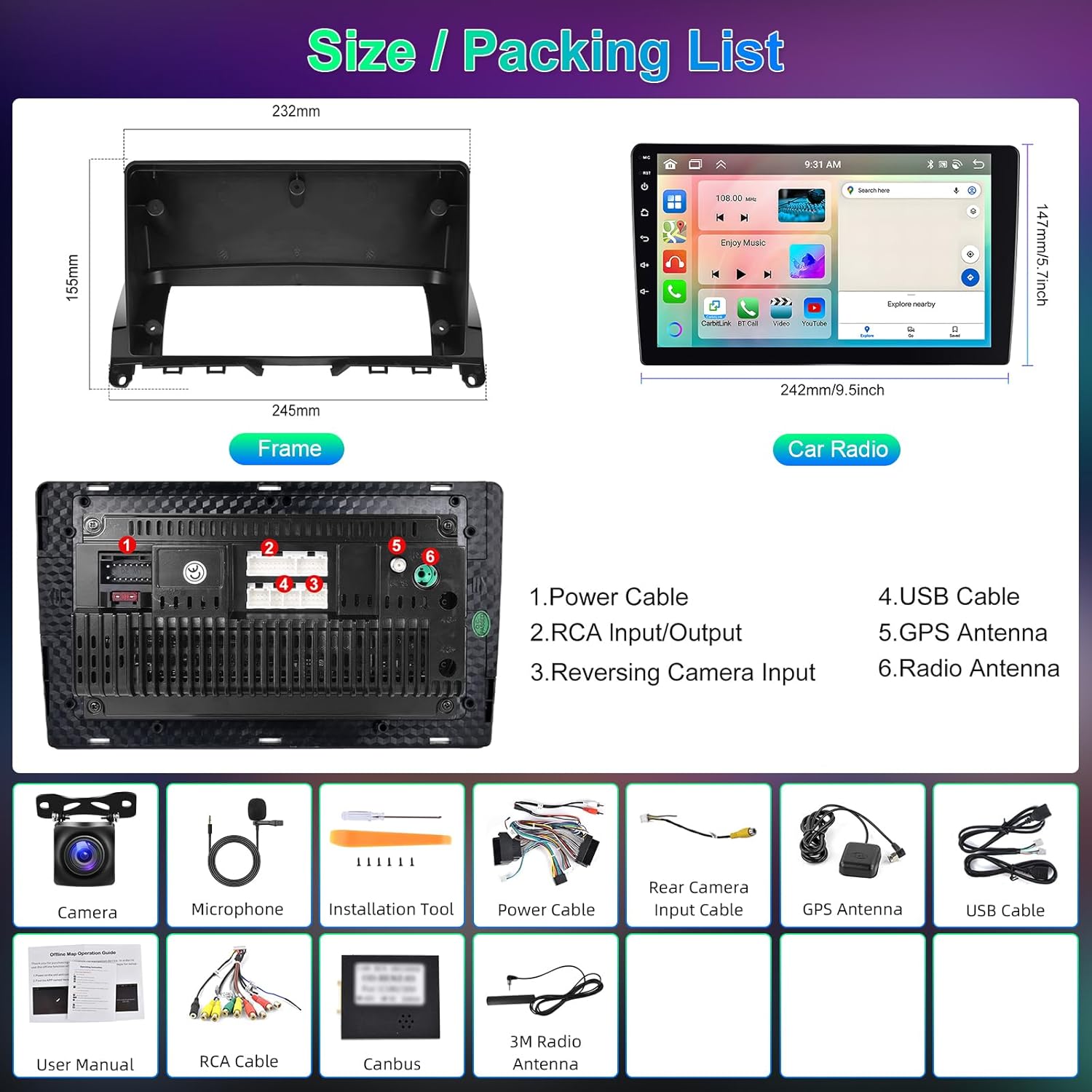
Image: Overview of the car radio unit dimensions and a visual representation of all included accessories in the package.
Specifications
| Feature | Detail |
|---|---|
| System | Android 13 |
| Chipset | 8257 (8-Core CPU) |
| Memory | 4GB RAM + 64GB ROM |
| Screen Size | 9-inch Touchscreen |
| Screen Resolution | 1280*720 |
| Radio Chip | 8035 (FM/RDS) |
| Output Power | 4*45W (Amplifier Chip: YD7388) |
| Bluetooth Version | 5.0 (A2DP, Hands-free, Phonebook Sync) |
| DSP | 36-band Equalizer |
| Working Temperature | -20℃ to 75℃ |
| Steering Wheel Control | Supported |
| Video Output | Supported |
| Reversing Input | AHD/CVBS |
| External Microphone | Supported |
| Split Screen | Supported |
| Navigation | Built-in Offline Maps (requires internet for data download) |
| Connectivity | WiFi, Dual USB Interface |
| Audio Formats | APE/FLAC/WAV/MP3/WMA, etc. |
| Video Formats | MKV/RMVB/AVI/MP4/MDV, etc. |
| Image Formats | PNG/JPEG/JPG/GIF/WBMP/BNP, etc. |
| Factory Keyword | 1234 |
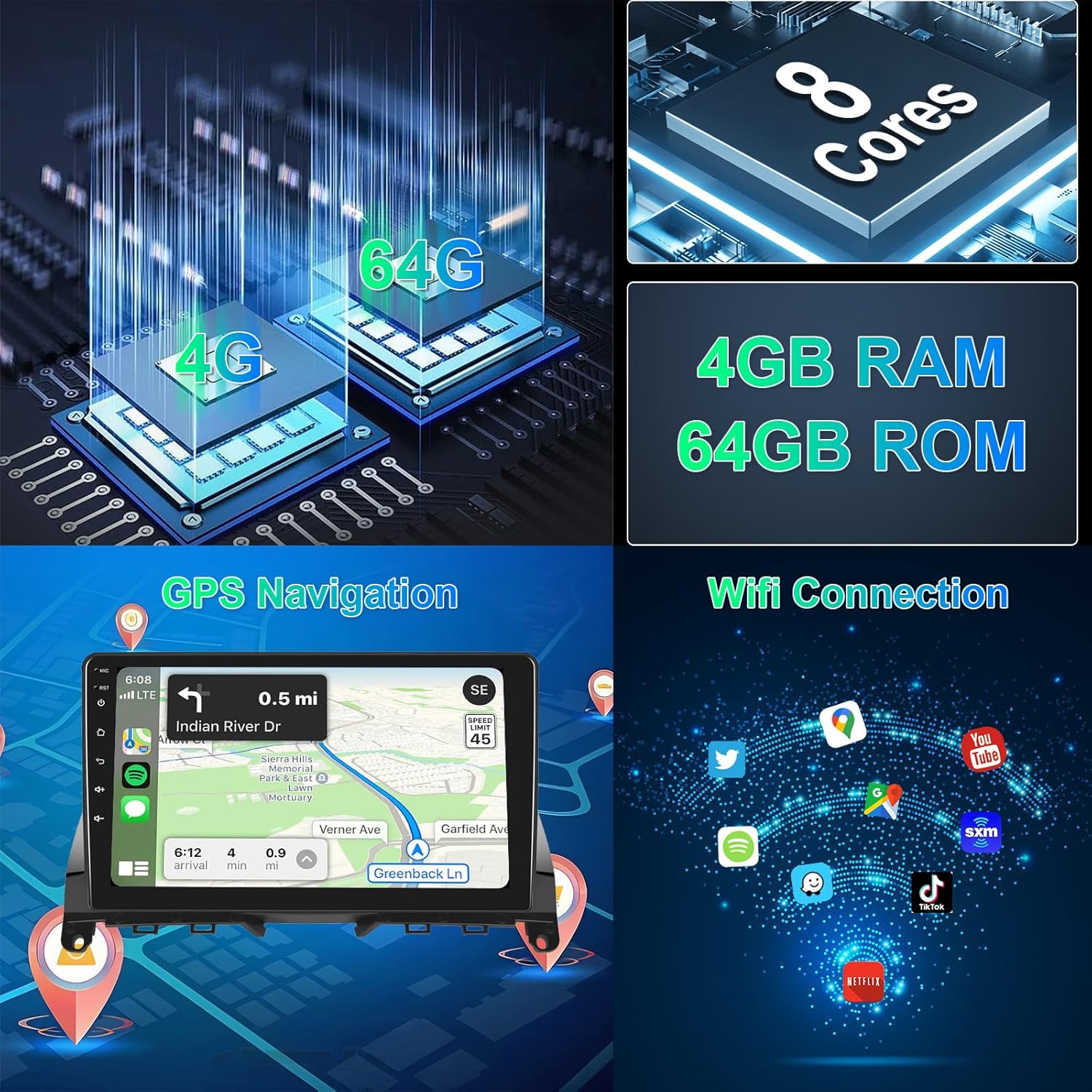
Image: Visual representation of the system's core specifications including CPU, memory, GPS navigation, and WiFi connectivity.
Setup and Installation
Professional installation is recommended for this car stereo system. Ensure the vehicle's power is disconnected before beginning installation.
- Preparation: Carefully remove the original car radio unit from your Mercedes-Benz C-Class W204/S204 (2007-2010). Refer to your vehicle's service manual for specific removal instructions.
- Wiring Harness Connection: Connect the provided power cable and Canbus to the vehicle's original wiring harness. Ensure all connections are secure.
- Peripheral Connections:
- Connect the GPS antenna and position it for optimal signal reception (e.g., on the dashboard).
- Connect the external microphone for hands-free calling.
- If installing the rear camera, connect the rear camera input cable and route the camera cable to the rear of the vehicle.
- Connect any additional USB devices or RCA cables as needed.
- Mounting: Use the provided mounting brackets and screws to secure the new Hodozzy car stereo unit into the dashboard. Ensure it fits snugly within the dashboard kit.
- Power On and Test: Reconnect the vehicle's power. Turn on the car stereo and perform initial tests to ensure all functions (radio, GPS, Bluetooth, touchscreen, steering wheel controls) are operational.

Image: Detailed view of the wiring harness connections and an illustration of the steering wheel control interface.
Operating Instructions
Basic Operation
- Power On/Off: Press and hold the power button (usually located on the front panel) to turn the unit on or off.
- Volume Control: Adjust volume using the physical knobs or touchscreen controls.
- Home Screen: Tap the Home icon to return to the main application interface.
- App Switching: Long press on an app icon to switch applications or customize your home screen layout.
CarPlay & Android Auto (Wireless/Wired)
The unit supports both wireless and wired CarPlay and Android Auto via Zlink. Mirror Link (Airplay) is also supported for Android (wireless/wired) and iOS (wireless).
- Wireless Connection:
- Enable Bluetooth and Wi-Fi on your smartphone.
- On the car stereo, open the Zlink application.
- Pair your phone via Bluetooth with the car stereo.
- Follow the on-screen prompts to activate CarPlay or Android Auto.
- Wired Connection:
- Connect your smartphone to the car stereo using a USB cable.
- The system should automatically detect and launch CarPlay or Android Auto.

Image: Visual guide to connecting and using Apple CarPlay, Android Auto, and Mirror Link functionalities.
GPS Navigation
The unit comes with built-in offline maps. For online maps and updates, connect to Wi-Fi or a mobile hotspot.
- Open the Navigation app from the home screen.
- Enter your destination.
- The system will provide turn-by-turn directions.
- To download offline map data, ensure an internet connection is active and follow the prompts within the navigation application.
Bluetooth Functions
Connect your phone via Bluetooth for hands-free calls and music streaming.
- Go to the Bluetooth settings on the car stereo.
- Enable Bluetooth on your smartphone and search for available devices.
- Select the car stereo's Bluetooth name (e.g., "Hodozzy Car Stereo") and pair.
- Once connected, you can make/receive calls and play music from your phone.

Image: Demonstrates Bluetooth connectivity for calls and music, the 36-band DSP interface, and FM radio with RDS functionality.
Radio (FM/RDS)
- Open the Radio application.
- Use the scan function to find available stations or manually tune to a frequency.
- RDS (Radio Data System) will display station information where available.
DSP (Digital Sound Processor)
Adjust audio settings for an optimized listening experience.
- Access the DSP settings from the main menu.
- Utilize the 36-band equalizer to fine-tune audio frequencies.
- Select from preset sound styles (Rock, Pop, Jazz, Classic) or create custom profiles.
Steering Wheel Control
The unit supports your vehicle's original steering wheel controls. Configuration may be required.
- Go to "Settings" and find "Steering Wheel Control" or "SWC".
- Follow the on-screen instructions to map your steering wheel buttons to the corresponding functions on the car stereo.
Rear View Camera
When the vehicle is shifted into reverse, the display will automatically switch to the rear camera view.
- Ensure the rear camera is correctly installed and connected to the "Reversing Input" port.
- The system supports AHD/CVBS camera types.
Customization

Image: Demonstrates the IPS screen quality, various UI themes, wallpaper options, and the method for switching applications.
- UI Themes: Choose from 59 different user interface desktop themes in the settings.
- Wallpapers: Select from 19 wallpaper options to personalize your display.
- App Arrangement: Customize the arrangement of apps on your home screen.
- Split Screen: Use the split-screen function to run two applications simultaneously.
Maintenance
- Screen Cleaning: Use a soft, lint-free cloth to clean the touchscreen. Do not use abrasive cleaners or solvents.
- Software Updates: Periodically check for software updates via the system settings (requires internet connection) to ensure optimal performance and access to new features.
- System Reset: If the unit experiences issues, a soft reset can often resolve them. Refer to the troubleshooting section for details.
- Temperature: Avoid exposing the unit to extreme temperatures outside the operating range of -20℃ to 75℃.
Troubleshooting
| Problem | Possible Cause | Solution |
|---|---|---|
| Unit does not power on. | Incorrect wiring, blown fuse, power supply issue. | Check power cable connections. Verify vehicle fuse. Consult a professional installer. |
| No sound. | Volume too low, incorrect audio settings, speaker wiring issue. | Increase volume. Check DSP settings. Verify speaker connections. |
| GPS signal lost or inaccurate. | GPS antenna improperly placed or disconnected, environmental interference. | Ensure GPS antenna has a clear view of the sky. Check antenna connection. |
| Bluetooth connection issues. | Phone not discoverable, incorrect pairing, interference. | Ensure phone's Bluetooth is on and discoverable. Re-pair the device. Clear previous pairings. |
| Touchscreen unresponsive or lagging. | Temporary software glitch, excessive background apps. | Restart the unit. Close unnecessary applications. Perform a factory reset if issues persist (note: this will erase data). |
| Rear camera not displaying. | Camera cable disconnected, incorrect camera type setting, faulty camera. | Check camera input cable connection. Verify camera type setting in system. Test with a known working camera if possible. |
If problems persist after attempting these solutions, please contact Hodozzy customer support.
Warranty and Support
This Hodozzy Autoradio comes with a 2-year manufacturer's warranty from the date of purchase. This warranty covers defects in materials and workmanship under normal use.
The warranty does not cover:
- Damage caused by improper installation, accident, misuse, abuse, or unauthorized modification.
- Normal wear and tear.
- Damage during transit.
For warranty claims or technical support, please contact Hodozzy customer service through the retailer where the product was purchased or visit the official Hodozzy website for contact information.
Please retain your proof of purchase for warranty validation.


