
1. Introduction
Thank you for choosing the TECURS KB096 Wireless Bluetooth Keyboard. This versatile keyboard offers both 2.4G wireless and Bluetooth connectivity, allowing seamless switching between up to three devices. Designed with a German QWERTZ layout and silent scissor-switch keys, it provides a comfortable and efficient typing experience for various operating systems, including Windows and Mac.

Image 1.1: TECURS KB096 Wireless Bluetooth Keyboard, German QWERTZ Layout.
2. Package Contents
Please check the package for the following items:
- 1 x TECURS Wireless Keyboard
- 1 x USB Receiver
- 1 x User Manual
3. Setup
3.1. Powering the Keyboard
The keyboard requires 2 AAA batteries (not included). Locate the battery compartment on the back of the keyboard, insert the batteries with the correct polarity, and close the cover.
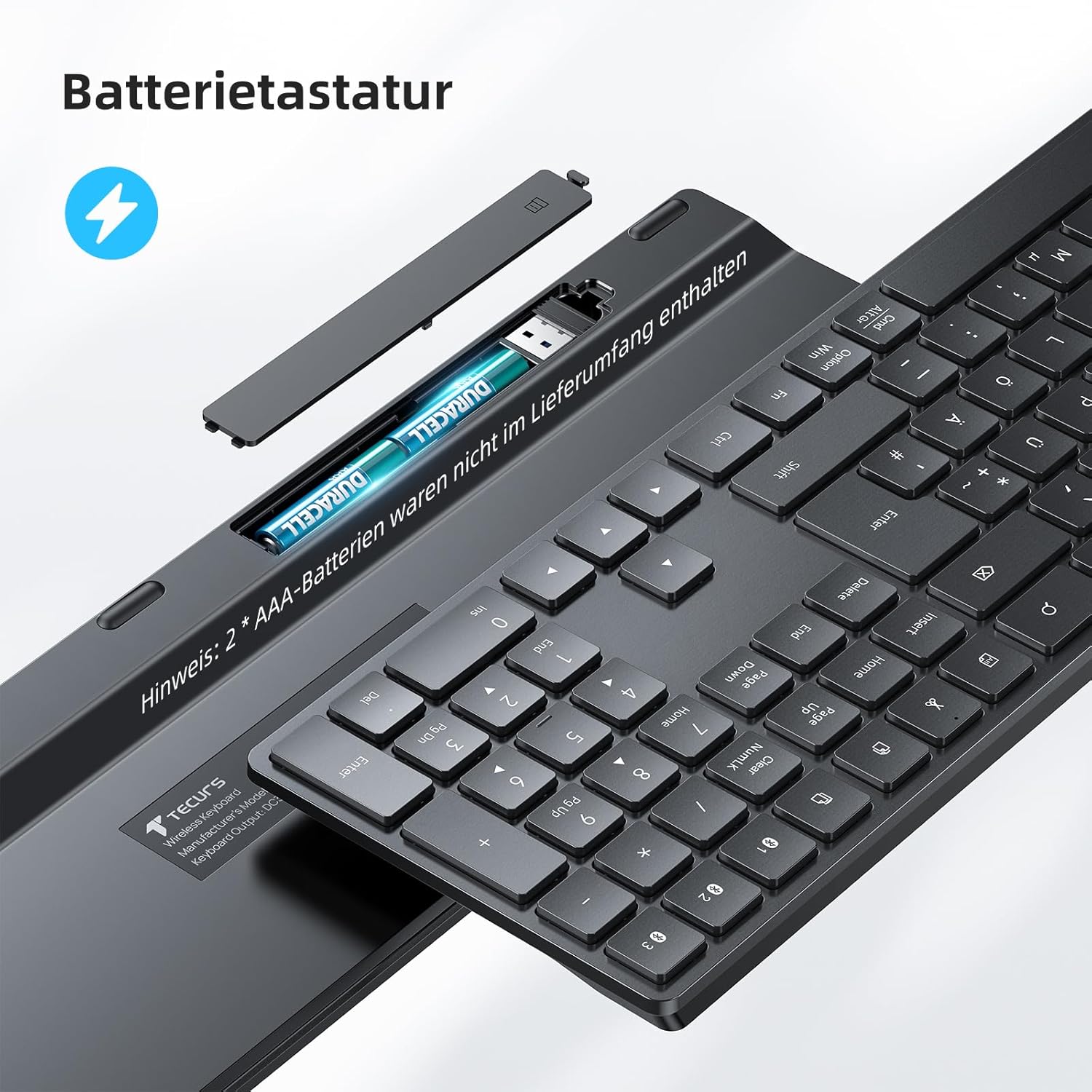
Image 3.1: Battery compartment and USB receiver storage location.
3.2. 2.4G Wireless Connection
- Locate the USB receiver stored in the battery compartment of the keyboard.
- Plug the USB receiver into an available USB port on your computer (PC, laptop, desktop).
- Turn on the power switch on the keyboard and slide it to the '2.4G' position.
- The keyboard should automatically connect to your device.
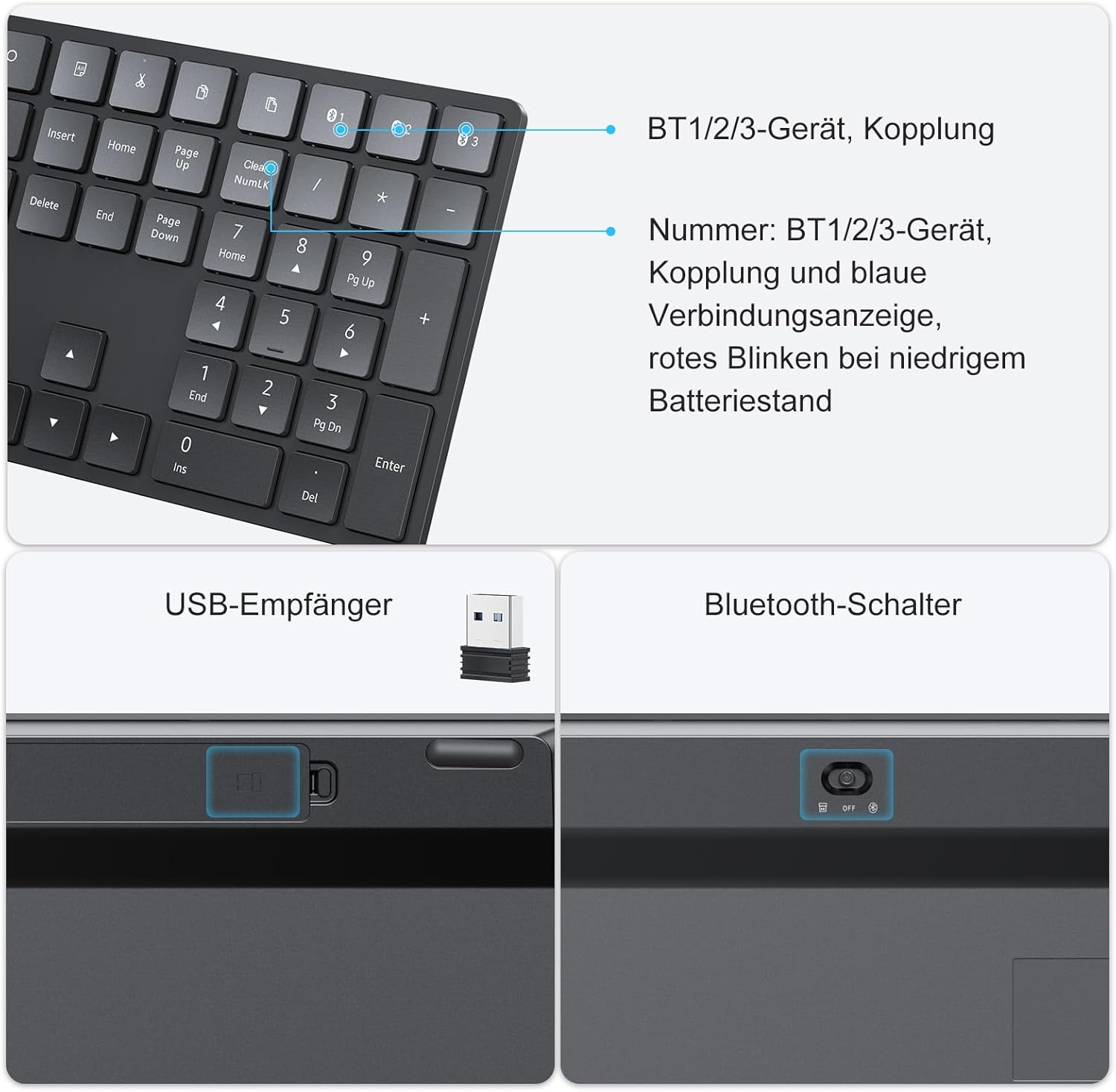
Image 3.2: USB receiver and Bluetooth switch locations on the keyboard.
3.3. Bluetooth Connection (3 Channels)
The keyboard supports up to three Bluetooth devices. Follow these steps to pair:
- Turn on the power switch on the keyboard and slide it to the 'Bluetooth' position.
- Press the Fn key simultaneously with one of the Bluetooth channel keys (BT1, BT2, or BT3) to select a channel.
- Press and hold the selected Bluetooth channel key (BT1, BT2, or BT3) for three seconds until the indicator light flashes, indicating pairing mode.
- On your device (PC, laptop, tablet, smartphone), enable Bluetooth and search for available devices.
- Select "BT3.0 Keyboard" or "BT5.0 Keyboard" from the list of found devices to connect.
- Once connected, the indicator light will stop flashing.
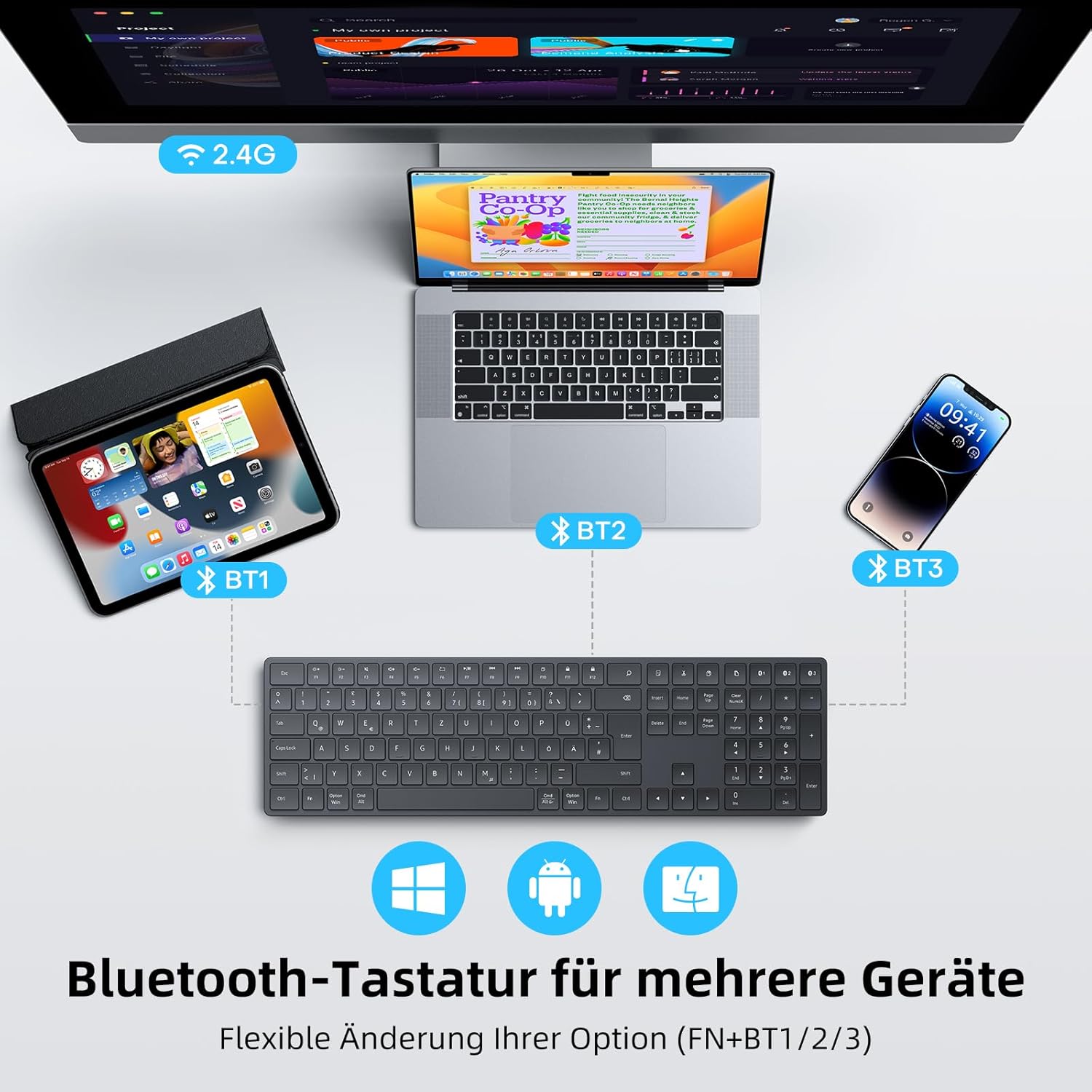
Image 3.3: Diagram showing multi-device Bluetooth connectivity.

Image 3.4: Visual guide for Bluetooth connection steps.
4. Operating Instructions
4.1. Switching Between Connected Devices
To switch between connected devices (2.4G and Bluetooth channels), simply press the corresponding channel key:
- Press Fn + 2.4G to switch to the 2.4G wireless connection.
- Press Fn + BT1 to switch to Bluetooth Channel 1.
- Press Fn + BT2 to switch to Bluetooth Channel 2.
- Press Fn + BT3 to switch to Bluetooth Channel 3.
4.2. Multimedia Hotkeys
The keyboard features 18 multimedia shortcut keys for enhanced productivity. To use these functions, press the Fn key simultaneously with the desired function key (F1-F12, etc.).
| Key Combination | Function |
|---|---|
| Fn + F1 | Brightness Down |
| Fn + F2 | Brightness Up |
| Fn + F3 | Mission Control / Task View |
| Fn + F4 | Launchpad / Search |
| Fn + F5 | Keyboard Backlight (if applicable) |
| Fn + F6 | Previous Track |
| Fn + F7 | Play/Pause |
| Fn + F8 | Next Track |
| Fn + F9 | Mute Volume |
| Fn + F10 | Volume Down |
| Fn + F11 | Volume Up |
| Fn + F12 | Eject |
| Fn + PrtSc | Screenshot |
| Fn + Home | Select All |
| Fn + End | Copy |
| Fn + PgUp | Cut |
| Fn + PgDn | Paste |
| Fn + Lock | Lock Screen |

Image 4.1: Overview of multimedia hotkeys.
5. Maintenance
5.1. Battery Replacement
When the keyboard's performance degrades or the low battery indicator (if present) illuminates, it's time to replace the batteries. Open the battery compartment on the back of the keyboard and replace the two AAA batteries with new ones, ensuring correct polarity.
5.2. Cleaning
To clean your keyboard, gently wipe the surface with a soft, damp cloth. For stubborn dirt between keys, use compressed air or a small brush. Avoid using harsh chemicals or abrasive materials.
6. Troubleshooting
6.1. Keyboard Not Responding
- Ensure the keyboard is powered on and batteries are not depleted. Replace batteries if necessary.
- For 2.4G connection: Ensure the USB receiver is securely plugged into a working USB port. Try a different USB port.
- For Bluetooth connection: Ensure Bluetooth is enabled on your device and the keyboard is paired to the correct channel (BT1/BT2/BT3). Try re-pairing the keyboard.
- Ensure the keyboard is within the effective operating range (typically 10 meters) of your device.
6.2. Lag or Disconnections
- Move the keyboard closer to your device.
- Avoid placing the keyboard near strong interference sources (e.g., Wi-Fi routers, other wireless devices, large metal objects).
- Ensure your device's Bluetooth drivers are up to date.
6.3. Specific Keys Not Working
- Check for any debris or obstructions under the key.
- Restart your computer/device and the keyboard.
7. Specifications
| Feature | Detail |
|---|---|
| Model | KB096 |
| Connectivity | 2.4G Wireless, Bluetooth (3 channels) |
| Layout | German QWERTZ |
| Number of Keys | 111 |
| Dimensions (L x W x H) | 42.99 x 12.12 x 2.23 cm (16.9 x 4.7 x 0.8 inches) |
| Weight | 730 g |
| Material | Plastic |
| Power Source | 2 x AAA Batteries (not included) |
| Compatible Devices | PC, computer, desktop, laptop, iMac, Macbook Pro/Air and other Windows/Mac OS devices |

Image 7.1: Keyboard dimensions.
8. Warranty and Support
TECURS products are designed for reliability and performance. For any questions, technical support, or warranty claims, please refer to the contact information provided with your purchase or visit the official TECURS website. Please retain your proof of purchase for warranty purposes.


