1. Introduction
The CarlinKit Ai Box is a high-quality wireless converter designed to expand the open Android system platform through your car's built-in wired CarPlay port. This device enables wireless CarPlay and wireless Android Auto, providing a comprehensive multimedia and navigation experience directly on your vehicle's display.

Image: The CarlinKit Ai Box, a wireless converter, shown with various app icons, illustrating its capability to enhance the in-car experience.
2. Product Overview
The CarlinKit CarPlay Ai Box offers a robust set of features and specifications to enhance your in-car connectivity and entertainment.
Key Features:
- Android System: Comes with an Open Android 13.0 system.
- Car Compatibility: Designed for factory built-in wired CarPlay touch screen cars.
- Powerful Configuration: Powered by Qualcomm QCM6125 octa-core processor (11nm process, Adreno 610) with 4GB RAM + 64GB ROM.
- Easy Operation: Plug and Play with auto-connect functionality.
- Wireless CarPlay: Converts wired CarPlay to wireless CarPlay.
- Wireless Android Auto: Converts wired CarPlay to wireless Android Auto.
- Mobile Phone Compatibility: Supports iPhone 6 and above (iOS 10+) for Wireless CarPlay, and Android 11.0 and above for Wireless Android Auto.
- Entertainment Functions: Supports Spotify, Netflix, YouTube car video, built-in 4G Network, GPS+Glonass, and Google Play for app downloads.
- Connectivity: Features dual-rate Bluetooth (4.2 + 5.0 BLE) and Wi-Fi (2.4G + 5G).
- Additional Functions: Supports SIM & TF cards (SIM card not included), Siri and Google Voice, and retains original car functions.
What's in the Box:
- Adapter (1)
- Instructions (1)
- Type-C to Type-C Cable (1)
- USB-A to Type-C Cable (1)
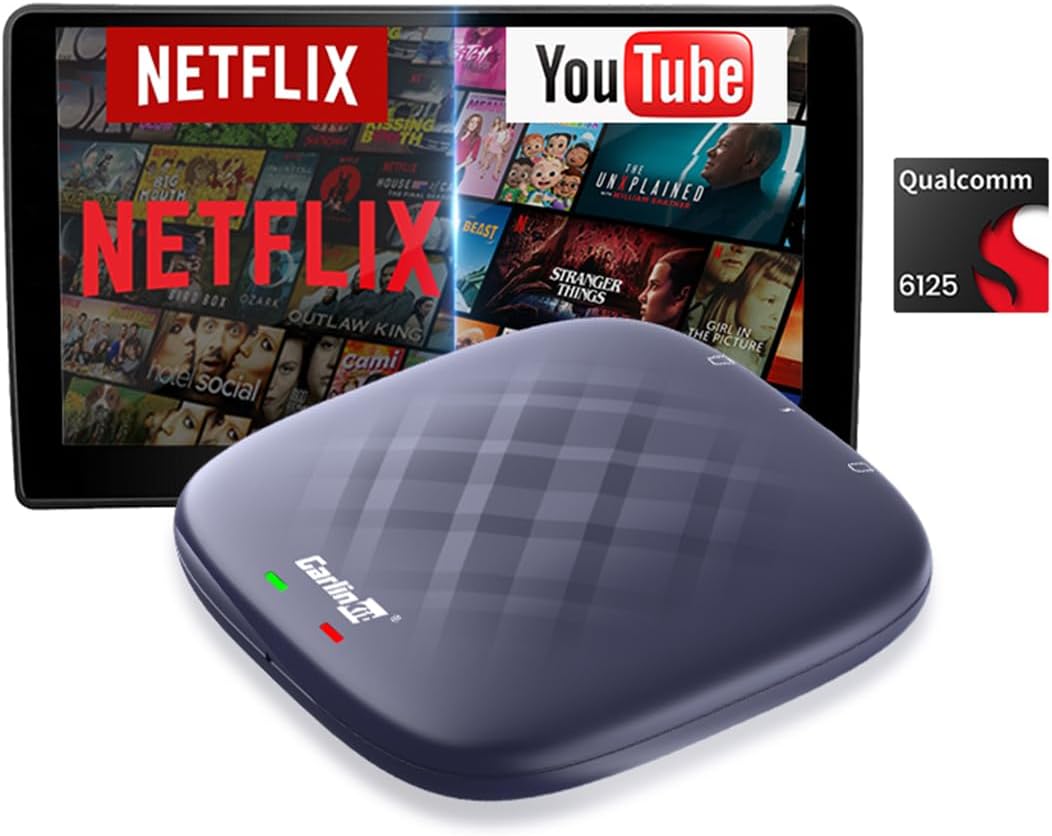
Image: The CarlinKit Ai Box, a compact device, displayed with a car screen showing Netflix and YouTube, highlighting its multimedia capabilities and Qualcomm 6125 processor.

Image: An illustration showcasing the CarlinKit Ai Box Ultra's key features including Android 13, 2.4+5G WiFi, Bluetooth 4.2+5.0 BLE, 4GB RAM + 64GB ROM, Wireless CarPlay, Android Auto, Video Play, and Map Music.

Image: A circular diagram illustrating the CarlinKit Ai Box's compatibility with iPhone and Android phones, OEM cars with wired CarPlay, and its multiple functions including video, navigation, music, Google Play, Siri and Google Voice, Bluetooth WiFi, SIM & TF cards, plug and play, and auto-connect.
3. Setup Guide
Follow these steps to set up your CarlinKit Ai Box and connect it to your vehicle's system.
3.1 Compatibility Requirements:
The CarlinKit Ai Box is designed for original cars with wired CarPlay and a touchscreen display.
- Wireless CarPlay: Applicable to iPhone version iOS 10+ (e.g., iPhone 14, iPhone 13, iPhone 12 series).
- Wireless Android Auto: Compatible with any Android phone running Android 11+ (e.g., Samsung Galaxy, Google Smartphone).

Image: A visual guide showing car brands like Audi, Benz, Porsche, Honda, Nissan, Ford, Volvo, Hyundai, and others that support the CarlinKit Ai Box, along with compatible iPhone (iOS 10+) and Android (Android 11+) phone models for wireless CarPlay and Android Auto.
3.2 Initial Connection:
- Plug in the Box: Connect the CarlinKit Ai Box to your car's built-in wired CarPlay USB port using the provided cable.
- Access AutoKit App: On your car's screen, click the "AutoKit" APP icon to enter the connection interface.
- Enable Bluetooth & Wi-Fi: Turn on Bluetooth and Wi-Fi on your iPhone or Android phone.
- Pair Device: Search for the Bluetooth name displayed on the car screen in your mobile phone's Bluetooth list and click to pair.
- Wait for Connection: Allow a few seconds for the connection to establish. Once successful, the wireless CarPlay or Android Auto interface will appear.

Image: A three-step visual guide demonstrating how to set up the CarlinKit Ai Box: Step 1 shows plugging the box into the car, Step 2 shows connecting via Bluetooth on a phone, and Step 3 shows the car automatically connecting to the device.

Image: Instructions for quick switching wireless mode: 1. Plug the box into the car and click "AutoKit" APP (insert SIM card first). 2. Turn on WiFi and Bluetooth on your phone and pair. 3. Wait for a few seconds for Wireless CarPlay/Android Auto interface to appear.

Image: A car interior showing the CarlinKit Ai Box connected, with a phone displaying the CarPlay interface and a car screen mirroring it, indicating successful wireless CarPlay connection.

Image: A car interior showing the CarlinKit Ai Box connected, with a phone displaying the Android Auto interface and a car screen mirroring it, indicating successful wireless Android Auto connection.
3.3 SIM/TF Card Slot Instruction:
- SIM Card Slot: Supports 4G Network and real-time traffic internet access. Insert the SIM card with the metal face down.
- TF Card Slot: Expandable up to 256GB. Insert the TF card with the metal face down.
4. Operating Instructions
The CarlinKit Ai Box transforms your car's display into a versatile Android 13.0 system, offering a wide range of functionalities.
4.1 Android 13.0 System Features:
Once connected, your car's screen will display the Android 13.0 interface, allowing access to various applications and features.

Image: A car's infotainment screen displaying the Android 13.0 system with various applications like YouTube Music, IPTV, TikTok, Waze, Chrome, GPS Test, YouTube, and Instagram, alongside smaller views of navigation and streaming content.

Image: A car interior with the infotainment screen displaying the Android 13.0 system, showing a navigation map, a movie, and Netflix, emphasizing the ability to watch movies in the car.
4.2 Multimedia and Navigation:
Enjoy high-quality music, video, and navigation directly from your car's screen.
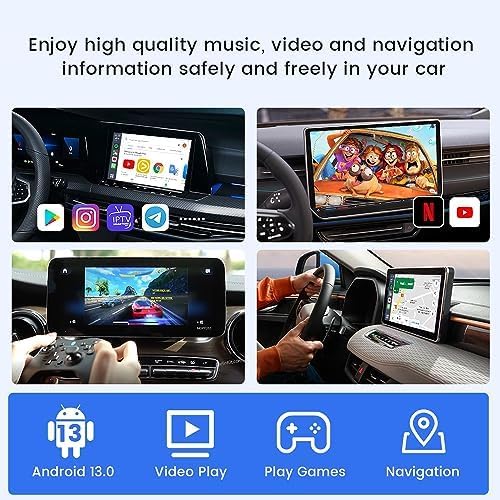
Image: Four distinct views of a car's infotainment screen, showcasing high-quality music, video playback (including Netflix), gaming with a controller, and navigation, all accessible safely and freely.

Image: A car's infotainment screen filled with various application icons, including popular streaming services and social media apps, demonstrating the wide range of apps available through the system.

Image: A car's infotainment screen showcasing logos of popular streaming services like Disney+, Pluto TV, Netflix, Hulu, Prime Video, and HBO Max, indicating the device's support for these platforms.
4.3 Download Applications:
Click the "Play Store" icon to download various applications. This supports third-party map navigation, online music, and a variety of videos and online games, enhancing your driving experience.

Image: A car's infotainment screen displaying the Google Play Store interface, with various app icons floating above a CarlinKit Ai Box, illustrating the ability to download apps directly to the device.
4.4 Video Demonstration:
Watch the official product video for a comprehensive demonstration of the CarlinKit Ai Box's features, including setup, navigation, music playback, video streaming, gaming, and wireless CarPlay/Android Auto functionality.
Video: A demonstration of the CarlinKit TBox Plus, showcasing its features such as Android 13.0 system, application store, navigation, music playback, TikTok, compatibility with steering wheel operation, playing games, split screen functionality, multiple satellite positioning, wireless CarPlay, and wireless Android Auto.
5. Maintenance
To ensure the longevity and optimal performance of your CarlinKit Ai Box, follow these general maintenance guidelines:
- Cleaning: Use a soft, dry cloth to clean the device. Avoid using liquid cleaners or aerosols directly on the unit.
- Temperature: Operate the device within the specified temperature range of -20°C to 75°C. Avoid exposing it to extreme heat or cold.
- Storage: When not in use for extended periods, store the device in a cool, dry place away from direct sunlight.
- Connectivity: Ensure cables are securely connected and not under strain. Avoid bending or crimping cables excessively.
6. Troubleshooting (Detailed FAQ)
Here are solutions to common issues you might encounter with your CarlinKit Ai Box:
- Q: What should I do if the SIM card is not recognized when inserted?
- A: 1. Confirm whether the card insertion method is correct (SIM Card inserted with metal side down, and the notch end is facing inward). 2. Do not insert or remove the SIM card when the product is turned on. The product must be turned off to remove and insert the SIM card.
- Q: The Netflix display needs to be updated.
- A: When it appears that it needs to be updated, please click the "Cancel" button (Don't update or delete the software preloaded on the product).
- Q: The SIM card insertion is recognized, but the internet connection does not work.
- A: 1. Settings - Network and Internet - APN, manually adjust it; 2. Insert the SIM card into the Android phone and check the information parameters of the APN in the phone. Then in the product settings network and Internet - APN - right upper corner "+" sign, add APN parameters (add according to the parameters in the mobile phone); 3. If you need a video tutorial of the operation, please contact the store customer service directly.
7. Product Specifications
| Feature | Detail |
|---|---|
| Item Weight | 4.2 ounces |
| Package Dimensions | 7.24 x 5.71 x 1.93 inches |
| Voice Command | Touchscreen |
| Model Name | QCM 6125 Android 12 Powerful Smart Ai Box Dash Cam(CPC200-Tbox AR) |
| Vehicle Service Type | Car |
| Special Feature | Bluetooth |
| Connectivity Technology | Wi-Fi |
| Map Type | Worldwide |
| Audio Output Mode | Wireless CarPlay, Wireless Android Auto |
| Mounting Type | Dashboard Mount |
| Resolution | 1080P |
| Manufacturer | Carlinkit |
| First Available | November 19, 2023 |
8. Warranty and Support
CarlinKit provides professional and prompt after-sales service for your product.
Warranty Information:
The CarlinKit CarPlay Ai Box comes with a 1-year warranty from the date of purchase, covering non-human damage. This warranty ensures free software upgrades and technical services.
Please retain your purchase receipt or warranty card as proof of purchase for warranty claims.
Customer Support:
If you encounter any problems or require assistance, please contact the seller directly. The seller for this product is QuTu Official Store.
For specific issues like SIM card internet connection problems, a video tutorial for operation may be available by contacting customer service.


