
Jinvocloud UFO-R4Z
Jinvocloud Tuya Smart Zigbee IR Remote Controller User Manual
Model: UFO-R4Z
1. Product Overview
The Jinvocloud Tuya Smart Zigbee IR Remote Controller (UFO-R4Z) is an infrared universal remote and IR blaster control hub designed to integrate traditional infrared-controlled devices into your smart home ecosystem. It allows you to control various home appliances via a mobile app, voice commands, and scene linkages. This device requires a Zigbee wired gateway for operation and supports 2.4Ghz WiFi networks.
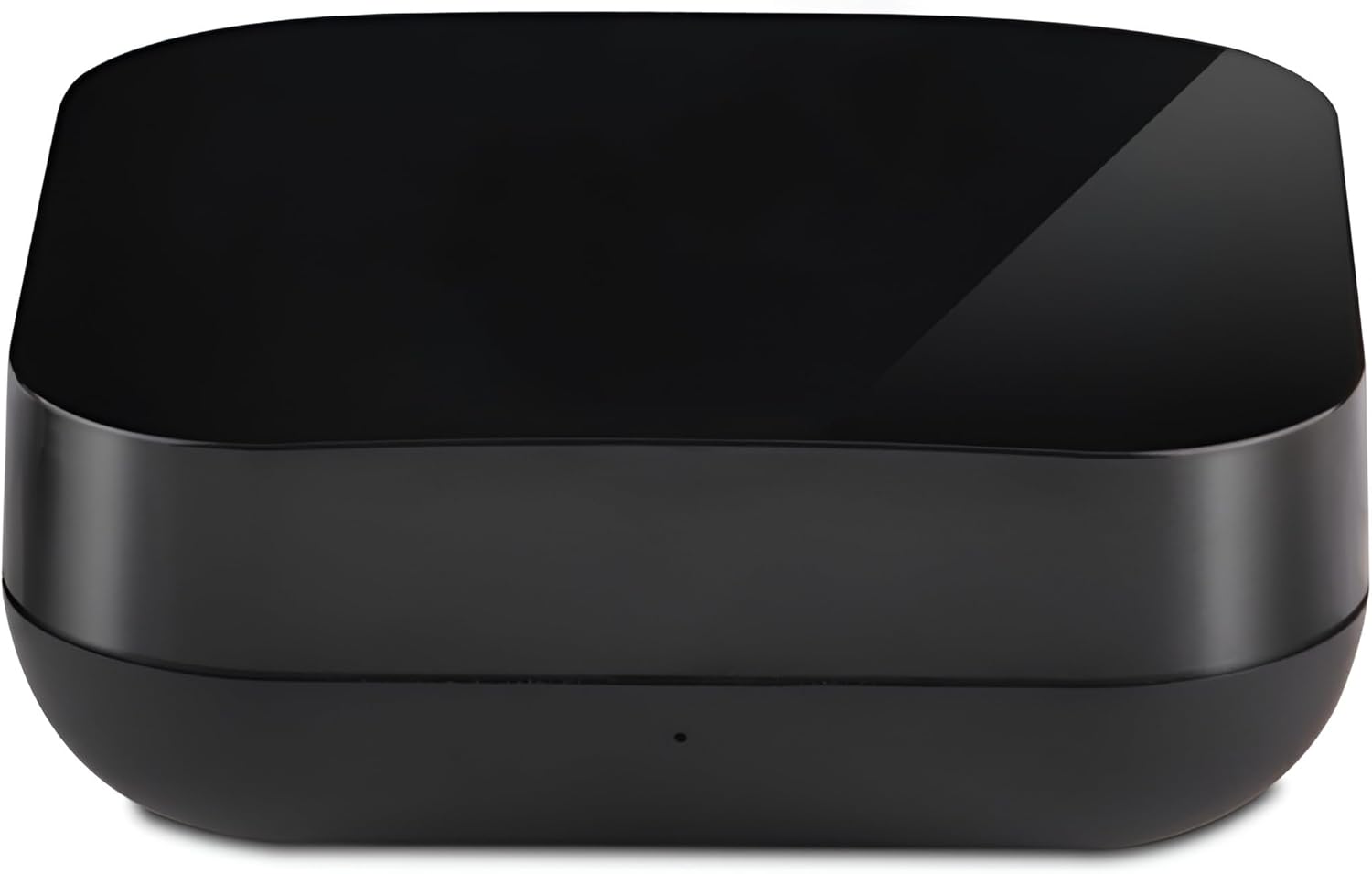
Image: Front view of the Jinvocloud Tuya Smart Zigbee IR Remote Controller, a compact black square device with rounded corners.
Key features include:
- Remote Control Devices: Control infrared devices such as air conditioners, TVs, set-top boxes, fans, internet boxes, projectors, and stereos.
- DIY Customized Learning: Learn remote control buttons directly from your appliance's remote, allowing control of devices without pre-existing codes.
- Scene Linkage: Integrate with other smart devices through APP scene and automation settings (e.g., turn on AC based on temperature sensor).
- Voice Control: Compatible with Alexa and Google Assistant for hands-free control.
- Device Sharing & Group Control: Share control with family members and manage multiple devices together.

Image: Icons representing various features: IR Control, Mobile Remote Control, Timer Function, Power Cord, Smart Interconnection, Voice Control, Scenario Control, and Learning Function.
2. What's in the Box
Upon unboxing, please ensure all the following items are present:
- 1 x Zigbee Smart IR Remote Controller
- 1 x USB Cable
- 1 x English User Manual
3. Setup Guide
Follow these steps to set up your Jinvocloud Smart Zigbee IR Remote Controller:
3.1 Powering the Device and Initial Check
Connect the provided USB cable to the device and a power source. Once powered, check if the blue indicator light on the device is flashing.
Image: The Jinvocloud Smart IR Remote Controller showing a small blue indicator light on its front surface.
3.2 Resetting the Device (If Blue Light Not Flashing)
If the blue indicator light is not flashing, you may need to reset the device. Locate the reset button on the bottom of the device. Press and hold this button until the blue light begins to flash.

Image: Bottom view of the Jinvocloud Smart IR Remote Controller, highlighting the USB port and a small reset button.
3.3 Connecting to the Zigbee Wired Gateway via Smart Life APP
Important Note: This product requires a Zigbee wired gateway for connection. It does not support wireless Zigbee gateways. Ensure your phone is connected to a 2.4 GHz WiFi network (5GHz WiFi is not supported) and is on the same network as your smart gateway during configuration.
Follow these steps to connect the device:
- Open the Smart Life or Tuya Smart APP on your mobile device.
- Navigate to the section for adding new devices.
- Click on "Wired Gateway" to initiate the search for devices.
- Once the device is successfully added, proceed to the next step.
Video: A demonstration of the Zigbee infrared remote control network operation, showing how to check the blue light, reset the device, and pair it with the Smart Life app via a wired gateway.
3.4 Adding and Matching Appliances
After successfully adding the IR remote controller to the app, you can add and match your infrared appliances:
- Within the app, find your appliance brand in the provided list.
- Click on the brand to automatically match the remote codes.
- If automatic matching is not successful or for unsupported brands, use the "DIY Customized Learning" function (see Section 4.4).

Image: A diagram illustrating various household appliances that can be controlled, including TV, Refrigerator, Washing Machine, Air Conditioning, Fan, IR LED Light, Range Hood, and DVD Player.
4. Operating Instructions
4.1 Remote Control via Mobile App
Once your appliances are matched, you can control them directly from the Smart Life or Tuya Smart app. The app provides a virtual remote interface for each appliance.

Image: A mobile phone displaying an air conditioner control interface, demonstrating remote control capabilities.
4.2 Voice Control
The IR Remote Controller is compatible with Amazon Alexa and Google Assistant. Link your Smart Life/Tuya Smart account to your voice assistant app to enable voice commands for your connected appliances.
- Example commands: "Alexa, turn on the TV," "Hey Google, set the AC to 24 degrees."

Image: A person sitting in front of a TV, using a smart speaker for voice control, with speech bubbles showing example commands like "Alexa, Turn on the TV."
4.3 Scene Linkage and Automation
Create custom scenes and automations within the Smart Life/Tuya Smart app to automate your home. For example, you can set up a scene where the air conditioner turns on automatically if a temperature sensor detects the room temperature exceeds a certain value.
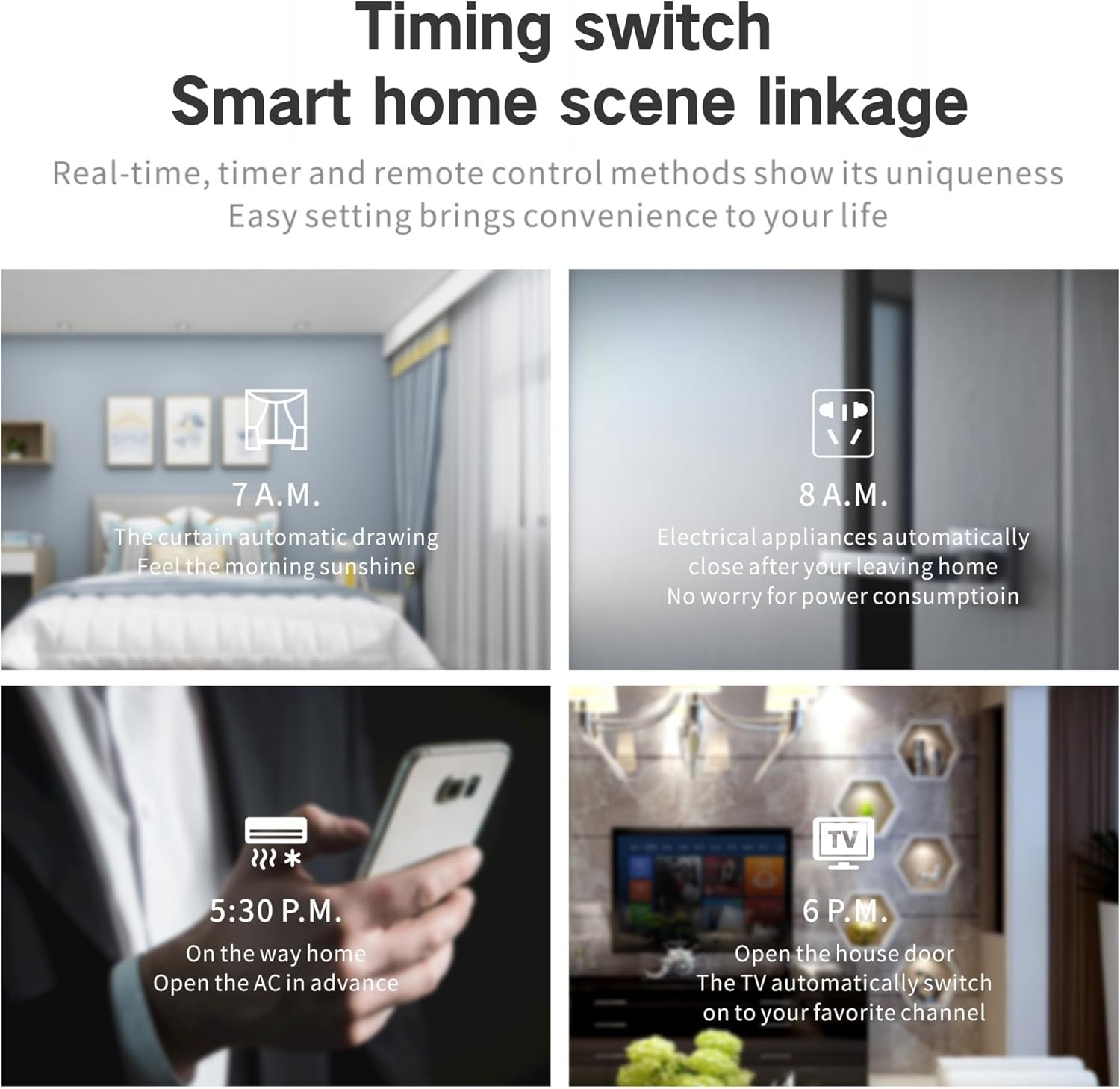
Image: Examples of smart home scene linkages, such as automatic curtain drawing in the morning, electrical appliances closing after leaving home, turning on AC on the way home, and TV automatically switching channels.
4.4 DIY Customized Learning
If your appliance brand is not listed or if you have a unique remote, you can use the DIY Customized Learning function. This allows the IR Remote Controller to learn signals directly from your original remote control.
- In the app, select the "Learn Match" option when adding a new remote.
- Point your original appliance remote at the IR Remote Controller and press the desired button.
- The IR Remote Controller will capture and store the infrared signal.

Image: A graphic illustrating the IR code base, showing the IR remote controller surrounded by various appliance remote controls, signifying its ability to learn and control multiple devices.
4.5 Device Sharing & Group Control
Share control of your smart IR remote controller with family members through the app. You can also group multiple devices for simultaneous control.
5. Maintenance
To ensure optimal performance and longevity of your Jinvocloud Smart Zigbee IR Remote Controller:
- Keep the device in a dry environment, away from direct sunlight and extreme temperatures.
- Clean the device with a soft, dry cloth. Do not use liquid cleaners or aerosols.
- Avoid placing objects directly on top of the device that might obstruct the infrared signal.
6. Troubleshooting
If you encounter issues with your device, refer to the following common problems and solutions:
- Device not connecting/blue light not flashing:
Ensure the device is properly powered via the USB cable. If the blue light is not flashing, press and hold the reset button on the bottom of the device until it starts flashing. Confirm your phone is connected to a 2.4 GHz WiFi network and is on the same network as your wired Zigbee gateway.
- Appliance not responding to commands:
Verify that the IR Remote Controller has a clear line of sight to the appliance. Ensure the correct remote code has been matched or learned for the appliance. Try using the "DIY Customized Learning" feature if automatic matching fails.
- Device not reconnecting after power outage:
Some users have reported that the device may not automatically reconnect to the Zigbee network after a power outage. If this occurs, you may need to remove the device from the Smart Life/Tuya Smart app and re-add it as a new device. Ensure your Zigbee wired gateway is fully operational before attempting to reconnect.
- Slow command transmission or missed commands:
Ensure the device is placed optimally for IR signal transmission. Minimize interference from other electronic devices. If using Home Assistant or similar platforms, be aware that transmission speed can vary, and some delays might be inherent to the Zigbee IR blaster technology.
7. Specifications
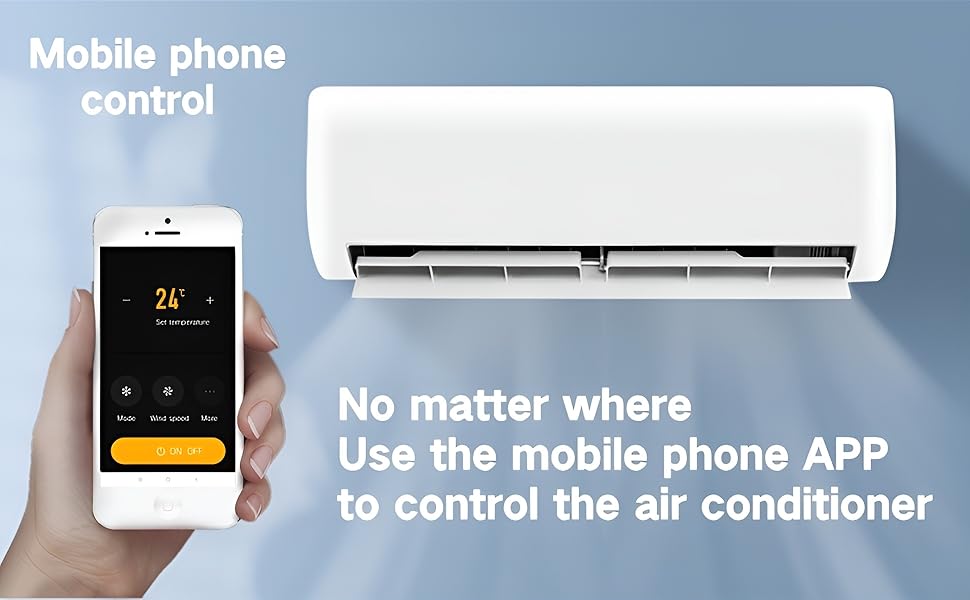
Image: A table detailing the product specifications, including product name, power supply, standby consumption, working temperature, working humidity, connection protocol, product size, transmission method, IR learning frequency, IR direction, IR control distance, IR learning distance, support device, and product net weight.
| Feature | Detail |
|---|---|
| Product Name | Universal IR Remote Control |
| Power Supply | 5V DC 1A (Micro USB) |
| Standby Consumption | ≤0.4W |
| Working Temperature | 0~50°C (32~122°F) |
| Working Humidity | ≤85%RH (non-condensing) |
| Connection Protocol | Zigbee 802.15.4 |
| Product Size | 65 × 65 × 27.5mm (2.56 x 2.56 x 1.08 inches) |
| Transmission Method | Zigbee |
| IR Learning Frequency | 38KHz |
| IR Direction | Multi-directional |
| IR Control Distance | Horizontal direction ≤8m, opposite direction ≤15m (affected by the environment) |
| IR Learning Distance | Opposite direction ≤3m, angle ±45° (affected by the environment) |
| Support Device | Android 4.0/iOS 8.0 or later |
| Product Net Weight | About 50g (battery not included) / 3.2 ounces |
| Max Number of Supported Devices | 15 |
| Compatible Devices | Television, Set Top Box, Air Conditioner, Fan, Projector, Stereo, etc. |
8. Warranty and Support
For warranty information or technical support, please refer to the documentation included with your product or contact Jinvocloud customer service. You can also visit the official Jinvocloud store on Amazon for additional resources and contact details.
User Guide (PDF): Download User Guide
Instructions for Use (IFU) (PDF): Download IFU
Jinvocloud Store: Visit Store
Related documentsUFO-R4Z


Ask a question about this manual
Ask about setup, troubleshooting, compatibility, parts, safety, or missing instructions. Manuals+ will review the question and use this page’s manual context to help answer it.