
uleway T380T
Uleway 4G Senior Flip Phone User Manual
Model: T380T
1. Introduction
Thank you for choosing the uleway 4G Senior Flip Phone. This manual provides detailed instructions on how to set up, operate, and maintain your device. Designed with ease of use in mind, this phone features large buttons, a clear display, and essential functions to ensure reliable communication for seniors.
2. Package Contents
Please check the package contents upon unboxing to ensure all items are present:
- Uleway 4G Senior Flip Phone (Model: T380T)
- Charging Cradle
- USB Type-C Charging Cable
- Power Adapter
- User Manual
- Lithium-Ion Battery (1 included)
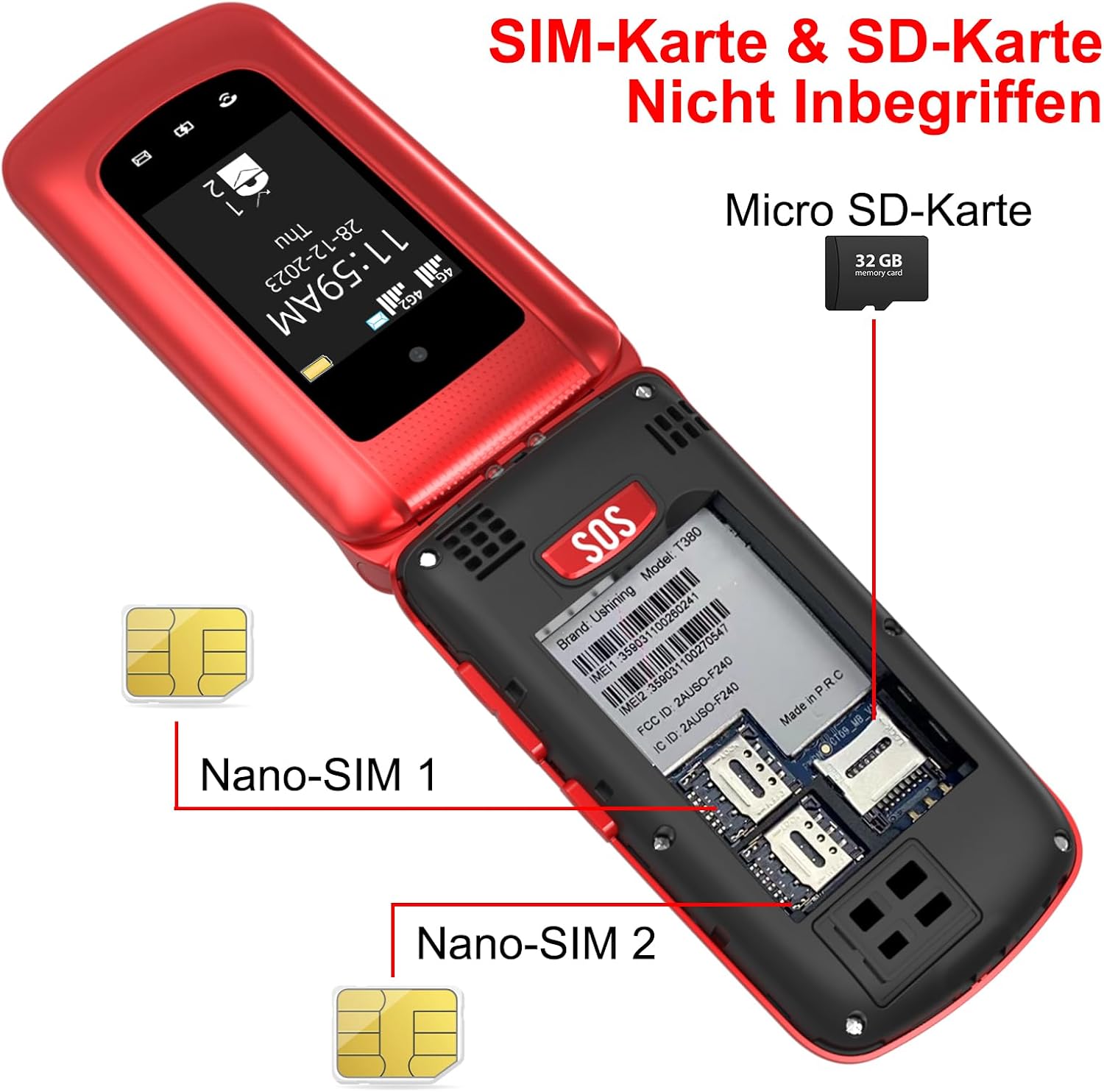
Image: The uleway 4G Senior Flip Phone showing the dual Nano-SIM slots and a Micro SD card slot. Note that SIM and SD cards are not included.

Image: The uleway 4G Senior Flip Phone displaying its 2MP rear camera, suitable for basic photography.
3. Product Features
The uleway 4G Senior Flip Phone is equipped with features designed for simplicity and reliability:
- 4G Connectivity: Supports dual 4G SIM cards for stable and wide signal reception, compatible with 4G, 4G VoLTE, 3G WCDMA, and 2G/GSM networks.
- Dual LCD Display: A large external display shows date, time, contacts, and battery status, while the internal 2.4-inch color display provides clear visuals.
- Large Buttons & Clear Volume: Designed with large, easy-to-press buttons and loud, clear audio for comfortable use.
- Type-C Charging & Cradle: Features a reversible Type-C connector for easy charging and comes with a convenient charging cradle for hassle-free power-ups.
- SOS Emergency Button: Located on the back, allows pre-setting up to 5 SOS phone numbers and a text message. Press for 3 seconds to activate emergency calls and messages.
- Quick Start Buttons: Dedicated buttons for FM Radio, Alarm, and SMS for quick access to frequently used functions.
- Multimedia Functions: Includes Bluetooth, 0.3MP Camera, FM Radio, Torch (Flashlight), MP3 Player, Calculator, Alarm Clock, and Calendar.
- Multi-language Support: Supports 7 languages including English, French, Portuguese, Spanish, Italian, German, and Dutch.

Image: Overview of the phone's features including messaging, multimedia, speed dial, alarm, SOS button, Bluetooth, camera, and calendar.

Image: The uleway 4G Senior Flip Phone highlighting its 4G unlocked capability and compatibility with 4G/3G/2G networks across Europe.
4. Setup Guide
4.1 Battery Installation
- Remove the back cover of the phone by gently prying it open from the notch.
- Insert the Lithium-Ion battery into the battery compartment, ensuring the gold contacts align with the phone's terminals.
- Replace the back cover, pressing firmly until it clicks into place.
4.2 SIM Card and SD Card Installation
This phone supports two Nano-SIM cards and one Micro SD card (up to 32MB for storage). SIM and SD cards are not included.
- With the back cover removed and battery out, locate the SIM card slots (Nano-SIM 1 and Nano-SIM 2).
- Carefully insert your Nano-SIM card(s) into the designated slots, ensuring the cut corner aligns correctly.
- If using, insert a Micro SD card into the Micro SD card slot.
- Reinstall the battery and back cover.
Image: Detailed view of the phone's interior showing the two Nano-SIM card slots and the Micro SD card slot.
4.3 Charging the Phone
The phone can be charged using the included Type-C cable directly or via the charging cradle.
- Using the Charging Cradle: Connect the Type-C cable to the charging cradle and then to the power adapter. Place the phone into the cradle, ensuring it sits securely. The charging indicator will light up.
- Direct Charging: Connect the Type-C cable directly to the phone's charging port and then to the power adapter.

Image: The uleway 4G Senior Flip Phone being charged via its USB-C cable and also shown in its convenient charging cradle.
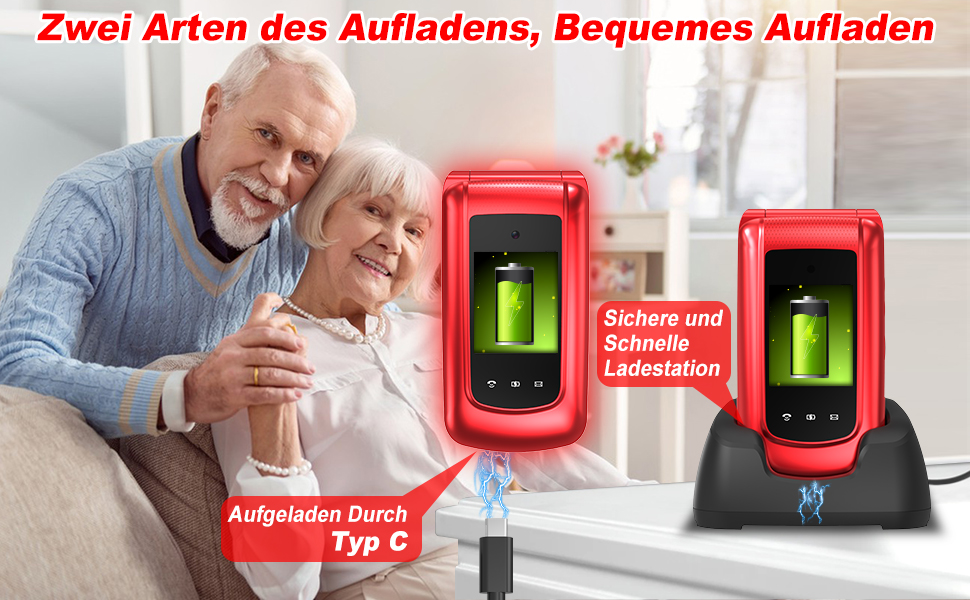
Image: An elderly couple demonstrating the two convenient charging methods for the uleway 4G Senior Flip Phone: direct Type-C cable charging and charging via the dock.
5. Operating Instructions
5.1 Power On/Off
- To power on, press and hold the Power/End Call button (red button) until the screen lights up.
- To power off, press and hold the Power/End Call button until the power off options appear, then select "Power off".
5.2 Making and Receiving Calls
- Making a Call: Dial the number using the keypad and press the Call button (green button).
- Receiving a Call: Open the flip to answer an incoming call, or press the Call button. Close the flip or press the End Call button to end a call.

Image: The uleway 4G Senior Flip Phone illustrating the convenient feature of flipping open the phone to answer calls and closing it to end calls.
5.3 Speed Dial
The phone supports 8 speed dial buttons (keys 2-9) for one-key calling to frequently contacted numbers.
- To set up speed dial: Navigate to Phonebook settings, select Speed Dial, and assign contacts to keys 2-9.
- To use speed dial: Press and hold the assigned number key (2-9) to call the pre-set contact.

Image: An elderly woman using the uleway 4G Senior Flip Phone, with a close-up highlighting the 8 speed dial buttons (keys 2-9) for quick calling.
5.4 SOS Emergency Function
The SOS button on the back of the phone allows for quick emergency contact.
- To set up SOS contacts: Go to Settings > SOS Settings and add up to 5 emergency numbers and a custom SOS text message.
- To activate: In an emergency, press and hold the SOS button on the back of the phone for 3 seconds. The phone will automatically call the pre-set numbers sequentially and send the SOS text message.

Image: A finger pressing the SOS emergency button on the back of the uleway 4G Senior Flip Phone, showing examples of emergency contacts like First Aid, Doctor, Son, Daughter, and Spouse.
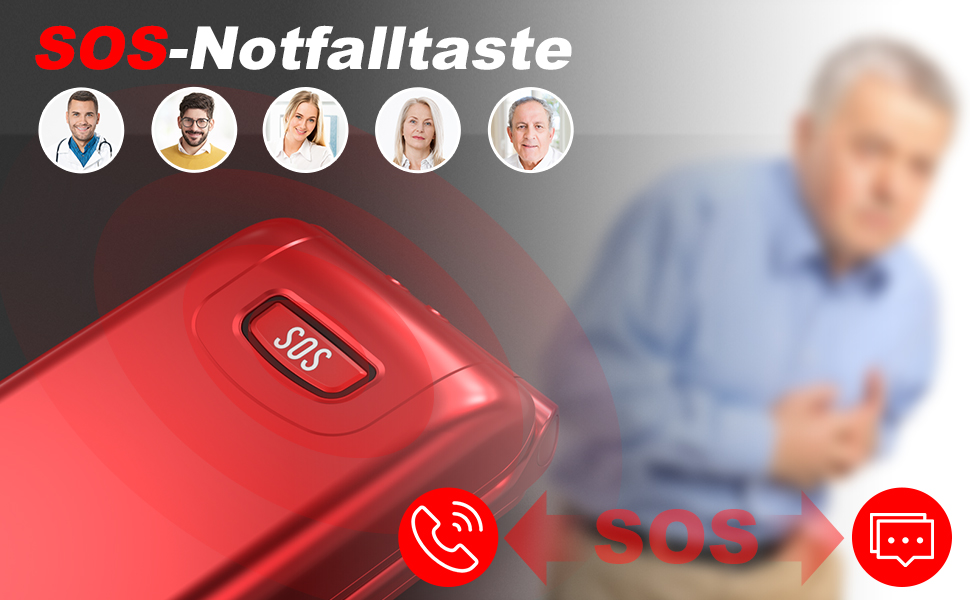
Image: The uleway 4G Senior Flip Phone highlighting its SOS emergency button, designed for quick assistance in critical situations, initiating calls and messages.
5.5 FM Radio
The phone has a built-in FM radio for entertainment and information.
- Press the dedicated FM button on the keypad to quickly access the FM radio.
- Use the navigation keys to scan for stations and adjust volume.
5.6 Alarm Clock
Set alarms for reminders such as medication, appointments, or daily routines.
- Press the dedicated Alarm button on the keypad to access alarm settings.
- Set new alarms, adjust time, and select alarm tone.
5.7 Flashlight
The phone features an exclusive dual flashlight for convenience.
- Press and hold the dedicated flashlight button (or a specific key combination, refer to on-screen prompts) for 3 seconds to turn the flashlight on/off.

Image: The uleway 4G Senior Flip Phone demonstrating its exclusive dual flashlight feature, activated by a 3-second press, providing illumination in dark environments.
6. Maintenance
6.1 Battery Care
- Avoid exposing the battery to extreme temperatures.
- Do not puncture, disassemble, or short-circuit the battery.
- If the phone will not be used for an extended period, charge it to about 50% before storing.
- Use only the original or certified compatible charger and cable.
6.2 Cleaning
- Use a soft, dry cloth to clean the phone's surface.
- Do not use liquid cleaners or aerosols.
- Keep the charging port free of dust and debris.
7. Troubleshooting
| Problem | Possible Cause | Solution |
|---|---|---|
| Phone does not power on. | Low battery; battery not installed correctly. | Charge the phone for at least 30 minutes; ensure battery is properly installed. |
| Cannot make or receive calls. | No SIM card; SIM card not inserted correctly; no network signal. | Insert SIM card; reinsert SIM card; move to an area with better network coverage. |
| Poor call quality/low volume. | Network issue; volume too low. | Check network signal; adjust call volume using side buttons. |
| SOS function not working. | SOS numbers not set; insufficient balance (for SMS). | Ensure SOS numbers are correctly configured in settings; check SIM card balance. |
| Phone not charging. | Cable/adapter faulty; charging port/cradle dirty; battery issue. | Try a different cable/adapter; clean charging port/cradle; contact support if battery is suspected. |
8. Specifications
| Feature | Detail |
|---|---|
| Brand | uleway |
| Model Name | T380T |
| Operating System | KaiOS, or a similar basic phone operating system |
| Connectivity Technology | Bluetooth, 2G, 3G, 4G (LTE) |
| Screen Size (Internal) | 2.4 inches |
| Screen Size (External) | 1.77 inches |
| Resolution | 240 x 320 pixels |
| Memory Storage Capacity | 32 MB (expandable via Micro SD) |
| Camera | 0.3 MP (Rear) |
| Battery | 1 Lithium-Ion battery required (included) |
| Color | Red-4G |
| Dimensions | 13.4 x 11.3 x 6.2 cm |
| Weight | 260 Grams |
| SIM Card Support | Dual Nano-SIM |

Image: The uleway 4G Senior Flip Phone illustrating its dual screen sizes: a 2.4-inch internal display and a 1.77-inch external display.
9. Warranty and Support
For warranty information and customer support, please refer to the documentation provided with your purchase or contact uleway customer service directly. Keep your proof of purchase for warranty claims.
Contact Information: Please visit the official uleway website or refer to the contact details provided in your product packaging for support.
Ask a question about this manual
Ask about setup, troubleshooting, compatibility, parts, safety, or missing instructions. Manuals+ will review the question and use this page’s manual context to help answer it.