1. Product Overview
The ASUS ROG Strix Scope II 96 Wireless Mechanical Gaming Keyboard offers a compact 96% layout, providing full-size functionality in a space-saving design. It features tri-mode connectivity, hot-swappable pre-lubed ROG NX Storm Clicky switches, PBT keycaps, and per-key RGB lighting. Designed for versatility, it supports PC and Mac, making it suitable for gaming, streaming, and daily productivity.
Key Features:
- 96% Layout: Compact design with full-size functionality, including a number pad.
- Tri-Mode Connectivity: Supports Bluetooth (up to 3 devices), low-latency 2.4GHz wireless with ROG SpeedNova technology, and USB wired connection.
- Enhanced Acoustics: Integrated sound-dampening foam and switch-dampening pads reduce noise.
- Hot-Swappable Switches: Pre-lubed ROG NX Storm Clicky mechanical switches with per-key RGB lighting.
- Optimized Controls: Pre-programmed hotkeys (F1-F5) for Xbox Game Bar and recording, multi-function wheel for media/lighting, and macro-programmable keys.
- Ergonomic Design: Three adjustable tilt positions and a detachable wrist rest for comfort.

Figure 1: ASUS ROG Strix Scope II 96 Wireless Mechanical Gaming Keyboard.
2. Setup Guide
- Unboxing: Carefully remove the keyboard and all accessories from the packaging. Ensure all included items are present: keyboard, detachable wrist rest, 2-in-1 ROG keycap & switch puller, wireless receiver, USB extender, ROG-themed spacebar keycap, USB cable, quick start guide, and warranty booklet.
- Attach Wrist Rest: Align the detachable wrist rest with the bottom edge of the keyboard and secure it into place.
- Adjust Tilt: Flip the keyboard over and adjust the two-stage kickstands to your preferred typing angle.
- Connectivity Options:
- 2.4GHz Wireless (ROG SpeedNova): Locate the wireless receiver (dongle) and plug it into an available USB port on your PC or Mac. Ensure the keyboard's connectivity switch (usually on the side or back) is set to 2.4GHz mode. For optimal signal, use the included USB extender to position the receiver closer to the keyboard.
- Bluetooth: Set the keyboard's connectivity switch to Bluetooth mode. On your device, search for Bluetooth devices and select "ROG Strix Scope II 96 Wireless" to pair. The keyboard supports pairing with up to three Bluetooth devices.
- USB Wired: Connect the included USB cable from the keyboard's USB-C port to an available USB port on your PC or Mac. The keyboard will automatically switch to wired mode and begin charging.
- Software Installation (Optional): For advanced customization of RGB lighting, macros, and key remapping, download and install the ASUS Armoury Crate software from the official ASUS support website.
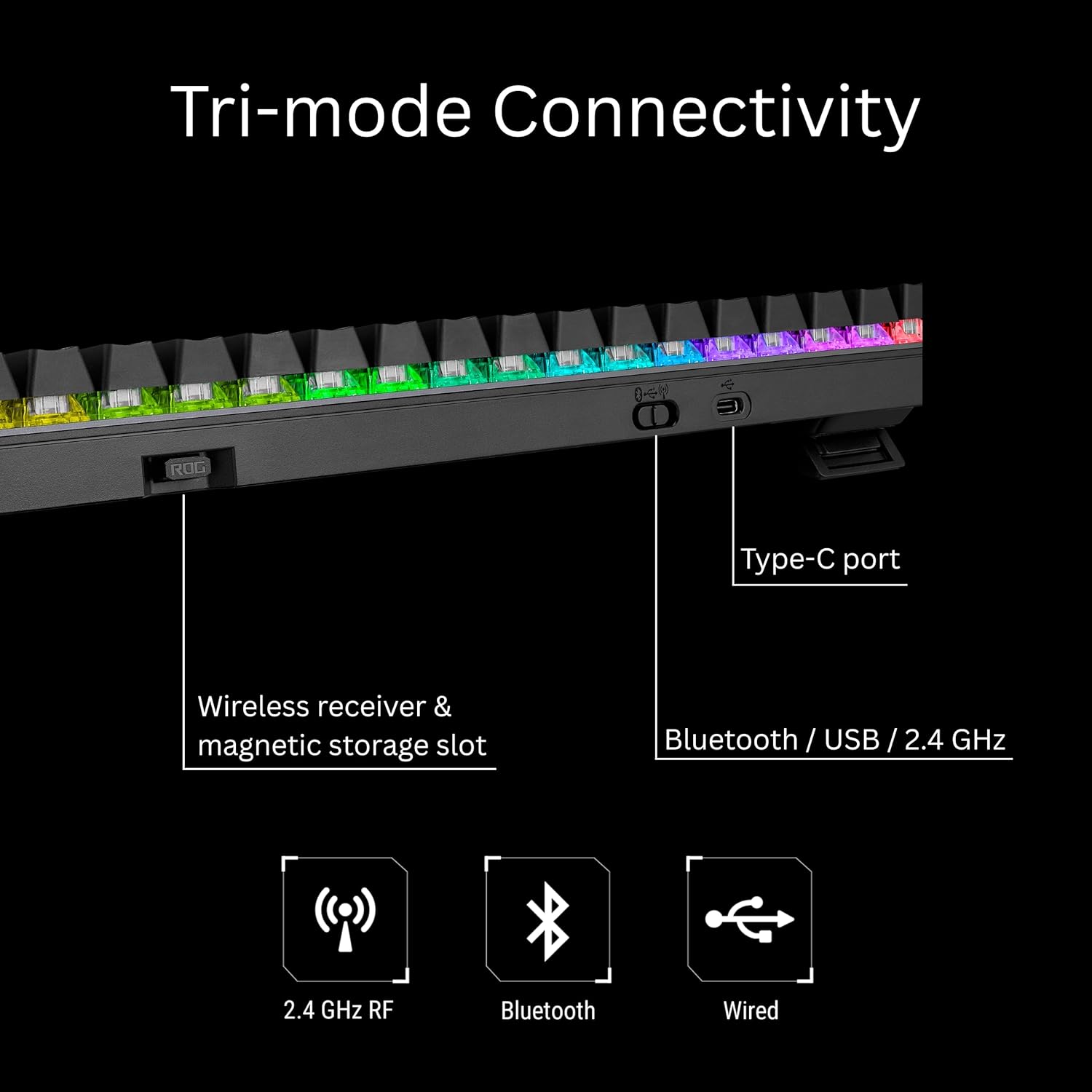
Figure 2: Tri-Mode Connectivity options on the keyboard.
3. Operating Instructions
3.1. Basic Keyboard Functions
- Typing: The keyboard functions as a standard QWERTY layout.
- Number Pad: The integrated number pad provides full numeric input.
- Function Keys (F1-F12): These keys perform their standard functions. Some keys have secondary functions accessible via the Fn key.
3.2. Special Functions and Controls
- Multi-Function Wheel: Located on the top right, this wheel allows for intuitive control over media playback, volume adjustment, and RGB lighting brightness. Press the wheel to cycle through modes (e.g., volume, brightness).
- Pre-programmed Hotkeys: Keys F1-F5 are pre-programmed for convenient control over Xbox Game Bar and recording functions.
- Macro Programming: All keys are fully macro-programmable. Use the Armoury Crate software to assign custom macros for enhanced productivity or gaming.
- RGB Lighting: The keyboard features per-key RGB lighting. Adjust effects and brightness using the multi-function wheel or through the Armoury Crate software.

Figure 3: Quick access hotkeys and intuitive controls.
4. Maintenance
- Cleaning: Use a soft, dry cloth to wipe down the keyboard surface. For deeper cleaning, use a can of compressed air to remove dust and debris from between keycaps.
- Keycap Removal: Use the included 2-in-1 ROG keycap & switch puller to carefully remove keycaps for cleaning or replacement. Gently pull straight up on the keycap.
- Switch Replacement: The keyboard features hot-swappable switches. Use the switch puller tool to carefully remove switches by gripping them firmly and pulling straight up. Insert new compatible 3-pin or 5-pin mechanical switches by aligning the pins and pressing down gently until they click into place.
- Battery Care: For optimal battery life, avoid fully discharging the keyboard frequently. Charge the keyboard using the provided USB cable when the battery indicator is low.

Figure 4: Hot-swappable switches and internal dampening foam for enhanced acoustics.
5. Troubleshooting
- Keyboard Not Responding:
- Ensure the keyboard is charged or connected via USB.
- Check the connectivity switch (2.4GHz, Bluetooth, Wired) matches your connection method.
- For wireless connections, ensure the receiver is securely plugged in and within range.
- Try restarting your computer or reconnecting the keyboard.
- Bluetooth Pairing Issues:
- Ensure the keyboard is in Bluetooth pairing mode.
- Remove any previous pairings of the keyboard from your device's Bluetooth settings and attempt to pair again.
- Ensure no other devices are interfering with the Bluetooth signal.
- RGB Lighting Not Working:
- Check the keyboard's brightness settings using the multi-function wheel.
- Ensure the Armoury Crate software is installed and updated, and check lighting profiles.
- Keys Not Registering:
- Carefully remove the keycap and switch for the affected key. Re-seat the switch firmly to ensure proper contact.
- If the issue persists, consider replacing the switch.
6. Specifications
| Feature | Detail |
|---|---|
| Brand | ASUS |
| Model Number | X901 STRIX SCOPE II 96 WL/NXSM/CA/PBT |
| Connectivity Technology | USB 2.0, Bluetooth, RF 2.4GHz (ROG SpeedNova) |
| Keyboard Description | Gaming, Mechanical, Wireless |
| Switch Type | Hot Swappable Pre-lubed ROG NX Storm Clicky Switches |
| Keycaps | PBT Doubleshot |
| Backlighting | Per-key RGB |
| Layout | 96% Full-Size |
| Hardware Platform | Gaming Console, PC |
| Color | Black |
| Item Weight | 2.7 pounds |
| Power Source | Battery Powered (1 Lithium Ion battery included) |
| Special Features | Volume Roller, Detachable Wrist Rest, Sound-dampening foam, Switch-dampening pads |
7. Warranty and Support
This product includes a warranty booklet in the packaging. Please refer to the booklet for detailed warranty terms and conditions specific to your region. For technical support, driver downloads, and further assistance, visit the official ASUS support website.
Included Accessories:
- Detachable wrist rest
- 2-in-1 ROG keycap & switch puller
- Wireless receiver
- USB extender
- ROG-themed spacebar keycap
- USB cable
- ROG sticker
- Quick start guide
- Warranty booklet


