
Minolta MND65-GY
Contents
Minolta MND65 Digital Camera User Manual
Model: MND65-GY
Introduction
This manual provides comprehensive instructions for the Minolta MND65 Digital Camera. It covers setup, operation, maintenance, and troubleshooting to ensure optimal performance and longevity of your device. The Minolta MND65 is a compact digital camera designed for high-quality photography and videography, featuring 56MP photos, 4K 60FPS video, an 18X digital zoom, and a unique dual-lens selfie design.
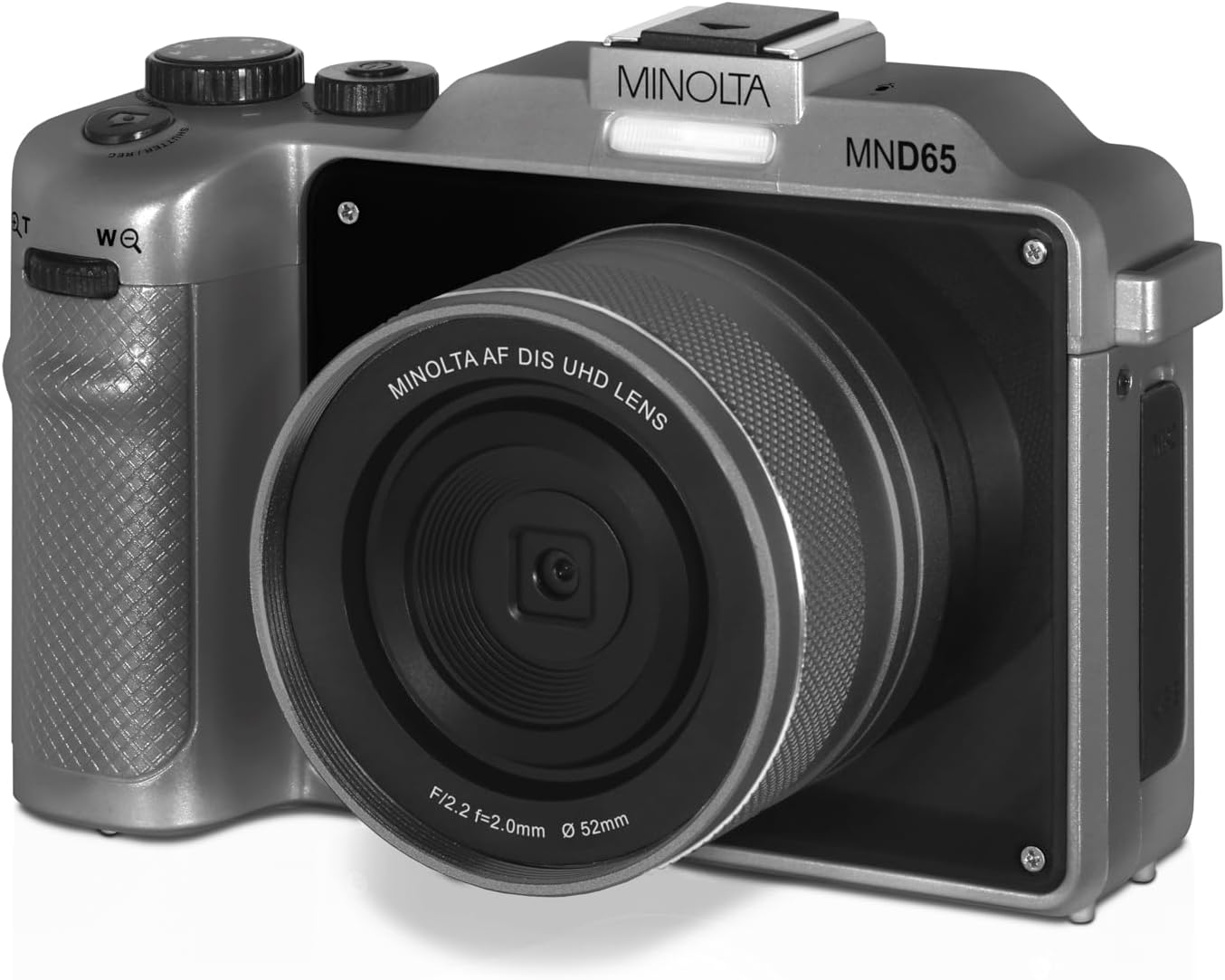
Figure 1: Front view of the Minolta MND65 Digital Camera in gray. This compact camera features a prominent lens and a sleek design.
Setup
1. Unboxing and Package Contents
Carefully unpack all items from the box. Verify that all components are present:
- Minolta MND65 Digital Camera
- Pouch
- USB Cable
- Lithium-Ion Battery
- Wrist Strap
- Memory Card (32GB)
- AC Adaptor
- Lens Cap + Keeper
- Screwdriver + Screws (for faceplates)
2. Battery Installation and Charging
- Locate the battery compartment on the bottom of the camera.
- Open the battery compartment cover.
- Insert the Lithium-Ion Battery, ensuring the correct orientation as indicated inside the compartment.
- Close the battery compartment cover securely.
- Connect the USB cable to the camera's USB port and the AC adaptor. Plug the adaptor into a power outlet to charge the battery. The charging indicator light will illuminate.
- Allow the battery to fully charge before first use.
3. Memory Card Installation
- Locate the memory card slot, typically near the battery compartment.
- Insert the provided 32GB memory card into the slot with the metal contacts facing the correct direction (refer to the diagram near the slot).
- Gently push until it clicks into place. To remove, push again to release.
4. Attaching Interchangeable Faceplates
The Minolta MND65 allows for customization with interchangeable faceplates. Use the provided screwdriver and screws to attach or change faceplates according to your preference.

Figure 2: The Minolta MND65 camera shown with various colored faceplates, demonstrating the customization option.
5. Initial Power On
Press and hold the Power button until the LCD screen illuminates. Follow any on-screen prompts for initial setup, such as setting the date and time.
Operating Instructions
1. Basic Controls and LCD Screen
Familiarize yourself with the camera's buttons and the 3.0" IPS LCD screen. The screen provides a clear view for framing shots, reviewing media, and navigating menus.

Figure 3: Rear view of the Minolta MND65 camera, highlighting the 3.0" LCD screen and various control buttons for navigation and settings.
2. Taking Photos
The camera captures still images at an ultra-high 56MP resolution, supporting both JPEG and RAW formats for maximum flexibility.
- Turn on the camera.
- Select Photo mode using the Mode button.
- Frame your shot using the LCD screen.
- Press the Shutter button halfway to engage autofocus.
- Press the Shutter button fully to capture the image.
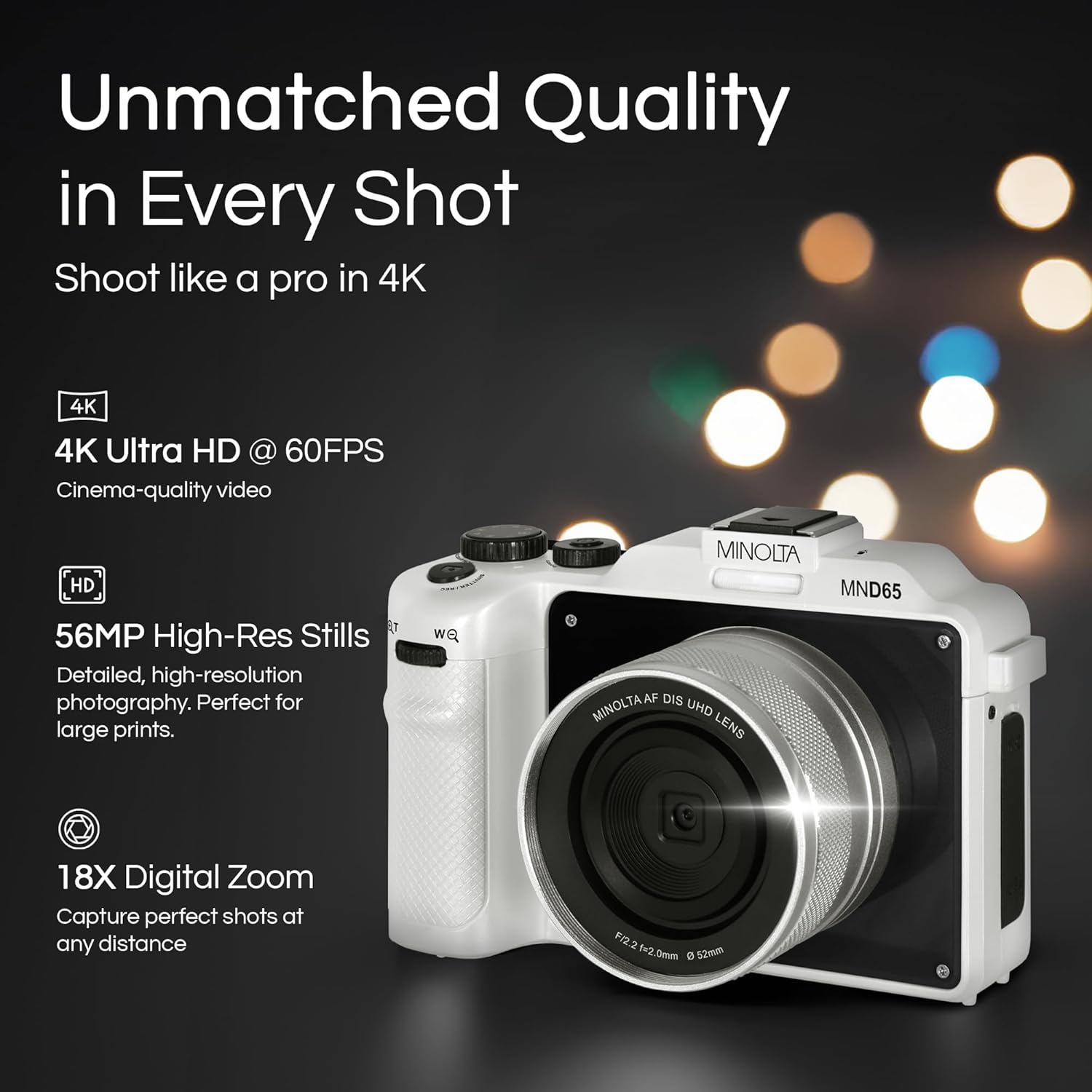
Figure 4: This image illustrates the Minolta MND65's capabilities, including 4K Ultra HD video at 60FPS, 56MP high-resolution stills, and 18X digital zoom.
3. Recording Videos
Record cinematic 4K Ultra HD video at 60 frames per second.
- Turn on the camera.
- Select Video mode using the Mode button.
- Press the Record button (usually marked with a red dot) to start recording.
- Press the Record button again to stop recording.
4. Using the 18X Digital Zoom
Utilize the 18X digital zoom for capturing distant subjects. The zoom controls are typically located near the shutter button.
- Zoom In: Press the 'T' (Telephoto) side of the zoom lever.
- Zoom Out: Press the 'W' (Wide-angle) side of the zoom lever.
5. Dual-Lens Selfie Design
The camera features a second front-facing lens specifically designed for easy selfies and vlogging.
- To activate the selfie lens, rotate the main lens assembly or activate the selfie mode via the camera's menu (refer to on-screen prompts).
- Frame yourself using the front-facing lens view on the LCD.
- Capture your selfie using the shutter button.

Figure 5: A close-up view of the Minolta MND65 camera demonstrating its dual-lens system, specifically highlighting the front-facing selfie lens for convenient self-portraits.
6. Wi-Fi Connectivity and File Transfer
The built-in Wi-Fi allows for wireless transfer of photos and videos to your smartphone or tablet using the dedicated Minolta app.
- Download the official Minolta camera app from your device's app store.
- On the camera, enable Wi-Fi from the settings menu.
- On your smartphone, connect to the camera's Wi-Fi network (SSID and password will be displayed on the camera screen).
- Open the Minolta app to browse, transfer, and share your media.
Maintenance
1. Cleaning the Camera and Lens
- Use a soft, lint-free cloth to clean the camera body.
- For the lens, use a specialized lens cleaning cloth and lens cleaning solution. Avoid touching the lens surface with your fingers.
- Never use abrasive cleaners or solvents.
2. Battery Care
- Store batteries in a cool, dry place when not in use.
- Avoid fully discharging the battery frequently to prolong its lifespan.
- If the camera will not be used for an extended period, remove the battery.
3. Storage
Store the camera in its pouch or a camera bag to protect it from dust, moisture, and physical damage. Avoid extreme temperatures.
Troubleshooting
| Problem | Possible Cause | Solution |
|---|---|---|
| Camera does not power on. | Battery is depleted or incorrectly inserted. | Charge the battery fully. Reinsert the battery correctly. |
| Poor image quality. | Lens is dirty; insufficient lighting; incorrect settings. | Clean the lens. Ensure adequate lighting. Adjust ISO or exposure settings. |
| Wi-Fi connection issues. | Incorrect Wi-Fi password; camera Wi-Fi not enabled; app issues. | Verify password. Ensure camera Wi-Fi is active. Restart camera and app. |
| Memory card error. | Card is full, corrupted, or incompatible. | Delete unnecessary files. Format the card (this will erase all data). Try a different compatible memory card. |
For issues not listed here, please refer to the official Minolta support resources.
Specifications
| Feature | Detail |
|---|---|
| Model Name | MND65 |
| Effective Still Resolution | 56 MP |
| Video Resolution | 4K (2160p) at 60 FPS |
| Digital Zoom | 18x |
| Screen Size | 3 Inches (LCD) |
| Connectivity Technology | Wi-Fi |
| Supported File Format | JPEG, RAW (Images); MP4 (Video) |
| Image Stabilization | Digital |
| Battery Type | Lithium Ion |
| External Memory Size | 32 GB (included) |
| Dimensions (Height) | 3.14 inches |
Warranty and Support
Warranty Information
The Minolta MND65 Digital Camera comes with a Limited 1 Year Manufacturer Warranty. This warranty covers defects in materials and workmanship under normal use. Please retain your proof of purchase for warranty claims.
Customer Support
For technical support, warranty claims, or additional information, please visit the official Minolta website or contact their customer service department. Contact details can typically be found on the Minolta brand website or on the product packaging.
Official Minolta Store: Minolta Store on Amazon
Documents and downloads
Ask a question about this manual
Ask about setup, troubleshooting, compatibility, parts, safety, or missing instructions. Manuals+ will review the question and use this page’s manual context to help answer it.