
Introduction
This manual provides detailed instructions for the setup, operation, and maintenance of your Lockly Wi-Fi Smart Safe. Please read this manual thoroughly before using the product to ensure proper functionality and security.
Safety Information
- Keep physical keys in a secure location away from the safe.
- Do not store the activation card or backup keys inside the safe.
- Ensure proper battery installation and replacement to maintain functionality.
- Avoid exposing the safe to extreme temperatures or moisture.
What's in the Box
The Lockly Wi-Fi Smart Safe package includes the following components:
- Lockly Smart Safe
- Physical Keys x2
- Secure Link Wi-Fi Hub
- Mounting Kit
- Anti-Theft Cable
- AA Batteries (4 included)
- User Manual / Welcome Card
Setup
1. Battery Installation
Open the safe using the physical key. Locate the battery compartment inside the safe. Insert the four AA batteries provided, ensuring correct polarity. Close the battery compartment cover.
2. App Download and Pairing
- Download the Lockly app from your smartphone's app store.
- Create an account or log in.
- Tap the '+' icon to add a new device and select 'Safe'.
- Follow the on-screen instructions to pair your safe via Bluetooth. You will need the Activation Card included in the package. Keep this card in a safe place.
3. Admin Code Setup
During the app setup, you will be prompted to create a 6-8 digit Admin Code for touch screen unlock. Confirm this code using the PIN Genie keypad on the safe.
4. Fingerprint Registration
Within the Lockly app, navigate to the fingerprint settings. Follow the prompts to register your fingerprints. The safe can store up to 99 fingerprints. Ensure you lift and place your finger multiple times as instructed for accurate registration.
5. Wi-Fi Hub Connection
To enable remote access and control, plug in the Secure Link Wi-Fi Hub within 15 feet of your safe and connect it to your 2.4 GHz Wi-Fi network via the app. Ensure your smartphone is within 3 feet of the hub during setup.
6. Mounting Options
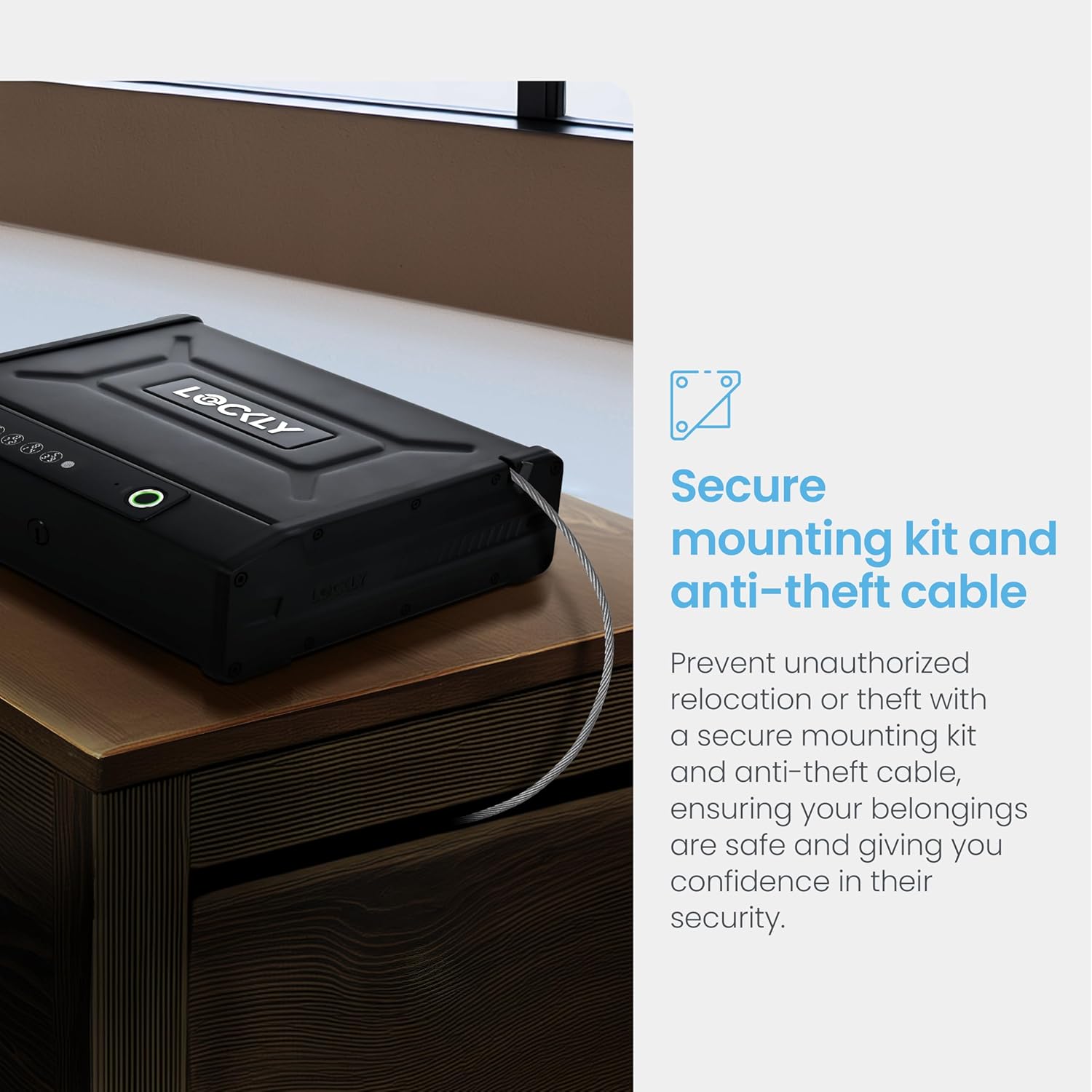
- Anti-Theft Cable: Secure the safe to a sturdy, immovable object (e.g., furniture leg) using the provided anti-theft cable. Insert the cable head into the designated slot on the safe and pull to secure.
- Permanent Mounting: The safe features pre-drilled holes on the bottom and back for secure mounting to a surface using the included mounting kit.
Operating Instructions
1. Unlocking Methods
- Biometric Fingerprint: Place a registered finger on the fingerprint sensor. The safe will unlock in approximately 0.3 seconds.
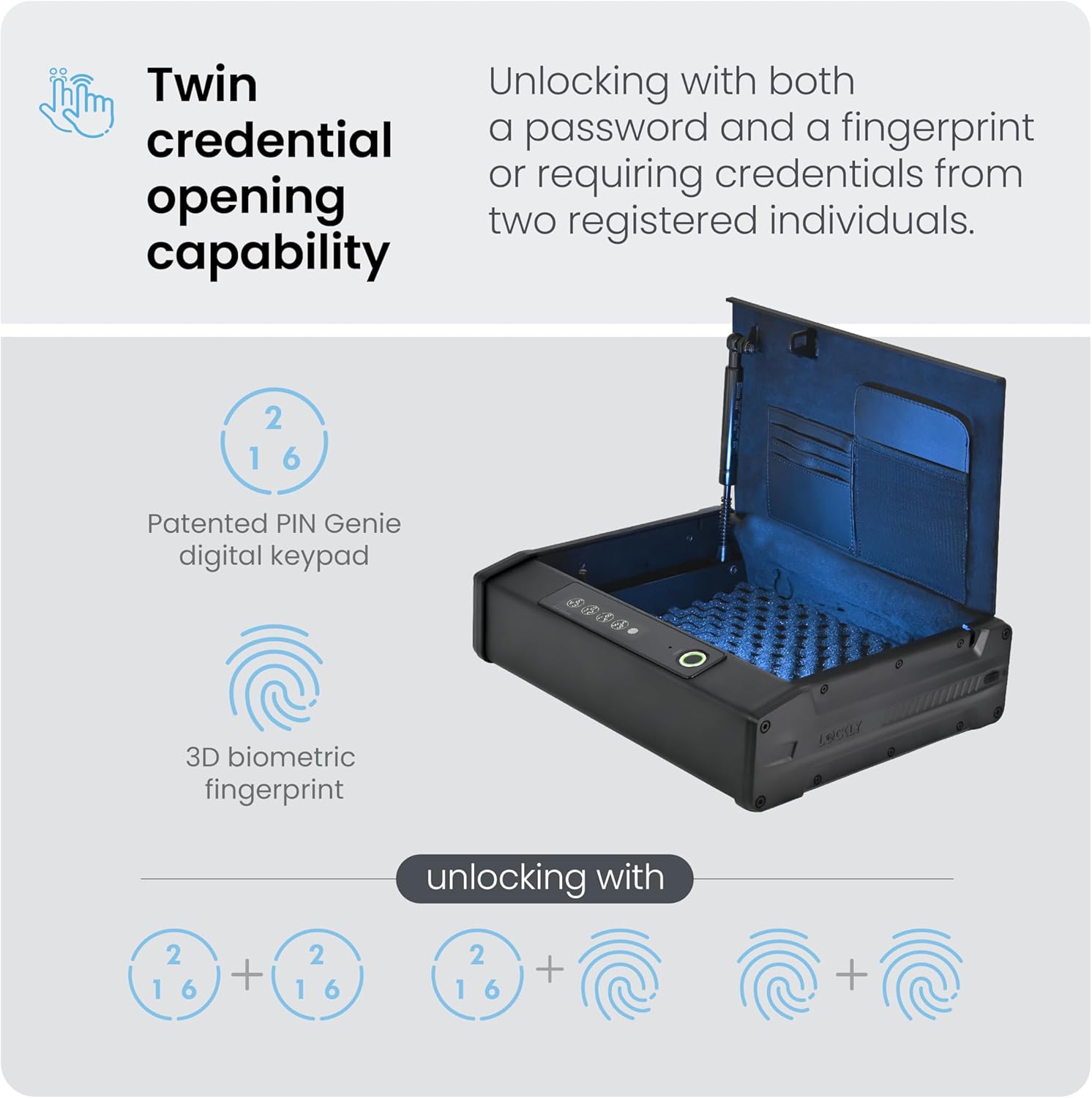
- PIN Genie Keypad: Enter your Admin Code or a valid access code on the digital keypad. The numbers on the keypad shuffle after each use to prevent code theft.
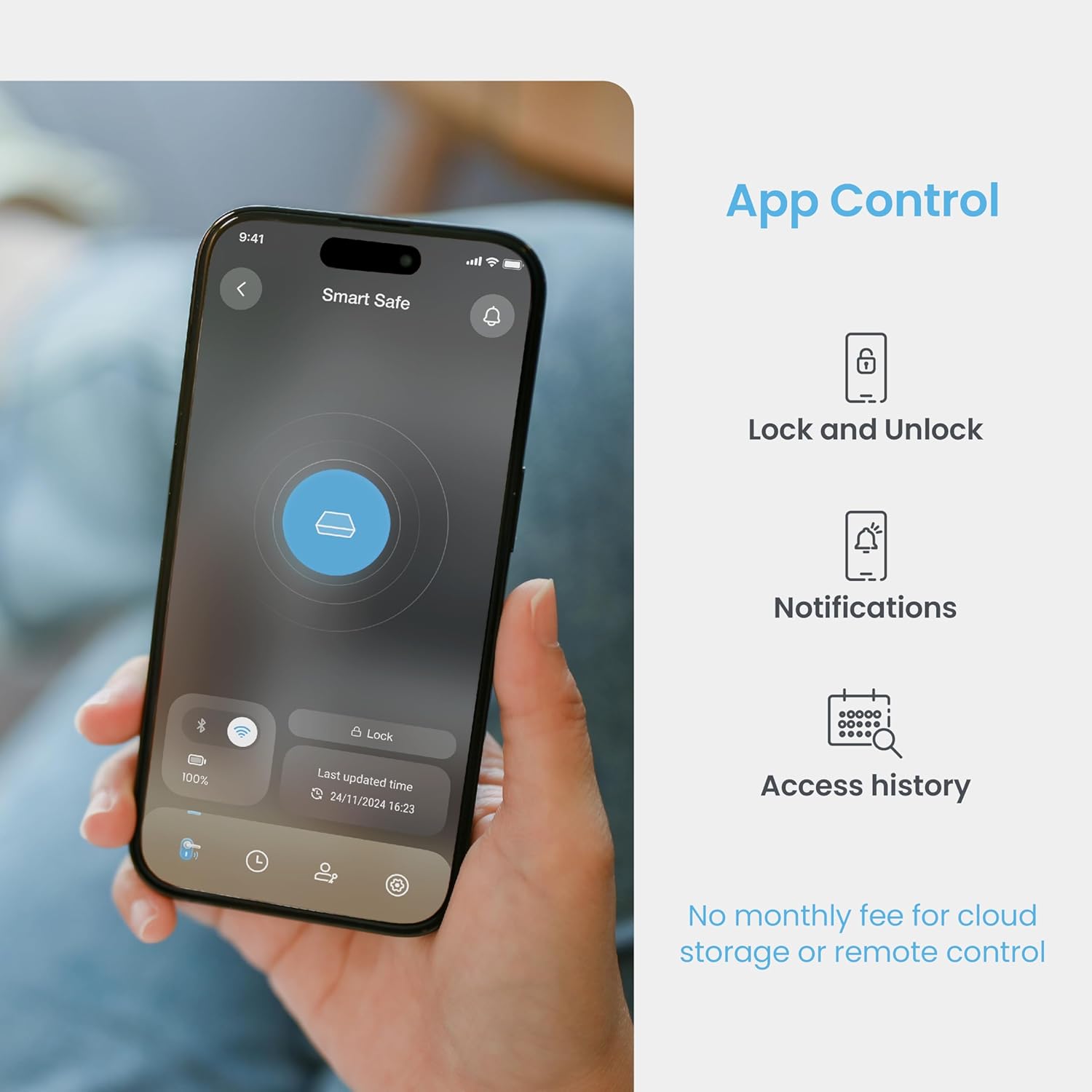
- Mobile App: Open the Lockly app on your smartphone and double-tap the 'Unlock' icon. This works via Bluetooth when nearby or via Wi-Fi (with the hub) from anywhere.
- Physical Key: Insert one of the provided physical keys into the keyhole and turn to unlock.
2. Twin Credential Opening
For enhanced security, enable Twin Credential Opening in the app. This requires two different credentials (e.g., two fingerprints, or a PIN and a fingerprint) to unlock the safe.
3. Duress Finger Alert
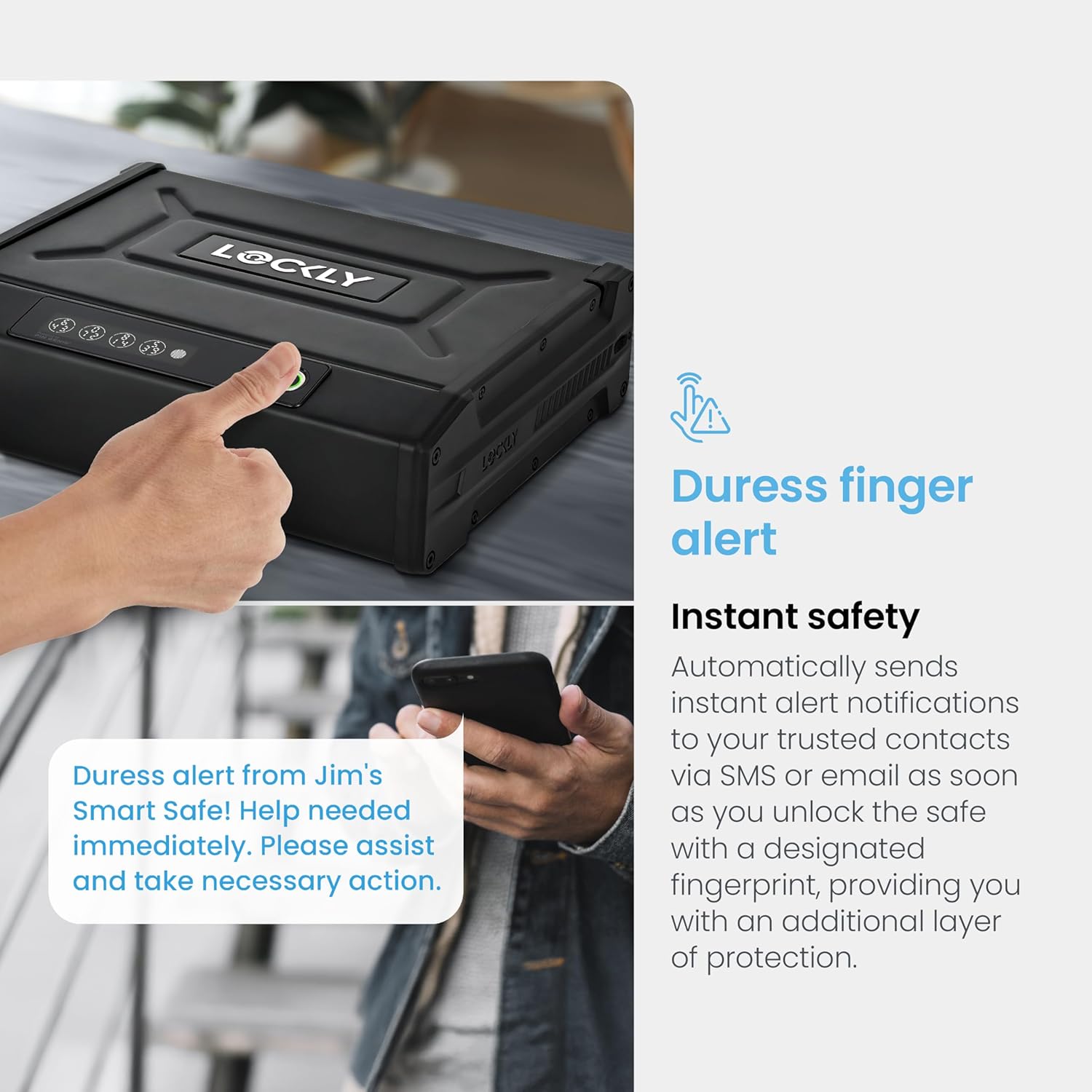
Set up a specific 'Duress Finger' in the app. If this finger is used to unlock the safe, it will silently send an alert notification to your trusted contacts via SMS or email, providing an additional layer of protection in emergencies.
4. Access Management
The Lockly app allows you to manage access for multiple users. You can add or remove users, assign temporary or one-time access codes (eKeys & eBadges), and set specific access schedules.
5. Access History
View a detailed log of all safe access events through the Lockly app. This includes who accessed the safe, when, and by what method (fingerprint, code, app).
6. Interior LED Light
The safe features an interior LED light that illuminates when the safe is opened, providing visibility to its contents.
Product Media


Official Product Video
This video provides an overview of the Lockly Smart Safe, highlighting its fingerprint sensor and key features.
Maintenance
- Battery Replacement: Replace all four AA batteries when the low battery indicator appears on the safe's display or in the app.
- Cleaning: Wipe the exterior of the safe with a soft, dry cloth. Avoid using abrasive cleaners or solvents that could damage the finish or electronic components.
- Fingerprint Sensor: Keep the fingerprint sensor clean and dry for optimal performance.
Troubleshooting
- Safe Not Opening:
- Check battery levels. If batteries are dead, use the physical key or connect a USB-C 5V power supply for temporary power.
- Ensure your finger is clean and dry when using the biometric sensor.
- Verify the PIN Genie code is entered correctly.
- App Connectivity Issues:
- Ensure your Wi-Fi Hub is within 15 feet of the safe and connected to a 2.4 GHz Wi-Fi network.
- Check your smartphone's Bluetooth connection.
- Restart the Lockly app and/or your smartphone.
- PIN Genie Keypad Not Responding:
- Ensure the safe has sufficient battery power.
- Clean the keypad surface.
Specifications
| Feature | Detail |
|---|---|
| Brand | Lockly |
| Model Number | PGV528WMB |
| Product Dimensions | 10"D x 12.6"W x 3.2"H |
| Lock Type | Biometric, Electronic Combination Lock, Key, Mechanical Code Lock |
| Color | Black |
| Material | Alloy Steel |
| Item Weight | 13.71 Pounds |
| Special Features | Biometric Fingerprint, Combination Lock, Portable |
| Mounting Type | Under Counter Mount (or other secure mounting) |
| Power Source | AA Batteries, Type-C 5V Power Supply (for emergency) |
| Smart Home Compatibility | Smart Home Compatible |
Warranty and Support
- Mechanical and Finish Warranty: Limited 3-year warranty.
- Electronic Warranty: 2-year warranty.
- Technical Support: Lifetime 24/7 technical support is available. Refer to your product packaging or the Lockly website for contact information.


