
1. Introduction
This manual provides essential instructions for setting up, operating, maintaining, and troubleshooting your C idea P1250 10.1-inch Android 12 Tablet. Please read this guide thoroughly to ensure optimal performance and longevity of your device.

Image 1.1: C idea P1250 tablet front view displaying key features like T606 Octa Core CPU, WiFi 5, FHD 10.1 inch screen, 8GB RAM, 128GB ROM, Face Unlock, and GMS certification. The rear of the tablet is partially visible behind it.
2. Device Layout
Familiarize yourself with the physical components of your C idea P1250 tablet.

Image 2.1: This diagram provides a clear overview of the tablet's external components, labeling the front and rear cameras, 3.5mm audio jack, power button, volume controls, reset button, Type-C charging port, speakers, and the TF card slot for expandable storage.
- Front Camera: Located above the screen, used for video calls and selfies.
- Rear Camera: Located on the back, used for capturing photos and videos.
- 3.5mm Audio Jack: For connecting headphones or external speakers.
- Power ON/OFF Button: Press and hold to power on/off or restart. Press briefly to wake/sleep the screen.
- Volume Buttons (+/-): Adjust the device's volume.
- Reset Button: A small pinhole button for force restarting the device if it becomes unresponsive.
- Type-C Port: For charging the tablet and connecting to a computer.
- Speaker: Audio output.
- TF Card Slot: For inserting a Micro SD card to expand storage.
3. Setup
3.1 Initial Power On and Basic Configuration
- Charge the Tablet: Before first use, ensure the tablet is fully charged using the provided Type-C cable and power adapter.
- Power On: Press and hold the Power ON/OFF button until the C idea logo appears on the screen.
- Language Selection: Follow the on-screen prompts to select your preferred language.
- Wi-Fi Connection: Select your Wi-Fi network from the list and enter the password. The tablet supports both 2.4GHz and 5GHz bands for optimal connectivity.
- Google Account Setup: Sign in with your Google account or create a new one. This is necessary for accessing the Google Play Store and other Google services.
- Date and Time: Confirm the date and time settings.
- Screen Lock: Set up a screen lock method (PIN, pattern, password, or Face Unlock) for security.
3.2 Expanding Storage with a Micro SD Card
The tablet supports storage expansion up to 1TB using a Micro SD card.
- Locate the TF Card Slot on the side of the tablet (refer to Image 2.1).
- Gently insert the Micro SD card into the slot until it clicks into place.
- The tablet will detect the new storage. You may be prompted to format the card for optimal use with the device.
4. Operating Instructions
4.1 Basic Navigation
- Touch Screen: Tap to select, swipe to scroll, pinch to zoom.
- Home Screen: Access your apps and widgets.
- Notifications Panel: Swipe down from the top of the screen to view notifications and quick settings.
- App Drawer: Swipe up from the bottom of the screen to access all installed applications.
4.2 Application Management

Image 4.1: This image illustrates the tablet's memory capabilities, showing multiple applications open and icons for 8GB RAM, 128GB ROM, and 1TB expandable storage.
- Downloading Apps: Open the Google Play Store, search for your desired app, and tap 'Install'.
- Uninstalling Apps: Go to Settings > Apps > See all apps, select the app, and tap 'Uninstall'. Alternatively, long-press an app icon on the home screen and drag it to 'Uninstall'.
- Multitasking: The Android 12 system and Octa-core processor allow for smooth switching between applications.
4.3 Camera Usage

Image 4.2: This image demonstrates the tablet's camera capabilities, featuring a 5MP front camera suitable for video calls and selfies, and a 13MP rear camera for capturing photos.
The tablet is equipped with a 5MP front camera and a 13MP rear camera.
- Open the Camera application.
- Switch between front and rear cameras using the camera icon.
- Tap the shutter button to take a photo or start/stop video recording.
4.4 Connectivity

Image 4.3: This diagram visually compares the performance of 2.4GHz and 5GHz Wi-Fi bands, showing the tablet connected to a dual-band router, indicating faster speeds with 5GHz for improved downloading and streaming.
- Wi-Fi: Connect to 2.4G or 5G Wi-Fi networks via Settings > Network & internet > Wi-Fi.
- Bluetooth: Pair with Bluetooth devices (headphones, speakers) via Settings > Connected devices > Bluetooth.
- FM Radio: Access the built-in FM radio feature.
4.5 Battery Management

Image 4.4: The image shows the C idea P1250 tablet being charged via its Type-C port, highlighting its 6000mAh battery, which provides 6-10 hours of usage.
- The 6000mAh battery provides extended usage time.
- Charge the tablet using the Type-C port and the included charger.
- To optimize battery life, adjust screen brightness, close unused apps, and enable battery saver mode in Settings > Battery.
4.6 Security and Parental Controls
The tablet features GMS certification and includes options for child protection and parental management.
- Face Unlock: Set up facial recognition for convenient and secure unlocking via Settings > Security > Face Unlock.
- Digital Wellbeing & Parental Controls: Manage screen time, app timers, and content filters via Settings > Digital Wellbeing & parental controls.
5. Maintenance
- Cleaning: Use a soft, lint-free cloth to clean the screen and body. Avoid abrasive materials or harsh chemicals.
- Software Updates: Regularly check for system updates via Settings > System > System update to ensure your tablet has the latest features and security patches.
- Battery Care: Avoid extreme temperatures. Do not let the battery fully discharge frequently.
- Storage Management: Periodically clear cache and unnecessary files to maintain performance.
6. Troubleshooting
If you encounter issues with your tablet, refer to the following common solutions:
- Tablet is unresponsive: Press and hold the Power ON/OFF button for 10-15 seconds to force a restart. If this does not work, use a thin object (like a paperclip) to press the Reset button (refer to Image 2.1).
- Wi-Fi connectivity issues:
- Ensure Wi-Fi is enabled in settings.
- Restart your router and the tablet.
- Forget the network and reconnect.
- Slow performance:
- Close unused applications.
- Clear app caches.
- Ensure sufficient free storage space.
- Battery drains quickly:
- Reduce screen brightness.
- Disable Wi-Fi, Bluetooth, or GPS when not in use.
- Check battery usage in Settings > Battery to identify power-consuming apps.
- Apps crashing:
- Clear the app's cache and data (Settings > Apps > [App Name] > Storage & cache).
- Uninstall and reinstall the app.
- Ensure the app is updated to its latest version.
7. Specifications

Image 7.1: C idea P1250 tablet screen displaying vibrant colors, with icons indicating 10.1 inch, 1920x1200 resolution, pixel density, eye protection, adjustable brightness, and DCI-P3 wide color gamut.
| Model | P1250 |
| Operating System | Android 12 |
| Processor | Unisoc T606 Octa-core, 2 GHz |
| Display | 10.1-inch Full HD (1920 x 1200 pixels), IPS Technology |
| RAM | 8GB (4GB + 4GB expanded memory) |
| Internal Storage | 128GB ROM |
| Expandable Storage | Up to 1TB via Micro SD card |
| Rear Camera | 13MP |
| Front Camera | 5MP |
| Battery | 6000mAh Lithium Polymer |
| Connectivity | 2.4G/5G Dual-band Wi-Fi (802.11ac), Bluetooth 5.0, FM, G-sensors |
| Ports | Type-C, 3.5mm Audio Jack |
| Dimensions (LxWxH) | 9.49 x 6.3 x 0.31 inches |
| Weight | 1.76 pounds |
8. Warranty and Support
For warranty information, please refer to the documentation included with your purchase or contact the manufacturer directly. For technical support or inquiries, please use the contact information below.
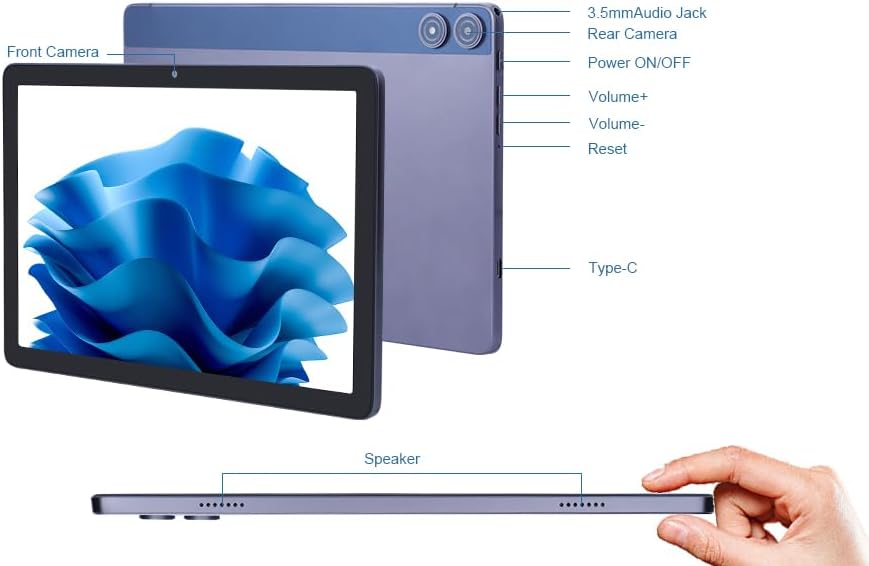
Image 8.1: This image provides essential contact details for the EU Representative (SUCCESS COURIER SL) and the Manufacturer (Shenzhen Huikun Technology Co., Ltd.), including addresses and email. It also includes a critical safety warning in multiple languages regarding the danger of plastic bags, advising to keep them away from children.
Manufacturer Contact
- Name: Shenzhen Huikun Technology Co., Ltd.
- Address: Floor 3, Building 3, Saitu Digital Industrial Factory, 137 Bulan Road, Gankeng Community, Jihua Street, Longgang District, Shenzhen, Guangdong, China
- Email: service@cideatablet.com
EU Representative Contact
- Name: SUCCESS COURIER SL
- Address: CALLE RIO TORMES NUM. 1, PLANTA 1, DERECHA, OFICINA 3, Fuenlabrada, Madrid, 28947 Spain
- Email: successservice2@hotmail.com
Safety Warning
Plastic bags can be dangerous. To avoid the danger of suffocation, do not leave these bags within the reach of babies or children.


