
Introduction
This manual provides detailed instructions for the setup, operation, maintenance, and troubleshooting of your Tenbaba Portable Motorcycle Dash Cam. This device integrates wireless Apple CarPlay and Android Auto, dual HD 1080P dash cameras, a digital display wire control, and an IP66 waterproof 5.5-inch touch screen for an enhanced riding experience.

Image: Tenbaba Portable Motorcycle Dash Cam displaying the Apple CarPlay interface on a motorcycle handlebar.
What's in the Box
Verify that all components are present in your package:
- 5.5 Inch Screen (Main Unit)
- Mounting brackets (Handlebar Mount)
- Front Camera
- Rear Camera
- Power Cable
- Type-C Splitter Cable
- Electrical Tape
- USB Power Cable
- Binding Straps (x10)
- Stickers (x2)
- Screws (x4)
- Installation Tools (Allen keys, screwdrivers)
- Wire Control Unit
- Sunshade for Main Unit

Image: Contents of the Tenbaba Portable Motorcycle Dash Cam package.
Unboxing and Accessories Overview
Video: An unboxing of the Tenbaba Portable Motorcycle Dash Cam, showing the main unit and various accessories as they are removed from the packaging.
Video: A detailed overview of the accessories included with the Tenbaba Portable Motorcycle Dash Cam, demonstrating their individual functions and connections.
Setup and Installation
Follow these steps to install your Tenbaba Portable Motorcycle Dash Cam:
- Mounting the Main Unit: Attach the main unit to your motorcycle's handlebars using the provided mounting kit and appropriate spacers for a secure fit. Ensure the unit is positioned for optimal visibility and accessibility.
- Connecting the Cameras: Connect the front and rear 1080P cameras to the main unit using the yellow video cables. Position the cameras to capture clear views of the road ahead and behind.
- Power Connection: Connect the voltage reduction line to your motorcycle's power source. The red wire connects to the positive terminal (ACC wire for ignition-switched power), and the black wire connects to the negative (ground) terminal.
- Wire Control Unit: Connect the digital display wire control unit. This unit allows for easy access to functions like camera switching, recording, and answering calls without touching the main screen.
- Secure Wiring: Use the provided binding straps and electrical tape to neatly secure all cables, preventing interference with motorcycle operation and protecting them from the elements.

Image: Digital display wire control unit for easy access to functions.
Power Cord Connection Guide
Video: A step-by-step guide on connecting the power cord for the Tenbaba Motorcycle Dash Cam, demonstrating how to properly wire it to the motorcycle's electrical system.
Video: Another demonstration of the power cord connection for the Tenbaba Motorcycle DVR, providing additional visual guidance for installation.
Operating Instructions
Wireless CarPlay & Android Auto
The device supports wireless connection to Apple CarPlay and Android Auto. Once connected, your smartphone's apps for music, navigation, and calls will be displayed on the 5.5-inch touch screen. Voice control via Siri or Google Assistant is available for hands-free operation.
Image: Wireless Apple CarPlay and Android Auto functionality on the dash cam screen.
Video: Demonstration of the Tenbaba Portable Motorcycle Dash Cam's wireless Apple CarPlay and Android Auto features in use while riding.
Dual HD 1080P Dash Camera
The front and rear cameras feature high-definition 7-glass lenses for improved recording in low-light conditions. They record at FHD 1080P resolution, capturing 200-megapixel high-speed video. WDR/HDR functions automatically correct brightness differences for clear video in various lighting conditions.
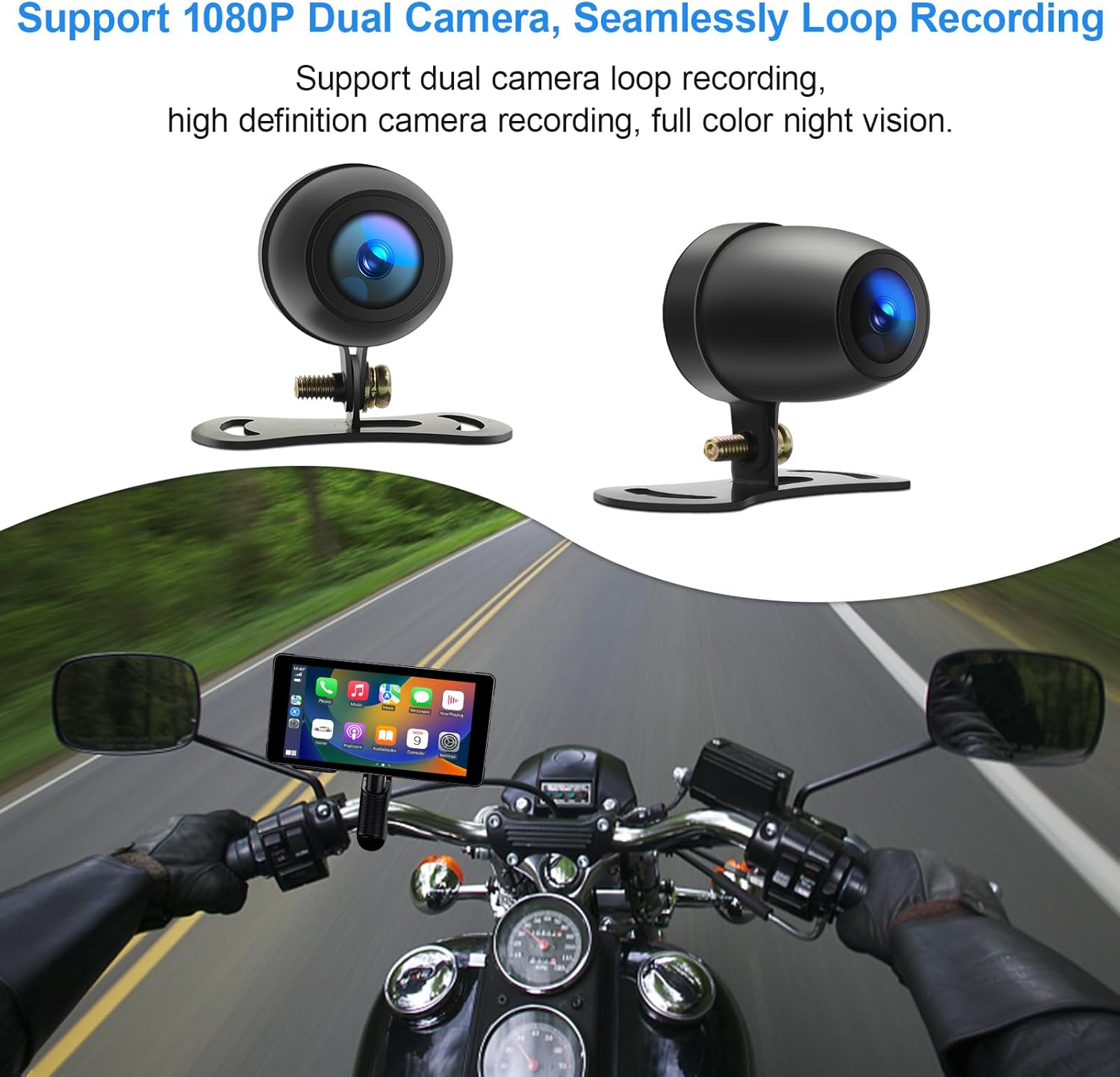
Image: Dual 1080P cameras for seamless loop recording.
5.5-inch HD IPS Touch Screen
The 5.5-inch HD IPS touch screen (960 x 480 resolution) allows for all operations. It includes a built-in automatic light-sensing chip that adjusts screen brightness according to environmental light, ensuring visibility even in direct sunlight.

Image: Product details showing ports and controls on the main unit and wire control.
Maintenance
The Tenbaba dash cam body and dual cameras are IP66 waterproof, dustproof, and shockproof. This design allows for worry-free use in various weather conditions and can withstand continuous vibrations and rough road conditions. Regularly clean the screen and camera lenses with a soft, damp cloth. Avoid using harsh chemicals.
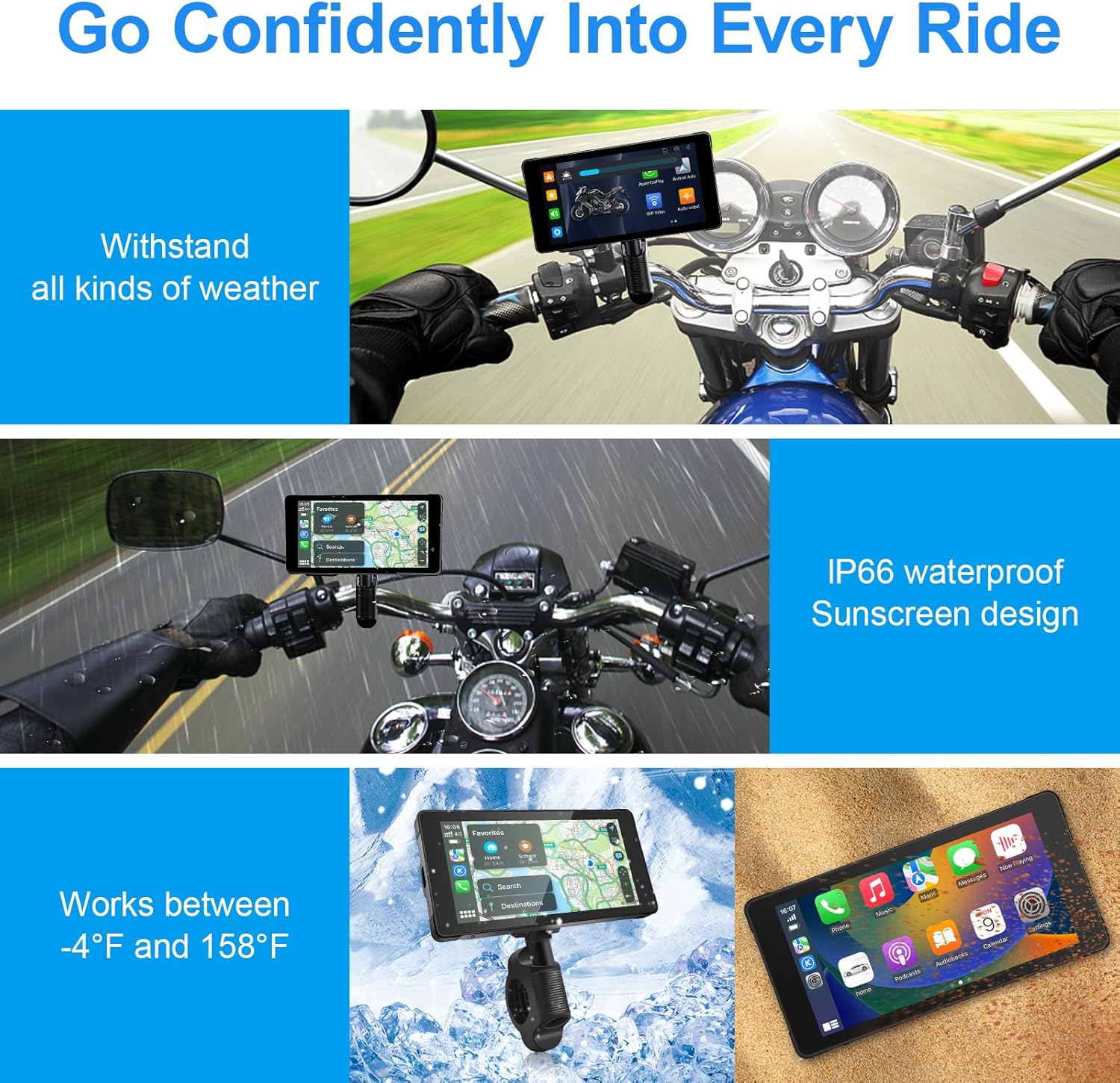
Image: The dash cam is designed to withstand various weather conditions and temperatures.
Troubleshooting
Camera Display Issues (e.g., distorted or incorrect colors)
If your camera feed appears distorted or shows incorrect colors after installation or a reset, it might be due to an incorrect camera format setting. Follow these steps to resolve the issue:
- Access the device's main menu.
- Navigate to the 'Settings' icon.
- Select the 'Camera' tab.
- Look for 'Camera Format' or 'Video Resolution' options.
- Scroll down and select '1080N' (if available). This setting is often crucial for proper display with certain camera types.
- Confirm your selection and exit the settings. The camera feed should now display correctly.
Video: A troubleshooting tip demonstrating how to adjust the camera format setting to '1080N' to fix display issues on the Tenbaba Motorcycle Dash Camera.
General Troubleshooting Tips
- No Power: Check all power connections, ensuring they are secure and correctly wired to the motorcycle battery (positive to positive, negative to negative, ACC wire if applicable). Verify the fuse in the power line.
- Cameras Not Working: Ensure camera cables are firmly connected to the main unit. Check camera format settings as described above.
- Connectivity Issues (CarPlay/Android Auto): Ensure Bluetooth and Wi-Fi are enabled on your smartphone and the dash cam. Try restarting both devices.
- Screen Unresponsive: Perform a soft reset by holding the power button for 10 seconds. If the issue persists, check for firmware updates.
Specifications
| Feature | Detail |
|---|---|
| Product Dimensions | 0.42 x 5.9 x 2.92 inches |
| Item Weight | 6.2 ounces |
| Model Number | Tenbaba-Carplay-03 |
| Operating System | Linux |
| Connectivity Technologies | Bluetooth, Wireless |
| Special Features | Bluetooth, Touch Screen, Waterproof |
| Human Interface Input | Touchscreen |
| Color | Black |
| Video Capture Resolution | 1080p |
| Mounting Type | Handlebar Mount |
| Vehicle Service Type | Motorcycle |
Warranty and Support
Tenbaba stands behind its products, offering a 12-month warranty and technical support for your motorcycle GPS navigator. If you have any questions or concerns, please contact Tenbaba Direct for a satisfied solution within 24 hours.