
1. Introduction
This manual provides detailed instructions for the setup, operation, maintenance, and troubleshooting of your TCNEWCL USB 2.0 Audio Video Capture Card, Model VC200. This device is designed to convert analog video and audio signals from sources like VCRs, camcorders, and DVD players into digital files on your computer. Please read this manual thoroughly before using the product to ensure proper functionality and to maximize its lifespan.
2. Package Contents
Upon opening the package, please verify that all the following items are included:
- TCNEWCL VC200 Capture Card x 1
- USB Cable x 1
- 100 cm RCA Extension Cable x 1
- Windows Software CD x 1
- User Manual x 1 (This document)

Figure 2.1: TCNEWCL VC200 Package Contents. This image displays the VC200 capture card, a USB cable, an RCA extension cable, and a Windows software installation CD.
3. Product Overview
The TCNEWCL VC200 is a compact and portable USB 2.0 audio video capture device. It features standard RCA (composite video, left audio, right audio) and S-Video input ports, connecting to your computer via a USB 2.0 interface. The device is designed for ease of use with plug-and-play functionality on compatible operating systems.
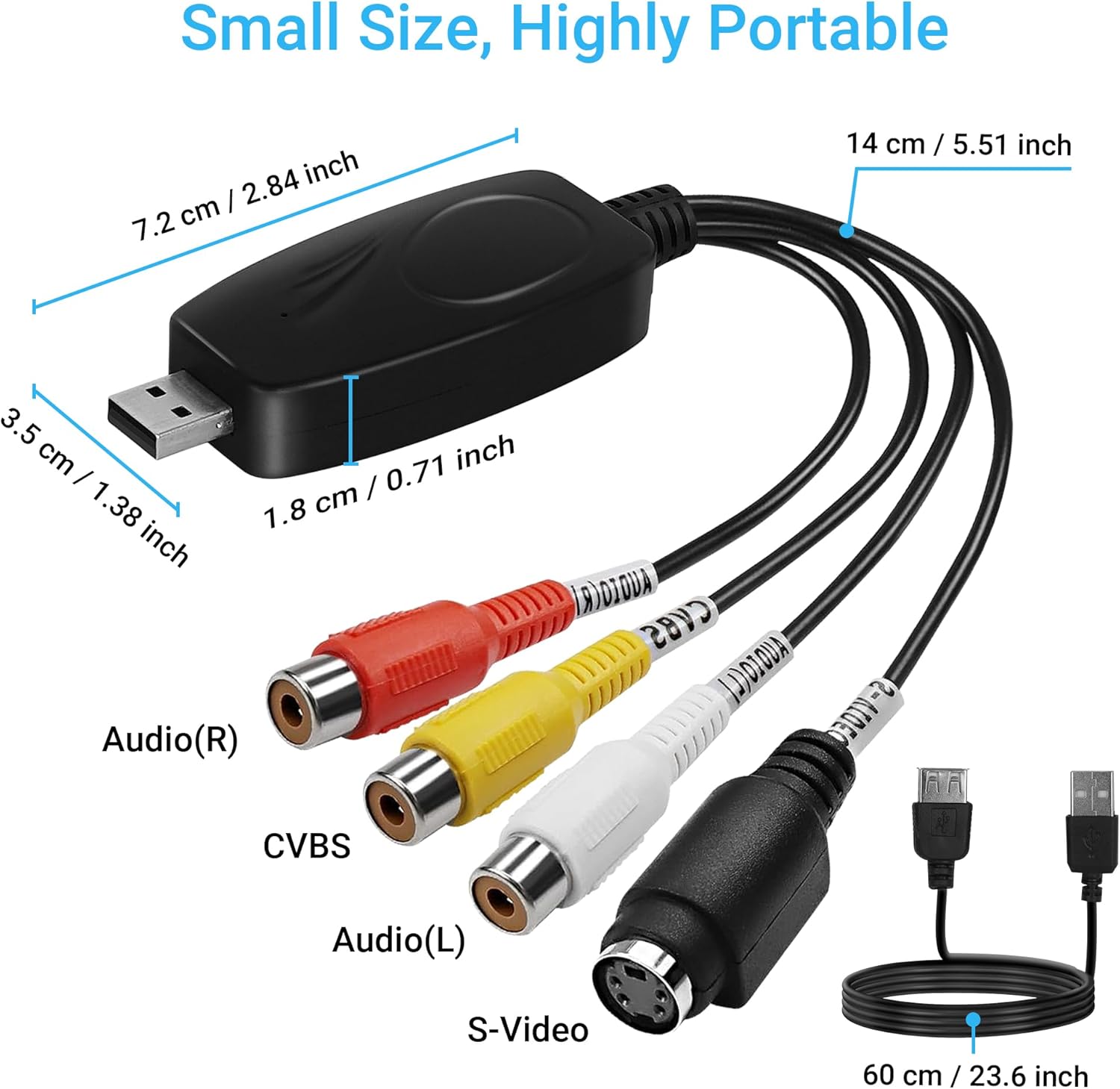
Figure 3.1: Product Dimensions and Ports. The image shows the compact size of the capture card (approx. 7.2 cm long) and labels its input ports: Audio (R), CVBS (Composite Video), Audio (L), and S-Video. The USB connector and cable length are also indicated.
4. Setup
Follow these steps to set up your TCNEWCL VC200 Capture Card:
- Connect the Capture Card to your Computer: Insert the USB connector of the VC200 Capture Card into an available USB 2.0 port on your desktop or laptop computer. The device is plug-and-play, and typically no additional drivers are required for Windows 10/8/7/XP/Vista and Mac OS.
- Connect your Analog Video Source:
- RCA Connection: Connect the yellow RCA plug from your video source (e.g., VCR, camcorder, DVD player) to the yellow CVBS input on the capture card. Connect the white RCA plug to the Audio (L) input and the red RCA plug to the Audio (R) input.
- S-Video Connection: If your video source has an S-Video output, connect it to the S-Video input on the capture card. For audio, you will still need to use the white (Audio L) and red (Audio R) RCA plugs.
- Install Software (if necessary): While the device is plug-and-play, dedicated capture software is required to record and digitize your video. The included Windows Software CD contains a compatible application. Alternatively, third-party software such as OBS Studio (Open Broadcaster Software) or VLC Media Player for Windows, or QuickTime Player for Mac OS, can be used.

Figure 4.1: Connection Diagram. This diagram illustrates the connection of the capture card to a computer (PC or Laptop) and various analog video sources such as a camcorder, DVD player, and VHS player using RCA and S-Video cables.

Figure 4.2: Digitization Setup. A laptop is shown connected to a DVD player using the TCNEWCL capture card, illustrating the process of digitizing old videos.
5. Operating Instructions
Once the hardware is connected, you can proceed with capturing video using your preferred software.
5.1. Software Compatibility
The TCNEWCL VC200 is compatible with various operating systems and software applications:
- Operating Systems: Windows 10, 8, 7, XP, Vista; Mac OS.
- Recommended Software: OBS Studio, VLC Media Player, QuickTime Player. The included CD provides software for Windows.

Figure 5.1: Software and OS Compatibility. This image displays the capture card alongside logos of various compatible software applications (VLC, OBS, Facebook Live, AfreecaTV, Skype, YouTube) and operating systems (Windows XP, Windows 7/8/10, Windows Vista, Mac OS).
5.2. Using OBS Studio (Windows)
OBS Studio is a popular free and open-source software for video recording and live streaming. Here are the basic steps to set up the VC200 with OBS:
- Launch OBS Studio.
- In the 'Sources' box, click the '+' icon to add a new source.
- Select 'Video Capture Device' from the list and click 'OK'.
- In the properties window, select 'AV TO USB 2.0' as the device.
- Configure resolution and other settings as needed. For optimal results with analog sources, set the resolution to 720x480.
- Under 'Audio Output Mode', select 'Output desktop audio (directsound)' or 'Use custom audio device' and choose 'USB 2.0 MIC' for audio input.
- Click 'OK' to add the source.
- Click 'Start Recording' or 'Start Streaming' to begin capturing your video.

Figure 5.2: Steps on OBS Studio. This image provides a four-step visual guide on how to add and configure the 'Video Capture Device' source in OBS Studio, including selecting 'AV TO USB 2.0' and setting audio input.
5.3. Using QuickTime Player (Mac OS)
QuickTime Player is a built-in application on Mac OS that can be used for video recording:
- Connect the VC200 Capture Card to your Mac.
- Open QuickTime Player.
- From the menu bar, select File > New Movie Recording.
- In the recording window, click the small arrow next to the record button to open the options menu.
- For 'Camera', select 'AV TO USB 2.0'.
- For 'Microphone', select 'USB 2.0 MIC'.
- Adjust the 'Quality' setting as desired.
- Click the record button to start capturing.

Figure 5.3: QuickTime Player Settings (Mac OS). This image shows the QuickTime Player interface on a Mac, highlighting the dropdown menu where 'AV TO USB 2.0' is selected as the camera input and 'USB 2.0 MIC' as the microphone input for a new movie recording.

Figure 5.4: QuickTime Player Menu (Mac OS). This image shows the QuickTime Player menu bar on Mac OS, with the 'File' menu open and 'New Movie Recording' highlighted, indicating the first step to initiate video capture.
6. Maintenance
To ensure the longevity and optimal performance of your TCNEWCL VC200 Capture Card, follow these simple maintenance guidelines:
- Keep Clean: Regularly wipe the device with a soft, dry cloth to remove dust and debris. Avoid using liquid cleaners or abrasive materials.
- Store Properly: When not in use, store the capture card in a cool, dry place away from direct sunlight and extreme temperatures.
- Handle with Care: Avoid dropping the device or subjecting it to strong impacts. Do not pull on the cables forcefully.
- Cable Management: Ensure cables are not kinked or bent sharply, which can damage internal wires.
7. Troubleshooting
If you encounter issues with your TCNEWCL VC200 Capture Card, refer to the following common problems and solutions:
- No Video Signal:
- Ensure all RCA or S-Video cables are securely connected to both the source device and the capture card.
- Verify that the source device (VCR, camcorder, DVD player) is powered on and playing content.
- Check the input selection in your capture software (e.g., OBS, QuickTime) to ensure 'AV TO USB 2.0' is selected as the video device.
- Try connecting the capture card to a different USB port on your computer.
- No Audio:
- Confirm that the red and white RCA audio cables are correctly connected.
- In your capture software, ensure 'USB 2.0 MIC' or equivalent is selected as the audio input device.
- Check your computer's sound settings to ensure the volume is not muted and the correct playback device is selected.
- Software Not Recognizing Device:
- Restart your computer and try again.
- If using Windows, ensure the drivers are correctly installed. Although often plug-and-play, some systems might require manual driver installation from the included CD or manufacturer's website.
- Try a different capture software (e.g., if the included software isn't working, try OBS Studio or VLC).
- Poor Video Quality:
- Analog video sources inherently have lower resolution compared to modern digital video. The output quality will reflect the quality of the original source material.
- Ensure your capture software settings (e.g., resolution, bitrate) are appropriate for the analog input (e.g., 720x480 for standard definition).
- Check the condition of your source cables and the playback device.
8. Specifications
| Feature | Specification |
|---|---|
| Model | VC200 |
| Hardware Interface | AV Port, USB 2.0 |
| Video Capture Resolution | Up to 1080p (Input signal processing, output resolution depends on source) |
| Operating System Compatibility | Mac OS, Windows 10/8/7/XP/Vista |
| Recommended Uses | Video Recording, Digitization of Old Videos (VHS, VCR, TV to DVD) |
| Item Weight | 6.3 ounces |
| Product Dimensions (LxWxH) | 2.83 x 1.38 x 0.71 inches |
9. Warranty
Specific warranty details are not provided in the product information. Please refer to the product packaging or contact TCNEWCL customer support for information regarding warranty coverage and terms.
10. Support
For any questions, technical assistance, or support regarding your TCNEWCL VC200 Capture Card, please contact TCNEWCL customer service. TCNEWCL is committed to providing solutions and assistance to its customers.
Contact information may be found on the product packaging, the official TCNEWCL website, or through the retailer where the product was purchased.