
1. Overview
The ViewSonic Omni VX2716 is a 27-inch Full HD (1920x1080) IPS gaming monitor designed to provide a smooth and immersive visual experience. It features a 100Hz refresh rate and a 1ms response time, enhanced with AMD FreeSync technology to reduce screen tearing and stuttering. The monitor also incorporates eye-care technologies like Flicker-Free and a Blue Light Filter for extended viewing comfort. Built-in speakers provide integrated audio.

Front view of the ViewSonic Omni VX2716 monitor displaying a city skyline.
2. Safety Information
Please read these safety instructions carefully before using your monitor and keep this manual for future reference. Failure to follow these instructions may result in electric shock, fire, or damage to the product.
- Do not expose the monitor to rain or moisture.
- Do not open the monitor casing. There are no user-serviceable parts inside.
- Ensure proper ventilation around the monitor. Do not block ventilation openings.
- Use only the power adapter supplied with the monitor.
- Place the monitor on a stable, flat surface to prevent it from falling.
- Unplug the monitor from the power outlet before cleaning.
3. Package Contents
Verify that all items are present in your package. If any items are missing or damaged, contact your retailer.
- ViewSonic Omni VX2716 Monitor
- Power Cable
- HDMI Cable
- DisplayPort Cable
- Monitor Stand (Base and Neck)
- Quick Start Guide
4. Setup
4.1. Assembling the Monitor Stand
- Carefully place the monitor face down on a soft, clean surface to prevent scratches.
- Attach the stand neck to the back of the monitor by aligning the tabs and pushing until it clicks into place.
- Attach the stand base to the stand neck. Secure it with the captive screw located on the underside of the base.
Rear view of the ViewSonic Omni VX2716 monitor with the stand attached.

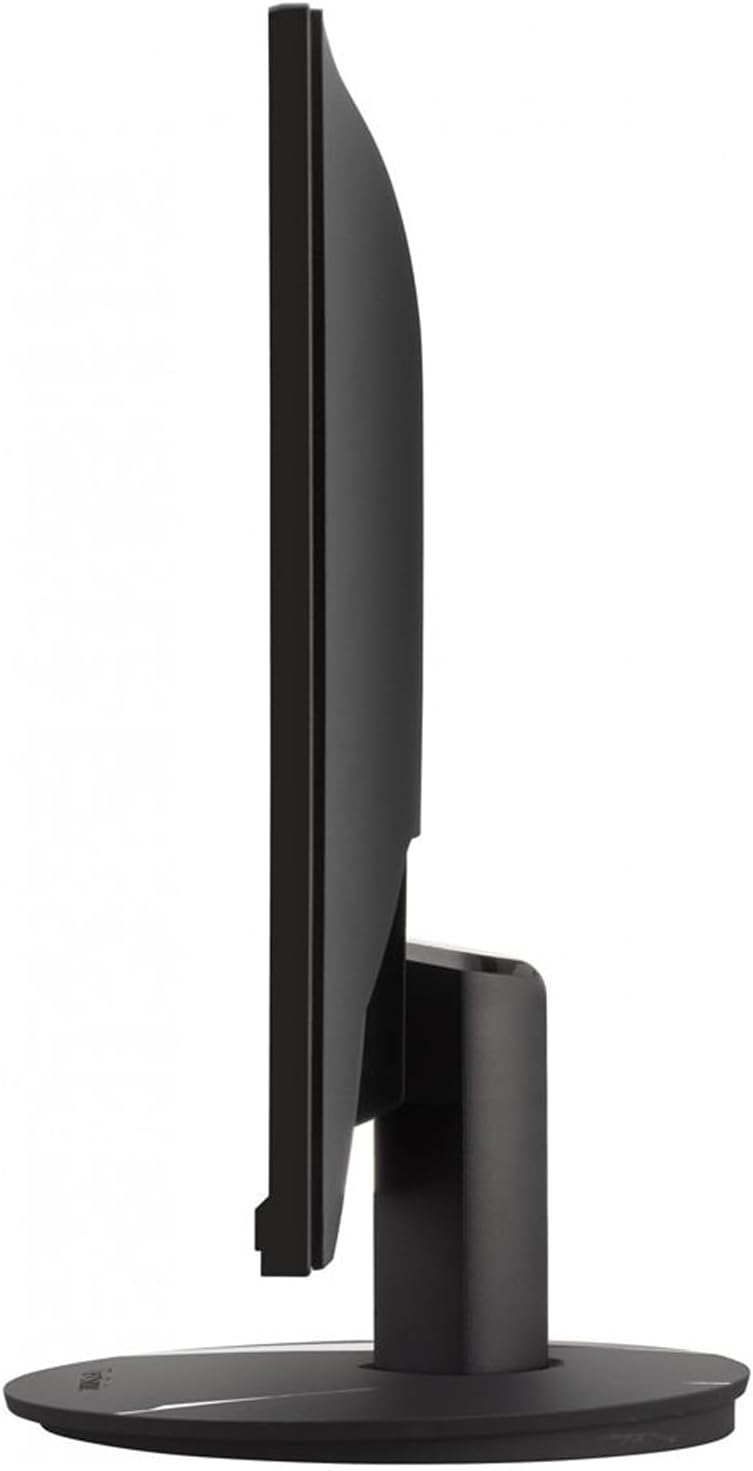
Side profile of the ViewSonic Omni VX2716 monitor with the stand.
4.2. Connecting the Monitor
- Connect the power cable to the monitor's power input and then to a power outlet.
- Connect one end of the HDMI or DisplayPort cable to the corresponding port on your computer's graphics card.
- Connect the other end of the HDMI or DisplayPort cable to the corresponding input port on the monitor.
- (Optional) If you wish to use external speakers or headphones, connect them to the audio out port on the monitor.

Close-up view of the rear input ports on the ViewSonic Omni VX2716 monitor.
5. Operating the Monitor
5.1. Power On/Off
Press the power button located on the bottom right side of the monitor to turn it on or off. The power indicator light will illuminate when the monitor is on.
5.2. On-Screen Display (OSD) Menu
The OSD menu allows you to adjust various monitor settings. Use the navigation buttons (usually located on the bottom right or rear of the monitor) to access and navigate the menu.
- Accessing the OSD: Press one of the OSD buttons to bring up the menu.
- Navigation: Use the directional buttons to move through menu options.
- Selection: Press the select button (often the center button) to confirm a selection.
- Exit: Use the exit button or navigate to the 'Exit' option to close the OSD menu.
5.3. Picture Settings
Adjust visual parameters for optimal viewing:
- Brightness: Controls the overall luminance of the screen.
- Contrast: Adjusts the difference between light and dark areas.
- Color Temperature: Selects preset color modes (e.g., Warm, Cool, User).
- Input Select: Manually switch between HDMI and DisplayPort inputs.
5.4. Audio Settings
Control the built-in speakers:
- Volume: Adjust the output level of the integrated speakers.
- Mute: Toggle audio output on or off.
5.5. Gaming Features
- AMD FreeSync: This technology synchronizes the monitor's refresh rate with your AMD graphics card's frame rate to eliminate screen tearing and reduce stuttering. Ensure FreeSync is enabled in both the monitor OSD and your graphics card settings.
- Response Time: The monitor features a 1ms response time to minimize motion blur in fast-paced games.
- Refresh Rate: The 100Hz refresh rate provides smoother motion compared to standard 60Hz monitors.
5.6. Eye-Care Features
- Flicker-Free Technology: Reduces screen flickering, which can cause eye strain during prolonged use.
- Blue Light Filter: Minimizes the emission of harmful blue light, helping to reduce eye fatigue. This can be adjusted or enabled/disabled via the OSD menu.
6. Maintenance
6.1. Cleaning the Monitor
- Always unplug the monitor from the power outlet before cleaning.
- Use a soft, lint-free cloth slightly dampened with water or a mild, non-abrasive screen cleaner.
- Do not spray cleaner directly onto the screen. Apply it to the cloth first.
- Avoid using harsh chemicals, abrasive pads, or solvents.
6.2. Storage
If storing the monitor for an extended period, disconnect all cables, pack it in its original packaging (if available), and store it in a cool, dry place away from direct sunlight and extreme temperatures.
7. Troubleshooting
If you encounter issues with your monitor, refer to the following common problems and solutions:
| Problem | Possible Solution |
|---|---|
| No power |
|
| No signal / Blank screen |
|
| Poor image quality (blurry, distorted) |
|
| No audio from built-in speakers |
|
8. Specifications
| Feature | Detail |
|---|---|
| Model Number | VX2716 |
| Screen Size | 27 Inches |
| Panel Type | IPS |
| Resolution | 1920 x 1080 (FHD 1080p) |
| Aspect Ratio | 16:9 |
| Refresh Rate | 100 Hz |
| Response Time | 1ms |
| Brightness | 300 Nit |
| Viewing Angles | SuperClear 178°/178° |
| Connectivity | HDMI, DisplayPort, Audio Out |
| Speakers | 2 x 2W Built-in Speakers |
| Adaptive Sync | AMD FreeSync |
| Eye-Care Features | Flicker-Free, Blue Light Filter |
| Product Dimensions (W x H x D) | 12 x 14 x 18 inches (approximate, as per product dimensions) |
| Item Weight | 26 pounds |
| Manufacturer | Viewsonic |
9. Warranty and Support
For detailed warranty information and technical support, please refer to the official ViewSonic website or contact ViewSonic customer service. Keep your purchase receipt as proof of purchase for warranty claims.
Online Support: Visit the official ViewSonic support page for FAQs, driver downloads, and contact information.
Contact Information: Refer to the documentation included with your product or the ViewSonic website for regional contact details.


