
OPPO A79
Oppo A79 5G User Manual
Model: A79 | Brand: OPPO
1. Introduction
This manual provides essential information for the safe and efficient use of your Oppo A79 5G smartphone. Please read this guide thoroughly before operating your device to ensure optimal performance and longevity. The Oppo A79 5G is a powerful smartphone featuring a 2.2 GHz Octa-core processor, 8GB of RAM, and 256GB of internal storage, expandable via microSDXC. It operates on Android 13 and is equipped with a Li-Po 5000 mAh non-removable battery. This device supports Dual-SIM functionality and is compatible with GSM networks for 2G, 3G, 4G, and 5G connectivity.
2. What's in the Box
Upon unboxing your Oppo A79 5G, please verify that all the following items are included:
- Oppo A79 5G Smartphone
- Power Adapter
- USB Cable
- Quick Start Guide (may vary by region)
- SIM Ejector Tool (may vary by region)
3. Device Layout
Familiarize yourself with the physical components and button placements of your Oppo A79 5G.
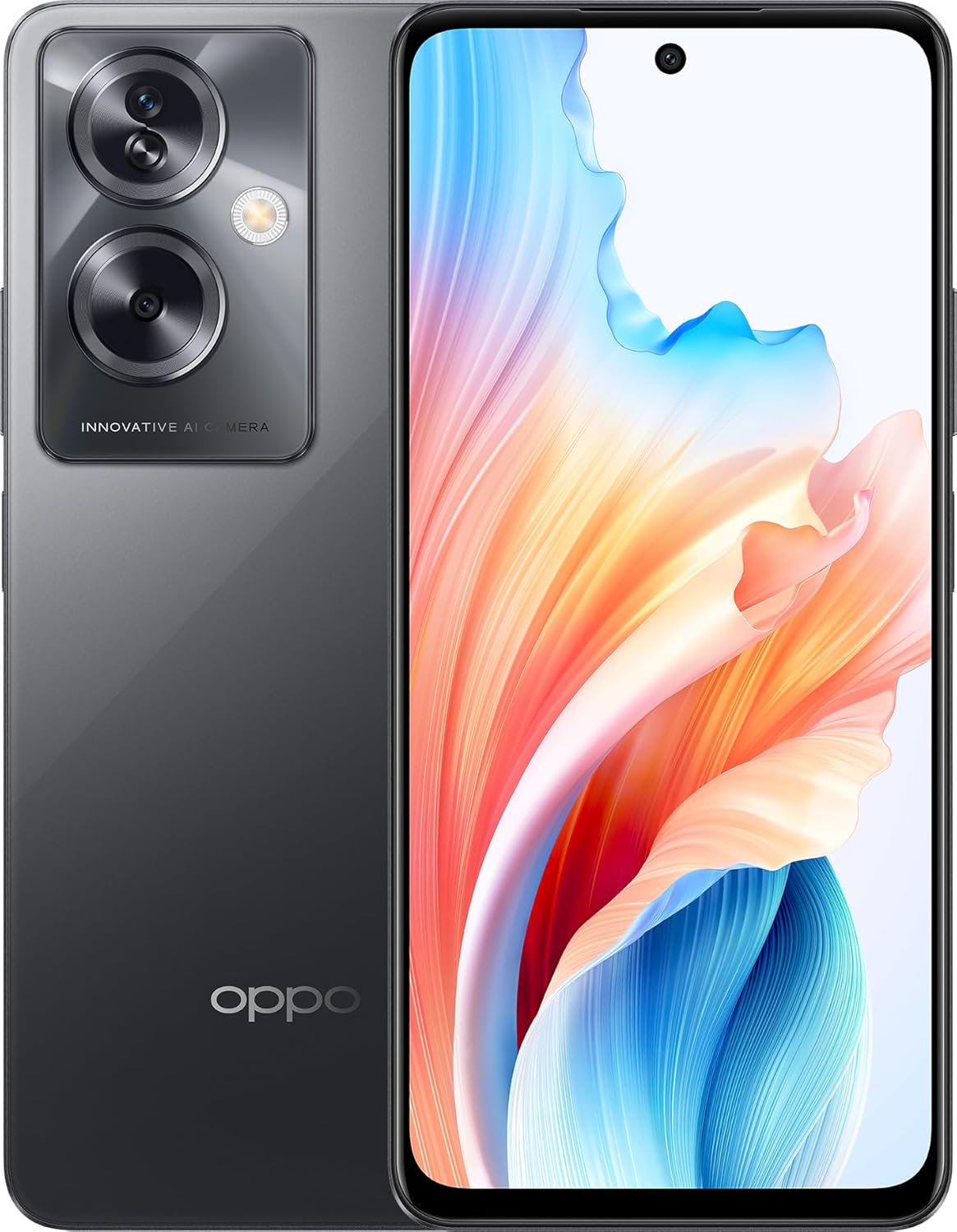
Figure 3.1: Front and back view of the Oppo A79 5G in Mystery Black. This image displays the vibrant screen on the front and the dual-camera module with flash on the rear, alongside the OPPO branding.

Figure 3.2: Left side view of the Oppo A79 5G, showing the volume up and down buttons and the slot for the SIM card tray.

Figure 3.3: Right side view of the Oppo A79 5G, featuring the power button, which typically integrates a fingerprint sensor for secure unlocking.

Figure 3.4: Bottom view of the Oppo A79 5G, illustrating the 3.5mm headphone jack, primary microphone, USB-C charging port, and loudspeaker grille.
4. Setup
4.1. Inserting SIM Cards and microSD Card
- Locate the SIM card tray on the left side of the device (refer to Figure 3.2).
- Insert the SIM ejector tool into the small hole on the tray to pop it open.
- Carefully pull out the SIM card tray.
- Place your Nano-SIM cards (up to two) and/or a microSDXC card into the designated slots on the tray, ensuring the gold contacts face downwards.
- Gently push the tray back into the slot until it clicks into place.
4.2. Charging the Device
Before first use, it is recommended to fully charge your Oppo A79 5G.
- Connect the USB cable to the power adapter.
- Plug the USB-C end of the cable into the charging port at the bottom of your phone (refer to Figure 3.4).
- Plug the power adapter into a wall outlet.
- The charging indicator will appear on the screen.
4.3. Powering On/Off
- To Power On: Press and hold the Power button (right side) until the OPPO logo appears.
- To Power Off: Press and hold the Power button, then select 'Power off' from the options on the screen.
- To Restart: Press and hold the Power button, then select 'Restart' from the options on the screen.
4.4. Initial Setup
Upon first power-on, the device will guide you through the initial setup process:
- Select your preferred language.
- Connect to a Wi-Fi network.
- Review and accept the End User License Agreement.
- Sign in with your Google account or create a new one.
- Set up screen lock (PIN, pattern, password, or fingerprint).
- Restore data from a previous device (optional).
5. Operating Instructions
5.1. Basic Navigation
Your Oppo A79 5G runs on Android 13. Navigation is primarily touch-based:
- Tap: To select an item or activate a function.
- Swipe: To scroll through screens or lists.
- Pinch: To zoom in or out on images and web pages.
- Long Press: To access contextual menus or move icons.
5.2. Making Calls
- Open the 'Phone' application.
- Enter the phone number using the dial pad or select a contact from your address book.
- Tap the call icon to initiate the call.
5.3. Sending Messages
- Open the 'Messages' application.
- Tap the 'Start chat' or '+' icon to compose a new message.
- Enter the recipient's number or select from contacts.
- Type your message in the text field.
- Tap the send icon.
5.4. Connecting to the Internet
- Wi-Fi: Go to Settings > Wi-Fi, turn Wi-Fi on, and select an available network. Enter the password if required.
- Mobile Data: Go to Settings > Mobile network, and ensure 'Mobile data' is turned on.
5.5. Using the Camera
- Open the 'Camera' application.
- Select your desired mode (Photo, Video, Portrait, etc.).
- Tap the shutter button to capture a photo or start/stop recording a video.
6. Maintenance
6.1. Battery Care
- Avoid exposing the device to extreme temperatures.
- Use only the original or certified compatible charger and cable.
- Do not leave the device charging for extended periods after it reaches 100%.
- For optimal battery health, try to keep the charge level between 20% and 80%.
6.2. Cleaning the Device
- Power off the device before cleaning.
- Use a soft, lint-free cloth to wipe the screen and body.
- For stubborn smudges, slightly dampen the cloth with water or a screen cleaner. Avoid harsh chemicals.
- Do not spray cleaners directly onto the device.
6.3. Software Updates
Regularly check for and install software updates to ensure your device has the latest features, security patches, and performance improvements. Go to Settings > About device > Up to date to check for updates.
7. Troubleshooting
This section addresses common issues you might encounter with your Oppo A79 5G.
7.1. Device Not Turning On
- Ensure the battery is charged. Connect the device to a charger for at least 15 minutes.
- Press and hold the Power button for 10-15 seconds to force a restart.
7.2. Network Issues (No Signal/Cannot Make Calls)
- Check if your SIM card is correctly inserted.
- Ensure 'Airplane mode' is off (swipe down from the top of the screen to access Quick Settings).
- Restart the device.
- Verify with your network provider that your account is active and there are no local service outages.
7.3. Apps Crashing or Freezing
- Close the problematic app and reopen it.
- Clear the app's cache and data (Settings > Apps > [App Name] > Storage > Clear cache/Clear data).
- Ensure the app is updated to its latest version.
- Restart the device.
7.4. Factory Reset (Last Resort)
If issues persist, a factory reset may resolve them. Warning: This will erase all data on your phone. Back up important data before proceeding.
- Go to Settings > System settings > Back up and reset > Reset phone.
- Select 'Erase all data'.
- Confirm your decision and enter your screen lock password if prompted.
8. Specifications
Detailed technical specifications for the Oppo A79 5G (Model: A79, Item model number: 6932169338196).
| Feature | Specification |
|---|---|
| Operating System | Android 13.0 |
| Processor | 2.2 GHz Octa-core |
| RAM | 8 GB |
| Internal Storage | 256 GB (expandable via microSDXC) |
| Screen Size | 6.4 Inches |
| Resolution | 1080 x 2400 |
| Battery Capacity | 5000 Milliamp Hours (Li-Po, non-removable) |
| Connectivity | 4G, 5G, Cellular |
| Wireless Communication | Cellular, Wireless |
| Human Interface Input | Touchscreen |
| Other Camera Features | Front |
| Form Factor | Smartphone |
| Color | black |
| Item Weight | 6.8 ounces (193 Grams) |
| Package Dimensions | 7.13 x 5.83 x 2.44 inches |
9. Warranty and Support
Your Oppo A79 5G comes with a standard manufacturer's warranty. For detailed warranty terms and conditions, please refer to the warranty card included in your product packaging or visit the official OPPO website. For technical support, software updates, or service inquiries, please contact OPPO customer service or visit their authorized service centers. Keep your proof of purchase for warranty claims.
Related documentsA79


Ask a question about this manual
Ask about setup, troubleshooting, compatibility, parts, safety, or missing instructions. Manuals+ will review the question and use this page’s manual context to help answer it.