
1. Product Overview
The innomaker 1080P USB2.0 UVC Camera is a versatile imaging device designed for various applications, offering high-definition video capture and broad compatibility. It features a 130° wide-angle lens and plug-and-play functionality across multiple operating systems and platforms.
2. Key Features
- Native UVC Compliance: High-Speed USB 2.0 Interface, native driver support on Windows 11/10/7, Mac OS, Linux, Ubuntu, and Android systems. Direct integration with Raspberry Pi, Jetson Nano, Notebook, Desktop, and industrial SBCs.
- Superior Performance: Up to 1080P at 30 frames per second. Supports YUY2 and MJPEG formats. Designed for reliable operation in both indoor and outdoor environments.
- Wide Angle Lens: Field of View (Diagonal) = 130 degrees and Field of View (Horizontal) = 103 degrees, with industry-standard M12 lens thread for optical customization.
- OEM-Ready Design: Compact 32x32mm PCB with 4x M2 mounting holes. Matching metal housings are available separately.
- Compliance and Safety: FCC/CE/UKCA certified, RoHS & REACH-SVHC compliant, tested by accredited laboratories.
3. Product Components

Figure 1: The innomaker 1080P USB2.0 UVC Camera module, highlighting its compact design and integrated lens.
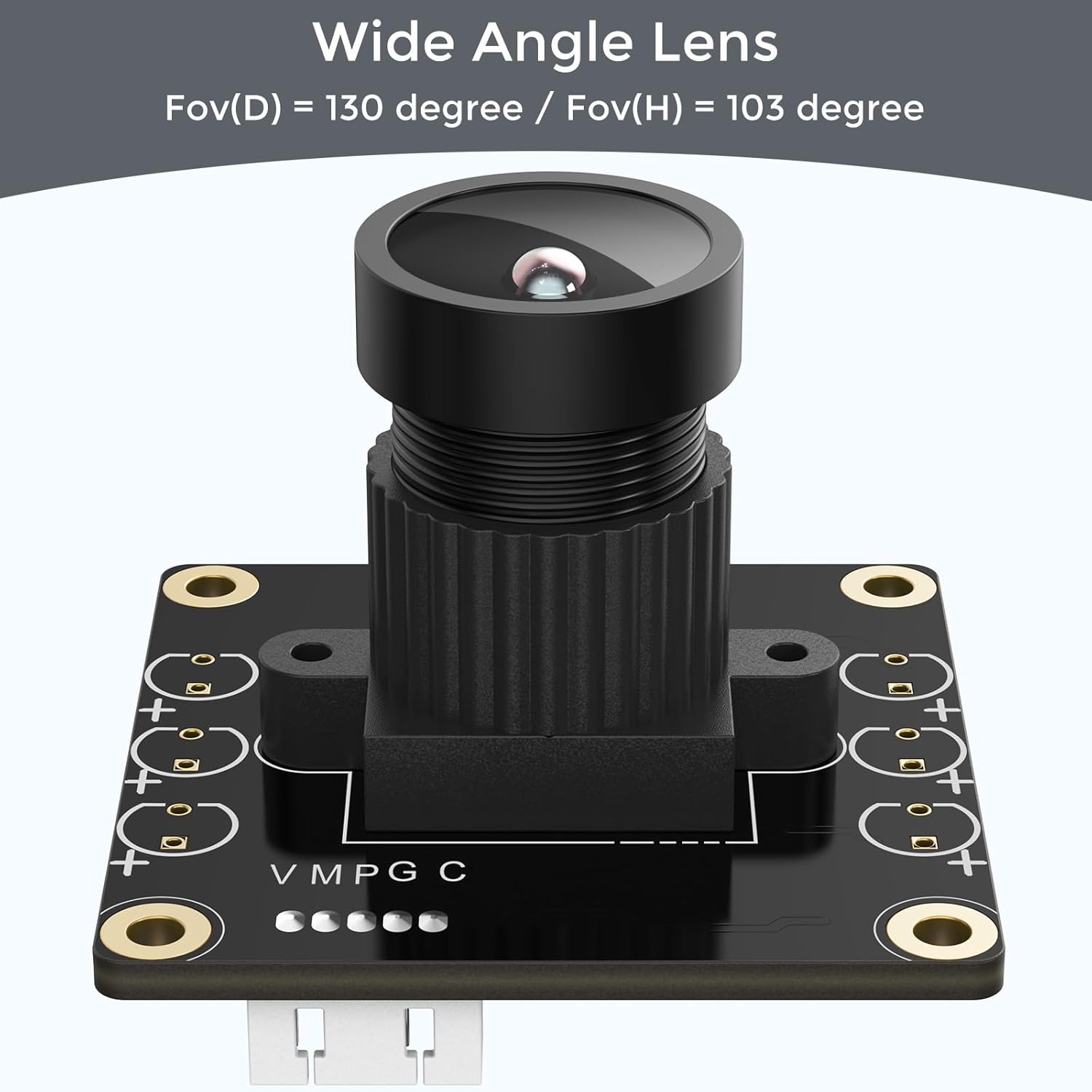
Figure 2: Close-up view of the camera's wide-angle lens, showing its Field of View (FoV) specifications.
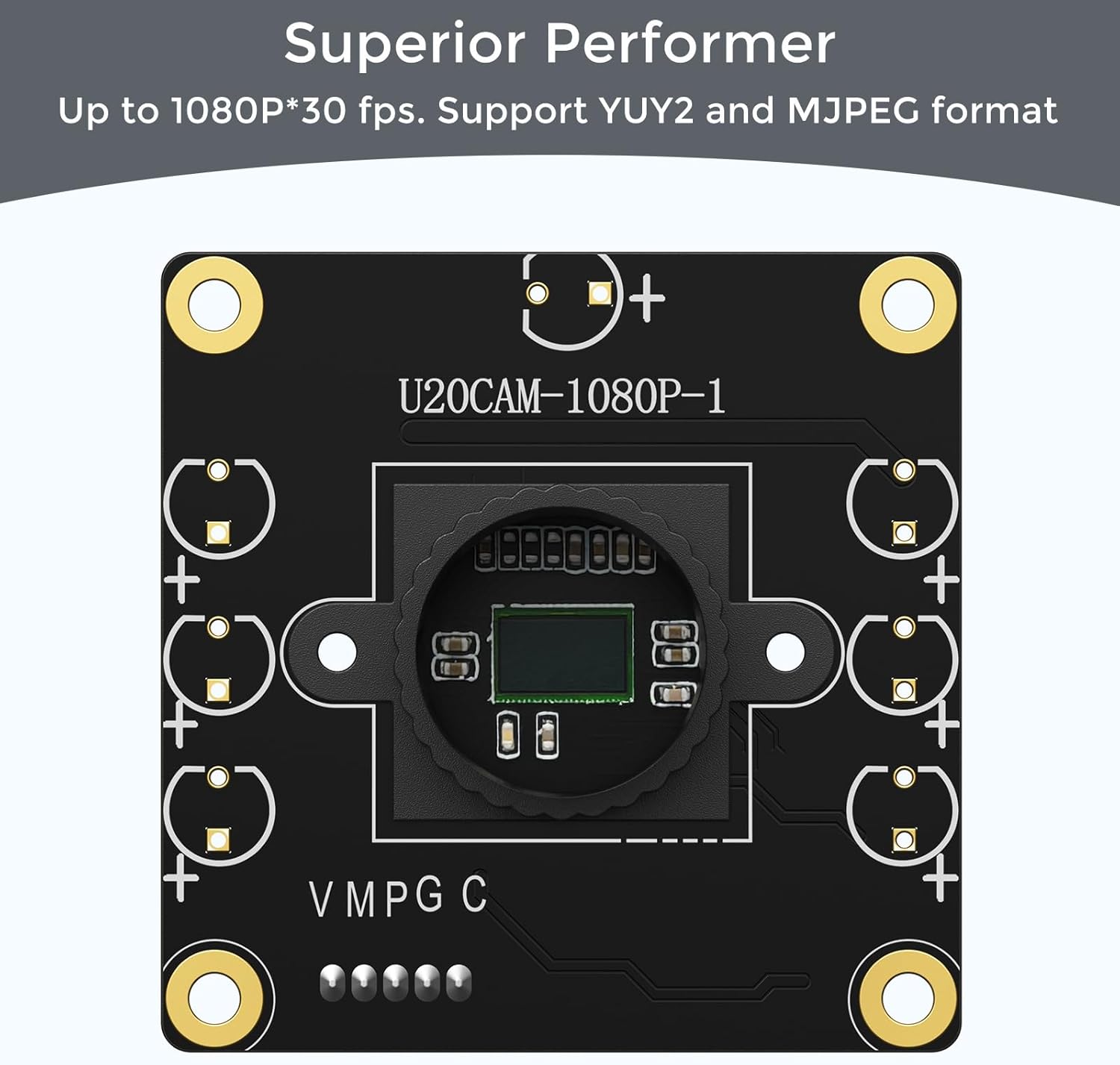
Figure 3: Detailed view of the camera module's sensor, emphasizing its superior performance capabilities.
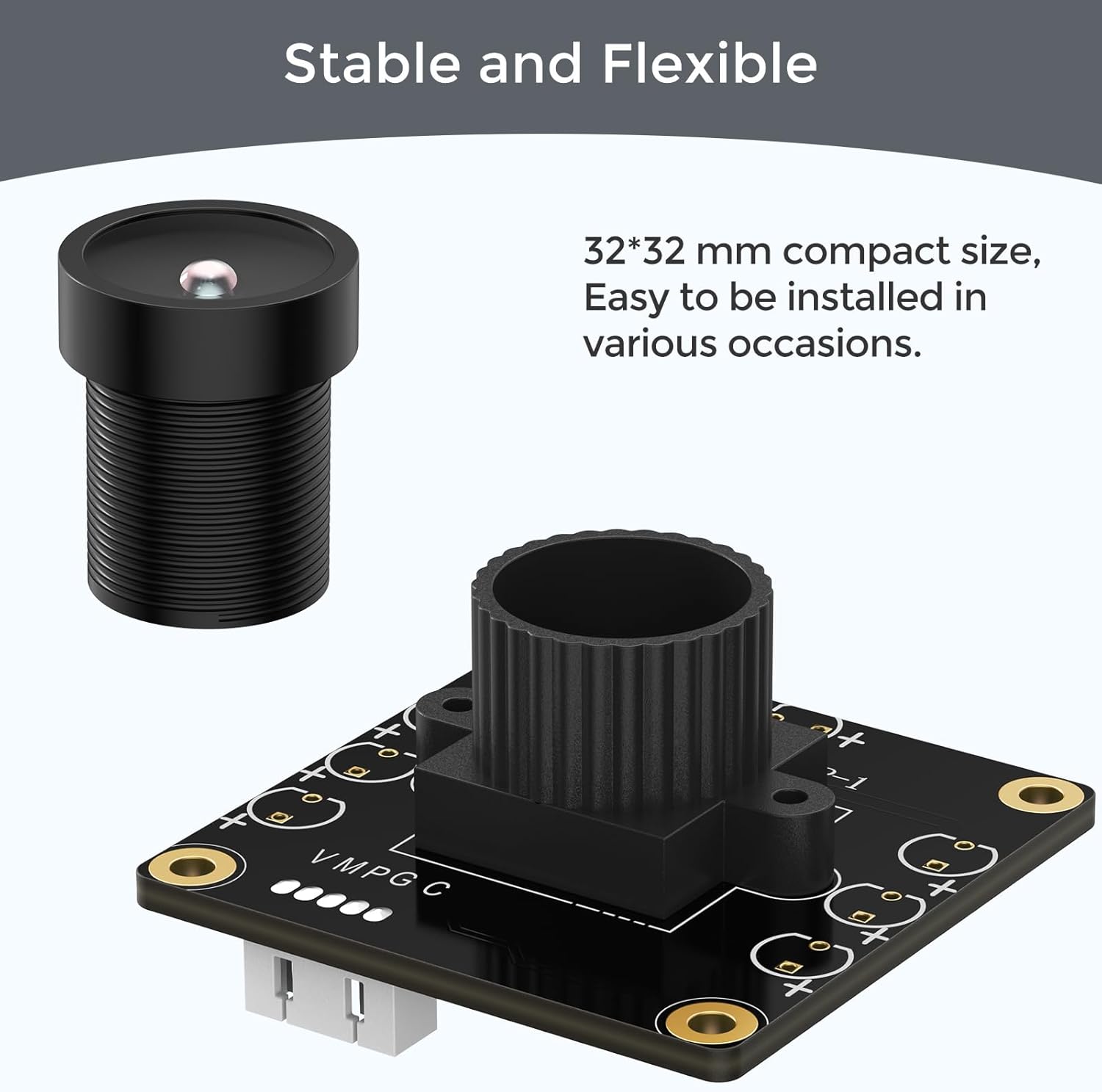
Figure 4: The camera module showcasing its stable and flexible 32x32mm compact size, suitable for various installations.
4. Setup and Installation
The innomaker UVC Camera is designed for plug-and-play operation, requiring no additional driver installation on most supported operating systems.
4.1 Connecting to a Computer (PC/Mac/Linux)
- Locate an available USB 2.0 port on your computer.
- Connect the camera module's USB cable to the USB port.
- The operating system should automatically detect the camera as a UVC (USB Video Class) device.
- Open a compatible camera application (e.g., Camera app on Windows, Photo Booth on Mac, VLC on Linux) to view the camera feed.
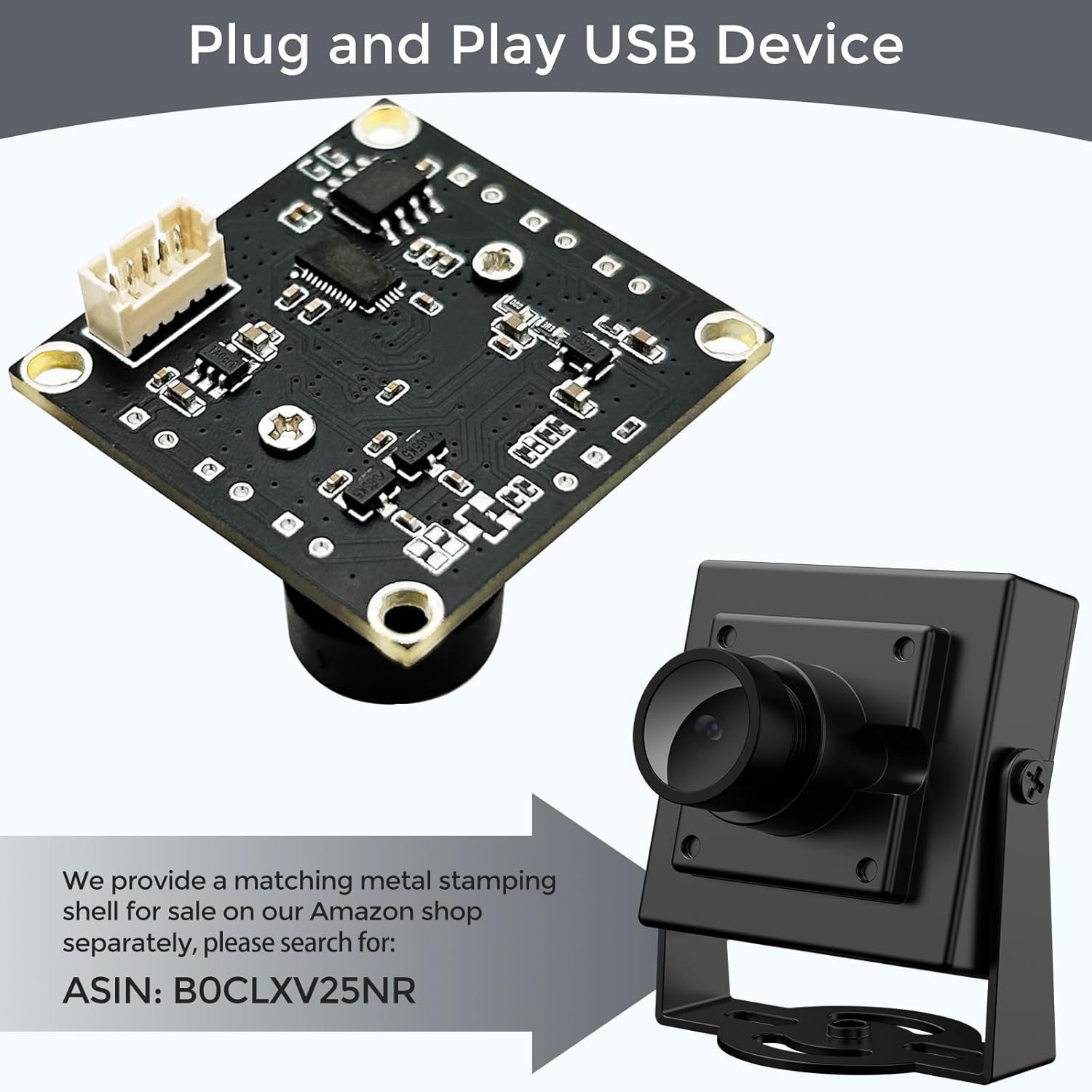
Figure 5: The camera module connected as a plug-and-play USB device.
4.2 Connecting to Single Board Computers (Raspberry Pi, Jetson Nano, etc.)
- Ensure your SBC is powered off before connecting the camera.
- Connect the camera module's USB cable to an available USB port on your SBC.
- Power on your SBC. The camera should be recognized automatically by the operating system (e.g., Raspberry Pi OS, Ubuntu).
- Use appropriate software (e.g.,
fswebcam,motion,VLC) to access and configure the camera.
4.3 Connecting to Android Devices
- An OTG (On-The-Go) adapter (not included) is required to connect the camera to most Android smartphones or tablets.
- Connect the camera's USB cable to the OTG adapter, then connect the adapter to your Android device.
- Install a compatible USB camera application from the Google Play Store (e.g., "USB Camera" or "OTG Camera") to view the live feed.
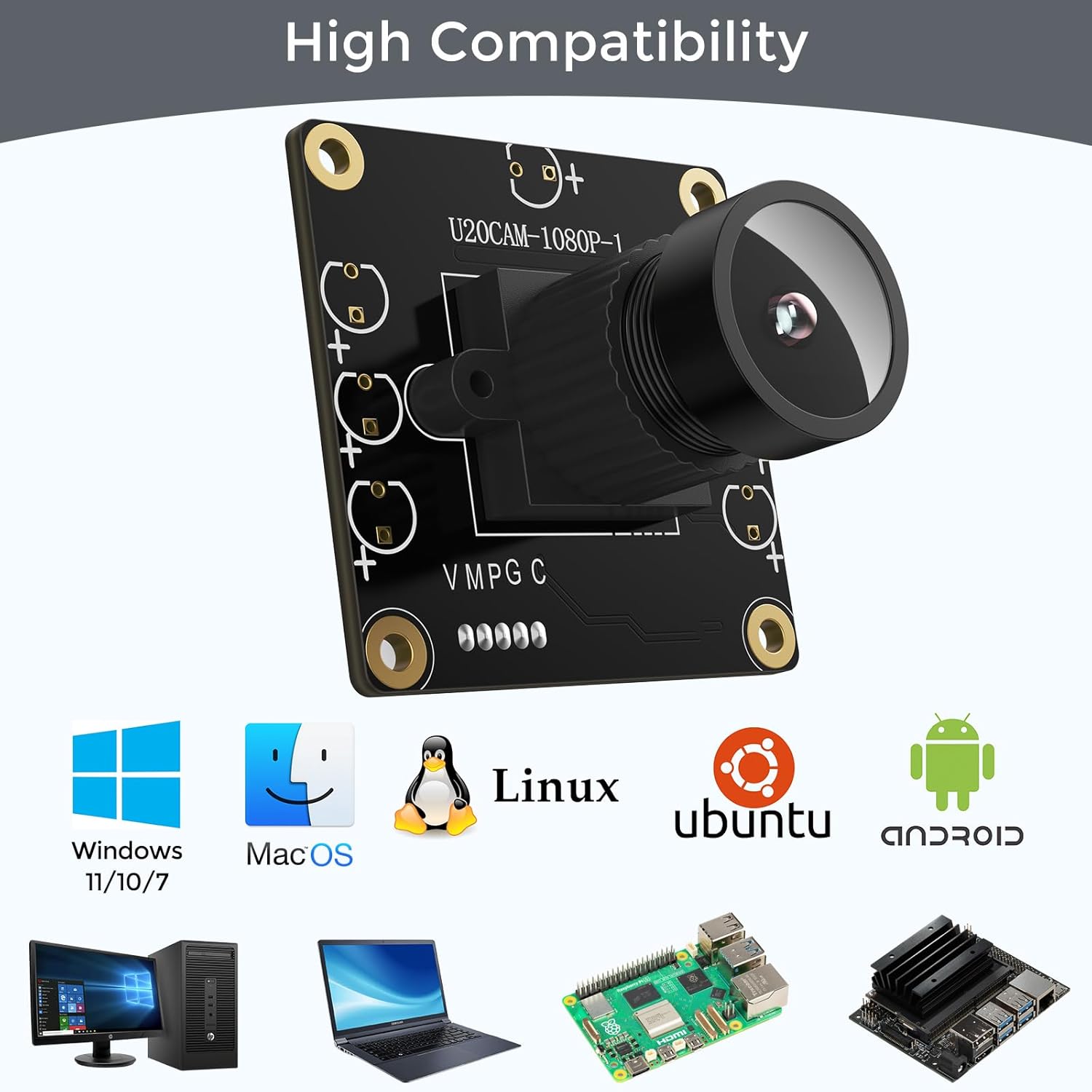
Figure 6: The camera's broad compatibility with various operating systems and hardware platforms.
5. Operating Instructions
Once connected, the camera can be operated through various software applications. Most UVC-compliant software will allow you to adjust video settings.
5.1 Adjusting Video Parameters
Compatible software applications typically provide options to adjust parameters such as brightness, contrast, saturation, sharpness, gamma, white balance, and exposure. Refer to your chosen software's documentation for specific instructions.
5.2 Changing Resolution and Format
The camera supports various resolutions up to 1080P at 30fps and different formats like YUY2 and MJPEG. These settings can usually be changed within your camera application's preferences or settings menu.
6. Specifications
| Attribute | Value |
|---|---|
| Brand | innomaker |
| Model Number | U20CAM-1080P |
| Item Weight | 2.11 ounces |
| Product Dimensions | 1.26 x 1.26 x 1.26 inches |
| Color | Black |
| Special Feature | Lightweight |
| Photo Sensor Technology | CMOS |
| Video Capture Resolution | 1080p |
| Flash Memory Type | Internal flash memory |
| Video Capture Format | M-JPEG |
| Screen Size | 2.7 Inches (referring to display compatibility, not camera size) |
| Connectivity Technology | USB |
| Field of View (Diagonal) | 130 degrees |
| Field of View (Horizontal) | 103 degrees |
7. Troubleshooting
- Camera Not Detected:
- Ensure the USB cable is securely connected to both the camera and the host device.
- Try a different USB port or a different USB cable.
- Restart your computer or device.
- Verify that your operating system or application supports UVC devices.
- No Video Feed:
- Check if the correct camera is selected in your application's settings.
- Ensure no other application is currently using the camera.
- Update your operating system and graphics drivers.
- Poor Image Quality:
- Adjust brightness, contrast, and other image parameters in your camera software.
- Ensure adequate lighting in the environment.
- Clean the camera lens gently with a microfiber cloth.
8. Maintenance
- Cleaning: Use a soft, dry, lint-free cloth to clean the camera lens and body. Avoid abrasive cleaners or solvents.
- Storage: Store the camera in a cool, dry place away from direct sunlight and extreme temperatures when not in use.
- Handling: Handle the camera module with care to avoid damaging the PCB or lens.
9. Warranty and Support
For warranty information and technical support, please refer to the official innomaker website or contact your retailer. Keep your purchase receipt for warranty claims.


