
Irfora KW460
Irfora KW460 All System OBDⅡ Scanner User Manual
Model: KW460 (TYHUSK21998)
1. Introduction
The Irfora KW460 is an advanced All System OBDⅡ Scanner designed for comprehensive automotive diagnostics. It is capable of diagnosing electronic control systems across various vehicle components, including powertrain, chassis, vehicle body information, and air conditioning systems. This manual provides detailed instructions for setting up, operating, maintaining, and troubleshooting your KW460 scanner.
While primarily a full system scanner for Benz series vehicles, the KW460 also functions as an engine scanner for most 12V cars compliant with OBDII/EOBD protocols, allowing for reading and clearing engine fault codes and turning off the engine trouble indicator.
2. Package Contents
Upon opening the package, please verify that all the following items are included:
- 1x KW460 All System OBDⅡ Scanner (Supports English only)
- 1x OBDⅡ Cable
- 1x USB Cable
- 1x Storage Bag
- 1x User Manual (This document)

Image: The KW460 All System OBDⅡ Scanner, its OBDⅡ cable, USB cable, and storage bag.
3. Specifications
| Feature | Detail |
|---|---|
| Brand | Irfora |
| Model | KW460 |
| Item Type | All System OBDⅡ Scanner |
| Material | ABS |
| Screen | 2.8 inch |
| Main Color | Black |
| Product Dimensions | 19.9 x 10 x 3.5 cm (Scanner unit) / 10.04 x 7.28 x 2.76 inches (Package) |
| Package Weight | 710g |
| Power Source | Battery Powered (via OBDⅡ port) |
| Supported Language | English Only |
4. Setup
4.1 Initial Inspection
Before connecting the scanner, inspect the device and cables for any visible damage. Ensure the OBDⅡ cable connector is clean and free of debris.
4.2 Connecting to Vehicle
- Locate the vehicle's OBDⅡ port. This port is typically found under the dashboard on the driver's side, but its exact location may vary by vehicle model. Refer to your vehicle's owner's manual if you cannot locate it.
- Ensure the vehicle's ignition is turned off.
- Connect the KW460's OBDⅡ cable to the vehicle's OBDⅡ port. Ensure a secure connection.
- Turn the vehicle's ignition to the "ON" position (engine off). The scanner will power on automatically.
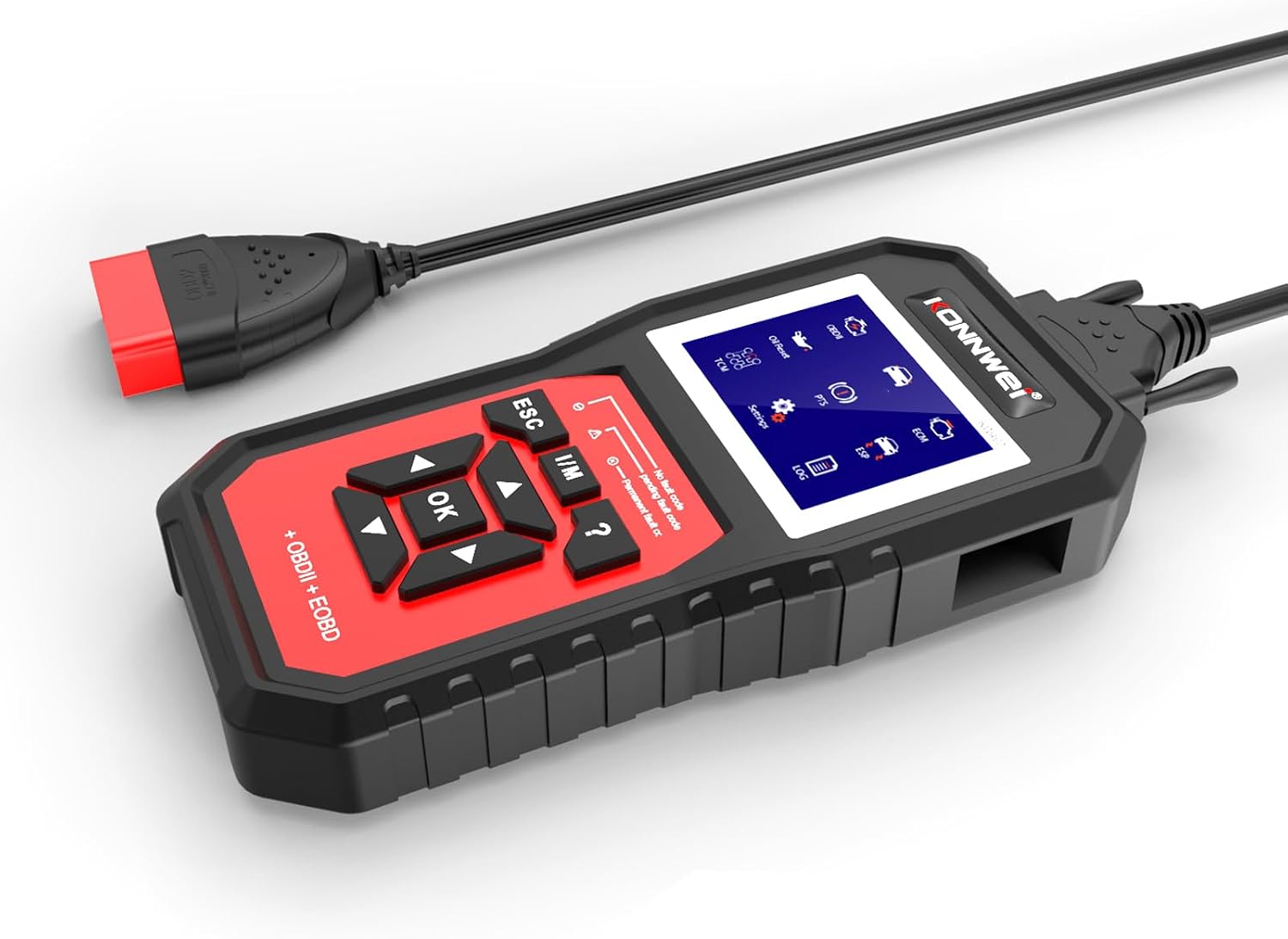
Image: The KW460 scanner with its OBDⅡ cable connected, ready for vehicle diagnostics.
5. Operating Instructions
5.1 Navigation and Basic Functions
The KW460 features a 2.8-inch screen and a user-friendly interface with dedicated buttons for navigation and function selection.
- OK Button: Confirms selection or enters a menu.
- ESC Button: Returns to the previous screen or cancels an operation.
- Up/Down Arrows: Navigate through menu options.
- Left/Right Arrows: Navigate through data screens or adjust settings.
- I/M Button: Quick access to I/M Readiness status.
- ? Button: Provides help or information about the current screen/function.

Image: Close-up of the KW460 scanner's screen and control buttons, showing the main menu icons.
5.2 All System Diagnostics (for Benz Series)
For Mercedes-Benz vehicles, the KW460 can access and diagnose all electronic control systems. This includes, but is not limited to:
- Powertrain (Engine, Transmission)
- Chassis (ABS, ESP, Suspension)
- Vehicle Body Information (SRS, Air Conditioning)
- Information and Communication Systems
- Seats and Doors
To perform an all-system scan:
- From the main menu, select the "OBDII" or "Car" icon (depending on the specific menu layout).
- The scanner will automatically identify the vehicle information and initiate a rapid diagnosis.
- Follow the on-screen prompts to view fault codes, live data, or perform specific tests for each system.

Image: The KW460 scanner displaying various vehicle systems it can diagnose, such as Drive, Chassis, and Body.
5.3 OBDII/EOBD Engine Diagnostics (for other 12V vehicles)
For vehicles compliant with standard OBDII/EOBD protocols (most 12V cars), the KW460 can perform engine-related diagnostics.
- Read Codes: Displays Diagnostic Trouble Codes (DTCs) stored in the vehicle's Engine Control Module (ECM).
- Erase Codes: Clears DTCs from the ECM and turns off the Malfunction Indicator Lamp (MIL). Note: Clearing codes does not fix the underlying problem. Address the issue before clearing codes.
- I/M Readiness: Checks the status of emission-related monitors.
- Live Data: Displays real-time sensor data from the engine.

Image: The KW460 scanner displaying a live data stream, showing parameters like engine speed and coolant temperature.
5.4 Special Functions
The KW460 offers 11 special functions, primarily for Benz series vehicles, but some may apply to other compatible models. These functions include:
- Maintenance Reset: Resets service lights after oil changes or scheduled maintenance.
- Throttle Matching: Adapts the throttle body after replacement or cleaning.
- EPB Electronic Brake Pad Reset: Resets the electronic parking brake system after brake pad replacement.
- Battery Matching: Registers a new battery with the vehicle's system.
- DPF Checking/Matching: Checks Diesel Particulate Filter status and performs regeneration or reset functions.
- SAS (Steering Angle Sensor) Calibration: Calibrates the steering angle sensor.
- Fuel Injector Programming: Programs new injector codes into the ECM.
- Headlight Adjustment: Adjusts headlight settings.
- Air Suspension System Operation: Controls or diagnoses air suspension components.
- And other specialized functions as per vehicle compatibility.
To access special functions, navigate to the "Special Function" menu on the scanner. Select the desired function and follow the on-screen instructions carefully. Incorrect use of special functions can lead to vehicle issues.

Image: The KW460 scanner displaying icons representing various special functions such as Injector Coding, Oil Reset, and EPB.
6. Maintenance
6.1 Cleaning the Device
To ensure the longevity and proper functioning of your KW460 scanner:
- Use a soft, dry cloth to clean the scanner's screen and body.
- Do not use abrasive cleaners, solvents, or harsh chemicals.
- Keep the OBDⅡ connector clean and free of dust or grease.
6.2 Software Updates
The KW460 supports lifetime free software upgrades. Regularly check for updates to ensure compatibility with newer vehicle models and to access new features or bug fixes.
- Connect the scanner to a computer using the provided USB cable.
- Visit the official Irfora website (or the manufacturer's designated support page) to download the update tool and the latest firmware.
- Follow the instructions provided with the update tool to perform the upgrade.

Image: The KW460 scanner connected to a laptop via USB, illustrating the process for software updates.
6.3 Storage
When not in use, store the KW460 scanner in its provided storage bag in a cool, dry place, away from direct sunlight and extreme temperatures.
7. Troubleshooting
| Problem | Possible Cause | Solution |
|---|---|---|
| Scanner does not power on. | Loose OBDⅡ connection; Vehicle ignition not in "ON" position; Vehicle battery low. | Ensure OBDⅡ cable is securely connected. Turn vehicle ignition to "ON" (engine off). Check vehicle battery voltage. |
| "Link Error" or "Communication Error" message. | Incorrect protocol detected; Faulty OBDⅡ cable; Vehicle's ECU is not responding. | Verify vehicle compatibility. Check cable for damage. Try connecting to another compatible vehicle if possible. Ensure vehicle's ECU is functioning. |
| Cannot clear fault codes. | Underlying vehicle fault still present; Ignition not in "ON" position. | Address the root cause of the fault code first. Ensure ignition is "ON" (engine off). |
| Screen frozen or unresponsive. | Software glitch. | Disconnect the scanner from the vehicle and reconnect. If issue persists, perform a software update. |
8. Warranty and Support
The Irfora KW460 All System OBDⅡ Scanner comes with a standard manufacturer's warranty. Please refer to the warranty card included in your package or visit the official Irfora website for detailed warranty terms and conditions.
For technical support, troubleshooting assistance, or inquiries regarding software updates, please contact Irfora customer service through their official channels. Keep your purchase receipt and product serial number handy when contacting support.
Official Website: www.irfora.com (Note: This is a placeholder URL. Please refer to your product packaging or official documentation for the correct support website.)
Ask a question about this manual
Ask about setup, troubleshooting, compatibility, parts, safety, or missing instructions. Manuals+ will review the question and use this page’s manual context to help answer it.