
1. Introduction
The Phomemo M08F is a compact, inkless thermal printer designed for portability and convenience. It utilizes thermal technology to print documents on US Letter size (8.5" x 11") thermal paper, eliminating the need for ink cartridges or ribbons. This printer is compatible with Android, iOS mobile devices, and Windows/Mac computers, offering versatile printing solutions for various environments.
2. What's in the Box
Please verify that all items are present upon unboxing:
- Phomemo M08F Portable Thermal Printer
- USB Charging Cable
- US Letter Folding Thermal Paper (100 sheets)
- User Manual (this document)
3. Setup Guide
3.1 Charging the Printer
Before initial use, fully charge the printer. Connect the provided USB cable to the printer's charging port and a suitable power adapter (not included). The indicator light will show charging status and turn off when fully charged. The built-in 1200mAh battery supports printing approximately 140 sheets on a full charge.
3.2 Loading Thermal Paper
The Phomemo M08F uses US Letter size (8.5" x 11") thermal paper. Ensure you use compatible thermal paper for optimal print quality and printer longevity.
- Gently open the paper cover of the printer.
- Insert the thermal paper stack, ensuring the printable side (usually smoother and brighter) faces the print head.
- Align the paper edges with the guides and push it in until it is lightly gripped by the printer's rollers.
- Close the paper cover securely.

Image: Phomemo M08F with a stack of continuous folding thermal paper, highlighting its 8.27" x 11.69" dimensions and features like 100 sheets, thermal paper, clear print, and inkless printing.
3.3 Installing the Phomemo App
For mobile printing, download the official Phomemo app (or "Print Master" as indicated in some visuals) from your device's app store.
- For iOS devices: Search for "Phomemo" or "Print Master" in the Apple App Store.
- For Android devices: Search for "Phomemo" or "Print Master" in the Google Play Store.

Image: A close-up of the Phomemo M08F printer next to a smartphone displaying the Phomemo app interface, which offers options for document print, web print, image print, and scan functions.
3.4 Connecting the Printer
The M08F printer supports both Bluetooth (for mobile devices) and USB (for computers) connections.
3.4.1 Bluetooth Connection (Mobile)
- Ensure the printer is powered on.
- Enable Bluetooth on your smartphone or tablet.
- Open the Phomemo app. The app will guide you to search for and connect to the M08F printer.
- Select "M08F" from the list of available devices to pair.
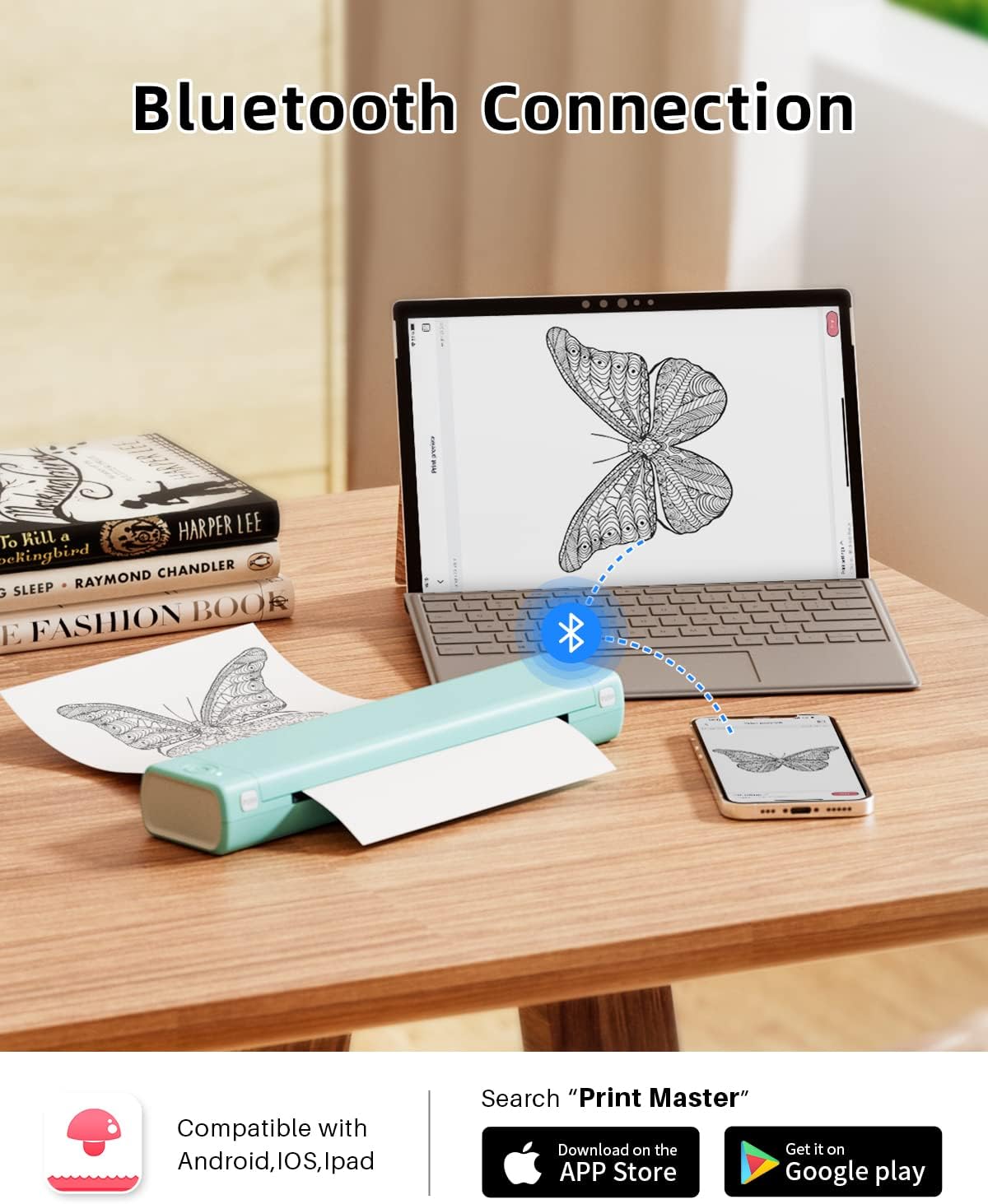
Image: A Phomemo M08F printer on a desk, wirelessly connected via Bluetooth to both a laptop and a smartphone, demonstrating its multi-device compatibility.
3.4.2 USB Connection (Computer)
- Ensure the printer is powered on.
- Connect the printer to your computer using the provided USB cable.
- Install the necessary printer drivers. Drivers can typically be found on the official Phomemo website.
- Once drivers are installed, the printer will appear in your computer's list of printers.
4. Operating Instructions
4.1 Printing from Mobile Devices
- Ensure your printer is connected via Bluetooth to your mobile device.
- Open the Phomemo app.
- Select the type of content you wish to print (e.g., document, image, web page).
- Follow the in-app instructions to select your file and adjust print settings (e.g., density, number of copies).
- Tap the "Print" button to initiate printing.

Image: A Phomemo M08F portable printer actively printing a document, with a smartphone displaying the printing interface in the foreground, illustrating mobile printing functionality.
4.2 Printing from Computers
- Ensure your printer is connected via USB to your computer and drivers are installed.
- Open the document or image you wish to print on your computer.
- Go to "File" > "Print" (or use the shortcut Ctrl+P/Cmd+P).
- Select "Phomemo M08F" from the list of available printers.
- Adjust print settings as needed (e.g., paper size, orientation).
- Click "Print" to send the job to the printer.

Image: A close-up view of the Phomemo M08F printer producing a document with clear, legible text, emphasizing the smooth and clear printing capability.
5. Maintenance
5.1 Cleaning the Print Head
To maintain optimal print quality, periodically clean the print head. Use a soft, lint-free cloth lightly dampened with isopropyl alcohol. Gently wipe the print head surface. Ensure the printer is turned off and completely dry before resuming use.
5.2 Paper Storage
Store thermal paper in a cool, dry place away from direct sunlight and heat sources. Improper storage can affect paper quality and print longevity. Phomemo thermal paper is designed to maintain print quality for at least 10 years at room temperature.

Image: A hand peeling back a sheet of thermal paper against a natural landscape background, highlighting its BPA-Free, inkless, and harmless properties.
6. Troubleshooting
- Printer not turning on: Ensure the printer is fully charged. Connect it to a power source and try again.
- Unable to connect via Bluetooth: Make sure Bluetooth is enabled on your device and the printer is within range. Restart both the printer and your device, then try pairing again through the Phomemo app.
- Poor print quality: Check if the thermal paper is loaded correctly with the printable side facing the print head. Clean the print head if necessary. Ensure the paper is not old or damaged.
- Paper jam: Turn off the printer, gently open the paper cover, and carefully remove any jammed paper. Ensure paper is loaded correctly and not wrinkled.
- Printer not recognized by computer: Verify that the USB cable is securely connected and the correct drivers are installed. Try a different USB port or cable.
If you encounter issues not covered here, please refer to the support section or contact customer service.
7. Specifications
| Feature | Detail |
|---|---|
| Model Name | M08F |
| Printing Technology | Thermal |
| Connectivity Technology | Bluetooth, USB, Wi-Fi |
| Maximum Black and White Print Resolution | 203 dpi |
| Maximum Media Size | 8.5 x 11 inch (US Letter) |
| Printer Output | Monochrome |
| Duplex Printing | Simplex (No Dual-sided printing) |
| Battery Capacity | 1200mAh (prints approx. 140 sheets) |
| Included Components | Thermal Paper |
8. Warranty and Support
The Phomemo M08F Portable Thermal Printer comes with a limited warranty. For specific warranty terms and conditions, please refer to the documentation included with your purchase or visit the official Phomemo website.
For any questions regarding connection, printing processes, or printer issues, please contact Phomemo customer support. You can typically find contact information on the Phomemo website or through the seller, Phomemo-YQ, on the platform where you purchased the product.


