
1. Introduction
This manual provides detailed instructions for the assembly, operation, and maintenance of your MONTECH King 95 PRO Dual-Chamber ATX Mid-Tower PC Gaming Case. Designed for high performance and aesthetic appeal, this case offers a robust foundation for your PC build. Please read this manual thoroughly before beginning your installation to ensure proper setup and to maximize the potential of your new PC case.
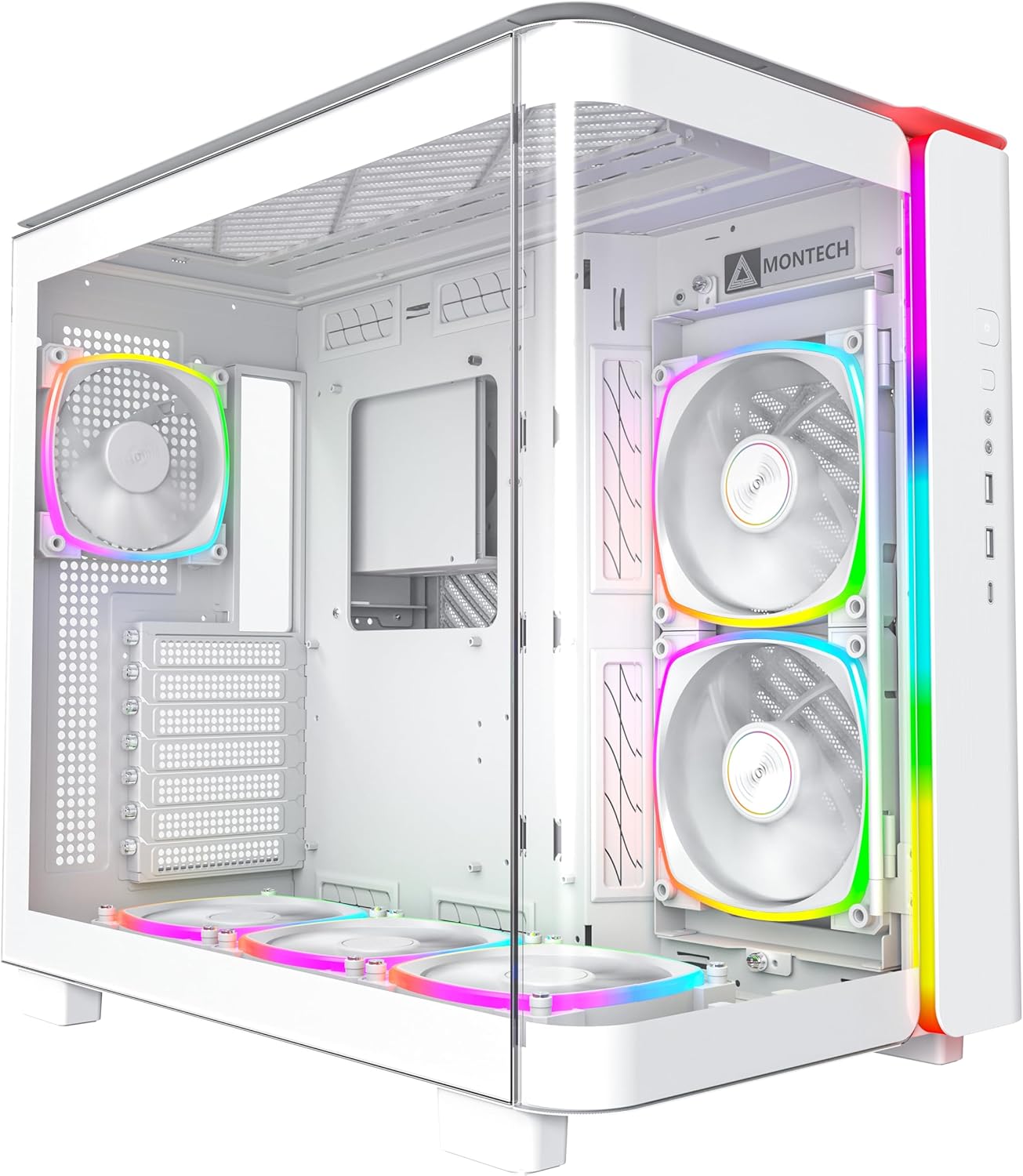
Figure 1.1: Front view of the MONTECH King 95 PRO PC Case, showcasing its curved tempered glass and pre-installed ARGB fans.
2. Key Features
The MONTECH King 95 PRO is engineered with several advanced features to enhance your PC building and gaming experience:
- Curved Glass Elegance: Features 4mm industrial-grade curved tempered glass for optimal curvature and durability, providing clear component visibility.
- Exceptional Compatibility: Dual-chamber design accommodates 40 series graphics cards, 8 hard drives, dual power supplies, and offers over 35mm of cable management space.
- Innovative Cooling Design: Includes a patented adjustable side fan bracket that can be rotated for improved airflow and personalization.
- Cooling Versatility: Supports a 360mm top radiator, 240mm side radiator (up to 60mm thickness), and up to 175mm air cooler height.
- Building Bliss: Quick-release glass panels and a spacious interior facilitate hassle-free assembly and clean cable management.
- Dynamic Duo Airflow Modes: Offers Elegant Glass Mode for balanced cooling and Turbo Mesh Mode for enhanced 3-directional airflow.
- Pre-Installed ARGB PWM Fans: Comes with 6 pre-installed ARGB PWM fans and a 1 to 10 ARGB PWM Fan Hub for precise control and customizable lighting.
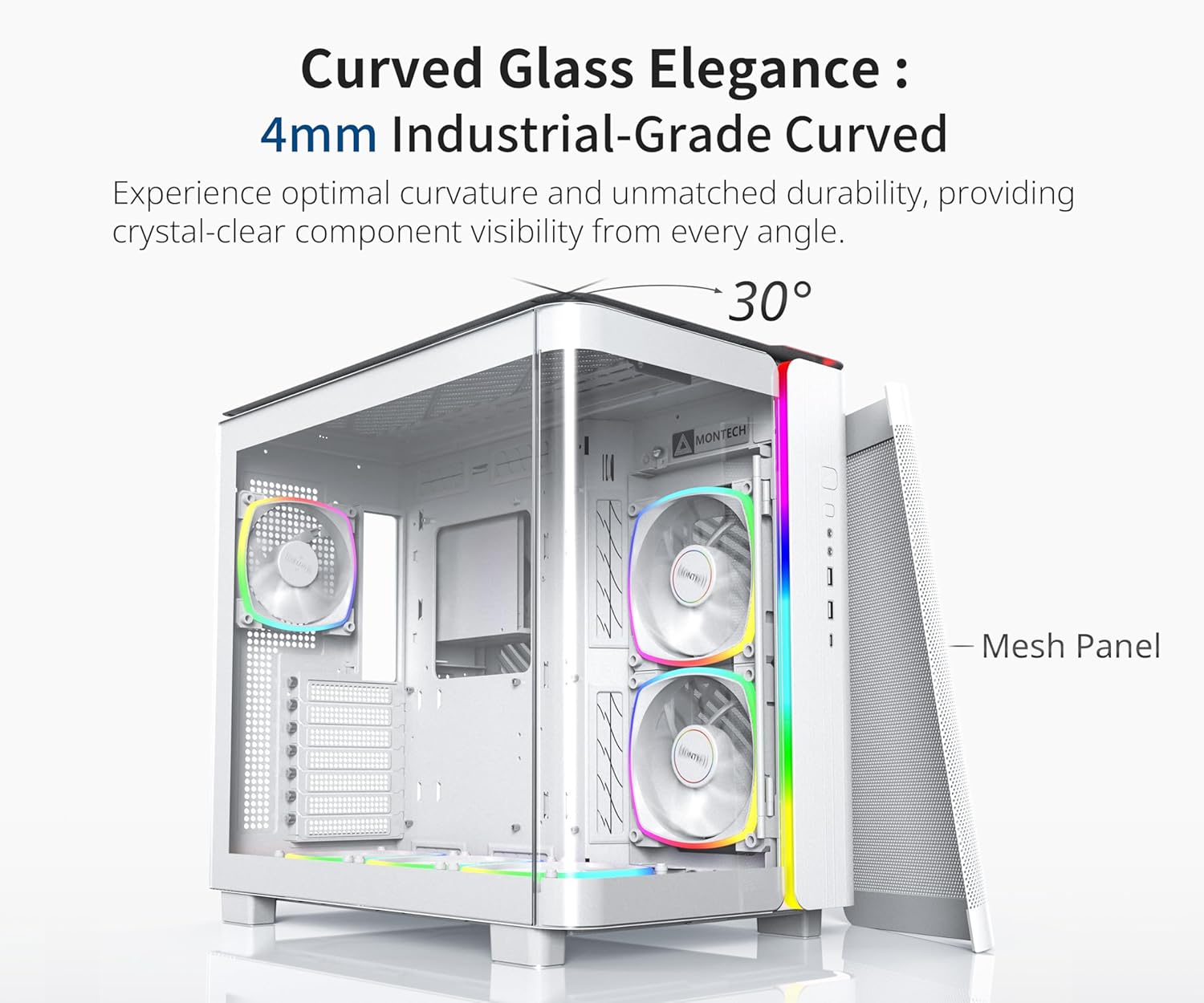
Figure 2.1: The 4mm industrial-grade curved tempered glass panel, offering a 30-degree curvature for enhanced aesthetics and component visibility.

Figure 2.2: Diagram illustrating the extensive cooling support, including radiator and fan placements for optimal thermal performance.

Figure 2.3: Comparison of Elegant Glass Mode and Turbo Mesh Mode, highlighting the case's adaptable airflow configurations.
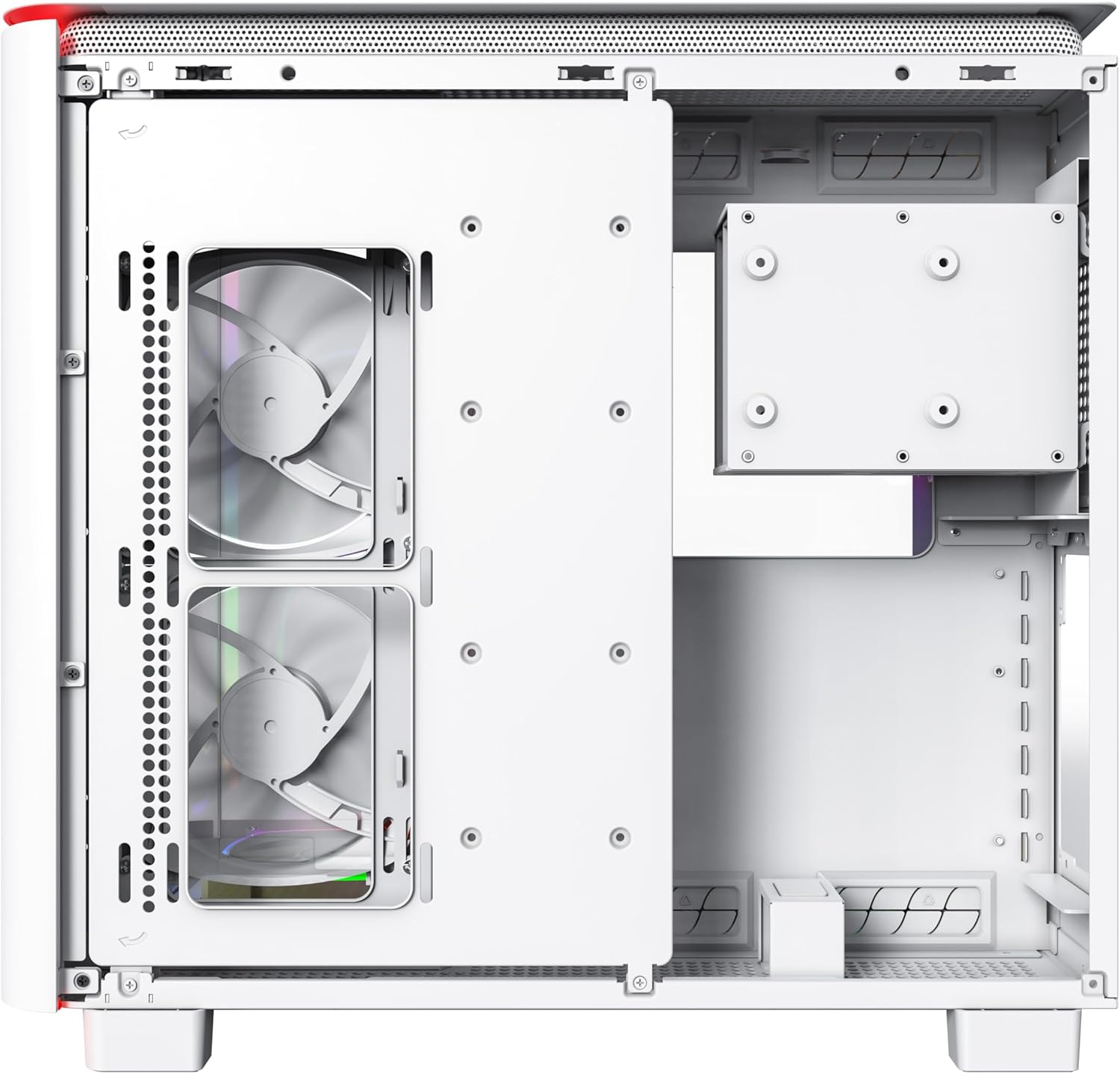
Figure 2.4: Detailed view of the front I/O panel, including power, LED control, audio, microphone, USB 3.0, and Type-C ports.
3. Setup and Installation
The MONTECH King 95 PRO is designed for ease of installation, featuring toolless panels and a spacious interior. Follow these general steps for setting up your PC components:
- Accessing the Interior: Gently remove the quick-release glass panels and side panels to gain full access to the case interior.
- Motherboard Installation: Secure your ATX motherboard to the designated standoffs within the main chamber.
- Power Supply Installation: Install your power supply in the dedicated dual-chamber compartment. The case supports dual power supplies if needed.
- Storage Drive Installation: Utilize the various mounting points for up to 8 hard drives (HDDs) and solid-state drives (SSDs). The dual-chamber design provides ample space for storage.
- Graphics Card Installation: Install your graphics card. The case is designed to accommodate large 40 series graphics cards.
- Fan and Radiator Setup: Position additional fans or radiators as needed. The patented adjustable side fan bracket can be rotated to optimize airflow.
- Cable Management: Route cables through the dedicated cable management space (over 35mm) in the dual-chamber to ensure a clean build and unobstructed airflow.
For a visual guide on the case's internal layout and compatibility, please refer to the following official video:
Video 3.1: Official video demonstrating the exceptional compatibility and internal layout of the MONTECH King 95 PRO case, highlighting storage and GPU support.
Another official video provides an overview of the case's features and design, which can be helpful during setup:
Video 3.2: Official video showcasing the MONTECH King 95 PRO, providing a general overview of its design and features.
4. Operating the Case Features
Once your PC is assembled, you can utilize the case's integrated features:
- ARGB Lighting Control: The integrated front panel light strip offers various built-in lighting modes. Use the dedicated LED button on the front I/O panel to cycle through different effects and colors. Ensure the ARGB PWM Fan Hub is correctly connected to your motherboard's ARGB header for software control, if desired.
- Airflow Modes: The case supports two primary airflow configurations:
- Elegant Glass Mode: With the tempered glass front panel installed, airflow is efficiently managed through side and bottom air intakes.
- Turbo Mesh Mode: By replacing the front glass panel with the included mesh panel (if applicable to your model), the case utilizes a 3-directional cooling approach, drawing air from the front, side, and bottom for maximum cooling performance.
- Front I/O Ports: Utilize the conveniently located front I/O ports for power, audio, microphone, USB 3.0, and Type-C connections.
5. Maintenance
Regular maintenance ensures optimal performance and longevity of your PC components. The MONTECH King 95 PRO is designed for easy cleaning:
- Dust Filters: The case features easily removable dust filters on the top, side, and bottom panels. Periodically remove and clean these filters to prevent dust buildup inside the case, which can impede airflow and component cooling. Use a soft brush or compressed air for cleaning.
- Exterior Cleaning: Wipe the exterior surfaces, including the tempered glass panels, with a soft, lint-free cloth. For stubborn smudges on glass, a mild glass cleaner can be used sparingly on the cloth, not directly on the glass.
- Interior Cleaning: With the system powered off and unplugged, use compressed air to clear dust from internal components and fan blades. Avoid touching components directly.
6. Troubleshooting
If you encounter issues with your PC case, consider the following common troubleshooting steps:
- No Power/System Not Starting:
- Ensure all power cables (motherboard, CPU, GPU, storage) are securely connected.
- Verify the power supply is switched on and connected to a working outlet.
- Check front panel connectors (power switch, reset switch) are correctly plugged into the motherboard.
- Fans Not Spinning/RGB Not Lighting Up:
- Confirm fan cables are properly connected to the fan hub and the fan hub is powered.
- Ensure ARGB cables are connected to the fan hub and the hub is connected to the motherboard's ARGB header.
- Check your motherboard's BIOS/UEFI or software for fan speed and RGB control settings.
- Poor Airflow/High Temperatures:
- Clean all dust filters and internal components.
- Ensure fans are oriented correctly for optimal intake and exhaust.
- Consider switching to Turbo Mesh Mode if temperatures are consistently high.
- Verify no cables are obstructing airflow paths.
- Front I/O Ports Not Working:
- Check that the USB, audio, and other front panel headers are correctly connected to your motherboard.
For more complex issues, consult your motherboard manual or contact Montech customer support.
7. Specifications
| Attribute | Detail |
|---|---|
| Brand | Montech |
| Series | KING 95 PRO |
| Model Number | KING 95 PRO (W) |
| Case Type | Mid Tower |
| Motherboard Compatibility | ATX |
| Material | Tempered Glass, Metal |
| Color | KING 95 PRO (W) |
| Item Weight | 26.1 pounds |
| Product Dimensions (LxWxH) | 17.4 x 11.81 x 18.7 inches |
| USB 2.0 Ports | 2 |
| USB 3.0 Ports | 2 |
| Cooling Method | Air |
| Light Color | RGB |
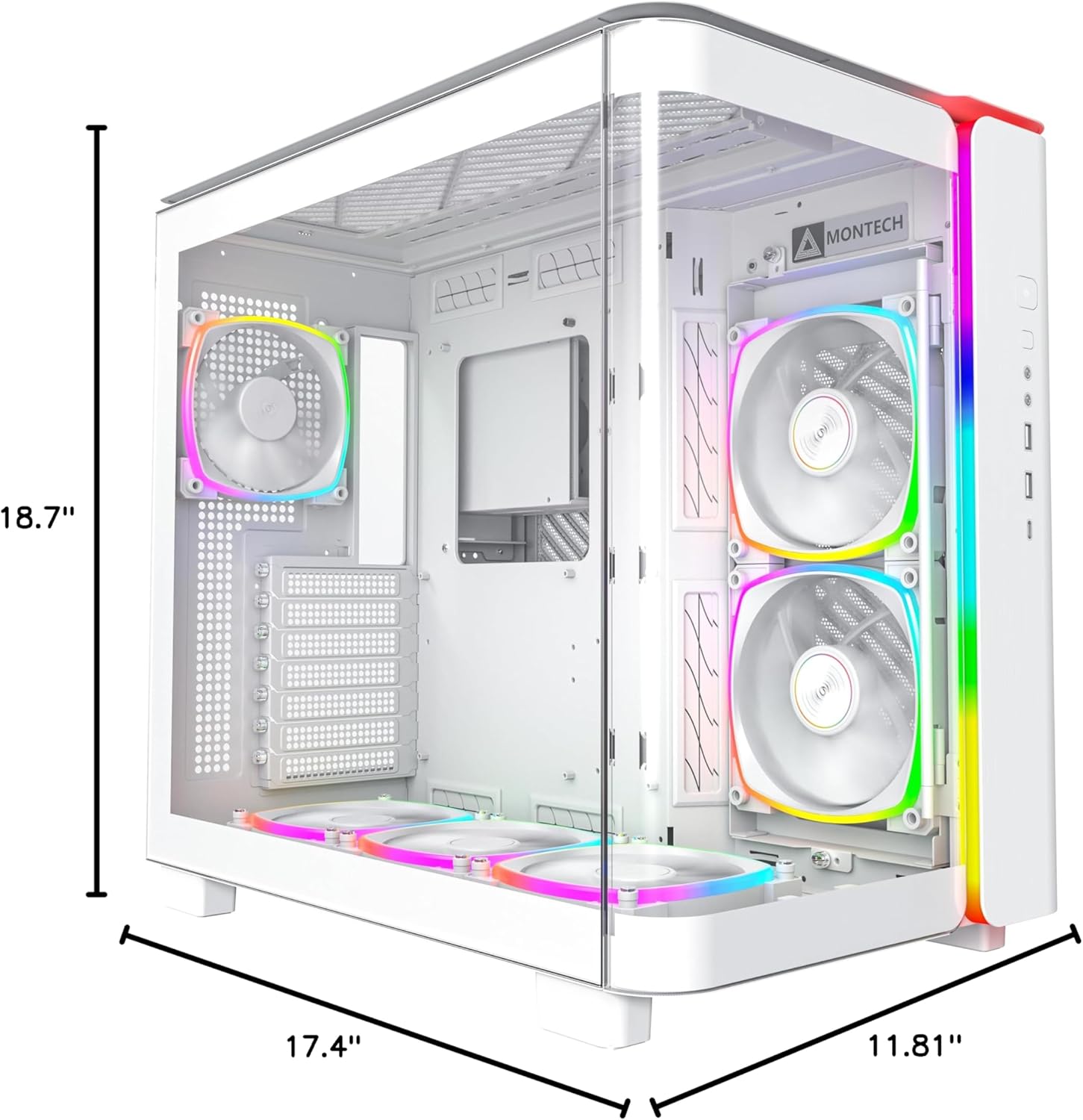
Figure 7.1: Dimensional overview of the MONTECH King 95 PRO PC Case.
8. Warranty and Support
Warranty information for the MONTECH King 95 PRO PC Gaming Case is typically provided with your product packaging or can be found on the official Montech website. Please retain your proof of purchase for warranty claims.
For technical support, product inquiries, or warranty service, please visit the official Montech support page or contact their customer service department. Contact details are usually available on the manufacturer's website.