
WANLUTECH IPC-9800CADH Pro
Contents
WANLUTECH IPC-9800CADH Pro 7-inch IP Camera Tester User Manual
Model: IPC-9800CADH Pro
1. Introduction
This user manual provides comprehensive instructions for the safe and efficient operation of the WANLUTECH IPC-9800CADH Pro 7-inch IP Camera Tester. This device is designed for professionals in security surveillance, offering a wide range of testing capabilities for IP cameras, analog cameras, and various network cables. Please read this manual thoroughly before using the device to ensure proper functionality and to prevent damage.
2. Safety Information
- Always operate the device within its specified environmental conditions.
- Do not expose the device to moisture, extreme temperatures, or direct sunlight.
- Use only the provided power adapter and accessories.
- Before initial use, open the battery cover and remove the insulating paper piece from the battery compartment.
- Avoid dropping or subjecting the device to strong impacts.
- Do not attempt to disassemble or repair the device yourself. Contact qualified service personnel for assistance.
3. Setup
3.1. Package Contents
Verify that all items listed below are included in your package:
- WANLUTECH IPC-9800CADH Pro Tester Unit
- Packing Box
- Tool Bag
- Lithium Battery
- Accessories Box
- Audio Test Cable
- Safety Cord
- Power Output Cable
- Charger
- Cable Tracer
- RS485 Control Cable
- BNC Cable

3.2. Product Overview: Ports and Interfaces
Familiarize yourself with the various ports and interfaces on the IPC-9800CADH Pro tester for proper connection and operation.

- PoE/PoE Voltage Measurement / LAN 1: For Power over Ethernet testing and network connections.
- LAN 2: Additional network testing port.
- AHD/CVI/TVI/CVBS IN: Input for analog and HD coaxial camera signals.
- Video Output: BNC output for video signal.
- RS485 Port: For PTZ control and other serial communications.
- TF Card Slot: For expandable storage.
- HDMI OUT: HDMI video output.
- UTP / Cable Tracer Port: For cable tracing and testing.
- VGA IN: VGA video input.
- HDMI IN: HDMI video input.
- Audio In/Out: For audio signal testing.
- Microphones: Built-in microphones.
- DC Power Outputs: DC12V/3A, DC24V/2A, DC5V/2A for powering cameras.
- DC12V/2A Power Input: For charging the device.
3.3. Initial Battery Preparation
Before using the tester for the first time, it is essential to prepare the battery:
- Locate the battery cover on the back of the device.
- Open the battery cover.
- Remove the small paper piece that isolates the battery contacts. This prevents battery discharge during shipping.
- Close the battery cover securely.
- Fully charge the device using the provided charger before first use.
4. Operating Instructions
4.1. General Navigation
The device features a 7-inch touchscreen with a 1280x800 resolution for intuitive operation. Navigate through the main menu by tapping on the desired application icons.
4.2. IP Camera Testing
The tester supports testing of up to 8K 32MP and 4K 12MP IP cameras.
- IPC Test: Access this application to view network information, PoE and DC 12V power status, and utilize ONVIF functions.
- IP Discovery: Automatically scans for all network segment IP addresses connected to the tester. It can also modify the tester's local IP address to match the camera's network segment if necessary.
- Quick ONVIF: Allows automatic login and display of live video from ONVIF-compatible cameras. Features include creating test reports, modifying IP addresses, and changing channel names.
- HIK/DH Camera Test: Supports batch activation of Hikvision and Dahua cameras, modification of IP addresses, passwords, and custom channel names. Factory reset options are also available.


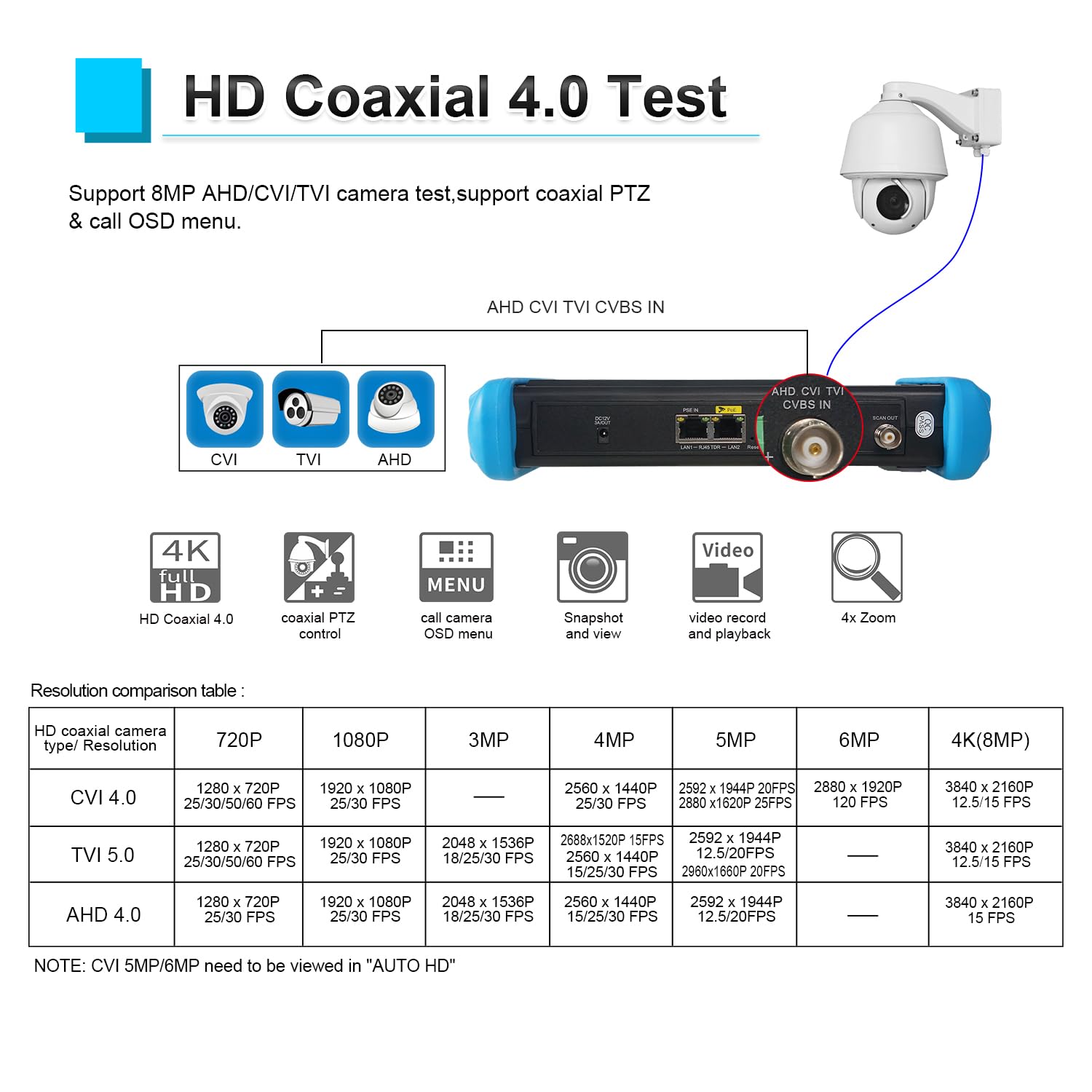
4.3. Analog Camera Testing (AHD/TVI/CVI/CVBS)
The tester supports up to 8MP AHD/TVI/CVI cameras and standard CVBS analog cameras.
- AUTO HD App: Automatically recognizes AHD, CVI, TVI, and CVBS cameras, displaying resolution and frame rate. It supports UTC control, OSD menu access, screenshot, video recording, and playback.
- Color Bar Generator: Outputs a PAL/NTSC color bar video signal for display testing and cable verification.
- CVBS Loop Test: The tester can send and receive color bar generator signals to check BNC cable integrity.
4.4. Cable Testing
Perform various cable tests to diagnose network and coaxial cable issues.
- Cable Tracer: Use the included cable tracer to locate BNC, network, and telephone cables within cluttered wiring. It can also identify shielded cables.
- RJ45 Cable TDR Test: Tests cable pair status, length (up to 180m), attenuation, reflectivity, impedance, and skew.
- UTP Cable Tester: Checks UTP cable connection status and displays near-end, mid-end, and far-end fault points of the RJ45 cable plug.
- Cable Length Test: Measures the breakpoint position (open circuit status) for BNC, RJ45, and RJ11 cables, up to 3000 meters.

4.5. Power Functions
- PoE Power Output: Supports PoE IEEE802.3af/at, providing up to 48V and a maximum of 30W power output to connected devices.
- Power Management: Monitors real-time voltage, power, and status of power output (DC12V/3A, DC24V/2A, DC5V/2A) and power input ports.

4.6. Network Tools
The tester includes a suite of professional network testing tools:
- Ping: Tests network connectivity to a host.
- IP Scan: Discovers active IP addresses on the network.
- DHCP Server: Provides DHCP services for network setup.
- PPPOE: Supports PPPoE client functionality.
- Trace Route: Traces the path of data packets across an IP network.
- Port Flash: Helps locate network ports by flashing the link light.
- LLDP: Link Layer Discovery Protocol for network device discovery.
- Link Monitor: Monitors network link status.

4.7. Wireless Functions
- WiFi Analyzer: Analyzes WiFi signal strength, channel, and channel level (2.4GHz frequency band).
- WiFi Hotspot: Create a WiFi hotspot to connect other devices.

4.8. Media & Connectivity
- HDMI & VGA Input/Output: Supports HDMI input up to 4K 30fps and VGA input up to 1920x1080P 60fps. HDMI output can display the tester's screen or a color bar signal.
- Media Player: Built-in media player for reviewing recorded footage.
- FTP Server: Allows copying and editing files from the SD card without removal, by accessing the tester's FTP address from a computer.
- RS485 Port: For controlling PTZ cameras and other serial devices.
- Audio In/Out: For testing audio signals.

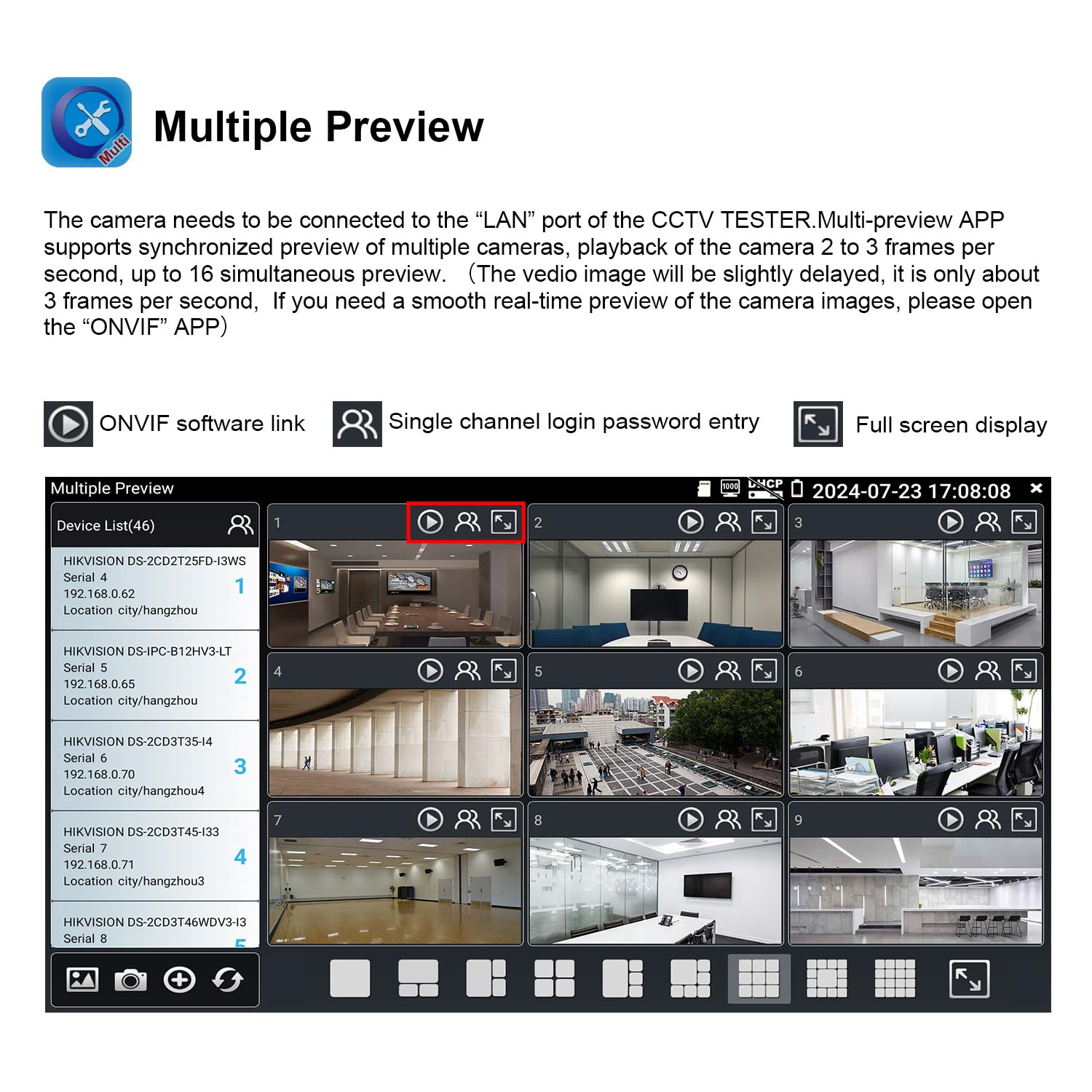
4.9. Multiple Preview
The "Multiple Preview" application allows synchronized viewing of multiple cameras (up to 16 simultaneously) when connected to the tester's LAN port. Playback of 2 to 3 frames per second is supported. For smoother real-time viewing, use the "ONVIF" app.
4.10. TesterPlay (Screen Projection)
The TesterPlay app enables screen projection, allowing the tester's display to be mirrored on a PC or Android mobile phone simultaneously. Install the "TesterPlay" app on your Android phone or use VLC player on your PC to receive real-time screen information from the tester.

5. Maintenance
- Cleaning: Use a soft, dry cloth to clean the device. For stubborn dirt, a slightly damp cloth with mild detergent can be used, ensuring no liquid enters the ports.
- Storage: Store the device in a cool, dry place away from direct sunlight and extreme temperatures when not in use.
- Battery Care: For prolonged storage, charge the battery to approximately 50-60% every three months to maintain battery health.
- Software Updates: Regularly check for and install software updates to ensure optimal performance and access to new features. Updates can be performed locally or online via the "Update" application.

6. Troubleshooting
| Problem | Possible Cause | Solution |
|---|---|---|
| Device does not power on. | Battery not charged or insulating paper still present. | Ensure the battery insulating paper is removed. Charge the device fully using the provided charger. |
| Touchscreen is unresponsive. | Temporary software glitch or hardware issue. | Restart the device. If the problem persists, contact customer support. |
| Cannot detect IP cameras. | Incorrect network settings or camera not powered. | Ensure the camera is powered (e.g., via PoE). Use the "IP Discovery" function to scan for cameras and adjust the tester's IP address to match the camera's network segment if necessary. Check cable connections. |
| No video signal from analog camera. | Incorrect cable connection or camera not powered. | Verify BNC cable connection. Ensure the analog camera is powered. Use the "AUTO HD" app to automatically detect the camera type. |
| Cable test results are inaccurate. | Damaged cable or improper connection. | Ensure cables are properly terminated and securely connected to the tester and remote unit (if applicable). Test with a known good cable to verify tester functionality. |
7. Specifications
| Feature | Detail |
|---|---|
| Model Number | IPC-9800CADH Pro |
| Display | 7-inch IPS Touchscreen, 1280x800 resolution |
| IP Camera Support | Max 8K 32MP, 4K 12MP |
| Analog Camera Support | Max 8MP AHD/TVI/CVI, CVBS (NTSC/PAL auto-adapt) |
| PoE Output | IEEE802.3af/at, Max 48V, 30W |
| DC Power Output | DC12V/3A, DC24V/2A, DC5V/2A |
| HDMI Input | Up to 4K 30fps |
| VGA Input | Up to 1920x1080P 60fps |
| Cable Test Functions | Cable Tracer, RJ45 TDR (up to 180m), UTP Cable Test, Cable Length Test (up to 3000m) |
| Network Tools | Ping, IP Scan, DHCP Server, PPPOE, Trace Route, Port Flash, LLDP, Link Monitor |
| Wireless Connectivity | WiFi Analyzer (2.4GHz), WiFi Hotspot |
| Storage | Includes 8GB TF card |
| Ports | Dual Gigabit Ethernet, HDMI In/Out, VGA In, Audio In/Out, RS485 |
| Power Source | DC Powered (12V 2A input) |
| Battery | 1 Lithium Ion battery required |
| Item Weight | 2 Kilograms (approx. 4.41 Pounds) |
| Dimensions | 12.6 x 11.42 x 3.54 inches |
8. Warranty and Support
WANLUTECH is committed to providing quality products and customer satisfaction. For any questions, technical assistance, or warranty claims, please contact our support team.
- Contacting Support:
- Find your order on your Amazon account, view order details, and click "get product support" to message us.
- Alternatively, locate "WANGLU TESTER" on the product detail page, click on it, and then send a message.
- Our support team aims to respond within 12 hours.
- Please retain your proof of purchase for warranty purposes.
Documents and downloads
Ask a question about this manual
Ask about setup, troubleshooting, compatibility, parts, safety, or missing instructions. Manuals+ will review the question and use this page’s manual context to help answer it.