
EUKI D900
EUKI D900 Dash Cam User Manual
Model: D900
Introduction
Thank you for choosing the EUKI D900 Dash Cam. This advanced front and rear camera system is designed to provide comprehensive recording of your driving, ensuring safety and peace of mind. Featuring 5K/4K resolution, 5G WiFi, built-in GPS, and advanced parking monitoring, the D900 captures crucial details day and night. Please read this manual thoroughly to understand the product's features and ensure proper installation and operation.
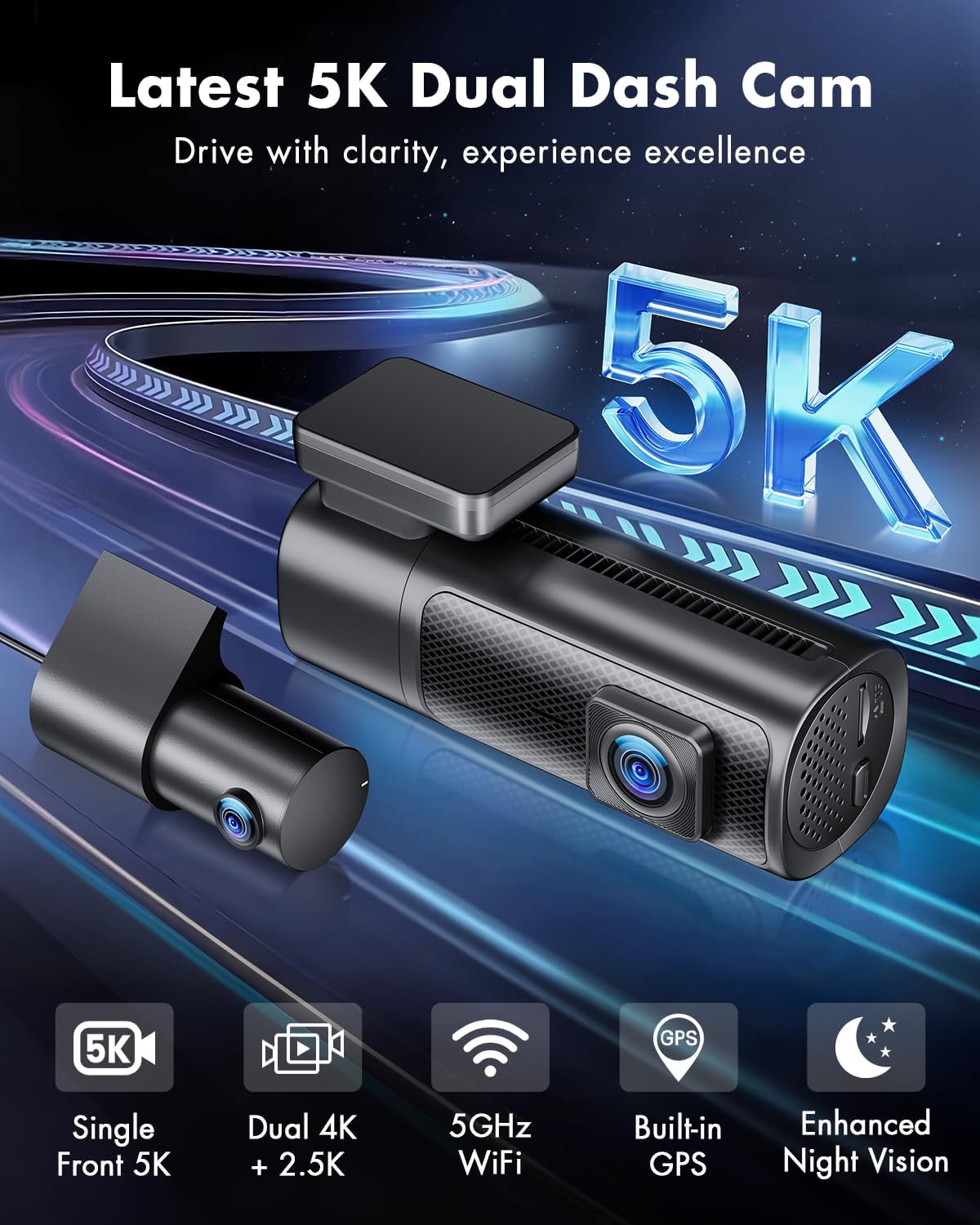
Figure 1: EUKI D900 Dash Cam overview, highlighting 5K resolution, dual camera, 5GHz WiFi, built-in GPS, and enhanced night vision.
What's in the Box
Please verify that all components are present and in good condition upon unboxing.
- D900 Dashcam (Front Camera) x1
- Rear Dash Cam x1
- 64GB SD Card x1
- Car Charger x1
- 3M Adhesive Tapes x2
- Electrostatic Films x2
- Cable Clips x5
- Crowbar x1
- User Manual x1

Figure 2: Detailed view of all items included in the EUKI D900 Dash Cam package.
Setup and Installation
Follow these steps for proper installation of your dash cam system.
1. Prepare the Micro SD Card
Before first use, insert the included 64GB Micro SD card into the dash cam and format it through the camera's settings menu. This ensures optimal performance and compatibility. The camera supports up to 512GB micro SD cards (Class 10 or higher recommended).
2. Front Camera Installation
- Clean the windshield area where the dash cam will be mounted.
- Apply an electrostatic film to the chosen area on the windshield.
- Attach the 3M adhesive bracket to the electrostatic film.
- Mount the D900 Dash Cam onto the bracket. The 360° rotatable bracket allows for flexible adjustment of the camera angle.
3. Rear Camera Installation
- Identify a suitable location for the rear camera, typically on the rear windshield.
- Connect the rear camera to the front dash cam using the provided 20ft rear cam cable (AV-IN port).
- Secure the rear camera with its adhesive.
4. Power Connection
- Connect the 10ft USB-C cigar power cable to the dash cam's Type-C port.
- Plug the car charger into your vehicle's cigarette lighter socket.
- Route the power cable neatly along the windshield and dashboard using the included cable clips and crowbar for a hidden installation.

Figure 3: Visual guide for easy installation of the front and rear dash cam units within a vehicle.

Figure 4: Illustration of the hidden wiring installation process for the dash cam system.
Operating Instructions
Understand the various functions and modes of your EUKI D900 Dash Cam.
Recording Modes
- Single Front Recording: When the rear camera is unplugged, the front camera can record in ultra-high definition 5K 30fps or 4K 60fps.
- Dual Recording (Front + Rear): With both cameras connected, the resolution can reach 4K 30fps for the front and 2.5K for the rear.

Figure 5: Visual representation of the dash cam's single front 5K recording and dual 4K+2.5K recording capabilities.

Figure 6: Example of single front 5K recording quality, highlighting HDR and 4K 60fps options.

Figure 7: Illustration of dual recording with wide-angle views from both front (170°) and rear (150°) cameras.
Super Night Vision & HDR
The D900 features exceptional night vision with HDR Starvis, an F1.8 aperture, and a 6-layer optical lens for clear recording in low-light conditions. Note that 60fps and HDR functions cannot be used simultaneously.

Figure 8: Demonstration of superior night vision and advanced HDR technology for clear recordings in various lighting conditions.

Figure 9: Technical components contributing to high-quality image capture, including HD Image Sensor, HDR, f/1.8 aperture, and 6-glass lens.
5G WiFi & Smart APP Control
The built-in 5G WiFi allows for fast data transfer. Download the 'Jarviscam' app (available on Apple App Store and Google Play) to control the dash cam, view, download, and share videos. The effective WiFi signal range is approximately 25 feet; remote viewing from home is not supported.

Figure 10: Dash cam connectivity with 5G WiFi and control via the Jarviscam smartphone application.

Figure 11: User interface of the Jarviscam app, demonstrating features for video preview, download, and sharing.
Built-in GPS
The integrated GPS records your driving route, real-time speed, and location. You can track this information on Google Maps via the Jarviscam App or using the GPSPlayer software on your PC (compatible with Windows and Mac systems). Player download link and login code are provided in the user manual (refer to the physical manual for specific details).

Figure 12: GPS tracking functionality, illustrating how driving data is recorded and can be viewed on a map.
Seamless Loop Recording & G-sensor
- Loop Recording: The D900 automatically overwrites the oldest videos with the newest when the SD card reaches its maximum storage capacity, ensuring continuous recording.
- G-sensor: If the built-in gravity sensor detects unusual collisions, the dash cam automatically locks the current video to prevent it from being overwritten, saving it as crucial evidence.

Figure 13: Overview of G-sensor, 24-hour parking monitoring, and seamless loop recording features.

Figure 14: Illustration of seamless loop recording, showing how new footage overwrites old footage while protecting locked files.

Figure 15: G-sensor collision lock feature, demonstrating automatic file protection upon impact detection.
24 Hours Parking Monitoring
To enable 24-hour parking monitoring and time-lapse functions, the dash cam must be connected to a hardwire kit (NOT INCLUDED). This feature provides continuous surveillance and saves memory space by recording time-lapse videos.

Figure 16: Time-lapse recording feature for extended parking monitoring, requiring a hardwire kit.
Figure 17: G-sensor recording in parking mode, which activates upon detecting a collision or impact.
Voice Prompts
The dash cam supports various voice broadcasts to inform you of its current status, such as "5G WiFi Connected," "Emergency Video," "Recording Started," "Parking Mode was Activated While Parking," and "Audio Off."

Figure 18: Illustration of the dash cam's voice prompt feature, providing audio notifications for various operational statuses.
Maintenance
Regular maintenance ensures the longevity and optimal performance of your dash cam.
- SD Card Formatting: It is recommended to format the Micro SD card regularly (e.g., once a month) to prevent data corruption and ensure smooth loop recording. Always back up important videos before formatting.
- Cleaning: Use a soft, dry cloth to clean the camera lens and screen. Avoid abrasive cleaners or solvents.
- Temperature: The dash cam is designed to operate in temperatures from -4°F to 158°F (-20°C to 70°C). Avoid prolonged exposure to extreme temperatures outside this range.

Figure 19: Information regarding the included 64GB SD card and H.265 video encoding, which saves storage space.

Figure 20: The dash cam's built-in super capacitor, enabling operation in extreme temperatures from -4°F to 158°F.
Troubleshooting
If you encounter issues with your EUKI D900 Dash Cam, refer to the following common problems and solutions.
| Problem | Possible Cause | Solution |
|---|---|---|
| Screen flickering or failure | Loose connection, software glitch, hardware issue. | Ensure power cable is securely connected. Try restarting the device. If issue persists, contact customer support. |
| Incorrect time/date stamp | Time zone not set, GPS signal weak, app not synced. | Ensure GPS is active and receiving signal. Sync time via the Jarviscam app. If time zone is not automatically derived, manual adjustment may be required (refer to physical manual). |
| No recording or incomplete recording | SD card full, not formatted, faulty, or low class; loop recording not functioning. | Format the SD card. Ensure you are using a Class 10 or higher SD card. Check if loop recording is enabled in settings. If the issue is related to parking mode, ensure a hardwire kit is installed. |
| WiFi connection issues | Out of range, incorrect password, app issue. | Ensure you are within 25 feet of the dash cam. Double-check the WiFi password. Restart the dash cam and your smartphone's WiFi. |
| Camera not turning on | No power, faulty cable, battery issue. | Check power connection to the car charger and dash cam. Ensure the car's cigarette lighter socket is working. |
Specifications
Detailed technical specifications for the EUKI D900 Dash Cam.
| Feature | Detail |
|---|---|
| Model Name | D900 |
| Product Dimensions | 4.17 x 2.09 x 1.5 inches |
| Item Weight | 0.035 ounces |
| Video Capture Resolution | Single Front: 5K 30fps / 4K 60fps; Dual Recording: 4K 30fps + 2.5K |
| Connectivity Technology | 5G Wi-Fi |
| Special Features | Night Vision, Loop Recording, G-sensor, Parking Monitor, Time-lapse, HDR |
| Included SD Card | 64GB (supports up to 512GB) |
| Operating Temperature | -4°F to 158°F (-20°C to 70°C) |
| Mounting Type | Windshield Mount |
| Power Source | Car Charger (12V/24V) |
| Battery | 1 Lithium Metal battery required (built-in Super Capacitor) |
Warranty and Customer Support
EUKI provides comprehensive support for your product.
- 12-Month Warranty: Every customer is fully covered by a one-year quality guarantee from the date of purchase.
- Worry-Free Customer Care: For any problems or inquiries regarding your dash cam, please contact our support team.
- Contact Information: You can reach us via Amazon messaging or send an email to support@euki.cn. We aim to respond within 24 hours and provide a satisfactory solution.

Figure 21: Information on EUKI's 30-day return policy, 12-month limited warranty, and lifetime customer support.
Related documentsD900

Ask a question about this manual
Ask about setup, troubleshooting, compatibility, parts, safety, or missing instructions. Manuals+ will review the question and use this page’s manual context to help answer it.