Download PDFFree PDF. The Save button below keeps a bookmark and private notes in your account.
PSOS Keyless Entry Smart Deadbolt Lock (Model LOCK-1) User Manual
Your guide to installation, operation, and maintenance.
Introduction
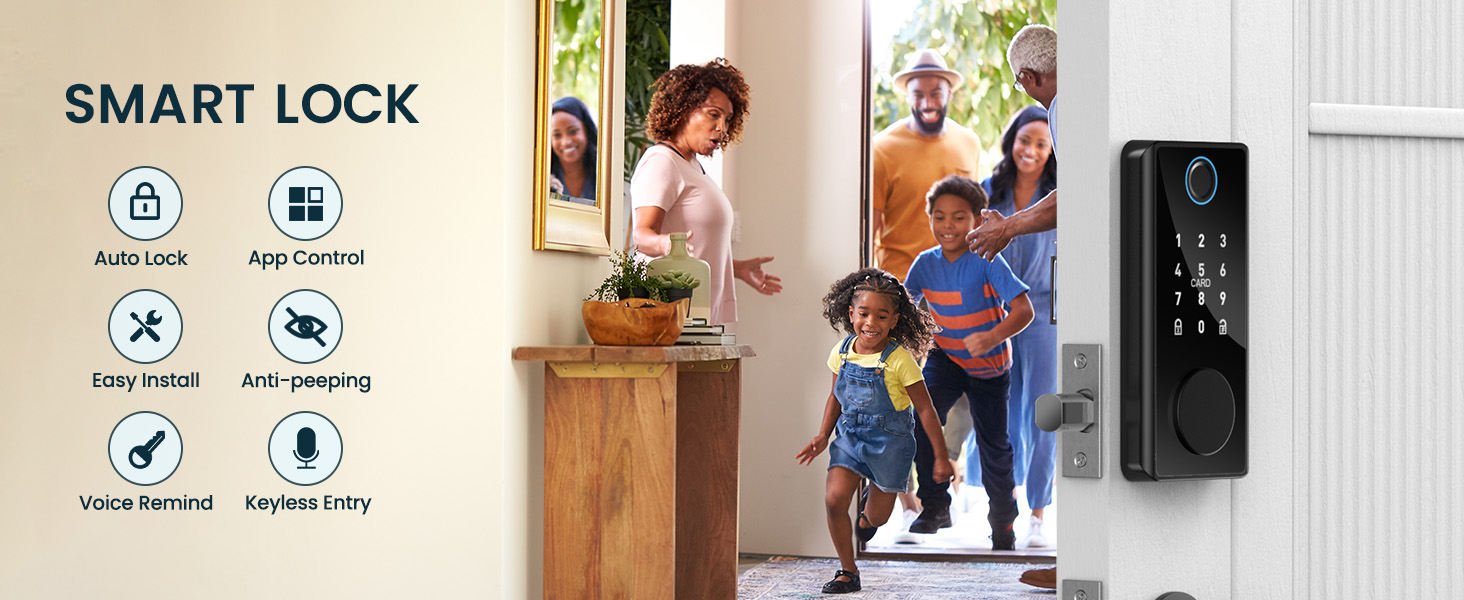
This manual provides essential instructions for the installation, operation, and maintenance of your PSOS Keyless Entry Smart Deadbolt Lock, Model LOCK-1. This smart lock offers multiple unlocking methods including fingerprint, keypad, physical key, IC card, and smartphone app control. Please read this manual thoroughly before installation and use to ensure proper function and security.
Setup
Pre-Installation Checks
Before beginning installation, verify that your door dimensions are compatible with the smart deadbolt lock. Refer to the diagram below for required measurements:
This image illustrates the critical door measurements required for proper installation of the PSOS Smart Deadbolt Lock. Ensure your door's hole diameter, backset, minimum distance, and door thickness fall within the specified ranges.
Installation Steps
The PSOS Smart Deadbolt Lock is designed for easy installation. Follow the detailed instructions provided in the product packaging. Generally, installation involves:
Removing your existing deadbolt.
Installing the new deadbolt latch into the door edge.
Mounting the exterior keypad assembly.
Connecting the interior assembly and securing it to the door.
Installing batteries and testing the lock's basic functions.
App Setup and Pairing
To utilize the smart features of your lock, download the companion app and pair your device. This video demonstrates the app connection process:
This video provides a tutorial on how to connect your PSOS Smart Deadbolt Lock to the mobile application, guiding you through the pairing process for full smart control.
Steps for app setup:
Scan the QR code in your product manual or search for the 'Tuya Smart' app in your device's app store.
Register and log in to your Tuya account.
Ensure your phone's Bluetooth is enabled.
Wake up the smart lock by pressing any key.
Follow the in-app instructions to add the lock to your account.
Operating Instructions
Unlocking Methods
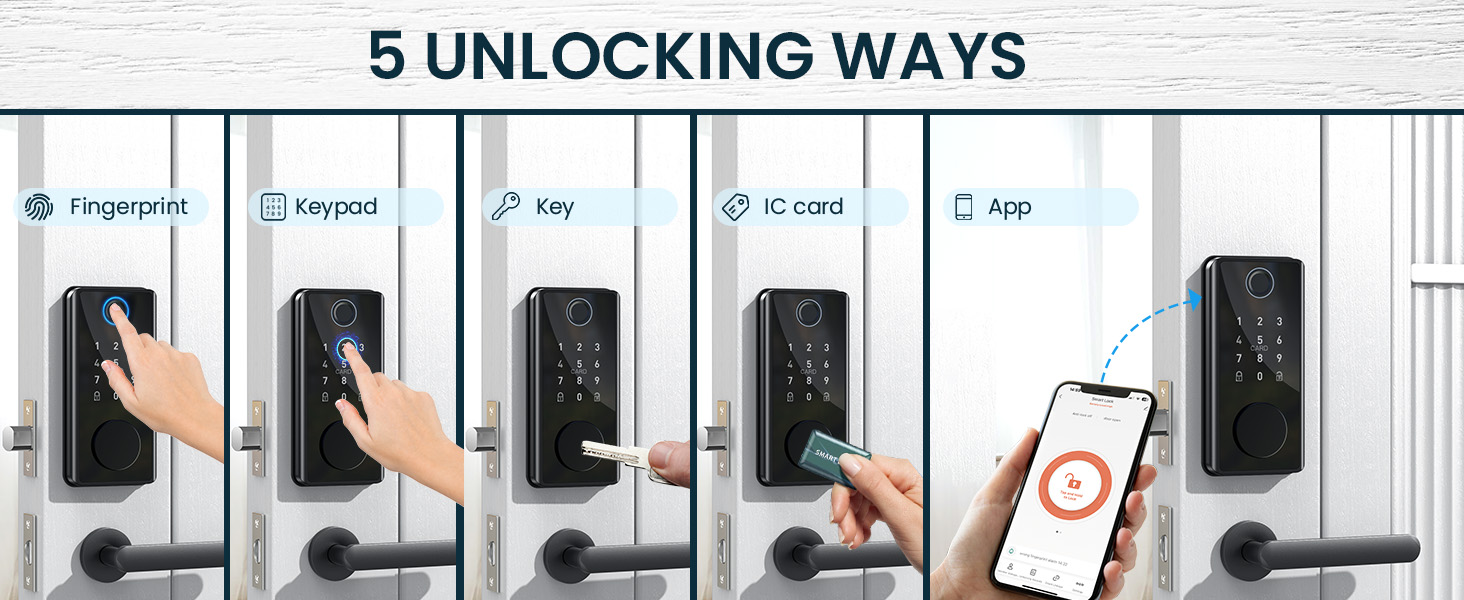
Your PSOS Smart Deadbolt Lock offers five convenient ways to unlock your door:
This image displays the five distinct methods available for unlocking your PSOS Smart Deadbolt Lock: fingerprint recognition, keypad code entry, traditional physical key, IC card tap, and control via the smartphone application.
Fingerprint: Place your registered finger on the fingerprint sensor. The lock will unlock in less than 0.23 seconds with over 99.8% accuracy.
Keypad: Enter your personalized 4-8 digit code on the touchscreen keypad.
Physical Key: Use the provided mechanical keys as a traditional backup.
IC Card: Tap the IC card against the designated area on the lock.
Smartphone App: Use the Tuya Smart app on your smartphone to remotely unlock the door via Bluetooth.
Automatic Locking
The auto-lock feature provides enhanced security by automatically locking your door after a set period. You can configure the auto-lock delay (typically 5-200 seconds) through the smartphone app.
This image demonstrates the auto-lock function of the smart deadbolt, which automatically secures the door after a user-defined period, ensuring security even if you forget to lock it manually.
Advanced App Features
The Tuya Smart app provides comprehensive control and management capabilities for your lock:
This image displays the various control options available within the smartphone application for the smart lock, including keyless entry, user management, auto-lock settings, temporary passcodes, access history, and scheduled access.
User Management: Add, modify, or delete user fingerprints, keypad codes, and IC cards.
Temporary Passcode: Generate time-sensitive or one-time passcodes for guests or service providers.
Schedule Access: Set specific times or days for certain users to have access.
View History: Review a log of all lock and unlock events.
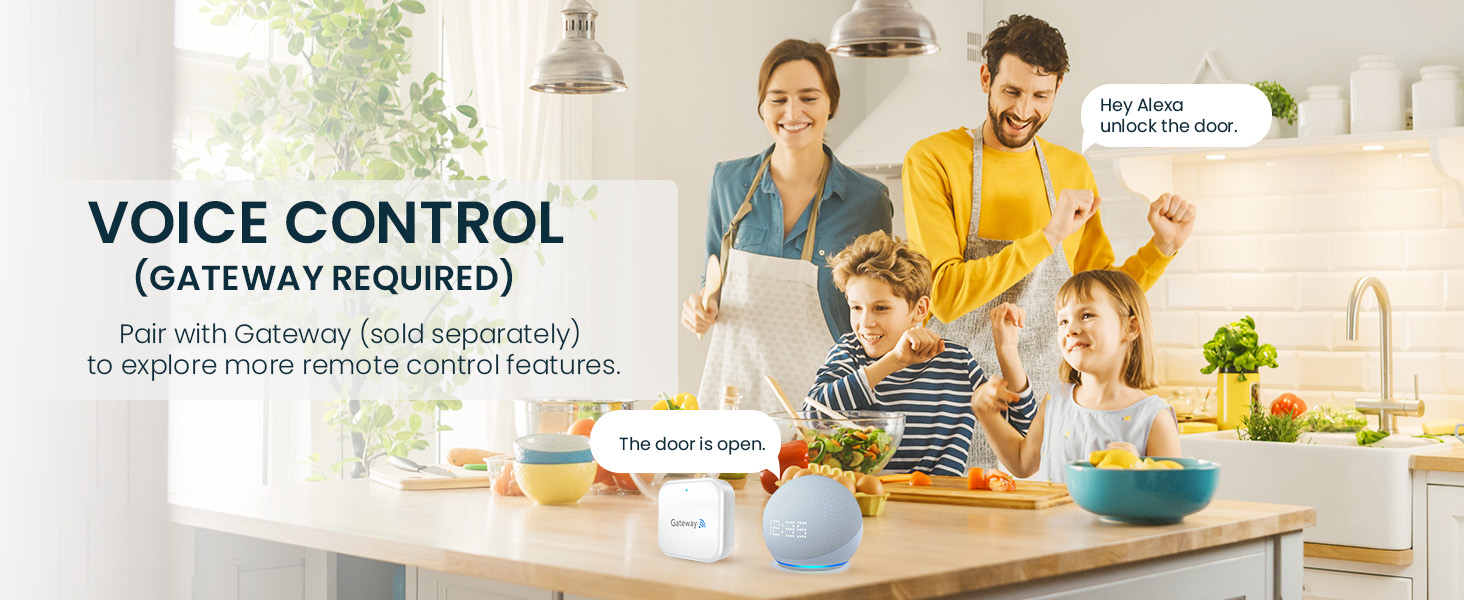
Voice Control (Gateway Required)
For voice control functionality and remote access from outside Bluetooth range, a compatible smart home gateway (sold separately) is required. Once paired with a gateway, you can integrate your lock with voice assistants like Alexa for hands-free operation.
This image depicts a family using voice commands to control the smart lock, highlighting the convenience of integrating the lock with smart home systems via a gateway for voice-activated unlocking.
Maintenance
Battery Management
The PSOS Smart Deadbolt Lock is powered by batteries, offering up to 365 days of battery life under normal usage. The lock will provide a low-battery warning when power is critically low. In case of complete battery depletion, you can use the emergency USB charging port or the physical key to gain entry.
This image demonstrates the emergency power options for the smart lock, including charging via a USB power bank and using a physical key, ensuring you are never locked out due to low battery.
Durability and Environmental Conditions
The lock is designed to withstand various environmental conditions, operating effectively in temperatures ranging from -22°F to 158°F and featuring an IP54 rating for dust and splash resistance.
This image highlights the robust design of the smart lock, showcasing its long battery life, wide operating temperature range, and IP54 rating for environmental protection.
Troubleshooting
If you encounter issues with your PSOS Smart Deadbolt Lock, consider the following common solutions:
Lock Not Responding: Check battery levels. Replace batteries if low. Use the emergency USB charging port or physical key if completely drained.
Fingerprint Not Recognized: Ensure your finger is clean and dry. Re-register your fingerprint if recognition issues persist.
Keypad Not Working: Verify that the keypad is awake. Re-enter the code carefully. Ensure the code is correct and active.
App Connectivity Issues: Ensure Bluetooth is enabled on your phone and the lock is within range. Restart the app and/or your phone. If using a gateway, check its connection.
Deadbolt Mechanism Stuck: Check for any obstructions in the door frame or latch. Ensure the lock is installed correctly and not misaligned.
For more complex issues, refer to the detailed troubleshooting section in your product manual or contact customer support.
Specifications
Feature
Detail
Brand
PSOS
Model Number
LOCK-1
Lock Type
Keypad, Fingerprint, App, Key, IC Card
Item Dimensions (L x W x H)
2.6 x 0.6 x 5.5 inches
Color
Black
Item Weight
2.1 Pounds
Control Method
App, Touch
Connectivity Protocol
Bluetooth
Smart Home Compatibility
Smart Home Compatible (Gateway required for remote features)
Manufacturer
Zhongshan pulido Intelligent Technology Co., Ltd
GTIN / UPC
774113028151
Warranty Information
Your PSOS Smart Deadbolt Lock is covered by a standard return policy, typically 30 days from the date of purchase. For specific warranty terms and conditions, please refer to the documentation included with your product or contact the manufacturer directly. Extended protection plans may be available from your retailer.
Customer Support
Should you require assistance with your PSOS Smart Deadbolt Lock, please consult the troubleshooting section of this manual or the comprehensive guide included in your product packaging. For further support, contact the manufacturer's customer service department. Contact information can typically be found on the product packaging or the manufacturer's official website.
Ask about setup, troubleshooting, compatibility, parts, safety, or missing instructions. Manuals+ will review the question and use this page’s manual context to help answer it.