
1. Introduction
This manual provides comprehensive instructions for the safe and efficient operation of your DOOGEE N50PRO Unlocked Cell Phone. Please read this manual thoroughly before using your device to ensure proper functionality and to prevent damage.
The DOOGEE N50PRO is a modern smartphone designed for communication and multimedia. It features a 6.52-inch display, runs on Android 13.0, and offers 128 GB of internal storage with expandable memory capabilities.

Figure 1.1: Front and back view of the DOOGEE N50PRO smartphone, highlighting its design and camera module.
2. Setup
2.1 Unboxing and Initial Inspection
Upon receiving your DOOGEE N50PRO, carefully open the packaging and inspect the contents. Ensure all items listed below are present and undamaged:
- DOOGEE N50PRO Smartphone
- USB Type-C Cable
- SIM Ejector Tool
- Quick Start Guide
2.2 SIM Card and Memory Card Installation
To install your SIM card(s) and an optional microSD card for expanded storage (up to 1TB), follow these steps:
- Locate the SIM card tray on the side of the phone.
- Insert the SIM ejector tool into the small hole next to the tray and press gently until the tray pops out.
- Place your Nano-SIM card(s) and/or microSD card into the designated slots on the tray, ensuring correct orientation.
- Carefully push the tray back into the phone until it clicks into place.

Figure 2.1: Different color variants of the DOOGEE N50PRO, illustrating the phone's form factor and potential accessories like a clear case.
2.3 Initial Power On and Setup Wizard
Press and hold the Power button until the DOOGEE logo appears. Follow the on-screen instructions to complete the initial setup, including language selection, Wi-Fi connection, Google account sign-in, and security settings.
3. Operating Your DOOGEE N50PRO
3.1 Basic Navigation
The DOOGEE N50PRO operates on Android 13.0. Navigation is primarily via the touchscreen. Common gestures include tapping to select, swiping to scroll, pinching to zoom, and long-pressing for contextual menus.
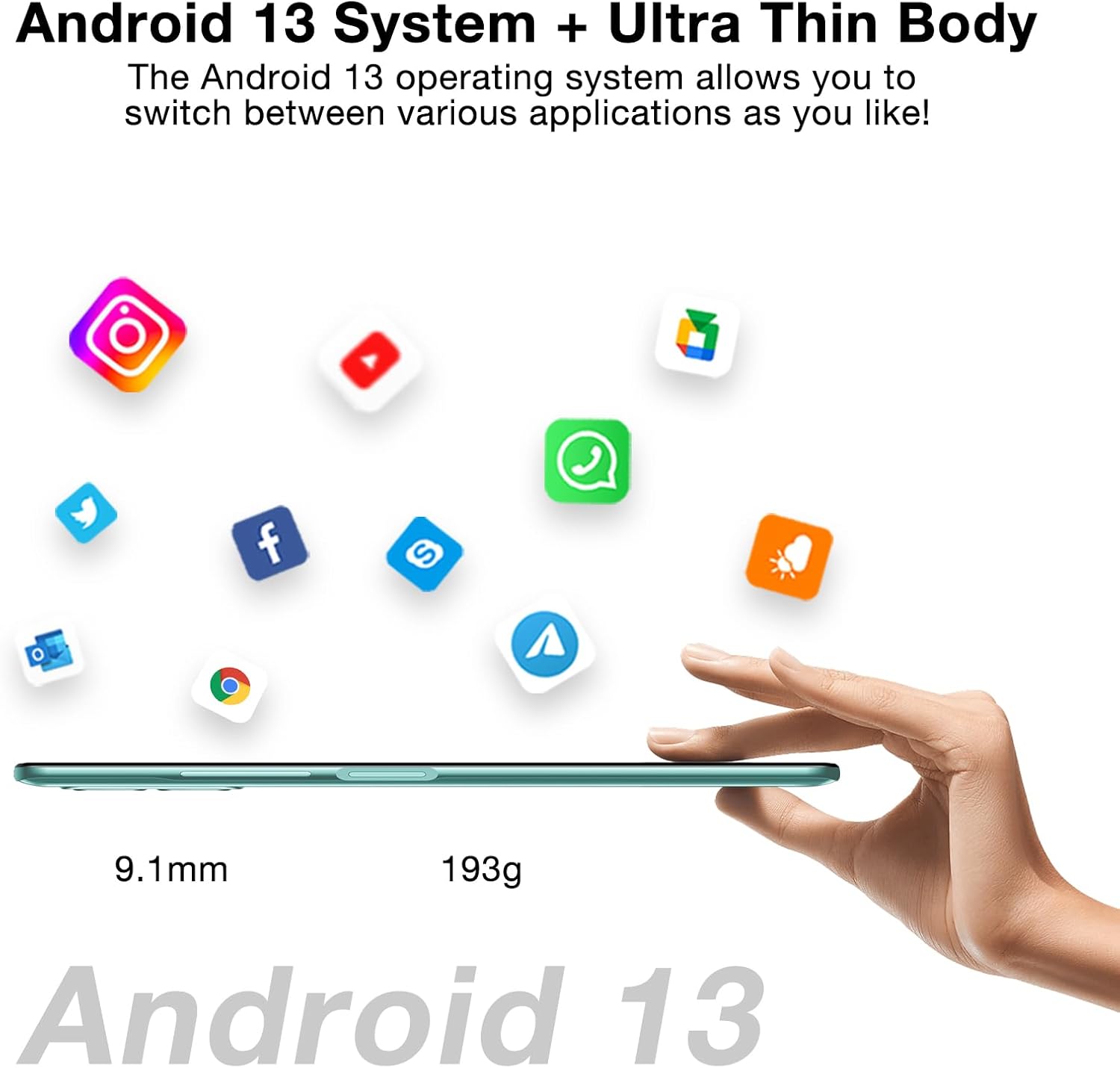
Figure 3.1: The DOOGEE N50PRO running Android 13, showcasing its slim profile (9.1mm) and light weight (193g).
3.2 Making Calls and Sending Messages
- Calls: Open the Phone app, enter the number, and tap the call icon.
- Messages: Open the Messages app, tap the new message icon, enter the recipient and your message, then send.
3.3 Camera Usage
The DOOGEE N50PRO features a 50MP main rear camera and an 8MP front camera. Open the Camera app to capture photos and videos. Various modes like Panoramic are available.

Figure 3.2: Overview of the DOOGEE N50PRO's 50MP AI Dual Camera system and 8MP Front Camera, with sample images.
3.4 Battery Management
The device is equipped with a 4200mAh battery and supports 18W fast charging. To charge, connect the USB Type-C cable to the phone and the power adapter, then plug into a wall outlet.

Figure 3.3: The 4200mAh battery and 18W fast charging feature of the DOOGEE N50PRO.
4. Maintenance
4.1 Cleaning Your Device
Use a soft, lint-free cloth to clean the screen and body of the phone. Avoid using harsh chemicals or abrasive materials. For stubborn smudges, slightly dampen the cloth with water or a screen cleaner designed for electronics.
4.2 Software Updates
Regularly check for and install software updates to ensure optimal performance, security, and access to new features. Navigate to Settings > System > System update to check for available updates.
4.3 Storage Management
The phone comes with 128GB of internal storage. To manage storage, go to Settings > Storage. You can clear cache, delete unnecessary files, or move data to an external microSD card (up to 1TB).

Figure 4.1: Representation of the DOOGEE N50PRO's internal components, highlighting its 20GB RAM (8GB+12GB virtual) and 256GB ROM (expandable to 1TB).
5. Troubleshooting
This section addresses common issues you might encounter with your DOOGEE N50PRO.
| Problem | Possible Cause | Solution |
|---|---|---|
| Phone does not turn on | Low battery; software crash | Charge the phone for at least 30 minutes. Perform a forced restart by holding the Power button for 10-15 seconds. |
| Apps crashing or freezing | Insufficient RAM; app conflict; outdated app | Close background apps. Clear app cache (Settings > Apps > [App Name] > Storage > Clear cache). Update the app from the Play Store. |
| Poor call quality | Weak signal; microphone/speaker obstruction | Move to an area with better network coverage. Ensure microphone and speaker are not blocked. Restart the phone. |
| Battery drains quickly | Background apps; high screen brightness; network issues | Reduce screen brightness. Close unused apps. Disable Wi-Fi/Bluetooth when not in use. Check battery usage in Settings > Battery. |
If the issue persists, consider performing a factory reset (Settings > System > Reset options > Erase all data (factory reset)). Warning: This will erase all data on your phone. Back up important data before proceeding.
6. Specifications
Below are the key technical specifications for the DOOGEE N50PRO:
- Model Name: N50PRO
- Operating System: Android 13.0
- Screen Size: 6.52 Inches (HD+ Waterdrop Display, 720x1600 Resolution, 340 nits Brightness)
- Memory Storage Capacity: 128 GB (expandable up to 1TB via microSD)
- RAM: 20GB (8GB physical + 12GB virtual)
- Cellular Technology: 4G LTE (Unlocked for All Carriers)
- Connectivity Technology: Wi-Fi
- Rear Camera: 50MP AI Dual Camera
- Front Camera: 8MP
- Battery: 4200mAh Lithium Polymer (18W Fast Charging)
- Product Dimensions: 2.99 x 0.35 x 6.5 inches
- Item Weight: 6.8 ounces (193 Grams)
- Color: Gray
- Audio Jack: No headphone jack
- Human Interface Input: Touchscreen
- Manufacturer: DOOGEE
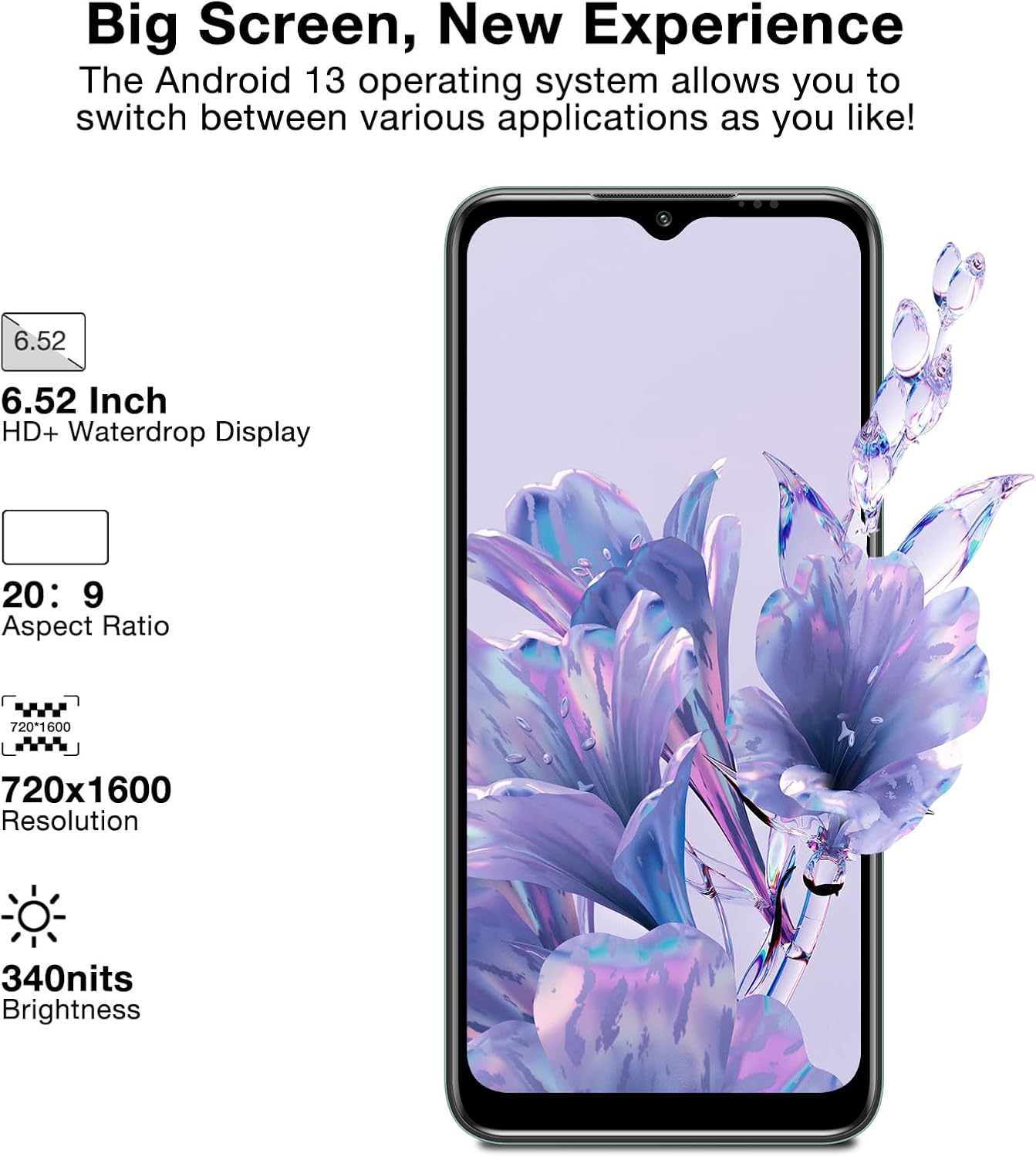
Figure 6.1: Display specifications of the DOOGEE N50PRO, highlighting its screen size and resolution.
7. Warranty and Support
For warranty information and customer support, please refer to the warranty card included with your product or visit the official DOOGEE website. Warranty terms may vary based on region and purchase location.
Note: As per customer reviews, the manufacturer's guarantee may primarily apply to purchases made directly through their official website. Please verify warranty terms with your point of purchase.
For further assistance, you may contact DOOGEE customer service through their official channels. Keep your proof of purchase for any warranty claims.