
STORCUBE STC 03/600M
STORCUBE Portable Power Station 600W User Manual
Model: STC 03/600M
1. Introduction
Thank you for choosing the STORCUBE Portable Power Station 600W. This device is a versatile and reliable power solution designed for various applications, including outdoor camping, emergency home backup, and mobile work. Featuring a durable LiFePO4 battery, pure sine wave AC output, and multiple charging options, it provides stable and efficient power for your electronic devices and small appliances.
This manual provides essential information for the safe and efficient operation of your power station. Please read it thoroughly before use and retain it for future reference.
2. Safety Instructions
To ensure safe operation and prolong the lifespan of your power station, please adhere to the following safety guidelines:
- Do not disassemble, repair, or modify the unit. Incorrect reassembly may cause fire or electric shock.
- Do not place the unit near fire or expose it to direct sunlight.
- Do not charge, use, or store the unit in a bathroom or in an area exposed to water or humidity.
- Use only the provided or approved accessories.
- Ensure proper ventilation during use and charging. Do not block the ventilation openings.
- Keep the unit away from children and pets.
- If the unit emits an odor, generates heat, or behaves abnormally, discontinue use immediately and contact customer support.
- Avoid dropping, heavy impacts, or strong vibrations.
- Dispose of the unit and its accessories according to local regulations.
3. Package Contents
Verify that all items are included in your package:
- 1x STORCUBE 600W Portable Power Station
- 1x AC Power Adapter
- 1x AC Power Cable
- 1x Car Charging Cable
- 1x User Manual (This document)
4. Product Overview
Familiarize yourself with the components and features of your STORCUBE Portable Power Station.

Front view of the STORCUBE Portable Power Station 600W, showcasing its compact design and main display.

Detailed diagram illustrating the 12 versatile output ports and 2 input ports on the power station, including USB-C PD100W, USB-A, DC5521, AC outlets, Anderson input, and car outlet.
4.1. Ports and Controls
- AC Outlets (x3): 110V Pure Sine Wave output for household appliances up to 600W.
- DC Ports (x4): 12V output for DC-powered devices.
- USB-C PD100W Port (x1): For fast charging compatible USB-C devices and recharging the power station.
- USB-A QC3.0 Port (x1): 18W Quick Charge 3.0 for rapid charging of smartphones and tablets.
- USB-A Ports (x2): Standard 5V/2.4A USB-A outputs.
- 12V Car Outlet (x1): For car-powered devices.
- DC5521 Input: For charging via AC adapter or car charging cable.
- PV (Solar) Input: Dedicated input for solar panel charging (18-24V, max 120W).
- LED Flashlight: Integrated light with multiple modes.
4.2. Clear LCD Display

Illustration of the clear LCD display, showing remaining output time, battery percentage, input/output power, and active port indicators.
The large and clear LCD display provides real-time information:
- Remaining Output Time: Estimates how long the power station can power connected devices.
- Output Frequency: Displays the AC output frequency (e.g., 60Hz).
- Battery Percentage Display: Shows the current battery charge level.
- Output Status Indicator: Indicates which output groups (AC, DC, USB) are active.
- Input Power: Displays the current charging power in Watts.
- Output Power: Displays the total power consumption of connected devices in Watts.
- Low Battery Notification: Alerts when the battery is low.
- Thermometer Icon: Indicates high temperature warning.
5. Setup
Before first use, ensure the power station is fully charged.
5.1. Initial Charge
- Connect the AC power adapter to the DC5521 input port on the power station.
- Plug the AC power cable into a wall outlet.
- The LCD display will show the input power, and the battery icon will animate, indicating charging.
- Charge until the battery percentage reaches 100% and the input power drops to near zero.
For faster charging, simultaneously use the AC adapter and a 100W PD USB-C charger (not included) connected to the USB-C PD100W port. This can charge the unit to 80% in approximately 2.5 hours.
6. Operating Instructions
The STORCUBE Portable Power Station offers multiple output options to power your devices.
6.1. Turning On/Off
- Power On: Press and hold the main power button for 2-3 seconds. The LCD display will light up.
- Power Off: Press and hold the main power button for 2-3 seconds until the display turns off.
6.2. Using AC Outlets
- Press the AC ON/OFF button to activate the AC outlets. The AC icon will appear on the display.
- Plug your AC-powered devices into the outlets. Ensure the total power consumption does not exceed 600W (1000W peak).
- When finished, press the AC ON/OFF button again to turn off the AC output and conserve battery.
6.3. Using DC Outlets (12V Car Port & DC5521)
- Press the DC ON/OFF button to activate the DC outlets. The DC icon will appear on the display.
- Connect your 12V DC devices to the appropriate ports.
- When finished, press the DC ON/OFF button again to turn off the DC output.
6.4. Using USB Ports (USB-A & USB-C)
- The USB ports are typically active when the main power is on.
- Connect your USB-powered devices (smartphones, tablets, laptops via USB-C PD) to the respective ports.
- The display will show the output power for USB devices.

Image demonstrating USB-C fast charging capability, showing a laptop and lantern powered by the unit.
6.5. LED Flashlight Operation
- Press the LIGHT ON/OFF button to turn on the flashlight.
- Press again to cycle through different lighting modes: Common brightness, High brightness, Slow blinking, Fast blinking.
- Press and hold to turn off the flashlight.

Image showing the power station's LED light illuminating a room, highlighting its four lighting modes.
6.6. Power-saving Mode
The power station features an automatic power-saving mode. If the output is less than 5W or no device is being charged for 1 hour, the unit will automatically turn off to conserve battery life.

Image illustrating the power-saving mode, showing users working on laptops outdoors with the power station.
6.7. Pass-Through Charging
The STORCUBE Power Station supports pass-through charging, meaning it can charge connected devices while simultaneously being recharged itself. This provides greater flexibility and convenience.

Image depicting pass-through charging, with the power station charging a laptop while being recharged from a wall outlet.
6.8. Typical Usage Scenarios

Infographic showing estimated charges/hours for various devices: Phone (45 charges), Laptop (9 charges), CPAP (11 hours), Wi-Fi Router (45 hours), Light (45 hours), Tablet (15 charges), Projector (4.5 hours), TV (5.5 hours), Radio (90 hours).


The power station is ideal for various outdoor activities like camping and picnics, providing reliable power for all your needs.

The power station is suitable for outdoor adventures and serves as a crucial backup during power outages.
Official video demonstrating the STORCUBE Portable Power Station 600W in various outdoor and indoor scenarios, showcasing its versatility for powering devices like coffee makers, laptops, and for solar charging.
7. Charging the Power Station
Your STORCUBE Portable Power Station can be recharged using multiple methods:
7.1. AC Wall Charging
- Connect the provided AC power adapter and cable to the DC5521 input port and a wall outlet.
- Charging time: Approximately 6 hours for a full charge.
7.2. Car Charging
- Use the provided car charging cable to connect the power station's DC5521 input to your vehicle's 12V/24V car outlet.
- Charging time: Approximately 11 hours for a full charge.
7.3. Solar Panel Charging
- Connect a compatible solar panel (18-24V, max 120W, not included) to the PV input port on the power station.
- Position the solar panel in direct sunlight for optimal charging.
- Charging time: Approximately 6.6 hours with a 100W solar panel in ideal conditions.

Visual guide for various charging methods: AC adapter + USB-C (3.2 hours), AC adapter only (6 hours), 12V/24V car charging (11 hours), and 100W solar panel charging (6.6 hours).

Image showing the power station being charged by a solar panel in an outdoor setting, emphasizing its green energy capability.
Video demonstrating the portability and charging capabilities of a STORCUBE power station, including solar panel setup and charging various devices like drones and laptops outdoors.
8. Maintenance
Proper maintenance ensures the longevity and optimal performance of your power station.
- Storage: Store the unit in a cool, dry place away from direct sunlight and extreme temperatures.
- Recharge Frequency: For optimal battery health, recharge the unit every 3-6 months, even if not in use.
- Cleaning: Use a dry, soft cloth to clean the exterior. Do not use abrasive cleaners or solvents.
- Ventilation: Keep the ventilation openings clear of dust and debris.
9. Troubleshooting
If you encounter issues with your power station, refer to the following common problems and solutions:
| Problem | Possible Cause | Solution |
|---|---|---|
| Unit not turning on | Battery is completely drained; Power button not pressed long enough. | Charge the unit using the AC adapter; Press and hold the power button for 2-3 seconds. |
| AC output not working | AC output not activated; Device power exceeds 600W; Overload protection triggered. | Press the AC ON/OFF button; Reduce the load; Disconnect devices, restart the unit. |
| Unit not charging | Charging cable/adapter faulty; Input port loose; Extreme temperature. | Check connections; Try a different charging method/cable; Move to a suitable temperature environment. |
| Display shows error code/icon | Overload, over-temperature, or other internal fault. | Refer to the specific icon on the display for details (e.g., thermometer for over-temperature). Disconnect devices, allow to cool, then restart. If persistent, contact support. |
If the problem persists after trying these solutions, please contact STORCUBE customer support.
10. Specifications
Detailed technical specifications for the STORCUBE Portable Power Station 600W:

Infographic highlighting the power station's capacity (529.9Wh, 600W) and estimated charges for various devices like phones, laptops, and drones.
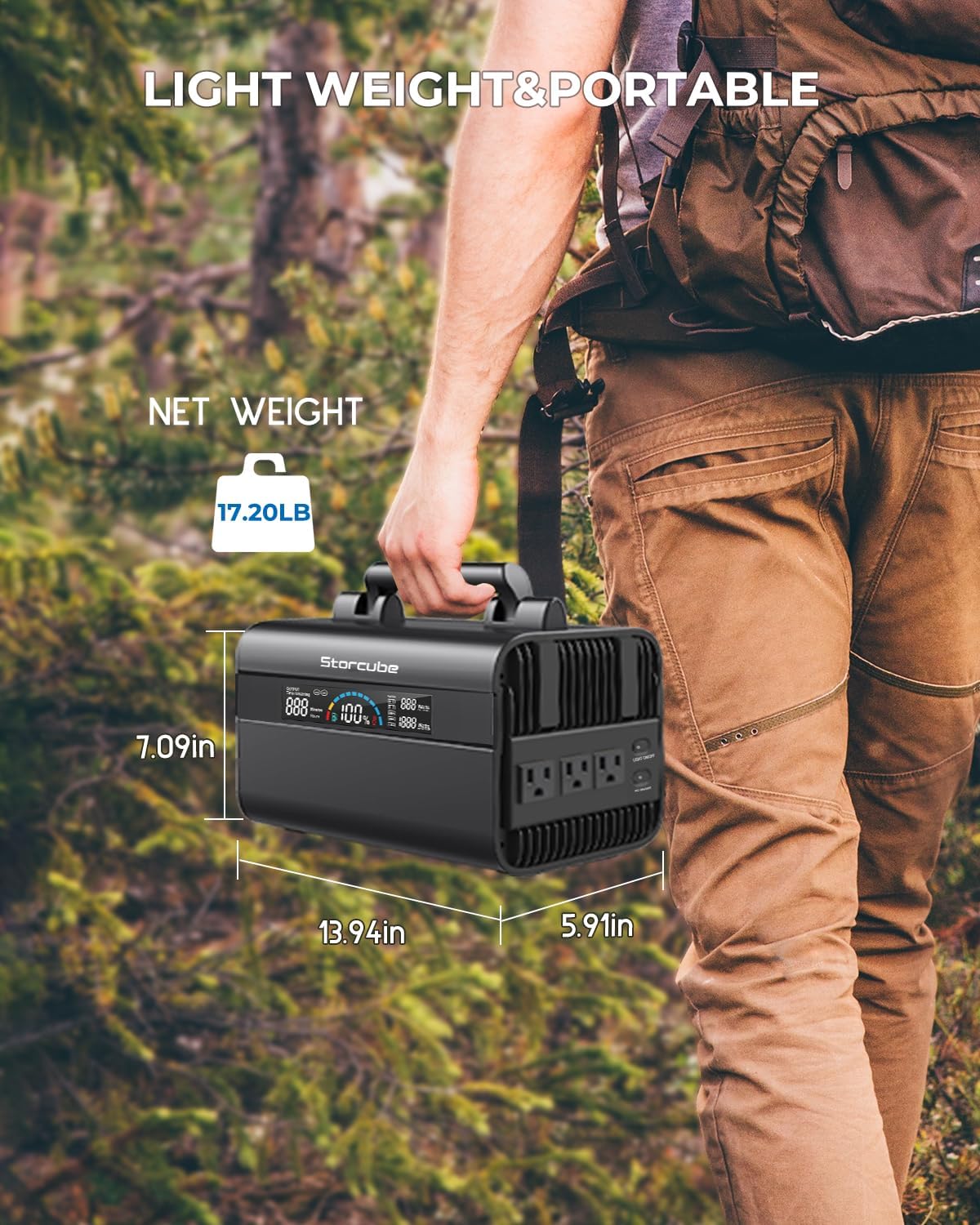
Image showing the dimensions (13.94"L x 5.91"W x 7.09"H) and net weight (17.20 lbs) of the portable power station, emphasizing its lightweight and portable design.
| Feature | Detail |
|---|---|
| Model | STC 03/600M |
| Battery Type | LiFePO4 (Lithium Iron Phosphate) |
| Capacity | 529.9Wh |
| AC Output | 600W (Rated), 1000W (Peak), 110V Pure Sine Wave, 60Hz |
| USB-C Output/Input | PD100W |
| USB-A Output | 1x QC3.0 (18W), 2x 5V/2.4A |
| DC Output | 4x DC5521, 1x 12V Car Outlet |
| DC Input | DC5521 (for AC adapter/car charging) |
| Solar Input | 18-24V (Max 120W) |
| Dimensions (L x W x H) | 13.94" x 5.91" x 7.09" |
| Weight | 17.2 lbs |
| Material | Aluminum |
| Operating Temperature | Recommended: 14°F to 104°F (-10°C to 40°C) |
| Charging Temperature | Recommended: 32°F to 104°F (0°C to 40°C) |
10.1. Pure Sine Wave Output

Image illustrating the pure sine wave output, which provides stable power suitable for sensitive electronics.
The STORCUBE portable power station utilizes pure sine wave technology for its AC output. This ensures stable and clean power delivery, making it safe for sensitive electronics and precision electrical products, similar to the power supplied by a standard household wall outlet.
11. Warranty and Support
STORCUBE provides a comprehensive warranty and dedicated customer support for your peace of mind.
- Warranty: The STORCUBE Portable Power Station 600W comes with an extended 5-YEAR warranty.
- Customer Service: For any questions, technical assistance, or warranty claims, please contact STORCUBE customer service.
- Contact Information: Refer to the contact details provided on the product packaging or the official STORCUBE website.
Related documentsSTC 03/600M


Ask a question about this manual
Ask about setup, troubleshooting, compatibility, parts, safety, or missing instructions. Manuals+ will review the question and use this page’s manual context to help answer it.