
1. Introduction
The EX Electric Digital Wind Instrument is a versatile and innovative musical instrument designed for musicians of all levels. It combines cutting-edge technology with a user-friendly design, offering a comprehensive set of features for expressive performances. This manual provides detailed instructions for the proper setup, operation, and maintenance of your instrument.
2. Product Overview
Familiarize yourself with the components and controls of your EX Electric Digital Wind Instrument.
2.1 Package Contents
Upon unboxing, ensure all the following items are present:
- EX Electric Digital Wind Instrument (M2-Black)
- Removable Mouthpiece/Nozzle
- USB Charging Cable
- Earphones
- Durable Carrying Case
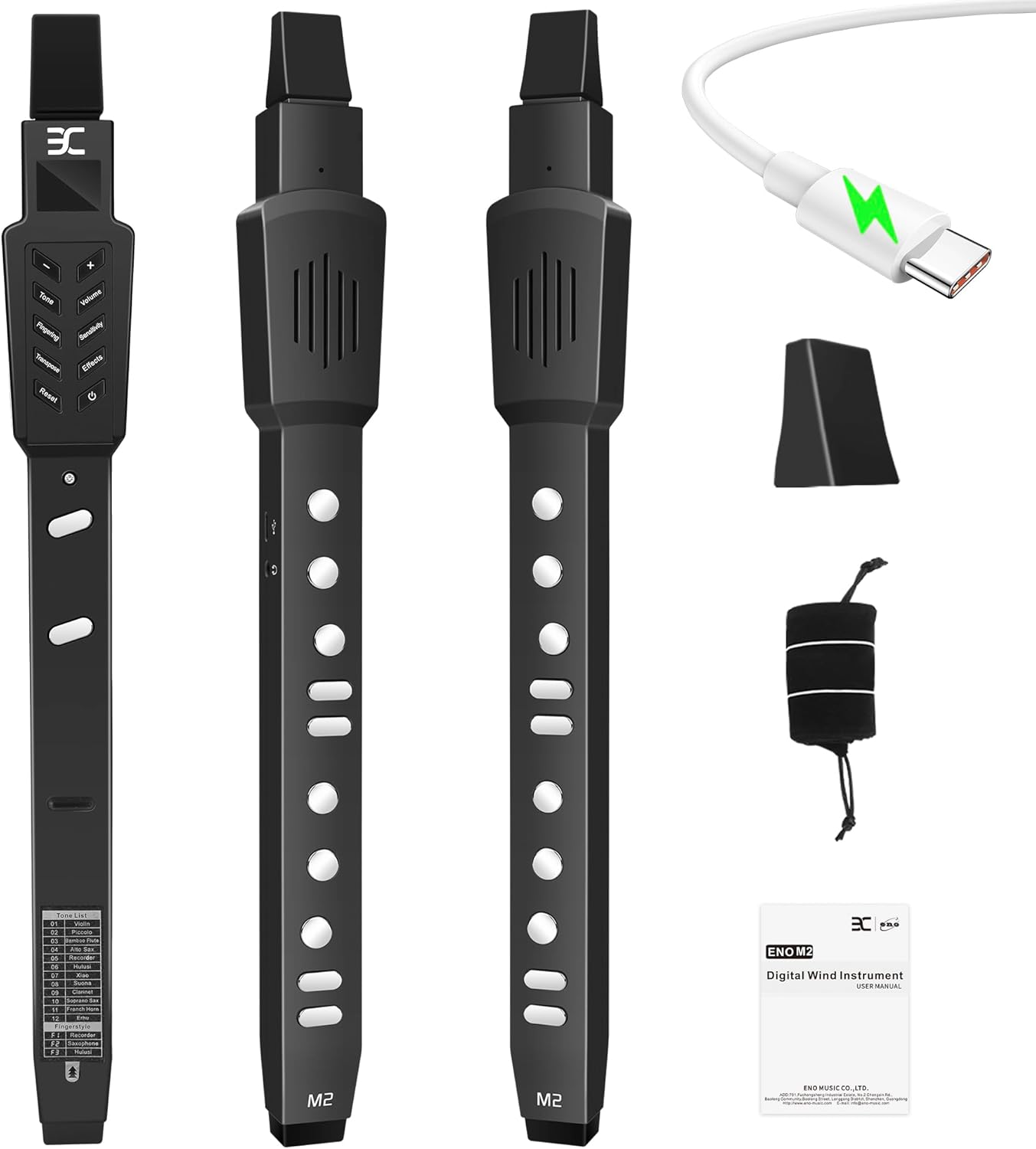
Figure 2.1: Instrument and Accessories
2.2 Instrument Controls and Features
The instrument features an intuitive control panel and responsive keys for various functions.
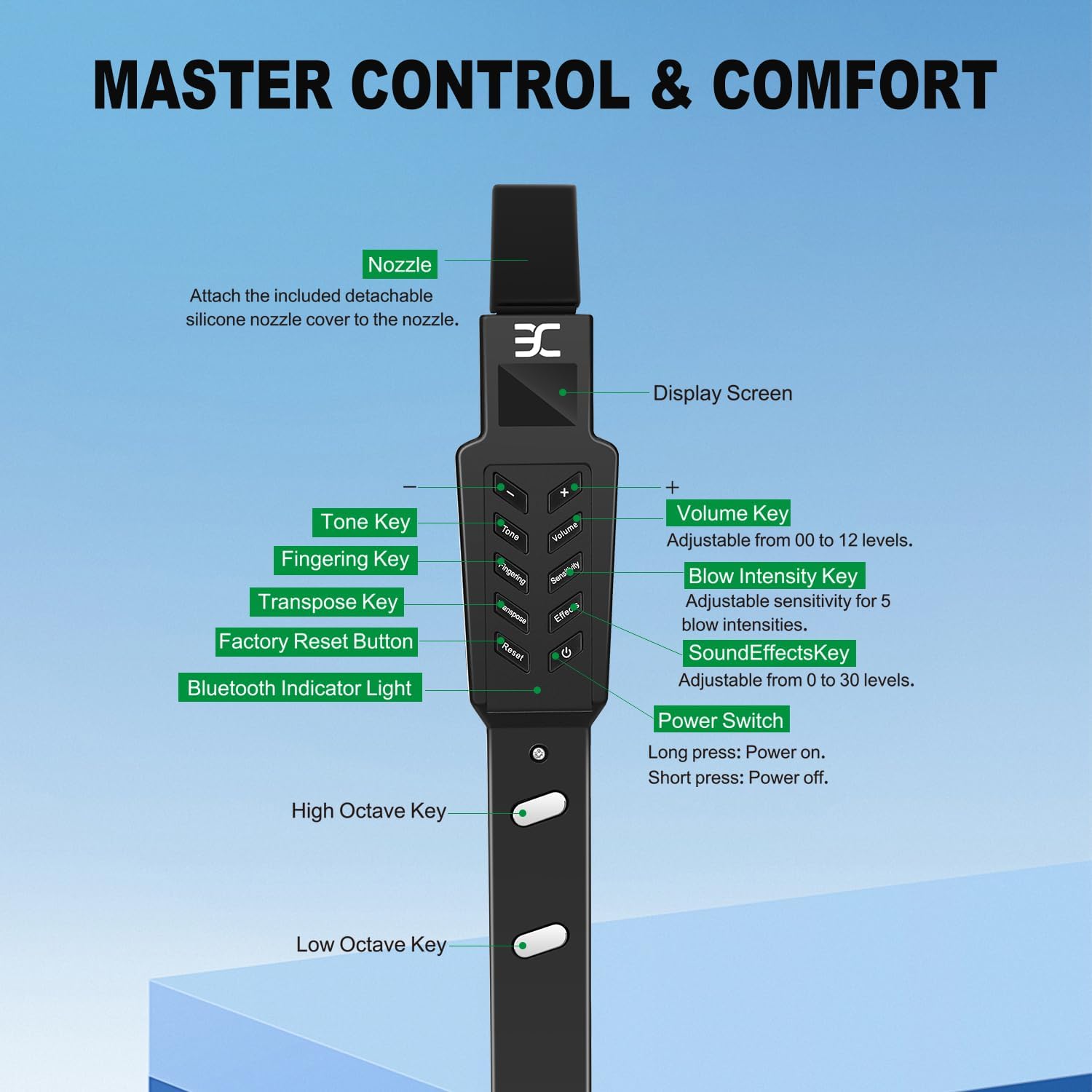
Figure 2.2: Control Panel Layout
- Display Screen: Shows current settings and values.
- Tone Key: Selects from 12 onboard instrument voices.
- Volume Key: Adjusts output volume (0-12 levels).
- Fingering Key: Switches between 3 fingering layouts (Flute, Piano, Hulusi).
- Blow Intensity Key: Adjusts sensitivity for 5 blow intensities (lightest to heaviest).
- Transpose Key: Shifts pitch up or down by 12 semitones.
- Sound Effects Key: Adjusts reverb effect (0-30 levels).
- Factory Reset Button: Restores default settings.
- Bluetooth Indicator Light: Indicates Bluetooth connection status.
- Power Switch: Long press to power on, short press to power off.
- High Octave Key: Shifts to higher octave range.
- Low Octave Key: Shifts to lower octave range.
- Note Sensing Keys: Change pitch by controlling with fingers.
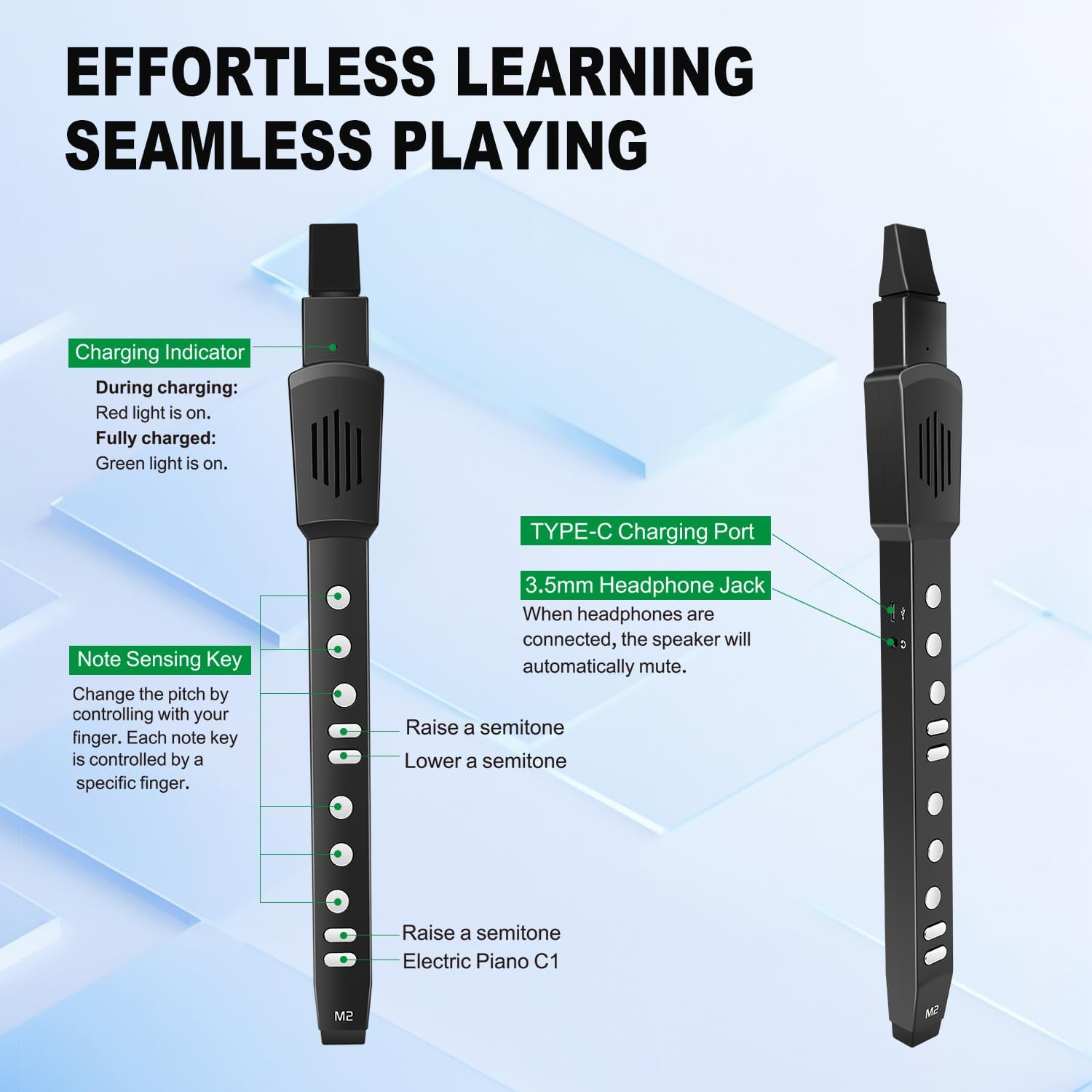
Figure 2.3: Charging Port, Headphone Jack, and Note Keys
3. Setup
3.1 Charging the Instrument
Before first use, fully charge the instrument. Connect the provided USB charging cable to the TYPE-C charging port on the instrument and to a suitable USB power source. The charging indicator light will be red during charging and turn green when fully charged. A full charge provides approximately 5 hours of performance time.

Figure 3.1: Battery Capacity
3.2 Attaching the Mouthpiece
Gently attach the removable mouthpiece/nozzle to the top of the instrument. Ensure it is securely fitted.
3.3 Powering On/Off
To power on the instrument, long press the Power Switch button. The display screen will illuminate. To power off, short press the Power Switch button.
4. Operating Instructions
4.1 Playing the Instrument
Hold the instrument comfortably and place your fingers over the note sensing keys. Blow into the mouthpiece to produce sound. The instrument offers a full 3-octave range (low, middle, high).
4.2 Selecting Tones
Press the Tone Key to cycle through the 12 available instrument voices. The selected tone will be displayed on the LCD screen. Available tones include Flute, Clarinet, Trumpet, Saxophone, Harmonica, and more.

Figure 4.1: 12 Tone Options
4.3 Adjusting Volume
Use the Volume Key to adjust the output volume from 0 to 12 levels. Press the '+' button to increase volume and '-' to decrease.
4.4 Changing Fingering Modes
Press the Fingering Key to switch between the three available fingering layouts: Flute, Piano, and Hulusi. Choose the mode that best suits your playing style or instrument familiarity.
4.5 Adjusting Blow Sensitivity
The instrument offers 5 levels of blow sensitivity. Press the Blow Intensity Key to cycle through these settings, from soft to strong, to achieve your desired dynamic response.
4.6 Using Transpose Function
To transpose the pitch, press the Transpose Key. The LCD will display 'P'. Use the '+' or '-' keys to shift the pitch up or down by up to 12 semitones, allowing you to play in any key.
4.7 Applying Reverb Effects
Press the Sound Effects Key to adjust the reverb level from 0 to 30. The default reverb level is 20. Use the '+' or '-' keys to increase or decrease the reverb effect.
4.8 Bluetooth MIDI Connectivity
The instrument supports Bluetooth MIDI for wireless connection to music applications on your phone, tablet, or computer (Android, iOS, Mac, Windows). This allows for expanded tones and recording capabilities.

Figure 4.2: Bluetooth MIDI Functionality
To connect via Bluetooth MIDI:
- Ensure the instrument is powered on.
- Activate Bluetooth on your device (phone, tablet, computer).
- Search for 'ENO-M2' in your device's Bluetooth settings and pair.
- Once connected, the Bluetooth indicator light on the instrument will glow blue.
4.9 Using Headphones/External Speakers
For private practice, plug earphones into the 3.5mm headphone jack. The built-in speaker will automatically mute. You can also connect external speakers for amplified sound.
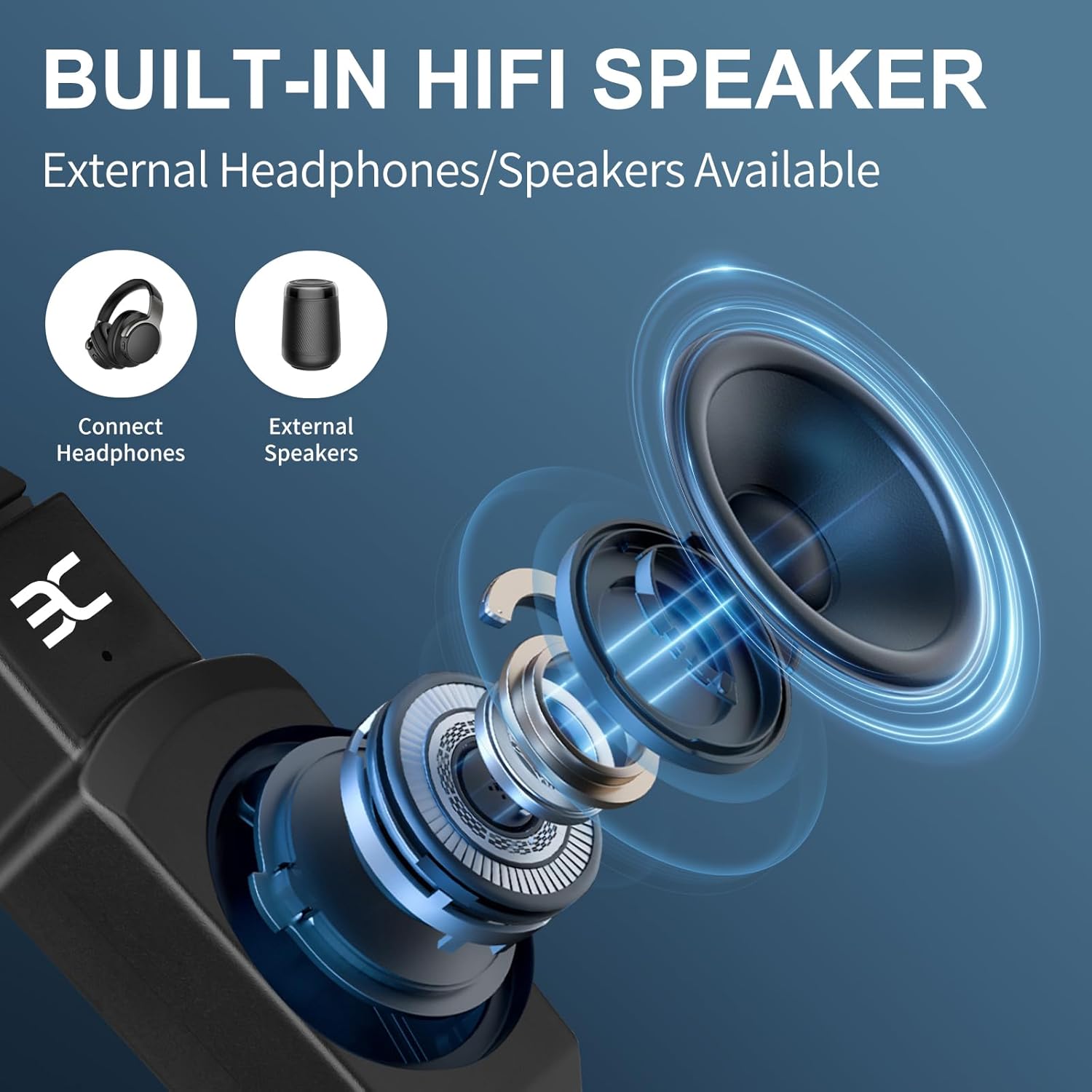
Figure 4.3: Built-in Speaker and Audio Output
4.10 Factory Reset
To restore the instrument to its factory default settings, press the Factory Reset Button.
5. Maintenance
5.1 Cleaning
Regularly clean the mouthpiece with a soft, damp cloth. Avoid using harsh chemicals or abrasive materials. Keep the instrument free from dust and debris.
5.2 Battery Care
To prolong battery life, avoid fully discharging the instrument frequently. Recharge the battery when the 'lo' indicator appears on the display. If storing for an extended period, charge the battery to approximately 50% and recharge every few months.
5.3 Storage
Store the instrument in its provided carrying case when not in use to protect it from dust, moisture, and physical damage. Store in a cool, dry place away from direct sunlight and extreme temperatures.
6. Troubleshooting
If you encounter issues with your EX Electric Digital Wind Instrument, refer to the following common problems and solutions:
| Problem | Possible Cause | Solution |
|---|---|---|
| No sound output | Low battery; Volume too low; Headphone connected; Instrument not powered on. | Charge the instrument; Increase volume; Disconnect headphones; Power on the instrument. |
| Bluetooth connection fails | Instrument not in pairing mode; Bluetooth off on device; Interference. | Ensure instrument is on; Enable Bluetooth on your device; Move closer to the instrument; Try pairing again. |
| Keys are unresponsive | Software glitch; Physical obstruction. | Perform a factory reset; Ensure keys are clean and unobstructed. |
| Display is blank or frozen | Software error; Low battery. | Recharge the instrument; Perform a factory reset. |
If problems persist after attempting these solutions, please contact customer support.
7. Specifications
| Feature | Detail |
|---|---|
| Model Number | M2-Black |
| Item Weight | 6 ounces (170 Grams) |
| Package Dimensions | 15.43 x 3.78 x 2.2 inches |
| Battery Type | 1 Lithium Polymer battery (included) |
| Color | Black |
| Material Type | Plastic |
| Instrument Key | C |
| Tones | 12 onboard instrument voices |
| Fingering Modes | 3 (Flute, Piano, Hulusi) |
| Octave Range | 3-octave range (low, middle, high) |
| Connectivity | Bluetooth MIDI, 3.5mm Headphone Jack |
8. Warranty and Support
8.1 Product Warranty
For information regarding the product warranty, please refer to the documentation included with your purchase or contact the manufacturer directly. Standard return policies may apply as per the retailer's terms.
8.2 Customer Support
If you require further assistance or have questions not covered in this manual, please visit the official EX store on Amazon or contact their customer support channels. You can find more information at the EX Store.