
1. Introduction
Thank you for choosing the TOSING G7 PRO Karaoke Machine. This device integrates advanced audio technology with versatile connectivity, offering an immersive karaoke experience. Designed for both adults and kids, it features powerful speakers, a DSP chip for sound processing, and wireless microphone capabilities. This manual provides essential information for setting up, operating, and maintaining your karaoke machine.
2. What's in the Box
- TOSING G7 PRO Karaoke Microphone (with integrated 20W levitation Bluetooth PA speakers)
- UHF Wireless Receiver (built-in)
- DPS Digital Chip Set with Autotune (built-in)
- USB Type-C Charging Cable
- 3.5 mm Jack Audio Cable
- User Manual (this document)
- Portable Aluminium Package (carrying case)
3. Product Features
The TOSING G7 PRO is engineered with several advanced features to enhance your audio experience:
- Integrated Technology 2-in-1: Combines Bluetooth speakers and diaphragms for clear, pure 20W 3D stereo sound with stronger super bass.
- 2.4G Interconnection Techniques: Advanced 2.4G technology ensures stable and easy connection to smartphones, tablets, TVs, PCs, Bluetooth speakers, amplifiers, and car audio systems.
- DSP Chip Set Processor: A smart digital DSP chip set allows for selectable sound modes and seamless connection to various devices via AUX-IN, transforming them into a karaoke system.
- Duet Fun (TWS Function): Two TOSING G7 PRO microphones can be interconnected by pressing the TWS button on the host microphone, enabling duet singing and group performances.
- Portable Design: Handy design with a hand-carry handle and secure aluminum packaging for easy transport.
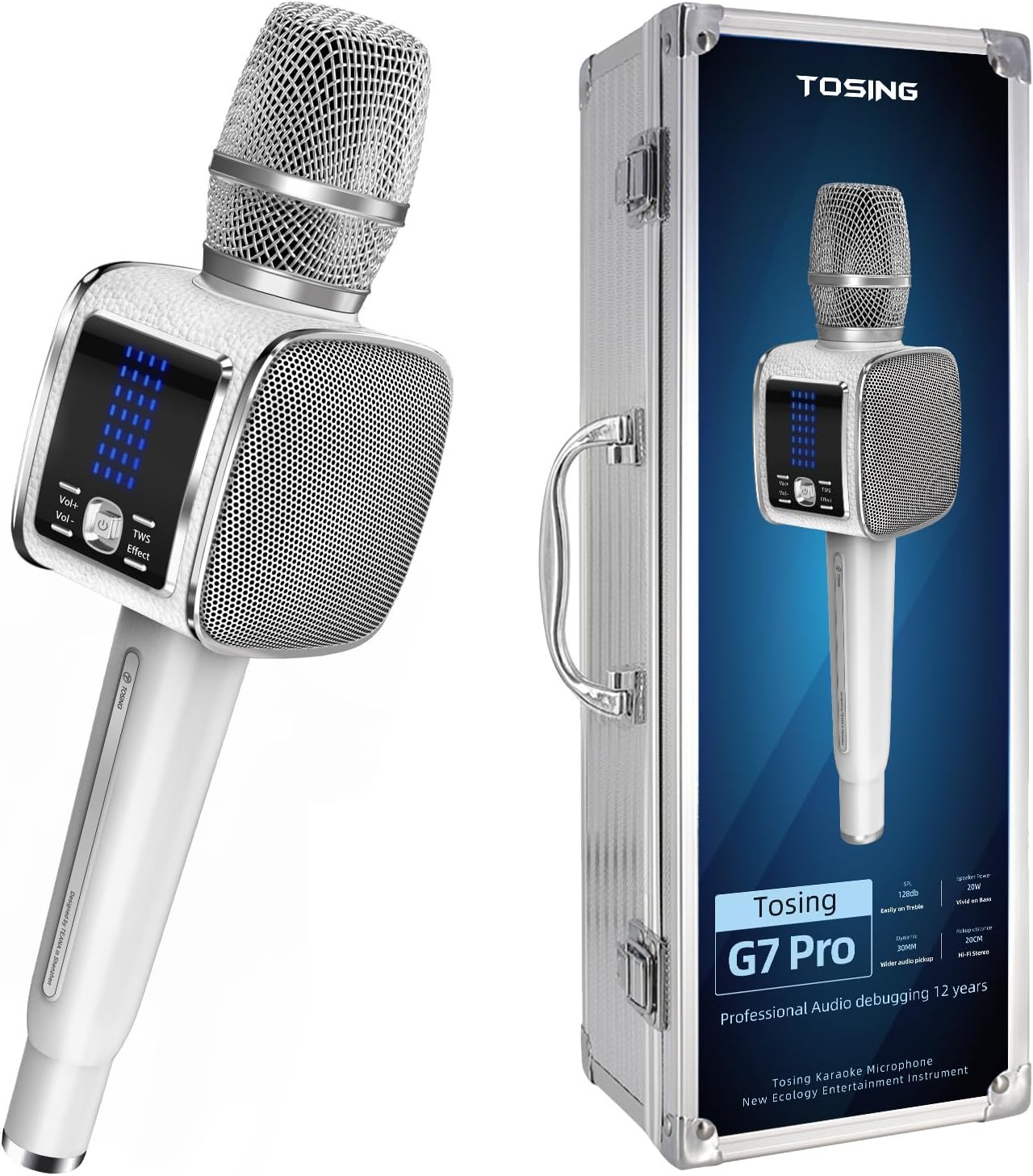
Figure 1: TOSING G7 PRO Karaoke Machine and its portable aluminum case.

Figure 2: Integrated speaker technology with bass diaphragm and medium-to-high pitched horn for balanced sound production.

Figure 3: The smart digital DSP Chip set enables versatile connectivity and sound customization.
4. Setup
4.1 Charging the Device
Before first use, fully charge your TOSING G7 PRO. Connect the provided USB Type-C charging cable to the charging port on the microphone and plug the other end into a compatible USB power adapter (not included).
4.2 Powering On/Off
Press and hold the power button on the microphone until the indicator lights illuminate (for power on) or turn off (for power off).
4.3 Bluetooth Pairing
- Power on the TOSING G7 PRO.
- Activate Bluetooth on your smartphone, tablet, or other compatible device.
- Search for "TOSING G7 PRO" in the list of available Bluetooth devices.
- Select "TOSING G7 PRO" to pair. A confirmation sound will indicate successful pairing.
4.4 Connecting to External Devices
The TOSING G7 PRO supports various connection methods:
- Bluetooth: Connect wirelessly to smartphones, tablets, Bluetooth speakers, amplifiers, and car audio systems.
- AUX-IN: Use the 3.5 mm audio cable to connect to non-Bluetooth devices like TVs, PCs, or laptops.
- USB Type-C: For charging and data transfer.

Figure 4: Connectivity options including USB-C, Bluetooth, and connections to various devices like TV, PC, and smartphones.
5. Operating Instructions
5.1 Basic Controls
The microphone features intuitive controls for easy operation:
- Power Button: Press and hold to turn on/off. Short press to switch between modes.
- Volume Controls: Adjust microphone and music volume using dedicated buttons.
- Echo/Effect Button: Cycle through various sound effects.
- TWS Button: For connecting two G7 PRO microphones for duet mode.

Figure 5: Main control panel on the microphone.
5.2 Microphone Modes
Select from various microphone modes to suit your preference:
- Original: Standard vocal output.
- Karaoke: Adds a subtle echo for a classic karaoke feel.
- Super: Enhanced vocal presence.
- Professional: Optimized for clear, professional-grade vocals.
- Monster: Deep, modulated voice effect.
- Popular: General-purpose vocal enhancement.
- Cartoon: High-pitched, playful voice effect.
- Custom: Allows adjustment of reverb, treble, and bass.
5.3 Music Modes
Optimize your music playback with different modes:
- HiFi: High-fidelity audio playback.
- Light: Balanced sound for casual listening.
- Outdoor: Enhanced volume and clarity for open spaces.
- Bass: Boosts low frequencies for a richer sound.
5.4 Duet Function (TWS)
To activate the True Wireless Stereo (TWS) function for duet singing:
- Ensure both TOSING G7 PRO microphones are powered on.
- On one microphone (the host), press and hold the TWS button.
- The microphones will automatically pair, allowing both to output sound simultaneously for a shared karaoke experience.

Figure 6: Enjoy duet singing with the TWS function.
5.5 Recording Function
The TOSING G7 PRO supports wireless recording. Connect the microphone to your recording device (e.g., smartphone, PC) via Bluetooth or the appropriate cable, and use your device's recording app to capture your performance.
5.6 Using with Apps
The microphone is compatible with various karaoke and music apps. Connect via Bluetooth and use your preferred app for lyrics, music playback, and more.
Video 1: Official product video demonstrating the TOSING G7 PRO Karaoke Machine.
6. Maintenance
- Cleaning: Use a soft, dry cloth to clean the microphone. Avoid using harsh chemicals or abrasive materials.
- Battery Care: To prolong battery life, avoid fully discharging the device frequently. Charge regularly, even if not in use for extended periods.
- Storage: Store the microphone in its portable aluminum case in a cool, dry place away from direct sunlight and extreme temperatures.
7. Troubleshooting
- No Sound: Check volume levels on both the microphone and the connected device. Ensure Bluetooth is properly paired or the AUX cable is securely connected.
- Cannot Connect Bluetooth: Make sure the microphone is in pairing mode. Turn off and on Bluetooth on your device, then try pairing again. Ensure no other devices are currently connected to the microphone.
- Microphone Not Working: Check if the microphone is powered on and not muted. Ensure the correct microphone mode is selected.
- Echo/Effects Not Working: Verify that the effect button has been pressed and a mode other than 'Original' is selected.
8. Specifications
| Feature | Detail |
|---|---|
| Brand | TOSING |
| Model Number | G7PRO |
| Item Weight | 1.01 pounds |
| Product Dimensions | 3 x 3 x 12 inches |
| Batteries | 1 Lithium Ion battery (included) |
| Compatible Devices | Bluetooth speaker/stage speaker/audio mixers, car audio/amplifier/mp3, phone/pc/laptop/tv/tablet/notebook |
| Connector Type | 3.5 mm Jack, USB Type C |
| Speaker Count | 2 |
| Output Wattage | 20 Watts |
| Power Source | Battery Powered |
| Special Feature | 2 PA levitation speakers with diaphragms integrated, 70Hz bass frequency with 3D sound effects, Dynamic LCD screen |
| Color | Silver |
| Recommended Uses | Karaoke, Podcast/Streaming, Recording, Singing |
9. Warranty & Support
The TOSING G7 PRO comes with a 24-month hassle-free warranty. For any product inquiries, technical support, or warranty claims, please contact TOSING customer service.
You can visit the official TOSING store on Amazon for more information: TOSING Store