
FREEWOLF RK-K8
FREEWOLF RK-K8 Wireless Mechanical Gaming Keyboard User Manual
Model: RK-K8
1. Introduction
This manual provides detailed instructions for the FREEWOLF RK-K8 Wireless Mechanical Gaming Keyboard. Please read this manual thoroughly before using the product to ensure proper operation and to maximize your user experience.
Key Features:
- Triple-Mode Connectivity: Supports Type-C wired, 2.4GHz wireless, and Bluetooth 5.0 connections.
- Hot-Swappable Switches: Compatible with most 3-pin mechanical switches for customization.
- Gasket Mounted Structure: Enhances typing feel and reduces hollow sound.
- Customizable Rainbow Backlight: Features 18 backlight effects.
- Long-Lasting Battery: Equipped with a 4000mAh battery.
- 96% Layout: 100-key design that saves space while retaining essential keys.
- Wide Compatibility: Supports Windows and Mac operating systems.
2. Package Contents
Please verify that all items are present in your package:
- 1 x FREEWOLF RK-K8 Mechanical Keyboard
- 1 x USB Receiver (2.4Ghz)
- 1 x Type-C to USB-A Braided Coiled Cable
- 1 x Keycap Puller
- 1 x Switch Puller
- 2 x Original Switches (spare)
- 1 x User Manual (this document)

Image 2.1: Contents of the FREEWOLF RK-K8 package, showing the keyboard, coiled USB-C cable, USB 2.4G receiver, keycap puller, switch puller, and two spare switches.
3. Setup and Connection
3.1 Charging the Keyboard
Before first use, it is recommended to fully charge the keyboard. Connect the provided Type-C cable to the keyboard's Type-C port and the USB-A end to a power source (e.g., computer USB port, USB wall adapter). The keyboard features a 4000mAh battery.
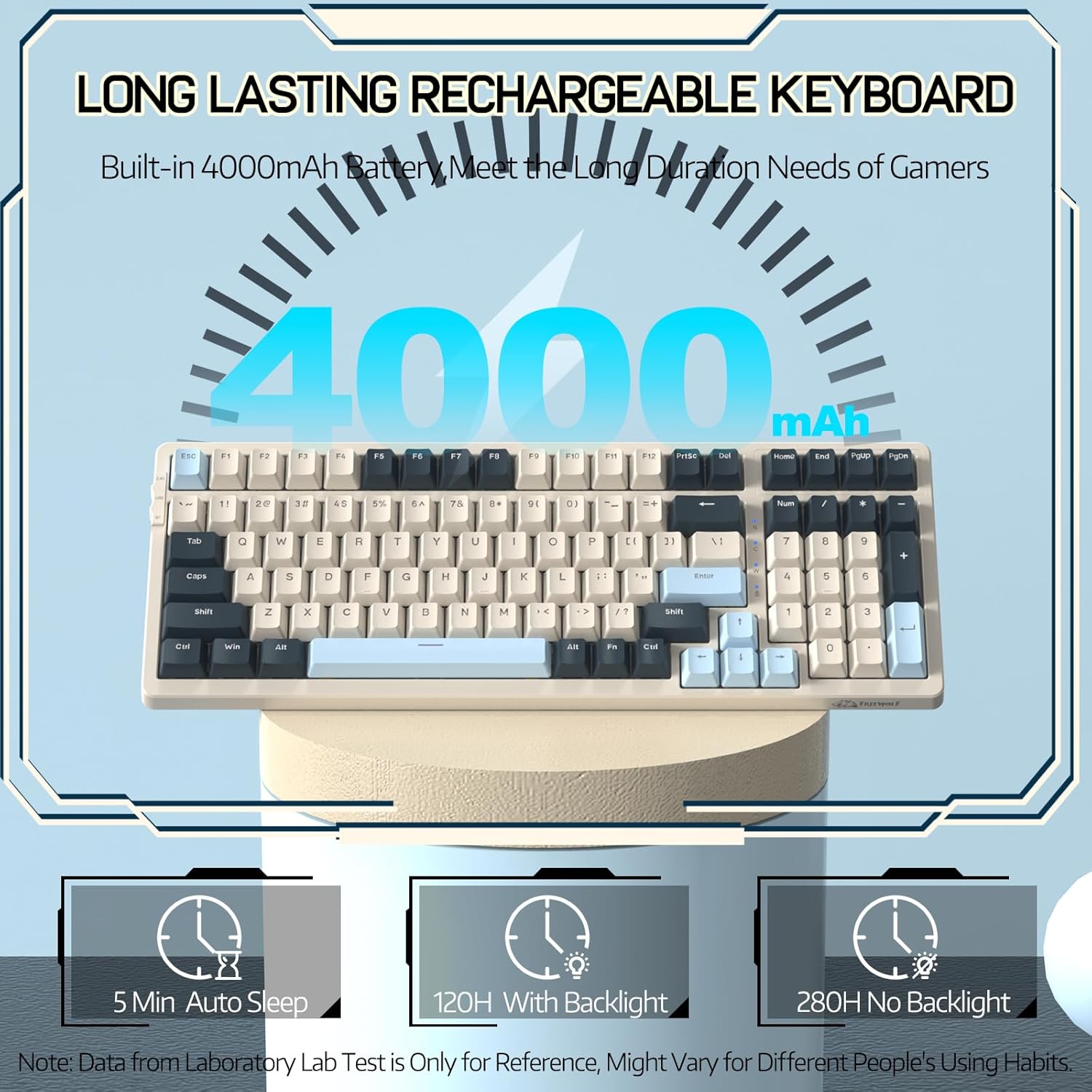
Image 3.1: The keyboard's 4000mAh battery capacity, indicating extended usage time.
3.2 Connection Modes
The RK-K8 keyboard supports three connection modes: Wired, 2.4GHz Wireless, and Bluetooth 5.0.

Image 3.2: Visual guide for switching between 2.4G wireless, wired, and Bluetooth connection modes.
3.2.1 Wired Mode
- Connect the provided Type-C coiled cable to the keyboard's Type-C port.
- Connect the USB-A end of the cable to your computer's USB port.
- Ensure the mode switch on the keyboard is set to "USB" (or wired mode indicator).
- The keyboard will be automatically recognized by your system.

Image 3.3: The Type-C to USB-A braided coiled cable, featuring a metal aviation connector for wired connection.
3.2.2 2.4GHz Wireless Mode
- Locate the 2.4GHz USB receiver, typically stored in a slot on the keyboard.
- Plug the USB receiver into an available USB port on your computer.
- Toggle the mode switch on the keyboard to "2.4G".
- The keyboard should connect automatically.
3.2.3 Bluetooth 5.0 Mode
The keyboard supports connecting to up to three Bluetooth devices.
- Toggle the mode switch on the keyboard to "BT".
- To enter pairing mode, press and hold FN + Q, FN + W, or FN + E for 3-5 seconds. The corresponding key's backlight will flash rapidly, indicating it's ready to pair.
- On your device (PC, Mac, tablet, phone), open Bluetooth settings and search for "RK-K8" or a similar device name.
- Select the keyboard to pair. Once connected, the backlight on the chosen key (Q, W, or E) will stop flashing and remain steadily lit.
- To switch between paired Bluetooth devices, simply press FN + Q, FN + W, or FN + E.
3.3 System Compatibility
The RK-K8 keyboard is compatible with both Windows and Mac operating systems. Use the appropriate FN key combinations for specific functions on each system.
Video 3.1: An overview of the FREEWOLF K8 mechanical keyboard, showcasing its features including customizable keycaps, lighting effects, hot-swappable design, compact layout, and multi-device compatibility across Windows, Mac, and mobile devices.
4. Operation
4.1 Backlight Control
The RK-K8 features 18 customizable rainbow backlight effects.
- FN + |: Switch between 18 backlight effects.
- FN + ↑ / ↓: Adjust backlight brightness.
- FN + ← / →: Adjust the flowing speed of dynamic backlight effects.
- FN + X: Turn on/off backlight.
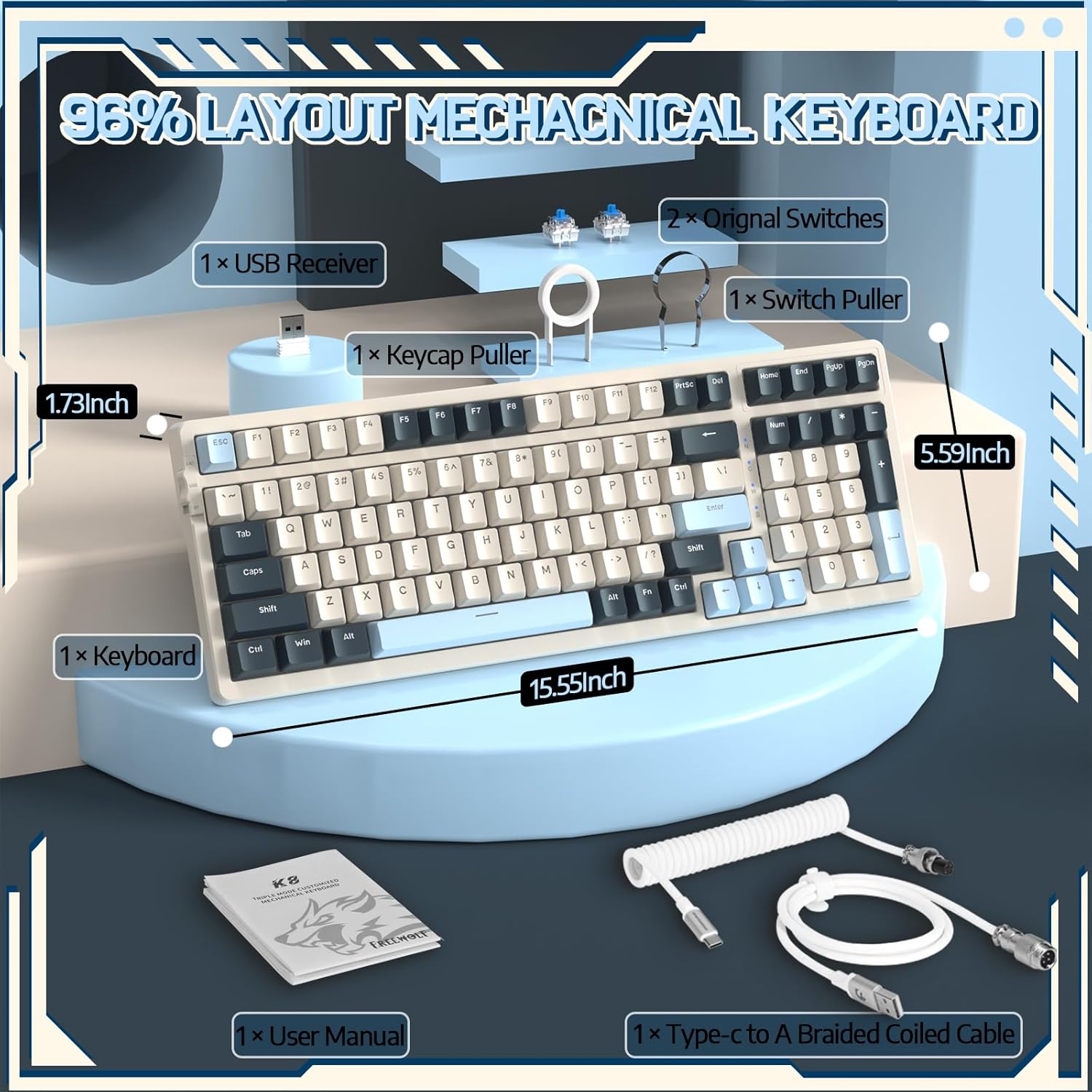
Image 4.1: The RK-K8 keyboard displaying various customizable rainbow backlight patterns.
4.2 Hot-Swappable Switches
The keyboard is equipped with a hot-swappable PCB, allowing you to change switches without soldering. It is compatible with most 3-pin mechanical switches (e.g., Cherry MX, Gateron, Kailh Box, AKKO, Epomaker, Glorious switches).
- Use the provided switch puller to carefully remove the existing switch. Grip the switch firmly and pull straight up.
- Align the pins of the new 3-pin switch with the holes on the PCB.
- Gently press the new switch into place until it clicks. Ensure the switch is seated properly and the pins are not bent.
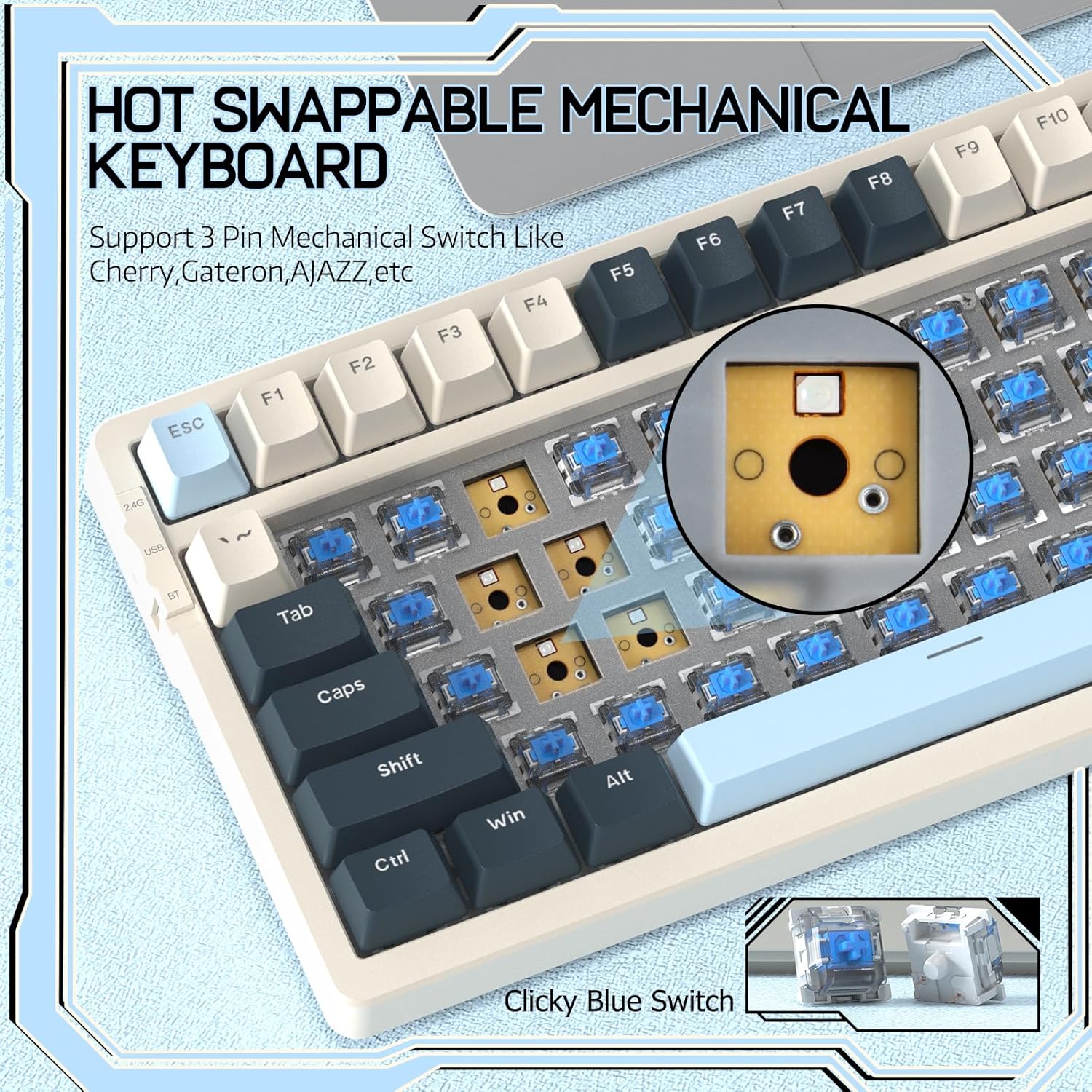
Image 4.2: Demonstrating the hot-swappable feature, showing a switch being removed from the keyboard.
4.3 Gasket Mounted Structure
The keyboard features a gasket-mounted design with sound-dampening materials between the plate and the housing. This construction reduces hollow sounds and provides a more consistent and comfortable typing experience.

Image 4.3: Diagram illustrating the internal layers of the gasket-mounted keyboard structure, designed for improved acoustics and feel.
4.4 Key Functions and Layout
The RK-K8 utilizes a 96% layout with 100 keys, retaining essential modifiers, arrow keys, a separate numpad, and function row while maintaining a compact form factor.
Refer to the keyboard layout for specific key placements. Many keys have secondary functions accessible via the FN key.
- FN + F1-F12: Multimedia and system control functions (e.g., volume, play/pause).
- FN + Win: Lock/unlock Windows key.
- FN + A: Switch to Windows layout.
- FN + S: Switch to Mac layout.
5. Maintenance
5.1 Cleaning
To maintain the keyboard's appearance and functionality:
- Disconnect the keyboard from your computer before cleaning.
- Use a soft, lint-free cloth slightly dampened with water or a mild cleaning solution to wipe the keycaps and chassis.
- For dust and debris between keycaps, use compressed air or the provided keycap puller to remove keycaps and clean underneath.
- Avoid using harsh chemicals, abrasives, or solvents.
5.2 Keycap and Switch Replacement
The provided keycap and switch pullers facilitate easy replacement of keycaps and switches. Refer to section 4.2 for switch replacement instructions.
6. Troubleshooting
If you encounter issues with your FREEWOLF RK-K8 keyboard, please refer to the following common solutions:
- Keyboard not responding:
- Ensure the keyboard is charged.
- Check the connection mode switch (Wired, 2.4G, BT) matches your intended connection.
- For wired mode, ensure the cable is securely connected to both the keyboard and the computer.
- For 2.4G wireless, ensure the USB receiver is plugged in and the keyboard is in 2.4G mode.
- For Bluetooth, re-pair the device if necessary (see section 3.2.3).
- Keys repeating or not registering:
- This can sometimes occur with wireless connections. Try switching to wired mode to see if the issue persists.
- Ensure the switches are properly seated. If a switch is loose, carefully remove and re-insert it.
- Clean any debris around the affected key.
- Backlight not working or stuck:
- Ensure the backlight is not turned off (press FN + X).
- Adjust brightness using FN + ↑ / ↓.
- Try cycling through backlight effects with FN + |.
- Bluetooth connection issues:
- Ensure the keyboard is in Bluetooth mode and sufficient battery.
- Forget the device on your computer/phone and re-pair it.
- Ensure your device's Bluetooth is enabled and working correctly.
7. Specifications
| Feature | Detail |
|---|---|
| Brand | FREEWOLF |
| Model | RK-K8 |
| Connectivity Technology | Bluetooth 5.0 / 2.4GHz Wireless / Wired (Type-C) |
| Keyboard Description | Mechanical |
| Switch Type | Tactile Blue Switch (Hot-Swappable 3-pin) |
| Battery Capacity | 4000mAh |
| Backlight | Rainbow Backlit (18 effects) |
| Layout | 96% (100 keys) |
| Compatible Devices | PC, Mac, PS4 (via USB) |
| Material | Acrylonitrile Butadiene Styrene (ABS) |
| Item Weight | 2.25 pounds (approx. 1.02 kg) |
| Package Dimensions | 16.14 x 6.69 x 2.01 inches |
8. Warranty and Support
For warranty information or technical support, please refer to the contact details provided with your purchase or visit the official FREEWOLF website. Keep your purchase receipt for warranty claims.
Related documentsRK-K8


Ask a question about this manual
Ask about setup, troubleshooting, compatibility, parts, safety, or missing instructions. Manuals+ will review the question and use this page’s manual context to help answer it.