
FREEWOLF RK-K8
FREEWOLF RK-K8 Wireless Mechanical Gaming Keyboard User Manual
Model: RK-K8
1. Introduction
This manual provides detailed instructions for the setup, operation, and maintenance of your FREEWOLF RK-K8 Wireless Mechanical Gaming Keyboard. The RK-K8 features a 96% layout with 100 keys, triple-mode connectivity (Type-C wired, 2.4GHz wireless, Bluetooth 5.0), hot-swappable switches, gasket-mounted design, and customizable rainbow backlighting. It is designed for compatibility with Windows and Mac operating systems.

Image 1.1: The FREEWOLF RK-K8 keyboard shown with its included accessories, including a coiled cable, USB receiver, keycap puller, switch puller, and extra switches.
2. Package Contents
Verify that all items are present in your package:
- 1x FREEWOLF RK-K8 Mechanical Keyboard
- 1x USB Receiver (2.4GHz)
- 1x Type-C to USB-A Braided Coiled Cable
- 1x Keycap Puller
- 1x Switch Puller
- 2x Original Switches (Linear Red)
- 1x User Manual

Image 2.1: Visual representation of the RK-K8 keyboard and its complete set of accessories.
3. Setup
The RK-K8 keyboard supports three connection modes: wired, 2.4GHz wireless, and Bluetooth 5.0. You can switch between these modes using the toggle switch located on the keyboard.

Image 3.1: The RK-K8 keyboard connected to multiple devices via wired, 2.4GHz, and Bluetooth modes, highlighting the connection switch and USB receiver storage.
3.1 Wired Connection
- Locate the Type-C port on the keyboard.
- Connect the provided Type-C to USB-A coiled cable to the keyboard and your computer's USB-A port.
- Ensure the mode switch on the keyboard is set to "USB" or wired mode.
- The keyboard will be automatically recognized by your system.
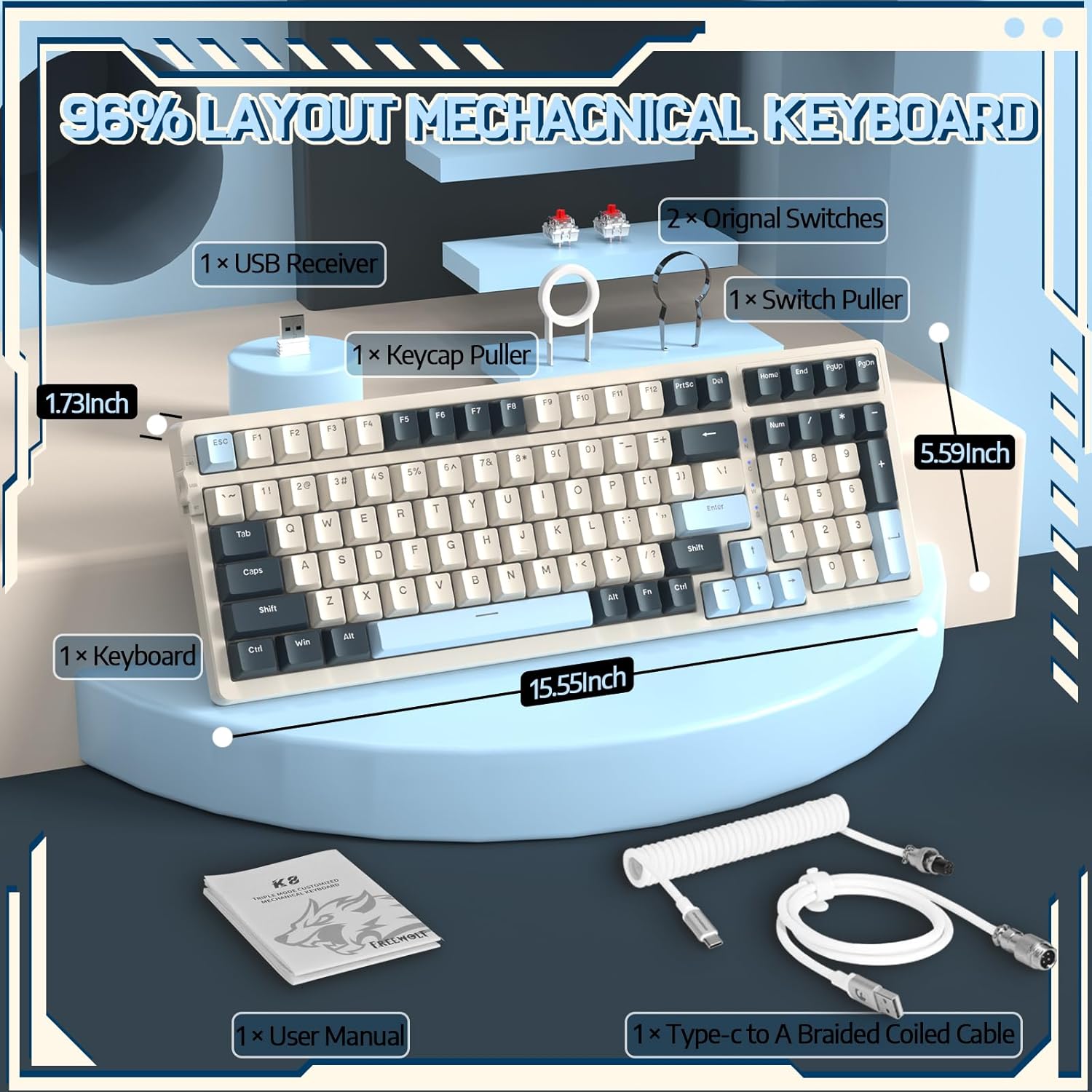
Image 3.2: The braided coiled cable with its Type-C connector for the keyboard and USB-A for the computer, featuring a metal aviation connector.
3.2 2.4GHz Wireless Connection
- Locate the 2.4GHz USB receiver, typically stored in a slot on the keyboard's side or bottom.
- Plug the USB receiver into an available USB-A port on your computer.
- Toggle the mode switch on the keyboard to the "2.4G" position.
- The keyboard should connect automatically.
3.3 Bluetooth 5.0 Connection
The RK-K8 supports connecting to up to three Bluetooth devices.
- Toggle the mode switch on the keyboard to the "BT" position.
- Press and hold FN + Q, FN + W, or FN + E for 3-5 seconds to enter pairing mode for the desired Bluetooth channel. The indicator light will flash.
- On your device (PC, Mac, PS4, etc.), go to Bluetooth settings and search for "RK-K8" or a similar device name.
- Select the keyboard to pair. The indicator light will stop flashing once connected.
- To switch between paired Bluetooth devices, press FN + Q, FN + W, or FN + E briefly.
4. Operation
4.1 Key Functions (FN Combinations)
The RK-K8 utilizes FN key combinations for various functions, including multimedia control, backlight adjustments, and system switching.
| Combination | Function |
|---|---|
| FN + F1-F12 | Multimedia and system functions (specifics may vary, refer to keycap legends) |
| FN + Q/W/E | Switch between Bluetooth devices (short press) or enter pairing mode (long press) |
| FN + Backlight Key | Cycle through backlight effects |
| FN + Arrow Keys | Adjust backlight brightness and speed |
| FN + Win | Lock/Unlock Windows key |
| FN + A | Switch to Mac OS mode |
| FN + S | Switch to Windows OS mode |
4.2 Backlight Control
The RK-K8 features rainbow backlighting with 18 different effects. You can customize or turn off the backlight.
- Change Effect: Press FN + [Backlight Key] to cycle through 18 backlight effects.
- Adjust Brightness: Press FN + Up Arrow to increase brightness, FN + Down Arrow to decrease brightness.
- Adjust Speed: Press FN + Left Arrow to decrease effect speed, FN + Right Arrow to increase effect speed.
- Turn On/Off: Press FN + [Backlight Key] (or specific key indicated on keycap) to toggle backlight on/off.

Image 4.1: Two RK-K8 keyboards showcasing various customizable rainbow backlight patterns.
4.3 Hot-Swapping Switches
The RK-K8 features a hot-swappable PCB, allowing you to change mechanical switches without soldering. It is compatible with most 3-pin mechanical switches.
- Remove Keycap: Use the provided keycap puller to gently remove the desired keycap.
- Remove Switch: Use the provided switch puller to carefully grip the switch from its top and bottom clips, then pull it straight up.
- Install New Switch: Align the pins of the new 3-pin mechanical switch with the holes on the PCB. Gently press the switch down until it clicks into place. Ensure pins are not bent.
- Reinstall Keycap: Place the keycap back onto the new switch stem.

Image 4.2: A detailed view of the hot-swappable PCB, showing an empty switch socket and a linear red switch, illustrating the ease of switch replacement.
4.4 Battery Management
The keyboard is equipped with a 4000mAh battery. To charge, connect the keyboard via the Type-C cable to a USB power source. The keyboard features an auto-sleep function after 5 minutes of inactivity to conserve battery.
- Battery Life: Approximately 120 hours with backlight, 280 hours without backlight (actual usage may vary).
- Charging Indicator: Refer to the keyboard's indicator light for charging status.
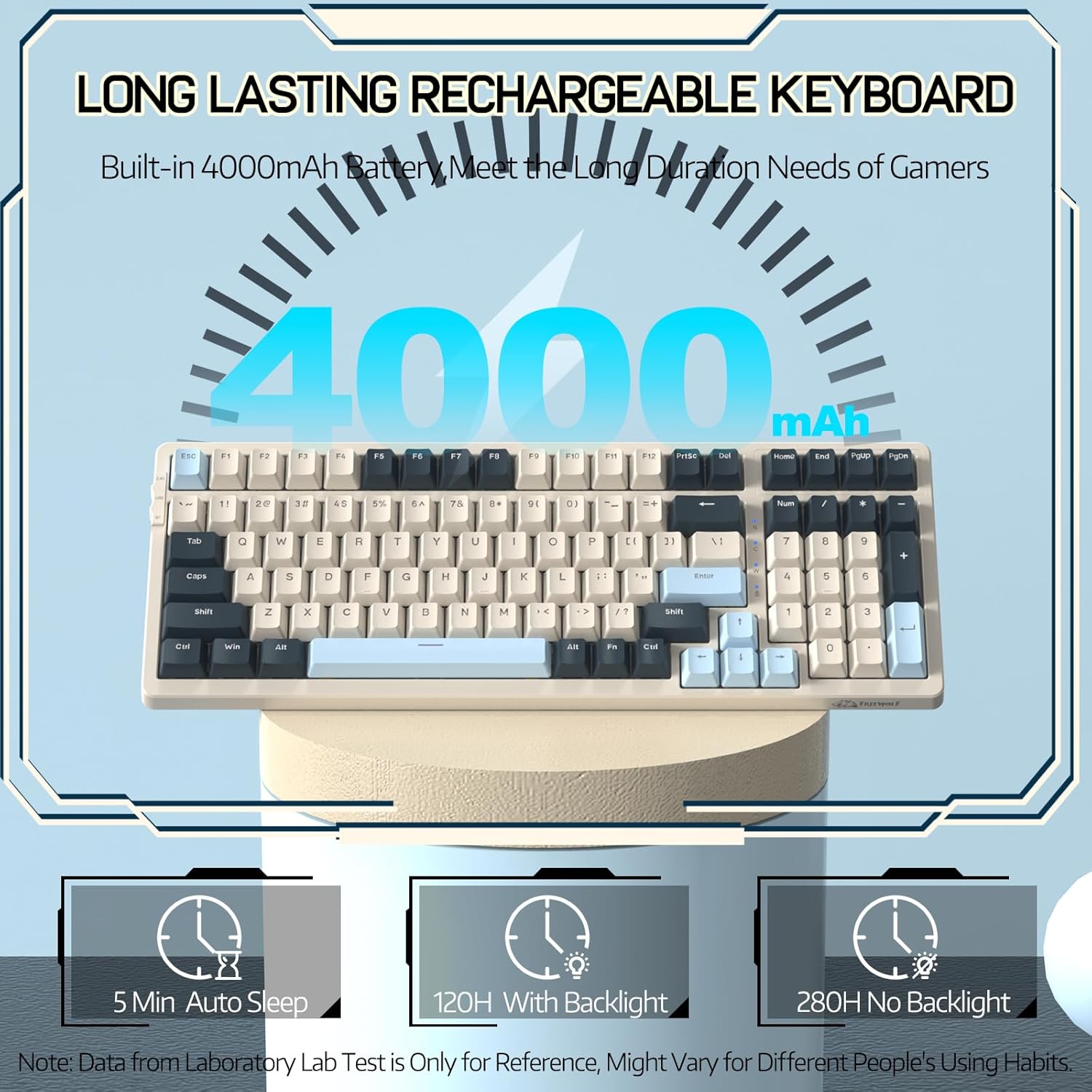
Image 4.3: An illustration highlighting the 4000mAh battery and its estimated duration with and without backlighting, along with the 5-minute auto-sleep feature.
4.5 System Compatibility
The RK-K8 supports dual system switching for Windows and Mac operating systems.
- Windows Mode: Press FN + S.
- Mac Mode: Press FN + A.
5. Maintenance
Proper maintenance ensures the longevity and performance of your keyboard.
- Cleaning Keycaps: Use the keycap puller to remove keycaps. Clean them with a soft cloth and mild soap solution, then dry thoroughly before reattaching.
- Cleaning the Keyboard Body: Use a soft, dry cloth to wipe the keyboard surface. For stubborn dirt, a slightly damp cloth can be used, ensuring no moisture enters the internal components.
- Switch Care: Avoid spilling liquids on the keyboard. If a switch feels inconsistent, it can be hot-swapped as described in Section 4.3.
- Storage: When not in use for extended periods, store the keyboard in a dry, dust-free environment.

Image 5.1: An exploded diagram illustrating the internal components and gasket mount structure of the RK-K8 keyboard, including ABS keycaps, mechanical switches, soundproofing materials, and the lower cover.
6. Troubleshooting
If you encounter issues with your RK-K8 keyboard, refer to the following common solutions:
- Keyboard Not Responding (Wired):
- Ensure the Type-C cable is securely connected to both the keyboard and the computer.
- Verify the mode switch is set to wired (USB) mode.
- Try a different USB port on your computer.
- Test the keyboard on another computer if possible.
- Keyboard Not Responding (2.4GHz Wireless):
- Ensure the USB receiver is securely plugged into a USB port.
- Verify the mode switch is set to 2.4G wireless mode.
- Check the keyboard's battery level.
- Move the keyboard closer to the receiver to rule out interference.
- Keyboard Not Responding (Bluetooth):
- Ensure the mode switch is set to Bluetooth (BT) mode.
- Verify the keyboard is paired to the correct channel (FN+Q/W/E).
- Check your device's Bluetooth settings to ensure the keyboard is connected.
- If previously paired, try unpairing and re-pairing the keyboard.
- Check the keyboard's battery level.
- Keys Repeating or Not Registering:
- This could indicate a faulty switch. Use the switch puller to remove the problematic switch and replace it with one of the spare switches or a new compatible switch.
- Ensure the switch pins are straight and fully inserted into the PCB.
- Backlight Not Working:
- Ensure the backlight is not turned off (FN + Backlight Key).
- Check the brightness level (FN + Up/Down Arrow).
- Ensure the keyboard has sufficient battery charge.
7. Specifications
| Feature | Detail |
|---|---|
| Model | RK-K8 |
| Connectivity | Type-C Wired, 2.4GHz Wireless, Bluetooth 5.0 |
| Layout | 96% (100 keys) |
| Switches | Hot-swappable 3-pin mechanical (Linear Red Switch included) |
| Mounting Style | Gasket Mounted |
| Backlighting | Rainbow Backlit (18 effects) |
| Battery Capacity | 4000mAh |
| Compatible Devices | PC, Mac, PS4 |
| Dimensions | 15.55 x 5.59 x 1.73 inches (approx.) |
| Item Weight | 2.23 pounds |
| Material | Plastic (with metal components in cable) |
8. Warranty and Support
FREEWOLF products are designed for reliability and performance. For warranty information, technical support, or customer service inquiries, please refer to the contact information provided on the product packaging or the official FREEWOLF website. Please retain your proof of purchase for warranty claims.
Related documentsRK-K8


Ask a question about this manual
Ask about setup, troubleshooting, compatibility, parts, safety, or missing instructions. Manuals+ will review the question and use this page’s manual context to help answer it.