
Nulea M510
Contents
Nulea M510 Vertical Mouse Wireless Instruction Manual
Model: M510 | Brand: Nulea
Introduction
Welcome to the Nulea M510 Vertical Mouse Wireless instruction manual. This ergonomic mouse is designed to provide comfort and precision for extended computer use, minimizing forearm strain and promoting a natural hand position. Please read this manual thoroughly to ensure proper setup and operation of your new device.
Product Overview
Key Features
- Ergonomic Natural Grip: Meticulously crafted with a precise 57-degree angle to mirror the natural handshake position, minimizing forearm strain.
- Adjustable DPI: Tailor tracking precision with DPI settings of 800, 1200, and 1600 for seamless and accurate experience.
- Wireless Freedom: Advanced 2.4G USB technology for instant, smooth plug-and-play functionality. Requires one AA battery (not included).
- Efficiency-Enhancing Buttons: Six buttons including Forward, Backward, and a 'Back to Desktop' key for accelerated web navigation and task management.
- Effortless & Precise Tracking: Reduces hand movement and fatigue during long work hours, providing exceptional tracking accuracy.
Component Identification
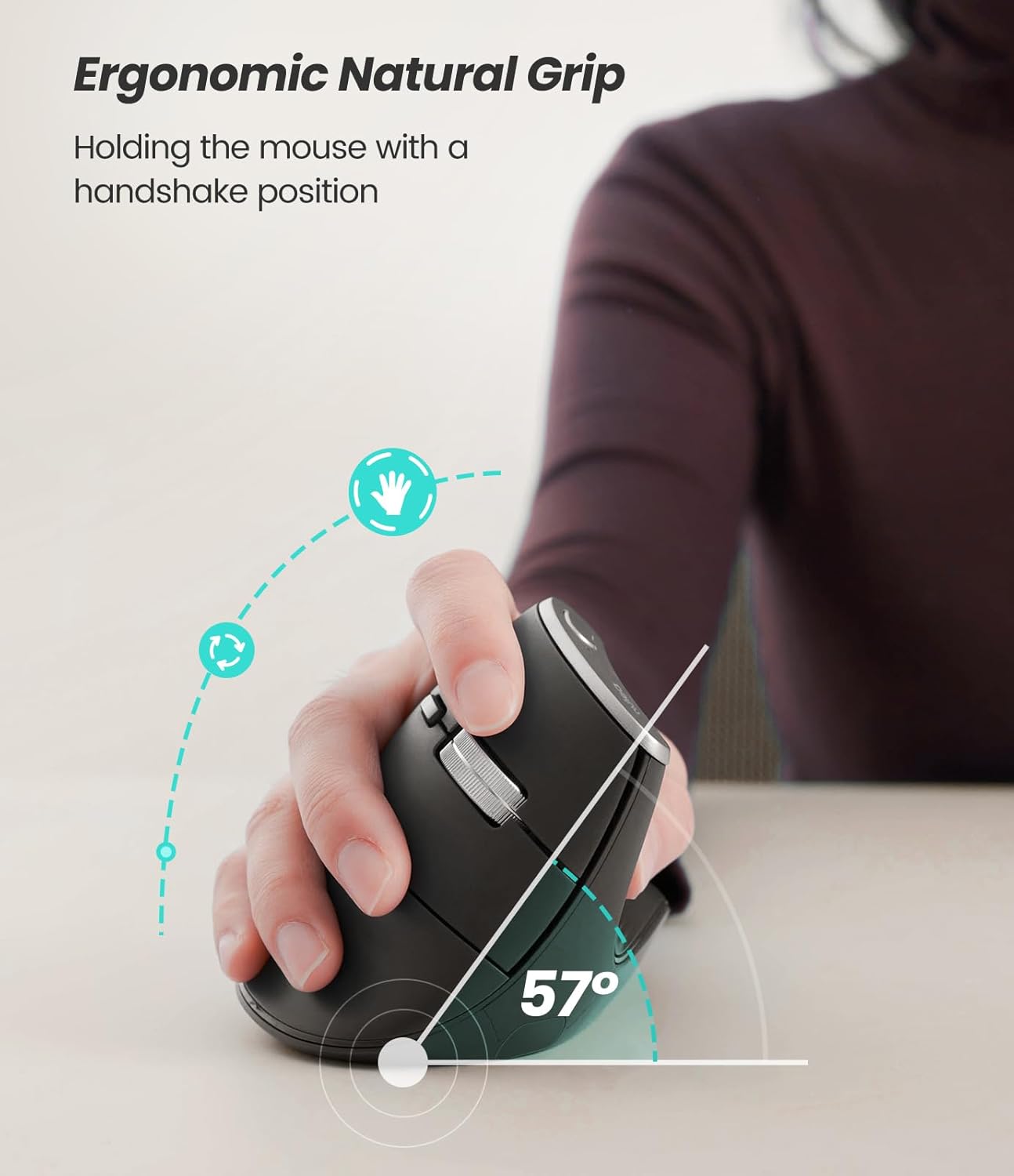
Figure 1: Overview of Nulea M510 Vertical Mouse components. Note the DPI switch, scroll wheel, and dedicated navigation buttons.
Ergonomic Design Benefits

Figure 2: The Nulea M510 is designed for a natural handshake position, reducing wrist and forearm strain.
Adjustable DPI for Precision

Figure 3: Adjustable DPI settings (800, 1200, 1600) allow for customized cursor sensitivity.
Hand Size Recommendation

Figure 4: Hand size recommendation for optimal comfort and usage.
Setup Guide
Initial Setup
- Insert Battery: The Nulea M510 requires one AA battery (not included). Open the battery compartment on the underside of the mouse and insert the battery, ensuring correct polarity.
- Connect USB Receiver: Locate the 2.4G USB receiver stored within the battery compartment. Plug this receiver into an available USB port on your computer.
- Power On: Slide the ON/OFF switch on the bottom of the mouse to the 'ON' position. The mouse will automatically connect to the receiver.
Operating Instructions
Basic Functions
- Left Click: Primary button for selecting items and interacting with software.
- Right Click: Opens contextual menus.
- Scroll Wheel: Scroll up or down through documents and web pages. The scroll wheel can also be clicked for middle-click functionality.
Adjusting DPI
The Nulea M510 offers three adjustable DPI settings (800, 1200, 1600) to customize cursor speed and precision. Press the DPI switch button (located near the scroll wheel) to cycle through the settings. Each press will change the DPI level, indicated by a subtle change in cursor speed.
Side Buttons
The mouse features two side buttons and a 'Back to Desktop' key for enhanced efficiency:
- Forward/Backward Buttons: Located on the thumb side, these buttons allow for quick navigation forward and backward in web browsers or file explorers.
- 'Back to Desktop' Key: This button provides a quick shortcut to minimize all open windows and display your desktop.
Note: Forward/Backward/Desktop buttons are not compatible with Mac OS. All buttons are non-programmable.
Maintenance
Battery Replacement
When the mouse's performance degrades or the indicator light (if present) signals low battery, replace the AA battery. Open the battery compartment on the underside, remove the old battery, and insert a new AA battery with correct polarity. Close the compartment securely.
Cleaning
To maintain optimal performance, regularly clean your mouse. Use a soft, dry cloth to wipe the exterior. For the optical sensor, use a cotton swab lightly dampened with rubbing alcohol, ensuring no liquid enters the mouse's interior.
Troubleshooting
Mouse Not Responding
- Ensure the USB receiver is securely plugged into a working USB port.
- Check if the mouse is powered on (ON/OFF switch on the bottom).
- Replace the AA battery with a fresh one.
- Try plugging the USB receiver into a different USB port.
Erratic Cursor Movement
- Clean the optical sensor on the bottom of the mouse.
- Ensure you are using the mouse on a clean, non-reflective surface.
- Adjust the DPI setting to a lower value if the cursor is too sensitive.
Side Buttons Not Working on Mac OS
- As noted, the Forward/Backward/Desktop buttons are not compatible with Mac OS. This is expected behavior.
Specifications
| Feature | Detail |
|---|---|
| Brand | Nulea |
| Model Number | M510 |
| Color | Grey |
| Connectivity Technology | USB (2.4G Wireless) |
| Movement Detection Technology | Optical |
| Special Feature | Wireless, Ergonomic Design |
| Item Weight | 5.3 ounces |
| Package Dimensions | 4.65 x 3.46 x 3.43 inches |
| Country of Origin | China |
| Date First Available | November 8, 2023 |
Warranty & Support
Nulea products come with a standard manufacturer's warranty. For detailed warranty information, technical support, or customer service inquiries, please visit the official Nulea website or contact their support team directly.
(Specific warranty terms and contact details may vary and are typically provided with your product packaging or on the manufacturer's website.)
Ask a question about this manual
Ask about setup, troubleshooting, compatibility, parts, safety, or missing instructions. Manuals+ will review the question and use this page’s manual context to help answer it.