
Mobility Lab ML313153
MOBILITY LAB Wireless Ergonomic Keyboard
Model: ML313153
Brand: Mobility Lab
Product Overview
The MOBILITY LAB ML313153 Wireless Ergonomic Keyboard is designed to provide a comfortable and natural typing experience, reducing strain during extended use. It features a unique split-key design, a detachable magnetic wrist rest, and adjustable tilt settings to promote a healthier posture. With its wireless 2.4GHz connectivity via a USB nano receiver, it offers convenience and a clutter-free workspace.
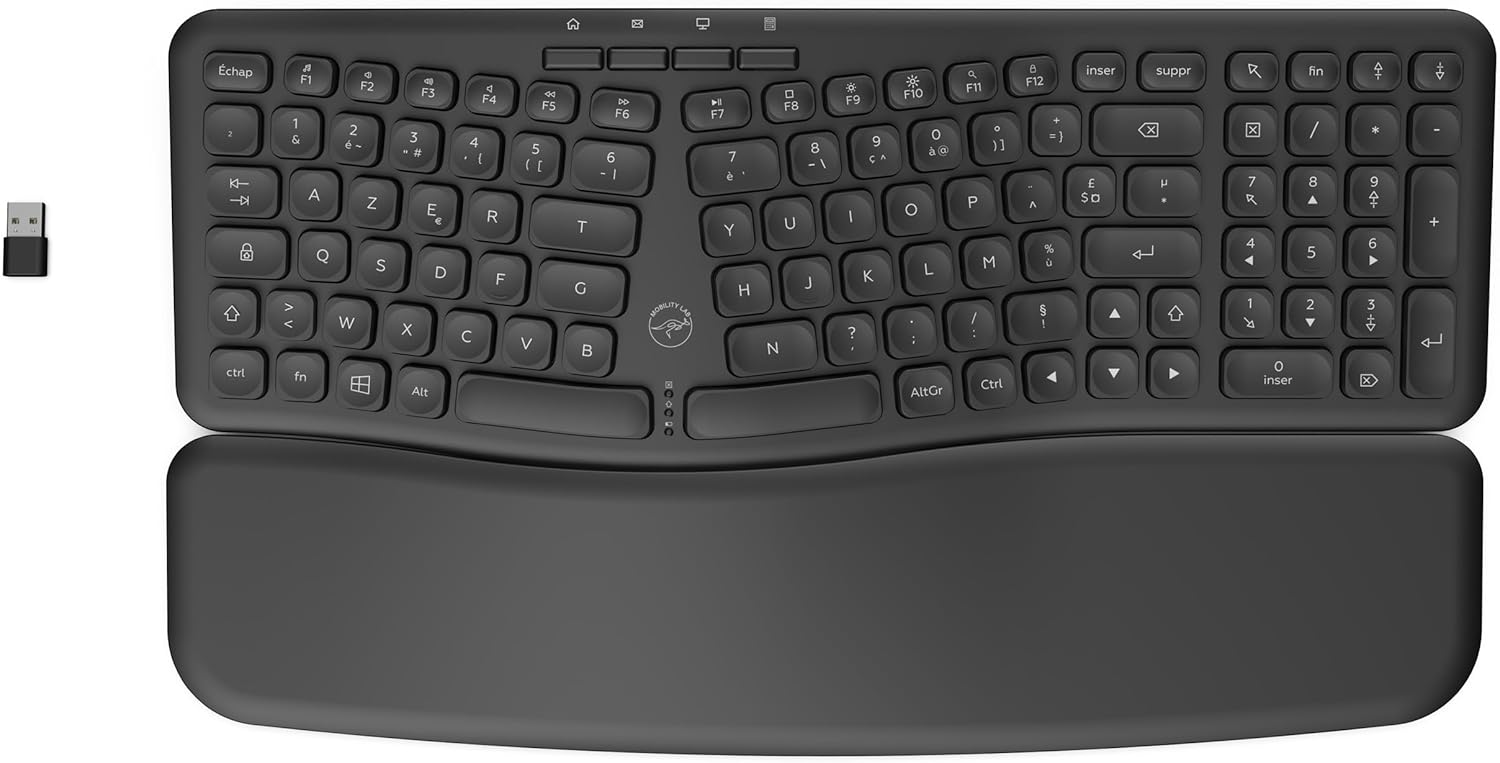
This image shows the complete Mobility Lab ergonomic wireless keyboard from a top-down perspective, highlighting its split ergonomic design, integrated numeric keypad, and the included USB receiver for wireless connectivity. The magnetic wrist rest is attached at the bottom.
Key Features:
- Ergonomic Design: Features separated and concave keys for a natural and comfortable typing posture, aiming to reduce muscle pain in wrists and forearms.
- Magnetic Wrist Rest: Includes a detachable ergonomic wrist rest for enhanced comfort, easily attached or removed as desired.
- Adjustable Tilt: Offers 2 levels of adjustable tilt to customize the keyboard angle for optimal comfort.
- Wireless Connectivity: Connects via a 2.4GHz USB nano receiver with a range of up to 10 meters.
- Plug and Play: No driver installation required; simply plug in the USB receiver to start using the keyboard.
- Integrated Numeric Keypad: Full-size numeric keypad for efficient data entry.
- 16 Keyboard Shortcuts: Dedicated shortcut keys for enhanced productivity.
- Windows Compatible: Designed for seamless operation with Windows operating systems.
Setup Guide
Package Contents:
- MOBILITY LAB Wireless Ergonomic Keyboard
- Magnetic Wrist Rest
- USB Nano Receiver
- User Manual (this document)
Step-by-Step Setup:
- Install Batteries: Locate the battery compartment on the underside of the keyboard. Insert two AAA batteries (not included) ensuring correct polarity (+/-).
- Attach Wrist Rest (Optional): The magnetic wrist rest can be easily attached to the front edge of the keyboard. Simply align it and the magnets will secure it in place. You can remove it at any time if preferred.
- Connect USB Nano Receiver: Plug the USB nano receiver into an available USB port on your Windows computer.
- Power On Keyboard: There is typically an On/Off switch on the keyboard. Ensure it is in the "On" position.
- Automatic Connection: The keyboard is designed for Plug and Play functionality. Your computer should automatically detect and connect to the keyboard within a few seconds. No additional drivers are required.

This image provides a close-up view of the compact USB nano receiver, positioned next to the Mobility Lab ergonomic wireless keyboard. It illustrates the small size of the receiver, which is essential for the keyboard's 2.4GHz wireless connection.
Operating Instructions
Basic Usage:
Once connected, the keyboard functions like a standard keyboard. Begin typing as usual. The ergonomic design is intended to guide your hands into a more natural position, reducing wrist pronation.
Using the Numeric Keypad:
The integrated numeric keypad on the right side of the keyboard allows for quick and efficient data entry. Ensure the "Num Lock" key is activated if the numeric keys are not responding as expected.
Keyboard Shortcuts:
The keyboard includes 16 dedicated shortcut keys, typically located along the top row (function keys) or integrated with other keys via the 'Fn' key. These shortcuts provide quick access to common functions such as media control, volume adjustment, and application launching. Refer to the key legends for specific shortcut functions.
Adjusting Keyboard Tilt:
The keyboard offers 2 levels of adjustable tilt. Locate the adjustable feet on the underside of the keyboard. Flip them out to raise the keyboard to your preferred angle. Experiment with both levels to find the most comfortable typing position for your setup.

This image provides the precise dimensions of the Mobility Lab ergonomic wireless keyboard and its detachable magnetic wrist rest. It shows the keyboard's width (415mm), depth (145mm), and height (41mm), along with the wrist rest's depth (105mm), which can help in understanding the tilt mechanism.

The Mobility Lab ergonomic wireless keyboard is shown in a practical desk environment, alongside a smartphone. This image demonstrates the keyboard's sleek appearance and how it fits into a modern workspace, emphasizing its readiness for daily use.
Maintenance
Cleaning:
To clean the keyboard, gently wipe the surface with a soft, lint-free cloth. For stubborn dirt, slightly dampen the cloth with water or a mild, non-abrasive cleaning solution. Avoid spraying liquids directly onto the keyboard or submerging it in water.
Battery Replacement:
When the keyboard's performance degrades or it stops responding, it may be time to replace the batteries. Open the battery compartment on the underside of the keyboard and replace the two AAA batteries with new ones, ensuring correct polarity.
Storage:
When not in use for extended periods, it is recommended to turn off the keyboard to conserve battery life. Store the keyboard in a cool, dry place away from direct sunlight and extreme temperatures.
Troubleshooting
| Problem | Possible Cause | Solution |
|---|---|---|
| Keyboard not responding. | Low or dead batteries; USB receiver not properly connected; keyboard is off; out of range. | Replace batteries; ensure USB receiver is firmly plugged into a working USB port; turn on the keyboard; move keyboard closer to the receiver (within 10 meters). |
| Keys are not typing correctly (e.g., 'Q' types 'A'). | Incorrect keyboard layout selected in operating system settings. This keyboard has an AZERTY layout. | Go to your computer's language and keyboard settings and ensure the keyboard layout is set to AZERTY (e.g., French, Belgian, or other AZERTY variants). |
| Numeric keypad not working. | Num Lock is off. | Press the "Num Lock" key to activate the numeric keypad. |
| Wireless connection is intermittent. | Interference from other wireless devices; too far from receiver; obstacles blocking signal. | Move the keyboard closer to the USB receiver; ensure no large metal objects are between the keyboard and receiver; try plugging the receiver into a different USB port. |
| Keyboard not recognized by computer. | USB port issue; receiver issue; operating system issue. | Try a different USB port; restart your computer; ensure your Windows operating system is up to date. |
Specifications
| Feature | Detail |
|---|---|
| Brand | Mobility Lab |
| Model Number | ML313153 |
| Color | Black |
| Connectivity Technology | RF (2.4GHz Wireless) |
| Special Features | Ergonomic, Wireless, Adjustable Tilt, Magnetic Wrist Rest, Windows Compatible |
| Compatible Devices | Windows Computers |
| Power Source | 2 x AAA Batteries (not included) |
| Number of Shortcut Keys | 16 |
| Keyboard Layout | AZERTY |
| Material | Plastic |
| Dimensions (Keyboard) | Approx. 415mm (W) x 145mm (D) x 41mm (H) |
| Dimensions (Wrist Rest) | Approx. 415mm (W) x 105mm (D) |
Warranty and Support
For specific warranty information regarding your MOBILITY LAB ML313153 Wireless Ergonomic Keyboard, please refer to the warranty card or documentation included with your purchase.
For technical support, frequently asked questions, or to contact customer service, please visit the official Mobility Lab website. Keep your product model number (ML313153) and proof of purchase handy when seeking support.
Ask a question about this manual
Ask about setup, troubleshooting, compatibility, parts, safety, or missing instructions. Manuals+ will review the question and use this page’s manual context to help answer it.