
1. Introduction
This manual provides detailed instructions for the installation, operation, and maintenance of your MekedeTech Android Car Radio. This 9-inch car stereo touch screen unit is designed for Nissan Qashqai models manufactured between 2006 and 2013, offering an upgrade with Wireless CarPlay/Android Auto, GPS Navigation, WiFi, and FM Radio capabilities.
The unit features a 4-Core A53 CPU, 2GB RAM, and 32GB ROM, running on Android 13 OS. It is engineered for seamless integration with your vehicle's existing systems without requiring cutting or modification of original car wiring.
2. Package Contents
Carefully unpack the box and ensure all items listed below are present and in good condition. If any items are missing or damaged, please contact MekedeTech customer support.

Figure 2.1: Package Contents Overview
This image displays the main unit (Machine), Power Cable, RCA Cable, Reversing Camera, USB Cables (various types), MIC, and GPS Antenna, which are typically included in the package.
- Main Head Unit (Machine)
- Power Cable
- RCA Cable
- Reversing Camera
- USB Cable (multiple types for different models)
- MIC (Microphone)
- GPS Antenna
- 4G Antenna (if applicable to your specific model variant)
3. Setup and Installation
The MekedeTech Android Car Radio is designed for a direct fit in Nissan Qashqai 2006-2013 models. Professional installation is recommended to ensure proper wiring and functionality.
3.1 Pre-Installation Check
- Ensure the vehicle's ignition is off and the battery is disconnected before starting installation.
- Verify all package contents are present.
- Familiarize yourself with your vehicle's dashboard layout and existing wiring.
3.2 Installation Steps
- Remove Original Unit: Carefully remove the existing car radio unit from your Nissan Qashqai dashboard. Refer to your vehicle's service manual for specific instructions on panel removal.
- Connect Wiring: Connect the provided power cable, RCA cables, USB cables, GPS antenna, and microphone to the corresponding ports on the new Android head unit. Ensure all connections are secure. The unit is designed to integrate with original car wiring without modification.
- Install Reversing Camera (Optional): If installing the reversing camera, route its cable to the rear of the vehicle and connect it to the appropriate input on the head unit.
- Test Functionality: Before fully securing the unit, reconnect the vehicle battery and perform a basic test of the radio, touch screen, and power functions.
- Secure Head Unit: Carefully slide the MekedeTech Android Car Radio into the dashboard opening and secure it using the vehicle's mounting brackets. Reassemble any removed dashboard panels.
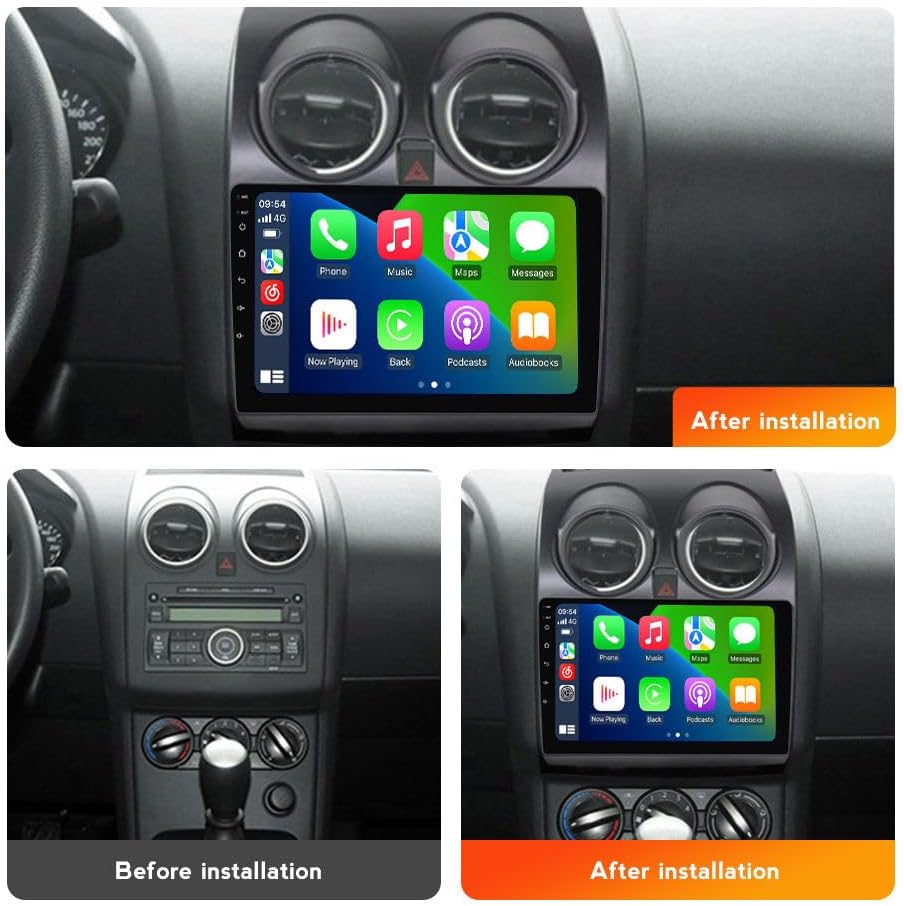
Figure 3.1: Before and After Installation
This image illustrates the visual transformation of the Nissan Qashqai dashboard with the new 9-inch Android car radio installed, replacing the original unit.
3.3 Cooling Fan Setup (If Applicable)
Some models may include a cooling fan for optimal performance, especially in high-temperature environments. Follow these steps to ensure the cooling fan is properly configured:
- Connect Fan: Ensure the cooling fan is connected to the designated port on the back of the head unit.
- Access Settings: From the main menu, navigate to Settings > Device > Sound.
- Enable AMP ON: In the Device settings, locate and enable the "AMP ON" option.
- Verify Fan Operation: The cooling fan should now activate, helping to manage the unit's temperature.

Figure 3.2: Cooling Fan and System Overview
This image details the cooling fan's function in preventing overheating, highlights the Quad Core, 2GB RAM, 32GB ROM specifications, and illustrates the setup steps for activating the cooling fan.
4. Operating Instructions
Your MekedeTech Android Car Radio offers a range of features for an enhanced driving experience.
4.1 Wireless CarPlay and Android Auto
Connect your iPhone or Android smartphone wirelessly for seamless access to navigation, music, calls, and messages.
Connection Steps:
- Enable Bluetooth: On your car radio, ensure Bluetooth is enabled.
- Pair Device: On your smartphone, search for and connect to the car radio's Bluetooth device (e.g., "BT").
- Launch Car Link: On the car radio, open the "Car Link" application.
- Confirm Connection: Your phone should now connect to either Wireless CarPlay (for iOS) or Wireless Android Auto (for Android). A wired connection via USB cable is also supported.
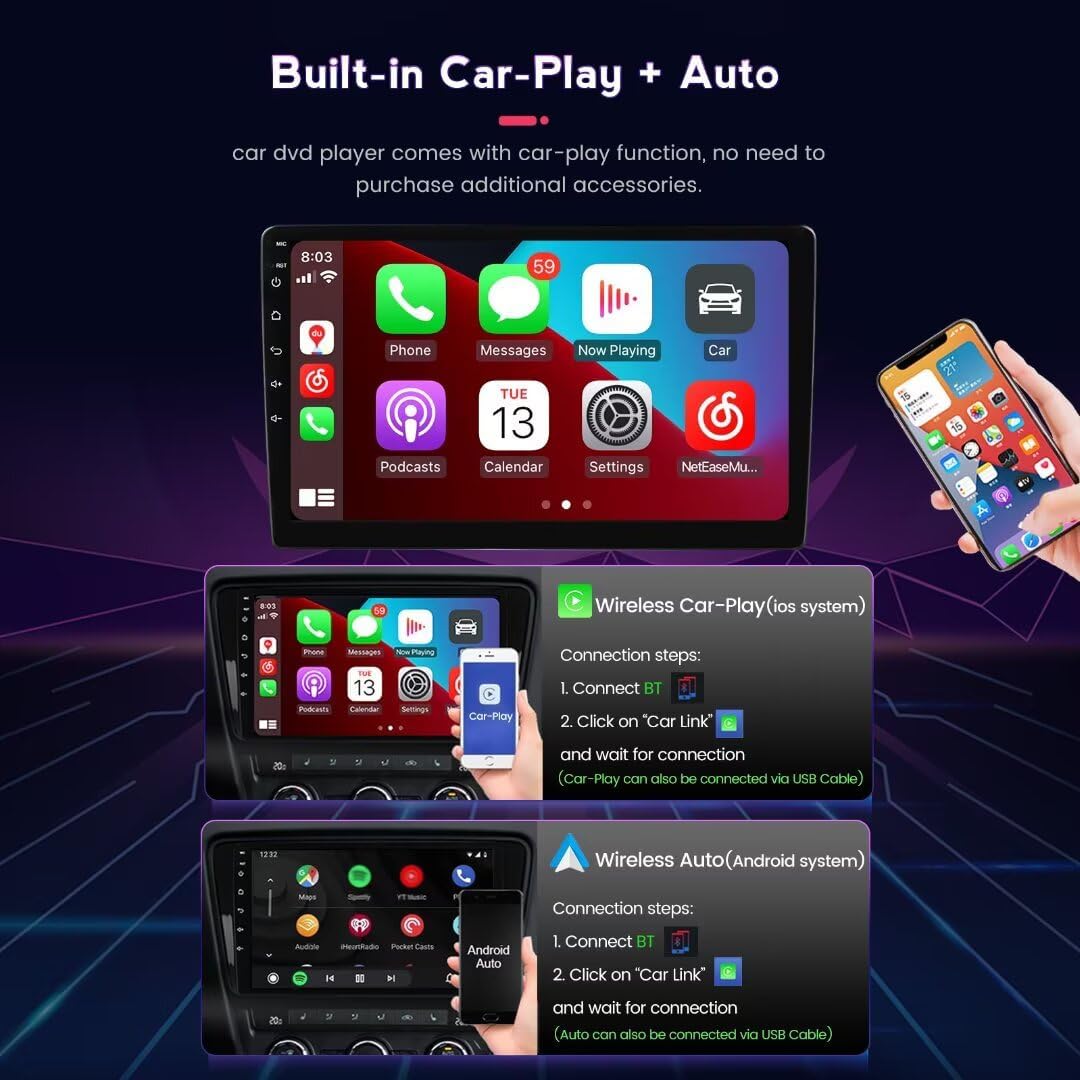
Figure 4.1: CarPlay and Android Auto Interface
This image displays the user interface for both Wireless CarPlay (iOS) and Wireless Android Auto (Android), along with the connection steps for each system.
4.2 GPS Navigation
The unit features a built-in global positioning system (GPS) with support for offline and online maps. Connect to WiFi for real-time traffic updates.
- Supported Maps: The system supports various navigation applications, including iGO, Navitel, Yandex, and Google Maps.
- Offline Maps: Download maps for your region to use navigation without an internet connection.
- Online Maps: Connect to a WiFi hotspot for live traffic information and updated map data.
4.3 Split Screen Display
The split-screen function allows two applications to be displayed simultaneously on the screen, such as navigation and music, or a map and online video, enhancing convenience and multitasking.
4.4 FM/AM Radio
Enjoy high-fidelity sound quality with the built-in FM RDS radio. Scan for stations and save your favorites for easy access.

Figure 4.2: Split Screen and GPS Navigation
This image illustrates the split-screen capability, showing FM radio with a map, and a map with music. It also highlights the GPS navigation features, including supported map applications and real-time traffic information.
4.5 Steering Wheel Control
The unit supports steering wheel controls, allowing you to manage essential functions like volume adjustment, track skipping, and call handling without taking your hands off the wheel.
5. Maintenance
To ensure the longevity and optimal performance of your MekedeTech Android Car Radio, follow these maintenance guidelines:
- Screen Cleaning: Use a soft, lint-free cloth to gently wipe the touch screen. Avoid abrasive cleaners or harsh chemicals that could damage the screen surface.
- Software Updates: Periodically check for system software updates to ensure you have the latest features and security patches. Updates can typically be found in the system settings under "About device" or "System updates."
- Temperature Control: While the unit has a cooling fan, avoid exposing it to extreme temperatures for prolonged periods.
- Cable Connections: Occasionally check all cable connections to ensure they remain secure and free from damage.
6. Troubleshooting
If you encounter issues with your car radio, refer to the following common troubleshooting steps:
- No Power:
- Check all power cable connections.
- Verify the vehicle's fuse for the radio is intact.
- Ensure the vehicle battery is properly connected and charged.
- No Sound:
- Check speaker wire connections.
- Ensure the volume is not muted or set too low.
- Verify audio output settings in the system menu.
- Touch Screen Unresponsive:
- Restart the unit by turning off the vehicle ignition and restarting.
- Ensure the screen is clean and free of debris.
- GPS Not Working:
- Ensure the GPS antenna is properly connected and has a clear view of the sky.
- Check GPS settings in the system menu.
- CarPlay/Android Auto Connection Issues:
- Ensure Bluetooth is enabled on both the unit and your smartphone.
- Verify the "Car Link" app is open on the head unit.
- Try a wired USB connection to rule out wireless issues.
- Update your phone's operating system and the car radio's software.
- Unit Does Not Fit (Nissan Rogue):
- This unit is specifically designed for Nissan Qashqai 2006-2013. It is not compatible with Nissan Rogue models. Please verify your vehicle's make, model, and year before purchase.
- Not Plug and Play:
- While designed for direct fit, some vehicle configurations may require minor adjustments or specific wiring harnesses not included. Contact MekedeTech support if you encounter significant installation challenges.
For further assistance, please contact MekedeTech customer support.
7. Specifications
| Feature | Specification |
|---|---|
| Brand | MekedeTech |
| Model | 4-Core 2+32G |
| Operating System | Android 13 OS |
| CPU | 4-Core A53 |
| Memory (RAM) | 2GB |
| Storage (ROM) | 32GB |
| Screen Size | 9 inch |
| Screen Type | IPS Touch Screen |
| Screen Resolution | 1280*720 |
| Connectivity | Wireless (CarPlay/Android Auto), WiFi, Bluetooth |
| Navigation | Built-in GPS, Supports offline/online maps |
| Radio | FM RDS Radio |
| Output Power | 50 Watts (per channel, 4 channels) |
| Wattage | 200 Watts (Total) |
| Control Method | Touch, Steering Wheel Control |
| Compatible Devices | Smartphone, Speaker |
| Color | Black |
8. Warranty and Support
8.1 Warranty Information
The MekedeTech Android Car Radio comes with a 1-Year Warranty from the date of purchase. This warranty covers manufacturing defects and malfunctions under normal use. It does not cover damage caused by improper installation, misuse, accidents, or unauthorized modifications.
8.2 Customer Support
For technical assistance, troubleshooting, warranty claims, or any other inquiries, please contact MekedeTech customer support. You can typically find contact information on the seller's page or through your purchase platform.
Manufacturer: Shenzhen Mekede Technology Co.,Ltd