1. Introduction
This manual provides detailed instructions for the RUIZU X52 64GB Bluetooth 5.0 MP3 Player. Please read this manual carefully before using the device to ensure proper operation and to maximize your user experience. The RUIZU X52 is a compact and versatile music player designed for sports and daily use, featuring a 1.5-inch TFT color screen, Bluetooth 5.0 connectivity, and support for up to 128GB TF cards.

Image: Front and side view of the RUIZU X52 MP3 Player, showcasing its compact design, screen, and side controls.
2. What's in the Box
Upon opening the package, verify that all items listed below are present:
- 1 x RUIZU X52 Clip MP3 Player
- 1 x Wired Earphones
- 1 x AUX Cable
- 1 x USB Cable (for charging and data transfer)
- 1 x Protection Bag
- 1 x User Manual
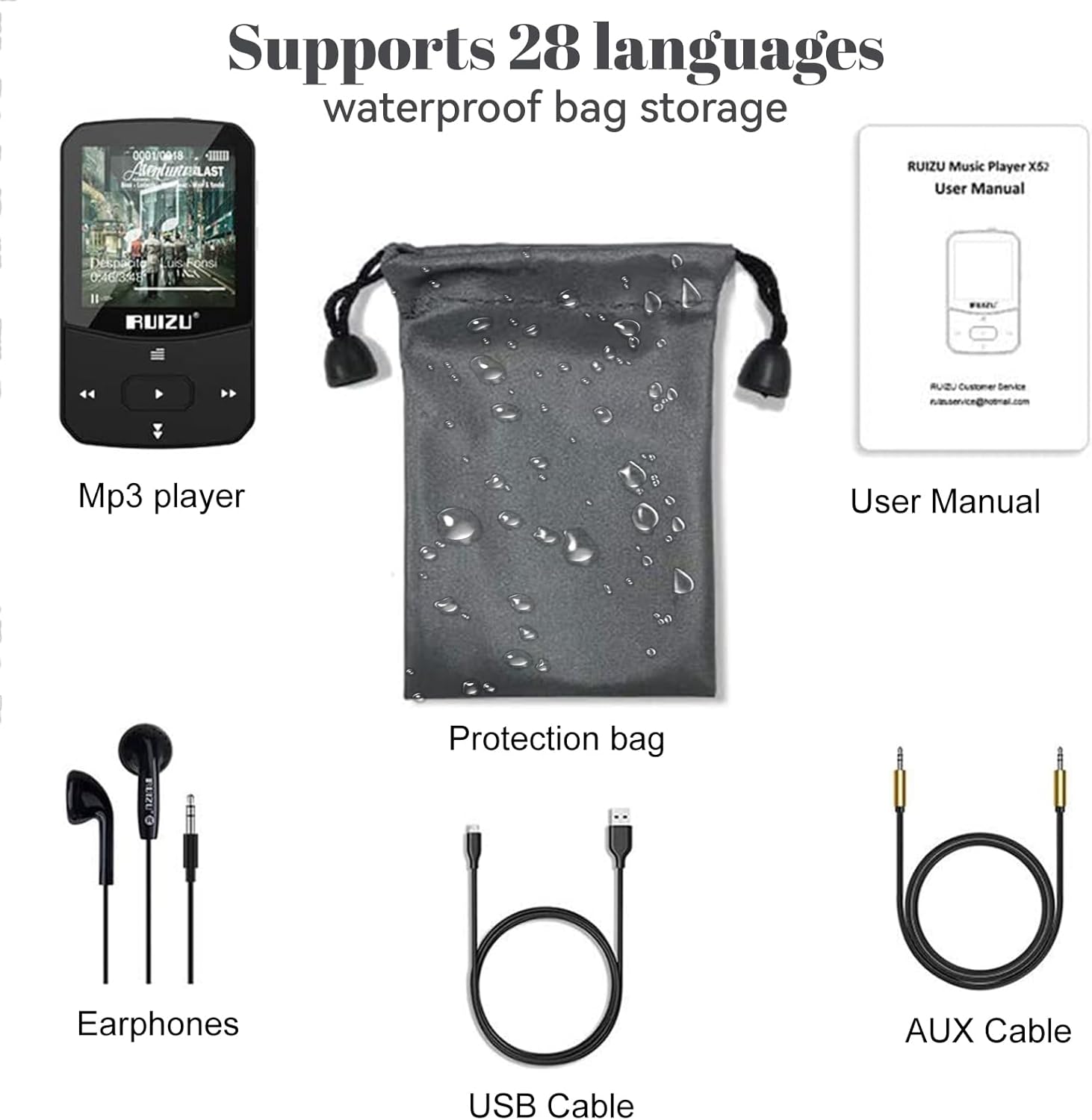
Image: All included accessories for the RUIZU X52 MP3 Player, including the player, earphones, cables, and protection bag.
3. Product Overview
The RUIZU X52 features a user-friendly interface and physical buttons for easy control. Familiarize yourself with the device's layout:
3.1. Device Layout
- 1.5-inch TFT Color Screen: Displays menus, music information, videos, and e-books.
- Volume Buttons (+/-): Located on the side for independent volume control.
- Navigation Buttons: Play/Pause, Next/Previous Track, Menu, Back.
- Clip: Integrated clip for attaching the player to clothing or accessories.
- Micro USB Port: For charging and data transfer.
- 3.5mm Audio Jack: For connecting wired earphones or AUX cable.
- TF Card Slot: Supports external memory expansion up to 128GB.

Image: The RUIZU X52 MP3 Player being worn with its portable clip, demonstrating its use during physical activity.
4. Setup
4.1. Charging the Device
Before first use, fully charge the MP3 player. Connect the included USB cable to the device's Micro USB port and the other end to a computer's USB port or a compatible USB wall adapter (not included). The battery icon on the screen will indicate charging status. A full charge takes approximately 1.5 hours.
4.2. Transferring Music and Files
- Connect the MP3 player to your computer using the USB cable.
- The device will appear as a removable disk drive on your computer.
- Drag and drop your desired music files (MP3, WAV, APE, WMA, FLAC) or other supported files into the player's storage or a connected TF card.
- Safely eject the device from your computer before disconnecting the USB cable.

Image: The RUIZU X52 MP3 Player highlighting its 64GB internal storage and the option to expand memory with a 128GB TF card.
4.3. Inserting/Removing TF Card
To expand storage, insert a TF (Micro SD) card into the designated slot until it clicks into place. To remove, gently push the card inward until it springs out.
5. Operating Instructions
5.1. Power On/Off
Press and hold the Power button (usually the Play/Pause button) for a few seconds to turn the device on or off.
5.2. Basic Navigation
- Use the Up/Down navigation buttons to scroll through menus.
- Press the Play/Pause button to select an option.
- Press the Back button to return to the previous screen.
- Use the Volume +/- buttons on the side to adjust audio levels.
5.3. Music Playback
Navigate to the "Music" option on the main menu. You can browse by artist, album, genre, or all songs. The player supports MP3, WAV, APE, WMA, and FLAC formats. Adjust equalizer settings for personalized sound.
5.4. Bluetooth Pairing
The RUIZU X52 features Bluetooth 5.0 for wireless audio. To pair with Bluetooth headphones or speakers:
- Go to the "Bluetooth" menu.
- Turn on Bluetooth.
- Select "Search Device" to find available Bluetooth devices.
- Choose your device from the list to pair.

Image: The RUIZU X52 MP3 Player screen showing the Bluetooth icon and version 5.0, indicating wireless connectivity.
5.5. FM Radio
Connect wired earphones (they act as the antenna) and navigate to the "FM Radio" menu. You can auto-scan for stations or manually tune to your preferred frequency (87.5-108MHz).

Image: A person using the RUIZU X52 MP3 Player to listen to FM radio while engaged in gardening, demonstrating its portability.
5.6. Voice Recorder
Select "Record" from the main menu to start, pause, or save voice recordings. Recordings are saved in a dedicated folder.
5.7. Video Playback
The device supports video playback. Ensure video files are in a compatible format for optimal viewing on the 1.5-inch screen.
5.8. E-book Reader
Access the "E-book" function to read text files. Ensure files are in a compatible format (e.g., TXT).
5.9. Pedometer
Activate the pedometer function to track your steps during exercise. This feature is ideal for sports enthusiasts.
5.10. Other Functions
The RUIZU X52 also includes a Stopwatch, Alarm Clock, Calendar, Screensaver, Resume Playback, A-B Repeat, and Lyrics Synchronization. Explore these features through the main menu.

Image: The RUIZU X52 MP3 Player screen showing icons for Music, Recording, FM Radio, Bluetooth, Video, eBook, Stopwatch, Pedometer, A-B Repeat, Resume Playback, Lyrics Synchronization, and Time Screensaver.
5.11. Connecting to Car Audio
Use the included AUX cable to connect the MP3 player to your car's audio system or external speakers for a larger sound experience.
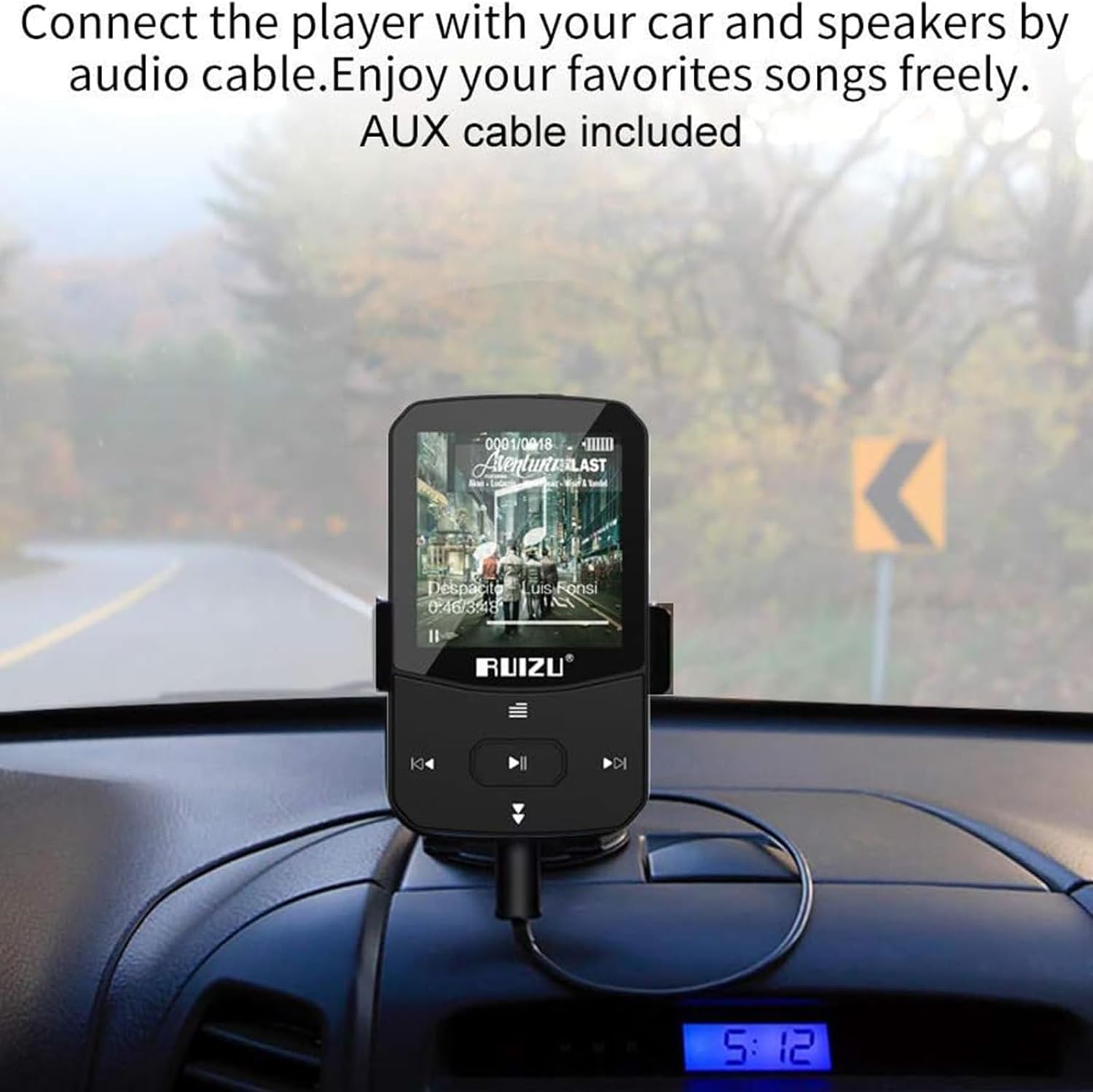
Image: The RUIZU X52 MP3 Player mounted on a car dashboard, connected to the car's audio system using an AUX cable.
6. Maintenance
- Keep the device dry. Avoid exposure to moisture or liquids.
- Clean the screen and body with a soft, dry cloth. Do not use abrasive cleaners.
- Avoid extreme temperatures.
- Do not drop or subject the device to strong impacts.
- Store the player in the provided protection bag when not in use.
7. Troubleshooting
| Problem | Possible Solution |
|---|---|
| Device does not power on. | Ensure the device is fully charged. Connect to a power source and try again. |
| Cannot transfer files to the device. | Check USB cable connection. Ensure the device is properly recognized by the computer. Try a different USB port or cable. |
| Bluetooth pairing fails. | Ensure the target Bluetooth device is in pairing mode and within range. Restart both devices and try again. |
| No sound from earphones. | Check earphone connection. Ensure volume is not muted or too low. Test with different earphones. |
| Screen is unresponsive or frozen. | Press and hold the Power button for 10-15 seconds to force a restart. |
| Music files are not recognized. | Ensure files are in a supported format (MP3, WAV, APE, WMA, FLAC). |
8. Specifications
- Brand: RUIZU
- Model: X52
- Internal Storage: 64GB
- Expandable Storage: Up to 128GB via TF Card
- Screen: 1.5-inch TFT Color Display
- Bluetooth Version: 5.0
- Supported Audio Formats: MP3, WAV, APE, WMA, FLAC
- Supported Video Formats: (Specific format not detailed, generally AMV/AVI converted)
- Supported E-book Format: TXT
- FM Radio Frequency: 87.5-108MHz
- Battery Type: Lithium-polymer
- Charging Time: Approximately 1.5 hours
- Battery Life (Music Playback): Up to 25 hours (wired), 6 hours (Bluetooth)
- Battery Life (Video Playback): Up to 6 hours
- Battery Life (FM Radio): Up to 8 hours
- Battery Life (Recording): Up to 26 hours
- Connectivity: Auxiliary, Bluetooth
- Special Features: Voice Recorder, Pedometer, Clip Design, Independent Volume Button, Multi-language support (28 languages)

Image: Infographic detailing the battery life of the RUIZU X52 MP3 Player for various activities like music playback (wired and Bluetooth), video, FM radio, and recording.
9. Warranty & Support
9.1. Warranty Information
This product comes with a manufacturer's warranty. Please refer to the warranty card included in your package for specific terms and conditions. Keep your purchase receipt as proof of purchase.
9.2. Customer Support
For any product issues or technical assistance, please contact RUIZU customer service. You can typically find contact information on the product packaging or the official RUIZU website. The product listing mentions "100% satisfaction from 24 hours Online-Kundenservice. Bei Produktproblemen wenden Sie sich bitte direkt an Tihoosky." This suggests contacting the seller "Tihoosky-eu" for support.
Seller: Tihoosky-eu


