1. Introduction
The iBUYPOWER Chimera KM7 RGB Gaming Keyboard and Mouse Combo is designed to enhance your gaming and computing experience with vibrant RGB lighting and responsive controls. This manual provides detailed instructions for setting up, operating, maintaining, and troubleshooting your new peripherals.
Key Features:
- 104-Key Membrane Switch Keyboard
- Palm grip-optimized pseudo-ambidextrous wired mouse
- RGB Backlit Keyboard and Mouse
- 24 RGB lighting zones that can be controlled via the HYTE Nexus software

Figure 1: The iBUYPOWER Chimera KM7 RGB Gaming Keyboard and Mouse Combo.
2. Setup
Follow these steps to set up your iBUYPOWER Chimera KM7 combo:
- Unboxing: Carefully remove the keyboard and mouse from their packaging. Ensure all components are present, including the keyboard, mouse, and this user manual.
- Connect the Keyboard: Plug the USB connector of the keyboard into an available USB port on your computer.
- Connect the Mouse: Plug the USB connector of the mouse into another available USB port on your computer.
- Driver Installation (Automatic): Your operating system (Windows 10 Home, Mac, etc.) should automatically detect and install the necessary drivers. No manual driver installation is typically required.
- Software Installation (Optional): For advanced customization of the 24 RGB lighting zones and performance settings, download and install the HYTE Nexus software from the official iBUYPOWER website.
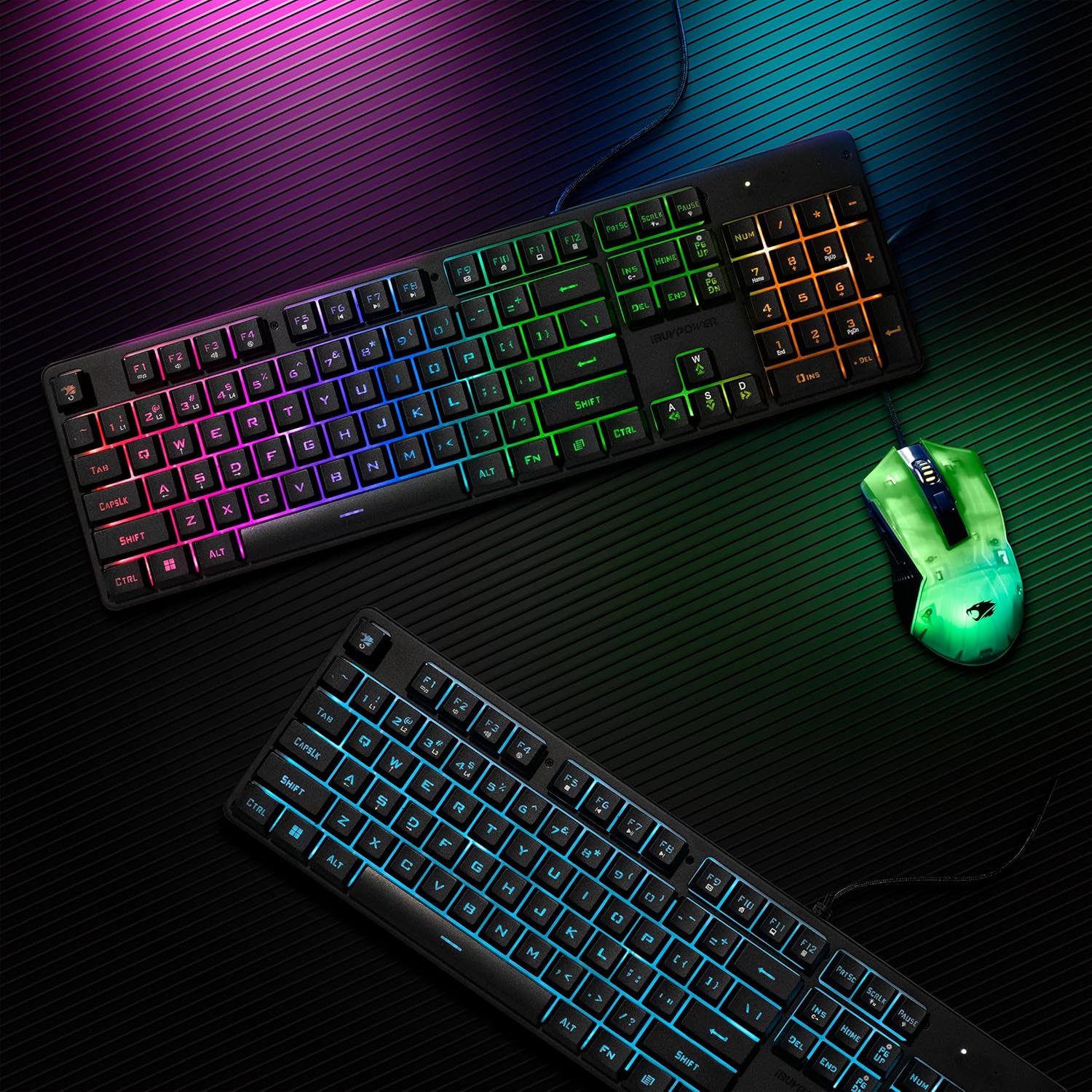
Figure 2: Contents of the iBUYPOWER Chimera KM7 package, including the user manual.
3. Operating Instructions
3.1 Keyboard Operation
The Chimera KM7 keyboard features 104 membrane keys designed for comfortable and responsive typing. The RGB backlighting enhances visibility and aesthetics.
RGB Lighting Control:
- Changing Lighting Modes: Use the dedicated function keys (often marked with an 'Fn' key combined with F-keys or other specific keys) to cycle through various RGB lighting effects and colors. Refer to the keyboard's keycap legends for specific combinations.
- Adjusting Brightness: Typically, 'Fn' + Up/Down arrow keys or similar combinations control the brightness of the backlighting.
- Customization via Software: For full control over the 24 RGB lighting zones and to create custom lighting profiles, utilize the HYTE Nexus software.
3.2 Mouse Operation
The Chimera KM7 mouse is a wired, pseudo-ambidextrous design optimized for palm grip, featuring an RGB diffuser.
DPI Adjustment:
- The mouse features a dedicated DPI (Dots Per Inch) button, usually located behind the scroll wheel. Pressing this button will cycle through different sensitivity settings, indicated by changes in the mouse's RGB lighting color or pattern.
- Higher DPI settings result in faster cursor movement, suitable for quick reactions in gaming. Lower DPI settings provide more precise control for tasks like graphic design or aiming.
Programmable Buttons:
- The mouse includes tactile buttons on the side. These buttons can be programmed for various functions, such as forward/back navigation in web browsers or custom macros in games, using the HYTE Nexus software.
4. Maintenance
To ensure the longevity and optimal performance of your iBUYPOWER Chimera KM7 combo, follow these maintenance guidelines:
- Cleaning: Regularly clean the keyboard and mouse with a soft, dry, lint-free cloth. For stubborn dirt, slightly dampen the cloth with water or a mild cleaning solution. Avoid excessive moisture.
- Keycap Cleaning: For the keyboard, you may carefully remove keycaps (if designed to be removable) to clean underneath them. Use compressed air to remove dust and debris.
- Mouse Sensor: Keep the optical sensor on the bottom of the mouse clean and free from obstructions to ensure accurate tracking.
- Cable Management: Avoid sharp bends or excessive pulling on the USB cables to prevent damage.
- Storage: When not in use for extended periods, store the peripherals in a clean, dry environment away from direct sunlight and extreme temperatures.
5. Troubleshooting
If you encounter issues with your Chimera KM7 combo, refer to the following common problems and solutions:
| Problem | Possible Cause | Solution |
|---|---|---|
| Keyboard/Mouse not responding | Loose USB connection, faulty USB port, driver issue. | Ensure USB cables are securely plugged in. Try a different USB port. Restart your computer. Check Device Manager for driver issues. |
| RGB lighting not working or stuck | Software conflict, incorrect lighting mode, hardware issue. | Try cycling through lighting modes using keyboard shortcuts. Reinstall HYTE Nexus software. Ensure software is up to date. |
| Mouse cursor erratic or not moving smoothly | Dirty optical sensor, unsuitable mouse pad surface, incorrect DPI setting. | Clean the mouse's optical sensor. Use a clean, uniform mouse pad. Adjust DPI settings using the mouse's DPI button. |
| Multi-key press issues (e.g., WASD + Jump) | Keyboard ghosting limitations (common with membrane keyboards), software conflict. | While the Chimera KM7 is a gaming keyboard, membrane switches may have limitations on simultaneous key presses (anti-ghosting). Ensure no background software is interfering. For critical gaming, consider optimizing keybinds or checking for firmware updates if available. |
6. Specifications
| Feature | Detail |
|---|---|
| Brand | iBUYPOWER |
| Model | Chimera KM7 |
| Keyboard Type | 104-Key Membrane Switch |
| Mouse Type | Palm grip-optimized pseudo-ambidextrous wired mouse |
| Lighting | RGB Backlit (24 lighting zones) |
| Software Compatibility | HYTE Nexus software |
| Connectivity Technology | USB |
| Color | Black |
| Compatible Devices | Laptop, Personal Computer |
| Operating System | Windows 10 Home, Mac |
| Item Weight | 2.35 pounds |
| Package Dimensions | 17.83 x 7.87 x 1.89 inches |
7. Warranty and Support
For warranty information and technical support, please refer to the official iBUYPOWER website or contact their customer service directly. Keep your proof of purchase for warranty claims.
Online Resources:


