
Introduction
This manual provides instructions for the setup, operation, maintenance, and troubleshooting of your FD IK6632 2.4GHz Wireless Keyboard and Mouse Combo. Please read this manual thoroughly before use to ensure proper functionality and to maximize your user experience.
Package Contents
- 1 x FD IK6632 Wireless Keyboard
- 1 x FD Wireless Mouse
- 1 x USB Nano Receiver (stored inside the mouse battery compartment)
- 1 x AAA Battery (for keyboard)
- 1 x AA Battery (for mouse)
- 1 x User Manual
Setup Instructions
- Install Batteries:
- Open the battery compartment on the underside of the keyboard and insert one AAA battery, ensuring correct polarity.
- Open the battery compartment on the underside of the mouse and insert one AA battery, ensuring correct polarity.
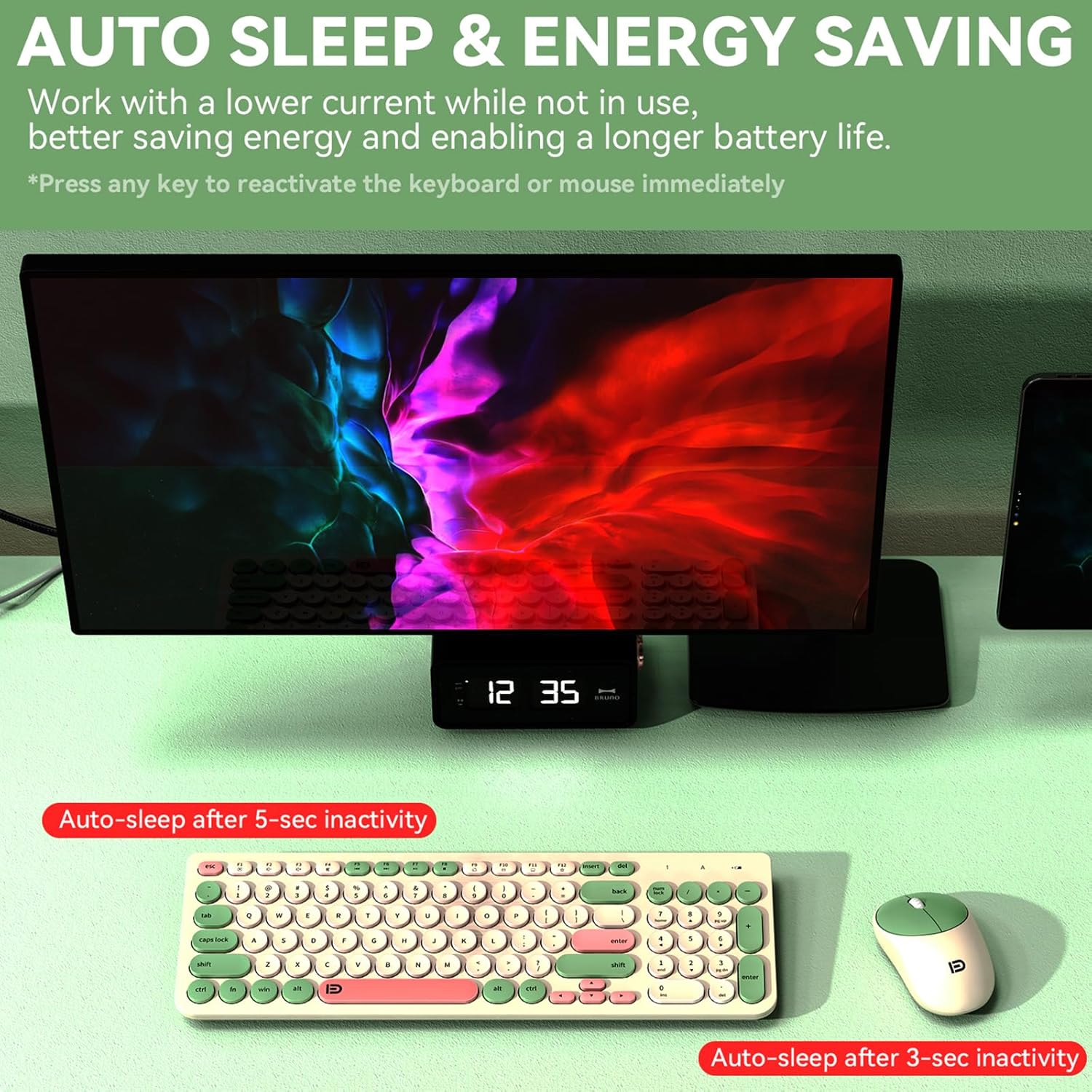
Image: Installation of batteries into the mouse and keyboard. The mouse requires one AA battery, and the keyboard requires one AAA battery.
- Locate USB Nano Receiver:
The USB Nano receiver is conveniently stored inside the mouse's battery compartment. Carefully remove it.

Image: Underside view of the keyboard and mouse, illustrating the battery slots and the location of the USB receiver within the mouse.
- Connect USB Receiver:
Plug the USB Nano receiver into an available USB port on your computer, laptop, smart TV, or other compatible device. The system should automatically detect and install the necessary drivers.
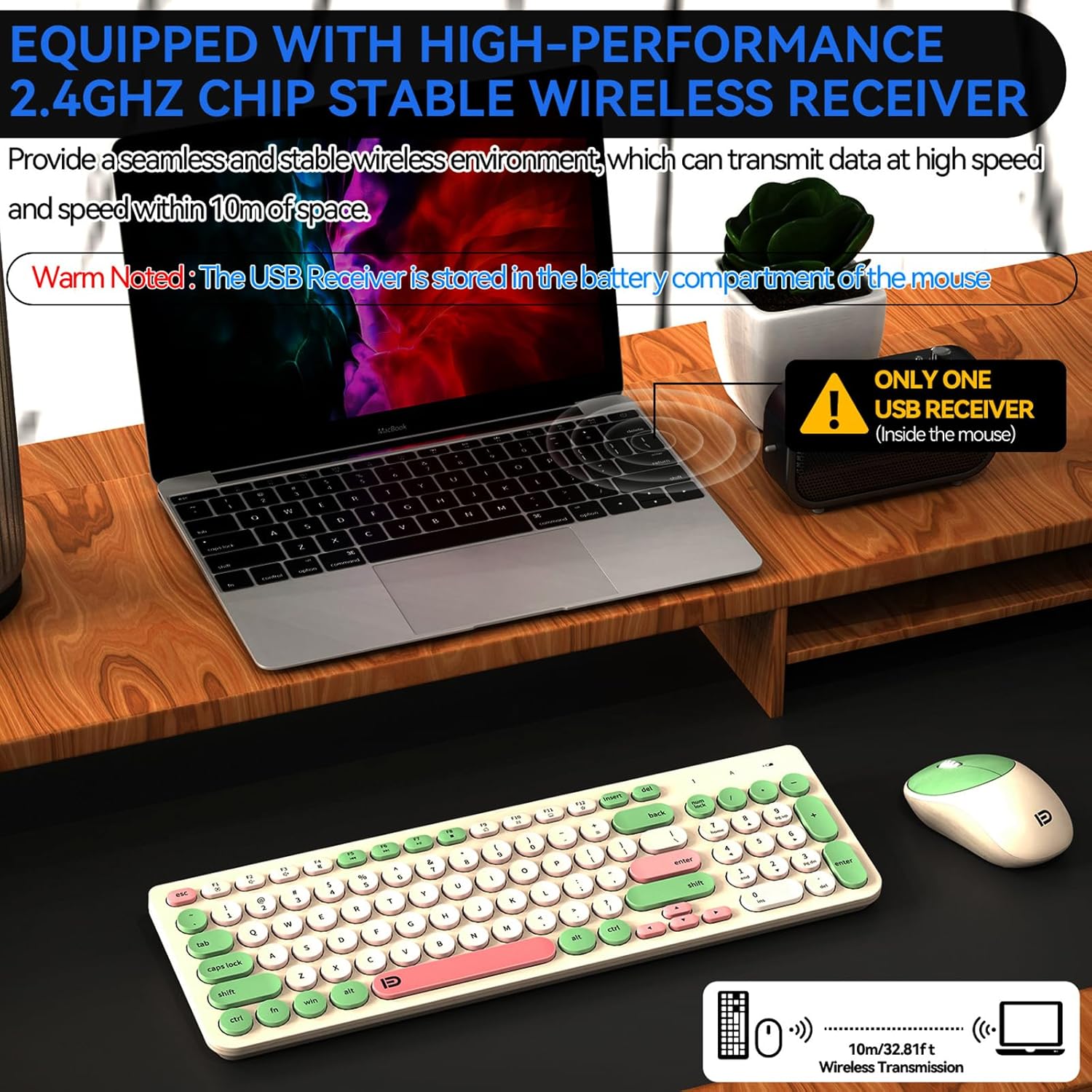
Image: The USB receiver is inserted into a laptop's USB port, establishing a wireless connection for the keyboard and mouse.
- Power On:
Ensure the keyboard and mouse are switched on (if they have a power switch). They should connect automatically to the receiver.
Setup Video Guide
Video: This video demonstrates the unboxing and initial setup process for the FD Wireless Keyboard and Mouse Combo, including battery installation and USB receiver connection.
Operating Instructions
2.4GHz Wireless Connection
The keyboard and mouse utilize a stable 2.4GHz wireless connection. Once the USB Nano receiver is plugged into your device, the keyboard and mouse should connect automatically within a range of up to 10 meters (32.8 feet).
Multimedia Hotkeys
The keyboard features 12 easy-to-reach function keys (F1-F12) that provide quick access to multimedia controls and other common functions. These include adjusting music and video playback, web search, and email management. To activate these functions, press the Fn key simultaneously with the desired function key.

Image: The keyboard layout, showing the F1-F12 keys and their associated multimedia functions when used with the Fn key.
Quiet Typing and Clicking
The keyboard features low-profile silent keys, and the mouse is designed for quiet clicks, minimizing noise during use. This design is intended to provide a comfortable and unobtrusive typing and navigation experience.

Image: A visual representation of the quiet operation of the keyboard and mouse, suitable for environments where noise reduction is desired.
Automatic Power Saving (Sleep Mode)
To conserve battery life, both the keyboard and mouse automatically enter sleep mode after a period of inactivity (approximately 5 minutes for the keyboard, 3 seconds for the mouse). To wake the devices, simply click any button on the mouse or press any key on the keyboard.
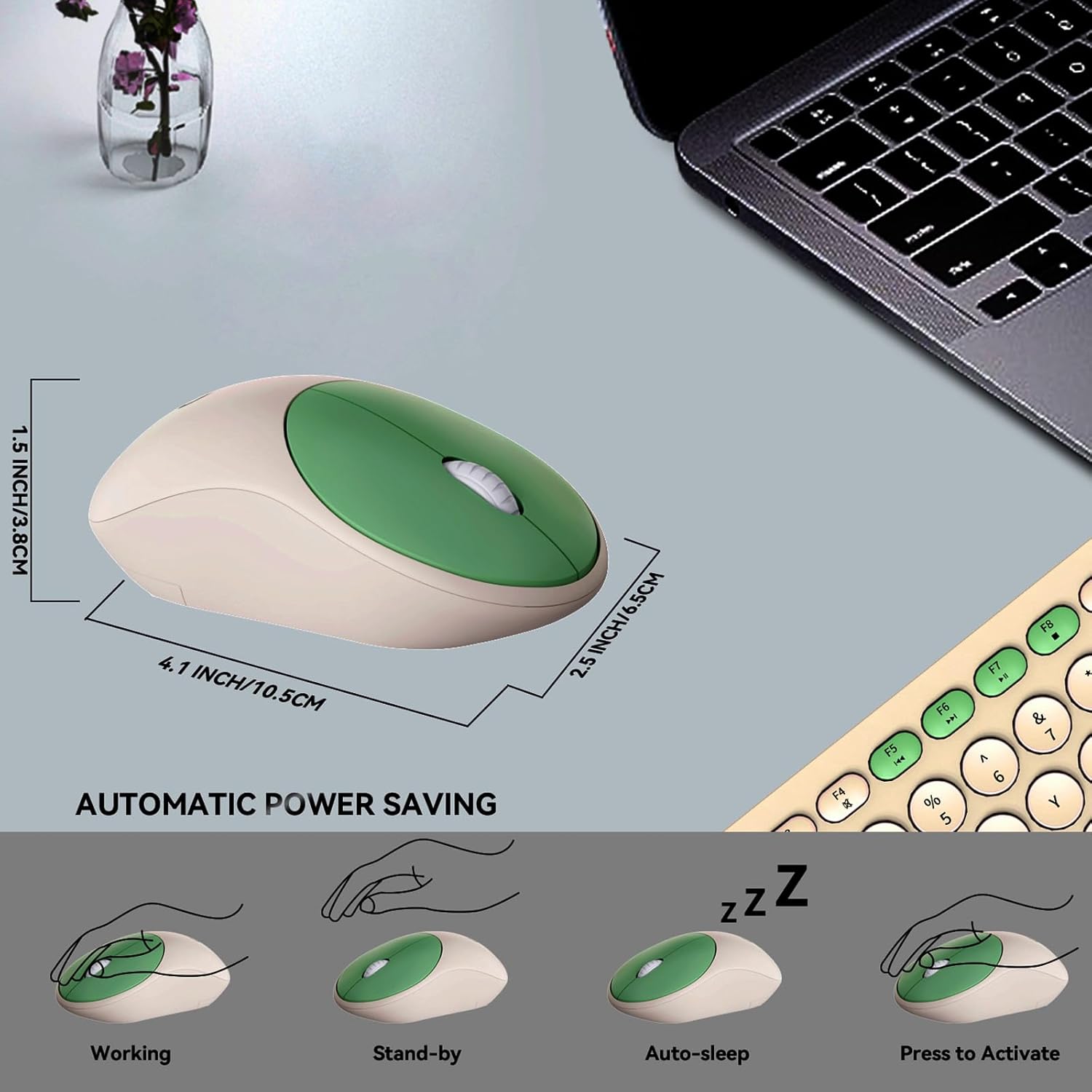
Image: Diagram illustrating the mouse's power-saving modes, from active use to auto-sleep and reactivation.
Maintenance
Cleaning the Keyboard
For thorough cleaning, the keycaps can be removed. Gently pry them off using a keycap puller (not included) or a small, flat tool. Clean the keycaps and the keyboard base with a soft, dry cloth or a slightly damp cloth. Ensure all components are completely dry before reattaching the keycaps and resuming use.

Image: Close-up of the keyboard demonstrating removable keycaps for easy cleaning and maintenance.
Battery Replacement
When the keyboard or mouse stops responding or experiences intermittent connectivity, it may be time to replace the batteries. Follow the battery installation steps in the Setup section to replace the AAA battery in the keyboard and the AA battery in the mouse.
Troubleshooting
| Problem | Solution |
|---|---|
| Keyboard/Mouse not responding |
|
| Intermittent connection |
|
| Keyboard/Mouse enters sleep mode too quickly | This is a normal power-saving feature. Simply click a mouse button or press any keyboard key to wake the device. |
| Not compatible with Type C ports | This combo uses a standard USB-A receiver. For devices with only Type C ports (e.g., some MacBook Pro models), a USB-A to Type C adapter is required (not included). |
Specifications
- Brand: FD
- Model: IK6632
- Connectivity Technology: 2.4GHz USB Wireless
- Keyboard Layout: QWERTY
- Number of Keys: 96
- Keyboard Dimensions: 14.9 x 4.9 x 1.1 inches (approx.)
- Mouse Dimensions: 4.1 x 2.4 x 1.4 inches (approx.)
- Power Source: Keyboard: 1 x AAA Battery (included); Mouse: 1 x AA Battery (included)
- Compatible Devices: Laptop, Personal Computer, Gaming Console, Projector, Television
- Operating System Compatibility: Windows 2000/ME/XP/Vista/7/8/10, Mac OS X (V10.4 above), Android, Chrome OS, Linux
- Special Features: Portable, Quiet Keys, Multimedia Hotkeys, Automatic Sleep Mode
- Item Weight: 0.68 Kilograms (approx.)
Warranty and Support
FD offers a 36-MONTH AFTER-SALE SERVICE for this product. If you encounter any issues or require assistance, please contact FD Tech customer support.
How to Contact Support:
- Visit the FD Store page on Amazon.
- Select the "Ask a question" option to get in touch with customer service.