
1. Introduction
This manual provides detailed instructions for the installation, operation, and maintenance of your MekedeTech Android Car Radio Stereo. This head unit is specifically designed for Mazda 3 models from 2004 to 2009, offering an upgraded in-car entertainment and navigation experience with features like wireless CarPlay, Android Auto, and 4G LTE connectivity.
2. Safety Information
- Professional Installation Recommended: Due to the complexity of car electrical systems, professional installation is highly recommended to prevent damage to the unit or your vehicle.
- Power Disconnection: Always disconnect the vehicle's battery before performing any installation or wiring work.
- Wiring: Ensure all wiring connections are secure and properly insulated to prevent short circuits. Refer to the wiring diagram provided with your unit.
- Driving Safety: Do not operate the unit in a way that distracts you from driving. Always prioritize road safety.
- Ventilation: Ensure the unit has adequate ventilation to prevent overheating.
3. Package Contents
Please verify that all items are present in your package:
- MekedeTech Android Head Unit (9-inch touchscreen)
- Dash Kit (specific for Mazda 3 2004-2009)
- Power Cable Harness
- RCA Cable Set
- Reversing Camera Cable
- USB Cables
- GPS Antenna
- 4G LTE Antenna (if applicable to your model)
- External Microphone
4. Setup and Installation
The MekedeTech Android Head Unit is designed for a plug-and-play installation in compatible Mazda 3 vehicles (2004-2009). While the unit includes all necessary accessories for installation, professional assistance is recommended.
4.1. Pre-Installation Steps
- Park your vehicle on a level surface and engage the parking brake.
- Disconnect the negative terminal of the vehicle's battery to prevent electrical shorts.
- Carefully remove the factory radio and dashboard trim panels according to your vehicle's service manual.
4.2. Wiring Connections
Connect the provided wiring harness to the vehicle's factory harness. Ensure all connections are secure. Connect the GPS antenna, 4G LTE antenna (if included), and USB cables to the corresponding ports on the head unit. If installing a reversing camera, connect its cable to the designated input.

Image showing the original Mazda 3 radio unit alongside the MekedeTech Android Head Unit, highlighting the size and form factor for replacement.

Image of the MekedeTech Android Head Unit installed in a Mazda 3 dashboard, demonstrating its integrated appearance.
4.3. Cooling Fan Installation (Optional)
For optimal performance and longevity, especially in high-temperature environments, consider installing the optional cooling fan. Follow the steps below:
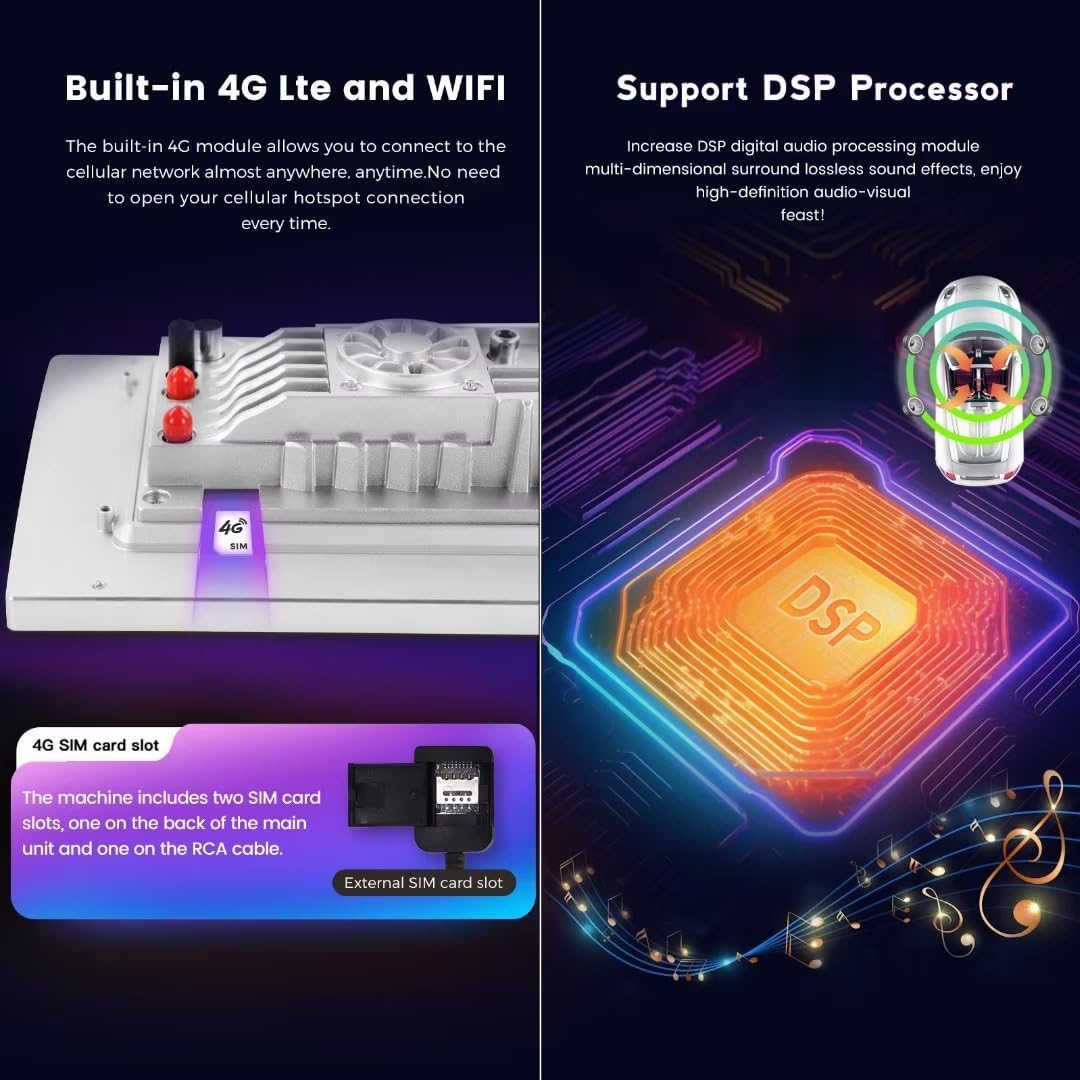
Diagram illustrating the setup steps for the optional cooling fan, showing connections and temperature comparisons with and without the fan.
- Connect: Attach the cooling fan cable to the designated port on the head unit.
- Settings: Navigate to Device Settings > Sound.
- Device: Select 'AMP ON' or similar option to activate the fan.
- Verification: The cooling fan should now be operational, helping to maintain normal operating temperatures.
4.4. Final Assembly
Once all connections are made and tested, carefully reassemble the dashboard trim panels and secure the head unit in place. Reconnect the vehicle's battery.
5. Operating Instructions
5.1. Basic Controls and Touchscreen
The unit features a 9-inch IPS touchscreen with a resolution of 1280x720. Navigate the Android 12 OS interface by tapping, swiping, and pinching. Physical buttons on the unit (if present) control power, volume, and basic navigation.

Screenshot of the Apple CarPlay interface displayed on the MekedeTech head unit, showing various application icons.
5.2. Wireless CarPlay and Android Auto
The unit supports built-in wireless CarPlay and wired/wireless Android Auto. This allows seamless integration of your smartphone for navigation, music, calls, and messaging.

Visual guide demonstrating the connection steps for Wireless CarPlay (iOS) and Wireless Android Auto (Android system) via Bluetooth and 'Car Link'.
5.2.1. Wireless CarPlay (iOS System)
- Connect BT: On your iPhone, go to Bluetooth settings and pair with the head unit.
- Click on 'Car Link': On the head unit, open the 'Car Link' application.
- Wait for Connection: The unit will automatically connect to CarPlay. (CarPlay can also be connected via USB Cable).
5.2.2. Wireless Android Auto (Android System)
- Connect BT: On your Android phone, go to Bluetooth settings and pair with the head unit.
- Click on 'Car Link': On the head unit, open the 'Car Link' application.
- Wait for Connection: The unit will automatically connect to Android Auto. (Android Auto can also be connected via USB Cable).
5.3. 4G LTE and Wi-Fi Connectivity
The head unit features built-in 4G LTE and Wi-Fi modules for internet access.
- 4G LTE: Insert a 4G SIM card into the designated slot (one on the back of the main unit, one on the RCA cable) to access cellular data.
- Wi-Fi: Connect to available Wi-Fi networks by navigating to the Wi-Fi settings in the Android system.
5.4. Steering Wheel Control
The unit retains the original steering wheel control functions, allowing you to switch songs, channels, and adjust volume without taking your hands off the steering wheel. This enhances convenience and safety.
5.5. DSP Audio Processor
The integrated DSP (Digital Signal Processor) provides enhanced audio quality, offering multi-dimensional surround sound effects for an improved listening experience.
5.6. Intelligent Voice Control
Utilize the intelligent voice control feature to operate various functions hands-free, ensuring a safer driving experience. The system supports multiple languages.

Infographic detailing the built-in 4G LTE and Wi-Fi features, DSP processor benefits, and intelligent voice control capabilities with multi-language support.
6. Maintenance
- Cleaning: Use a soft, dry cloth to clean the screen and unit exterior. Avoid abrasive cleaners or solvents.
- Software Updates: Periodically check for software updates through the unit's settings or the manufacturer's website to ensure optimal performance and access to new features.
- Temperature: Avoid exposing the unit to extreme temperatures, direct sunlight for prolonged periods, or high humidity.
7. Troubleshooting
If you encounter issues with your MekedeTech head unit, refer to the following common problems and solutions:
| Problem | Possible Cause / Solution |
|---|---|
| Unit does not power on. | Check power cable connections and vehicle's fuse box. Ensure the battery is properly connected. |
| No audio or distorted sound. | Verify speaker wiring. Check volume settings. Ensure RCA cables are securely connected. A humming sound may indicate poor contact with the radio connector; re-seat connections. |
| Steering wheel controls not working. | Ensure the CANbus decoder (if applicable) is correctly connected and configured in the unit's settings. |
| CarPlay/Android Auto fails to connect. | Ensure Bluetooth is enabled and paired. Verify the 'Car Link' application is open on the head unit. Try connecting via USB cable. Restart both the phone and the head unit. |
| Original car display (clock/fuel) not functioning correctly. | Some vehicle-specific functions on the original display may have limited compatibility or require specific settings adjustments. Consult the vehicle's manual or a professional installer. |
| Missing hardware for factory LCD display installation. | The unit is designed to replace the factory radio. If you intend to retain or relocate the factory LCD display, additional mounting hardware may be required and is not always included. |
8. Specifications
| Feature | Detail |
|---|---|
| System | Android 12 OS |
| CPU | 8-Core A53 1.8GHz |
| Memory | 2GB RAM, 32GB ROM |
| Display Size | 9 Inches |
| Display Resolution | 1280x720 IPS Touch Screen |
| Power Output | 4*50W |
| Wattage | 200 Watts |
| Connectivity | Wireless (4G LTE, Wi-Fi, Bluetooth 5.0) |
| Special Features | Wireless CarPlay, Android Auto, Built-In Bluetooth, Touchscreen, DSP Audio, Voice Control |
| Compatible Devices | Smartphone, Speaker |
| Connector Type | RCA, USB |
| Audio Format Support | APE/FLAC/WAV/MP3/WMA etc. |
| Video Format Support | MKV/RMVB/AVI/MP4/MDV etc. |
| Picture Format Support | PNG/JPEG/JPG/GIF/WBMP/BNP etc. |
9. Warranty and Support
9.1. Warranty Information
This MekedeTech Android Car Radio Stereo comes with a 1-Year Warranty from the date of purchase. This warranty covers manufacturing defects and malfunctions under normal use. Please retain your proof of purchase for warranty claims.
9.2. Customer Support
For technical assistance, troubleshooting, or warranty inquiries, please contact MekedeTech customer support. Refer to the contact information provided with your purchase or visit the official MekedeTech store on Amazon.