Introduction
Thank you for purchasing the Camiysn Retro Punk Mechanical Keyboard. This full-size, 104-key keyboard features a unique retro design with round keycaps, gold LED backlighting, and durable blue mechanical switches for a tactile and audible typing experience. This manual provides detailed instructions on setting up, operating, maintaining, and troubleshooting your new keyboard to ensure optimal performance and longevity.
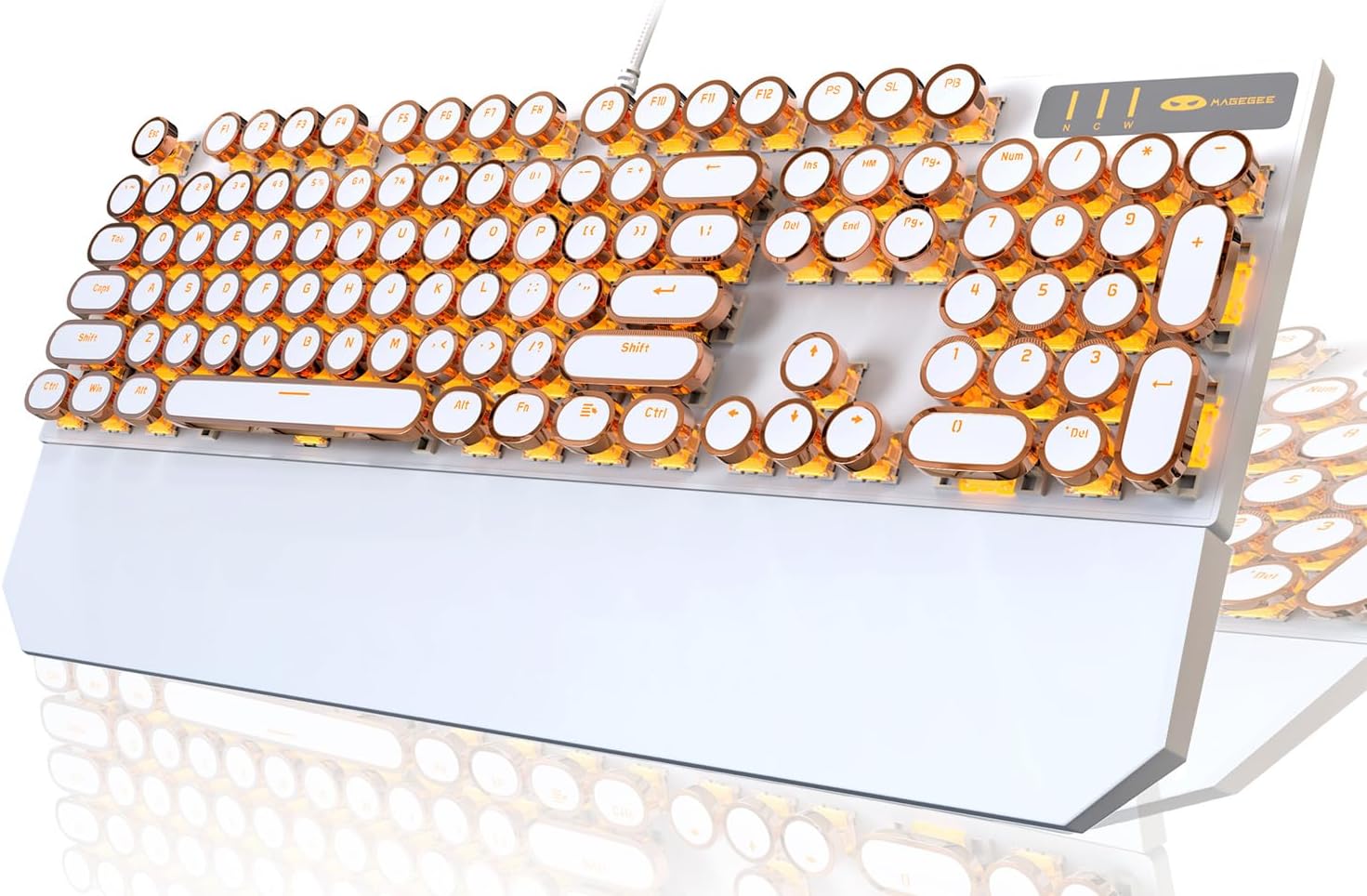
Image: The Camiysn Retro Punk Mechanical Keyboard, showcasing its full layout, white body, and gold-accented round keycaps with bright gold LED backlighting.
Package Contents
- Camiysn Retro Punk Mechanical Keyboard (Model: MK-STORM)
- User Manual (this document)
Setup
- Unpacking: Carefully remove the keyboard from its packaging.
- Placement: Place the keyboard on a stable, flat surface. Ensure adequate space for comfortable use. The keyboard features adjustable rear feet for ergonomic positioning.
- Connection: The keyboard connects via a USB cable. Locate an available USB port on your computer (PC, Laptop, Mac) or compatible device.
- Plug and Play: Insert the USB connector into the USB port. The keyboard is designed for plug-and-play functionality and should be automatically recognized by your operating system (Windows 2000/7/8/10/XP, Vista, Linux, Mac). No additional drivers are typically required.
- Initial Test: Once connected, test the keyboard by typing in a text editor or browser to ensure all keys are functioning correctly.

Image: A user's hands positioned over the Camiysn Retro Punk Mechanical Keyboard, demonstrating typical usage during typing.
Operating Instructions
Key Features:
- Blue Mechanical Switches: Provides a distinct tactile bump and an audible click sound for clear feedback with each keystroke.
- Anti-Ghosting (N-Key Rollover): All 104 keys feature anti-ghosting, ensuring that every key press is registered accurately, even during rapid or simultaneous key inputs, which is beneficial for both typing and gaming.
- Durable Round Keycaps: The unique round keycaps are manufactured using a two-color injection molding process, enhancing their durability and preventing legends from fading.
- Magnetic Wrist Rest: The keyboard includes a magnetic wrist rest for added comfort during extended use.

Image: A close-up view of the Camiysn keyboard, showing the blue mechanical switches beneath the removable round keycaps, highlighting the clicky switch mechanism.

Image: The Camiysn keyboard demonstrating its N-Key Rollover capability and the included magnetic wrist rest, which attaches to the front of the keyboard.
Backlight Control:
The keyboard features multiple white LED backlight modes. Use the following key combinations to control the lighting:
- Change Light Mode: Press Fn + Ins to cycle through different backlight modes.
- Adjust Brightness: Press Fn + ↑ to increase brightness, and Fn + ↓ to decrease brightness.
- Adjust Speed: Press Fn + ← to decrease animation speed, and Fn + → to increase animation speed.

Image: The Camiysn keyboard illuminated by its gold LED backlight in a dark setting, showcasing the glow from under and around the keycaps.

Image: A close-up of the Camiysn keyboard's backlit keys, demonstrating the intensity and distribution of the gold LED lighting.
Multimedia Keys:
The keyboard includes dedicated multimedia function keys accessible by pressing the Fn key in combination with the corresponding F-keys (F1-F12).
| Key Combination | Function |
|---|---|
| Fn + F1 | Media Player |
| Fn + F2 | Volume Decrease |
| Fn + F3 | Volume Increase |
| Fn + F4 | Mute |
| Fn + F5 | Halt |
| Fn + F6 | Last Song |
| Fn + F7 | Play/Suspend |
| Fn + F8 | Next Song |
| Fn + F9 | |
| Fn + F10 | Homepage |
| Fn + F11 | My Computer |
| Fn + F12 | Calculator |

Image: A visual guide to the multimedia functions available on the Camiysn keyboard, showing the Fn key combinations for various controls like media playback, volume, and quick access to applications.
Maintenance
- Cleaning:
- Disconnect the keyboard from your computer before cleaning.
- Use a soft, lint-free cloth slightly dampened with water or a mild cleaning solution to wipe the surface of the keyboard and keycaps.
- For dust and debris between keys, use compressed air.
- Avoid using harsh chemicals, abrasive cleaners, or excessive moisture, as these can damage the keyboard.
- Keycap Removal: The round keycaps can be carefully removed for deeper cleaning or switch maintenance. Use a keycap puller (not included) if available, or gently pry them off from the edges. Reattach by aligning and pressing firmly until they click into place.
- Storage: When not in use for extended periods, store the keyboard in a clean, dry environment away from direct sunlight and extreme temperatures.
Troubleshooting
- Keyboard Not Responding:
- Ensure the USB cable is securely plugged into both the keyboard and the computer's USB port.
- Try plugging the keyboard into a different USB port on your computer.
- Restart your computer.
- Test the keyboard on another computer to determine if the issue is with the keyboard or the original computer.
- Backlight Not Working or Flickering:
- Ensure the keyboard is properly connected.
- Use the Fn + Ins combination to cycle through backlight modes.
- Use Fn + ↑ to increase brightness.
- If the issue persists, try reconnecting the keyboard or restarting your computer.
- Keys Not Registering or Double-Typing:
- Ensure the keyboard is clean and free of debris under the keycaps.
- If a specific key is problematic, gently remove the keycap and inspect the switch for any obstructions.
- If the issue is widespread, try reconnecting the keyboard or restarting your computer.
- Incorrect Characters Typed:
- Check your operating system's keyboard language settings to ensure they match your physical keyboard layout.
Specifications
| Feature | Detail |
|---|---|
| Brand | Camiysn |
| Model Number | MK-STORM |
| Connectivity | USB Wired |
| Key Type | Mechanical (Blue Switches) |
| Key Count | 104 Keys (Full Size) |
| Keycap Type | Round, Two-color Injection Molding |
| Backlight | Gold LED Backlit (Multiple White Light Modes) |
| Anti-Ghosting | N-Key Rollover |
| Compatibility | Windows 2000/7/8/10/XP, Vista, Linux, Mac, PC, Laptop |
| Dimensions (L x W x H) | 45.21 x 16.79 x 6.2 cm (approx. 17.0 x 5.1 x 1.45 inches from image) |
| Weight | 1.28 kg |
| Special Features | Ergonomic design, Adjustable rear feet, Magnetic wrist rest |
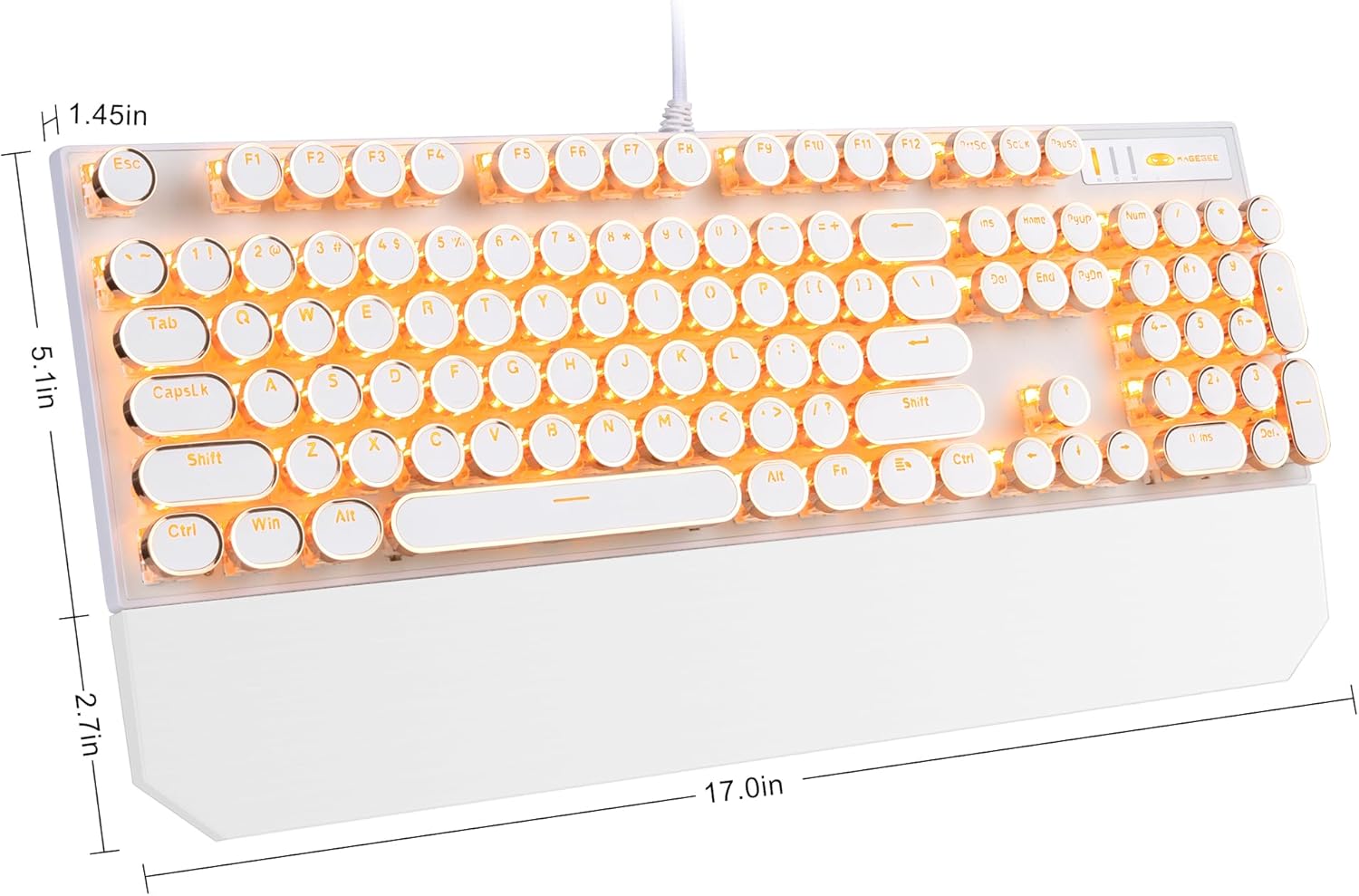
Image: A diagram illustrating the dimensions of the Camiysn Retro Punk Mechanical Keyboard, showing approximate measurements of 17.0 inches in length, 5.1 inches in width, and 1.45 inches in height.
Warranty and Support
For warranty information and technical support, please refer to the warranty card included with your product or contact Camiysn customer service directly. Details for contacting support are typically available on the manufacturer's official website or through your point of purchase.
Please retain your proof of purchase for warranty claims.


