
FREEWOLF K8
FREEWOLF K8 Wireless Mechanical Gaming Keyboard User Manual
Model: K8
1. Introduction
Thank you for choosing the FREEWOLF K8 Wireless Mechanical Gaming Keyboard. This keyboard offers versatile connectivity options, customizable RGB backlighting, and a hot-swappable design for a personalized typing and gaming experience. This manual provides detailed instructions for setup, operation, and maintenance to ensure optimal performance and longevity of your device.
2. Package Contents
Please verify that all items listed below are included in your package:
- FREEWOLF K8 Mechanical Keyboard
- USB-C to USB-A Cable
- 2.4GHz USB Receiver
- Keycap Puller
- Switch Puller
- Extra Mechanical Switches (2 pieces)
- User Manual (this document)

Image: The FREEWOLF K8 keyboard shown with its included accessories, including the USB-C cable, 2.4GHz receiver, keycap puller, switch puller, and two spare mechanical switches.
3. Product Overview
The FREEWOLF K8 features an 80% layout with 100 keys, designed for both efficiency and comfort. It incorporates a robust internal structure for enhanced sound and feel.

Image: An exploded view of the FREEWOLF K8 keyboard's internal components, highlighting the aluminum plate, sandwich acoustic foam, PBC board, and insulation foam, which contribute to its sound-dampening properties.
Key Features:
- Tri-Mode Connectivity: Supports Bluetooth, 2.4GHz wireless, and USB-C wired connections.
- Hot-Swappable Switches: Compatible with most 3-pin mechanical switches, allowing for easy customization.
- RGB Backlighting: Features 19 preset lighting effects and 3 customizable gaming backlight modes.
- Long-Lasting Battery: Equipped with a 4000mAh rechargeable battery for extended use.
- Ergonomic Design: Includes adjustable kickstands for two typing angles and durable PBT keycaps.
- Multi-System Compatibility: Works with Windows and Mac operating systems.
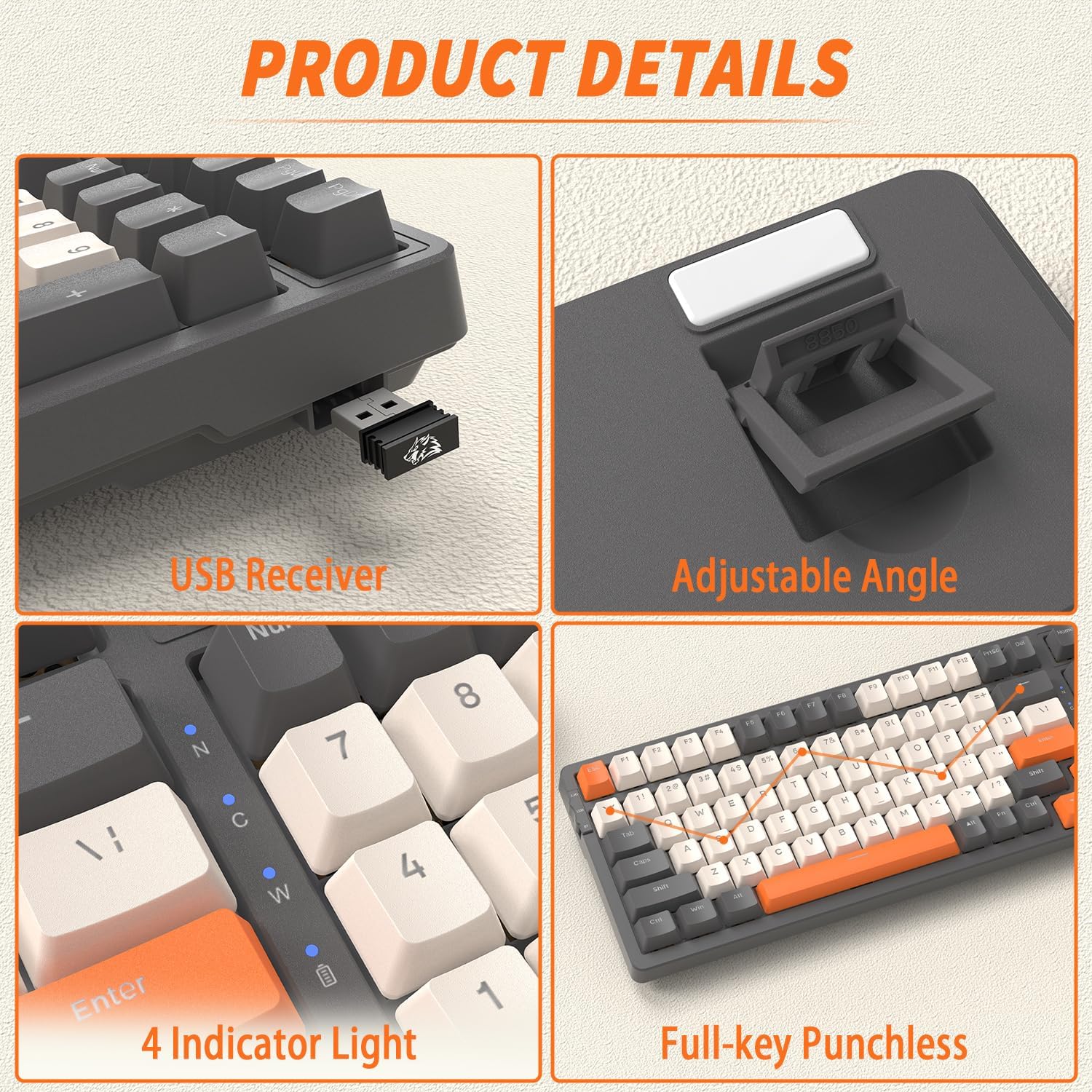
Image: Close-up views of the FREEWOLF K8 keyboard, showing the integrated USB receiver storage, adjustable angle feet, four indicator lights (for connectivity and battery status), and the ergonomic keycap profile.
4. Setup Instructions
4.1. Connectivity Modes
The K8 keyboard supports three connection methods: Bluetooth, 2.4GHz wireless, and USB-C wired. You can easily switch between up to five different devices.

Image: The FREEWOLF K8 keyboard demonstrating its ability to connect to multiple devices (up to five) via Bluetooth (BT1, BT2, BT3), 2.4GHz wireless, and USB-C wired connections.
4.1.1. 2.4GHz Wireless Connection
- Locate the 2.4GHz USB receiver, usually stored in a compartment on the keyboard's underside.
- Plug the USB receiver into an available USB port on your computer.
- Set the keyboard's mode switch (located on the top left side) to '2.4G'.
- The keyboard will automatically connect.
4.1.2. Bluetooth Connection
- Set the keyboard's mode switch to 'BT'.
- To pair with a new device, press and hold FN + Q (for BT1), FN + W (for BT2), or FN + E (for BT3) for 3-5 seconds until the corresponding key flashes rapidly.
- On your device (computer, smartphone, tablet), enable Bluetooth and search for 'FREEWOLF K8'.
- Select the keyboard to pair. The key will stop flashing once connected.
- To switch between paired Bluetooth devices, press FN + Q, FN + W, or FN + E briefly.
4.1.3. USB-C Wired Connection
- Connect the provided USB-C cable to the keyboard's USB-C port.
- Connect the other end of the cable to an available USB port on your computer.
- Set the keyboard's mode switch to 'USB'.
- The keyboard will be recognized as a standard USB device.
4.2. System Compatibility (Windows/Mac)
The K8 keyboard is compatible with both Windows and Mac operating systems. To switch between modes, press FN + A. The keyboard will adjust its key functions to match the selected operating system.
5. Operating Instructions
5.1. Backlight Control
The K8 keyboard features extensive RGB backlighting with various effects and customization options.

Image: The FREEWOLF K8 keyboard displaying its vibrant RGB backlighting, illustrating the 19 backlit modes, 3 customized backlit modes, and backlight recording functionality.
- Change Backlight Mode: Press FN + |\ to cycle through 19 different RGB lighting effects.
- Adjust Brightness: Press FN + ↑ to increase brightness, FN + ↓ to decrease brightness.
- Adjust Speed: Press FN + ← to slow down the effect, FN + → to speed up the effect.
- Custom Gaming Backlight Modes:
- FN + 1! (FPS Mode): Lights up W/A/S/D and arrow keys.
- FN + 2@ (LOL Mode): Lights up Q/W/E/R/D/F/G/V/B/Tab/Space/1-6/Esc keys.
- FN + 3# (Office Mode): Lights up A-Z/[/]/;/'/,/.// and arrow keys.
- Record Custom Backlight: To customize and save a backlight mode, select one of the three custom modes (FN+1!, FN+2@, or FN+3#), then press FN + ~ to enter recording mode. Press the keys you wish to light up, then press FN + ~ again to save.
5.2. Battery Management
The K8 keyboard is equipped with a 4000mAh rechargeable battery, providing extended usage time.
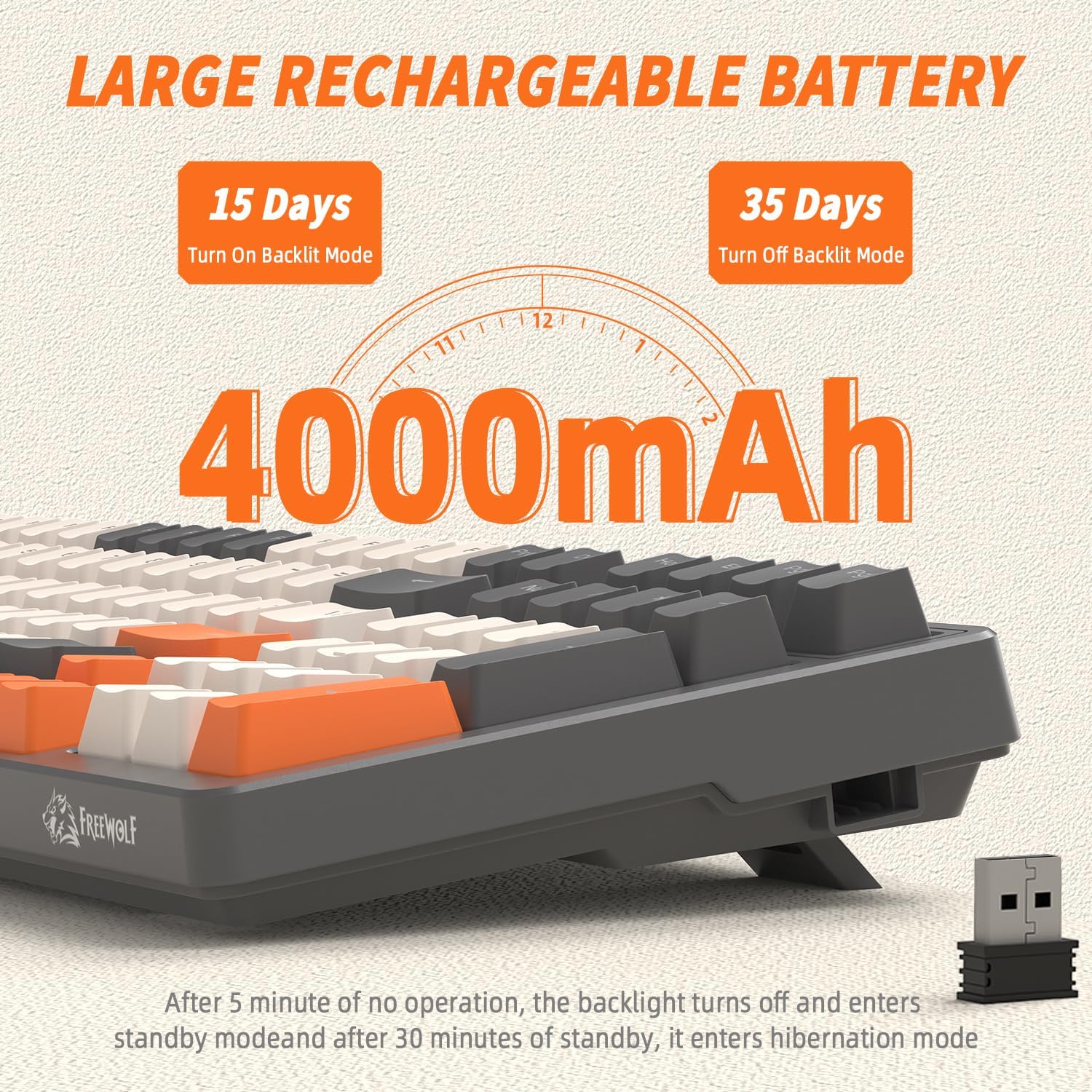
Image: A visual representation of the FREEWOLF K8's 4000mAh battery, indicating approximately 15 days of use with backlighting on and 35 days with backlighting off.
- Charging: Connect the keyboard via the USB-C cable to a power source (computer USB port or wall adapter). The battery indicator light will show charging status.
- Power Saving:
- The backlight will turn off after 5 minutes of inactivity.
- The keyboard will enter hibernation mode after 30 minutes of no operation to conserve power.
- Wake Up: Press any key twice to wake the keyboard from hibernation.
5.3. Hot-Swapping Switches
The K8 keyboard features hot-swappable sockets, allowing you to change mechanical switches without soldering.

Image: The FREEWOLF K8 keyboard demonstrating its hot-swappable switch feature, with keycap and switch pullers, and two spare red switches, indicating support for 3-pin switches.
- Remove Keycap: Use the keycap puller to gently pull the desired keycap straight up.
- Remove Switch: Use the switch puller to grasp the top and bottom clips of the switch. Gently pull the switch straight up to remove it from the PCB.
- Install New Switch: Align the pins of the new 3-pin mechanical switch with the holes on the PCB. Press down firmly until the switch clicks into place. Ensure the pins are not bent.
- Install Keycap: Place the keycap onto the new switch and press down until it is secure.
Caution: Ensure the keyboard is disconnected or powered off before hot-swapping switches to prevent damage. Use gentle force to avoid bending switch pins or damaging the PCB sockets.
5.4. Other Key Functions (FN Combinations)
The K8 keyboard utilizes the FN key for various secondary functions:
- FN + F1-F12: Typically multimedia controls (e.g., Play/Pause, Stop, Previous, Next, Mute, Volume Up/Down). Refer to the keycap legends for specific functions.
- FN + Win: Locks/unlocks the Windows key to prevent accidental presses during gaming.
- FN + PrtSc: Screen capture.
- FN + Scroll Lock: Toggles certain backlight effects or modes.
- FN + Pause Break: Toggles certain backlight effects or modes.
6. Maintenance
Proper maintenance ensures the longevity and performance of your keyboard.
- Cleaning: Use a soft brush or compressed air to remove dust and debris from between the keycaps. For deeper cleaning, remove keycaps using the provided puller and wipe the keyboard surface with a slightly damp, lint-free cloth. Avoid excessive moisture.
- Keycap Care: PBT keycaps are durable but can be cleaned with mild soap and water if necessary. Ensure they are completely dry before reattaching.
- Storage: When not in use for extended periods, store the keyboard in a dry, cool place away from direct sunlight and extreme temperatures.
7. Troubleshooting
If you encounter issues with your FREEWOLF K8 keyboard, please refer to the following common solutions:
| Problem | Possible Cause | Solution |
|---|---|---|
| Keyboard not responding (wired) | Loose cable, incorrect mode switch setting, faulty USB port. | Ensure USB-C cable is securely connected. Set mode switch to 'USB'. Try a different USB port on your computer. |
| Keyboard not responding (2.4GHz) | USB receiver not plugged in, incorrect mode switch setting, low battery. | Ensure 2.4GHz USB receiver is plugged in. Set mode switch to '2.4G'. Charge the keyboard. |
| Keyboard not responding (Bluetooth) | Not paired, incorrect mode switch setting, low battery, device Bluetooth off. | Set mode switch to 'BT'. Ensure Bluetooth is enabled on your device. Re-pair the keyboard (FN+Q/W/E). Charge the keyboard. |
| Backlight not working or dim | Backlight turned off, brightness set too low, low battery. | Press FN + |\ to cycle modes. Press FN + ↑ to increase brightness. Charge the keyboard. |
| Keys double-typing or not registering | Faulty switch, debris under keycap. | Clean under the keycap. If issue persists, hot-swap the switch with a spare or new one. |
| Keyboard frequently disconnects | Interference, distance from receiver/device, low battery. | Ensure no strong interference sources nearby. Reduce distance to receiver/device. Charge the keyboard. |
If the problem persists after trying these solutions, please contact customer support.
8. Specifications
| Feature | Detail |
|---|---|
| Model | K8 |
| Brand | FREEWOLF |
| Connectivity | Bluetooth, 2.4GHz Wireless, USB-C Wired |
| Layout | 80% (100 keys) |
| Switch Type | Mechanical (Hot-swappable 3-pin) |
| Keycap Material | PBT (Double-shot injection) |
| Backlight | RGB (19 effects, 3 customizable modes) |
| Battery Capacity | 4000 mAh |
| Compatible Devices | PC, Laptop, Smartphone, Tablet, Game Console |
| Operating Systems | Windows, Mac |
| Dimensions (Approx.) | 395mm (Length) x 142mm (Width) x 44mm (Height) |

Image: The FREEWOLF K8 keyboard with its approximate dimensions (395mm length, 142mm width, 44mm height) and a visual representation of the packing list contents.
9. Warranty and Support
FREEWOLF products are designed for reliability and performance. For warranty information, technical support, or any inquiries regarding your K8 keyboard, please refer to the warranty card included in your package or visit the official FREEWOLF website. Keep your proof of purchase for warranty claims.
Related documentsK8


Ask a question about this manual
Ask about setup, troubleshooting, compatibility, parts, safety, or missing instructions. Manuals+ will review the question and use this page’s manual context to help answer it.