
1. Introduction
This manual provides detailed instructions for the installation, operation, and maintenance of your BXLIYER Android 13 Car Stereo. Please read this manual thoroughly before using the product to ensure proper functionality and to prevent damage. Keep this manual for future reference.
2. Product Overview
The BXLIYER Android 13 Car Stereo is an advanced infotainment system designed for the Nissan Navara NP300 (2016-2018). It features an Octa-Core processor, 6GB RAM, 128GB ROM, and a 10.1-inch IPS display. Key functionalities include integrated Wireless CarPlay and Android Auto, DSP for enhanced audio, support for DAB+ radio, 4K video playback, and optional 360-degree camera integration.
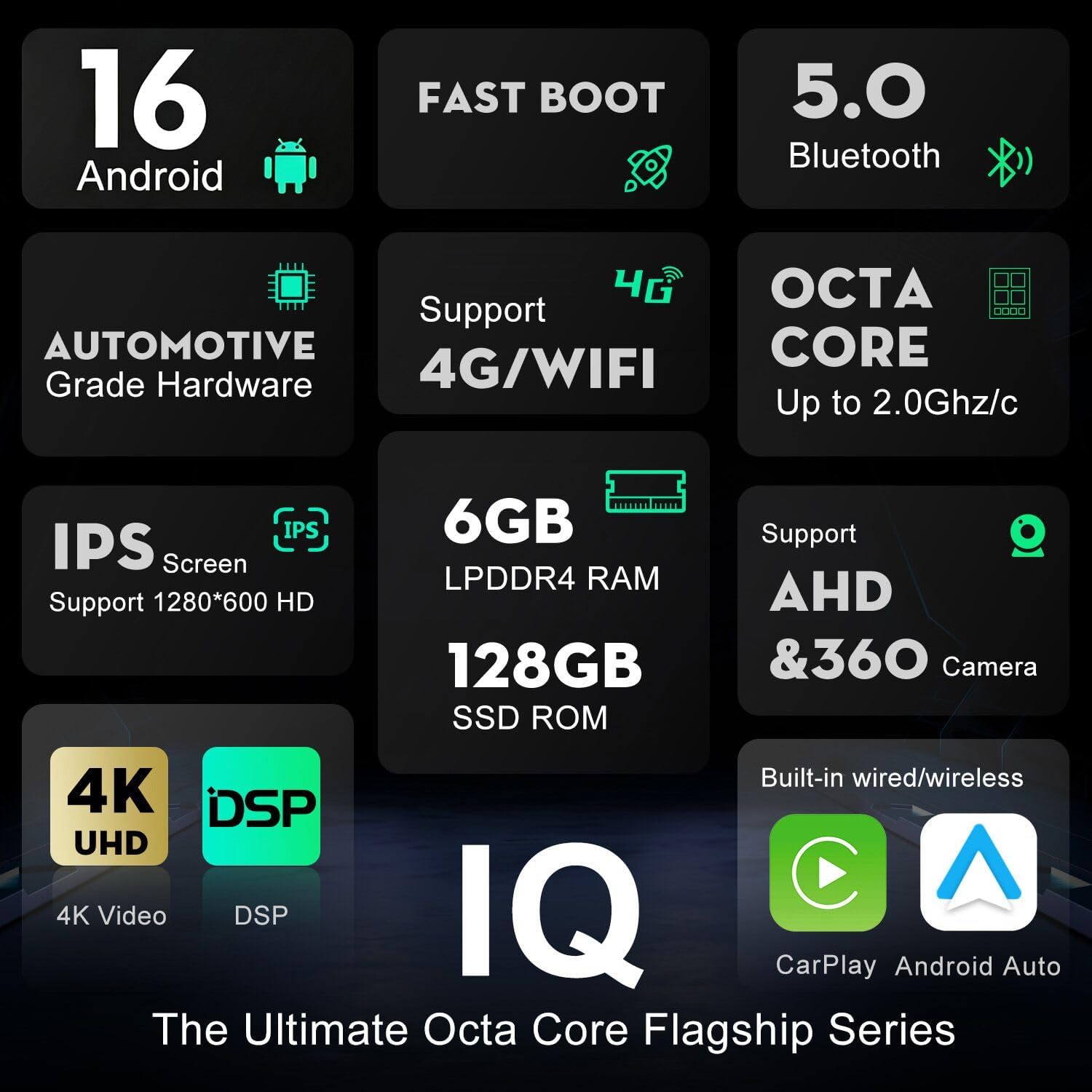
Image 2.1: Overview of key features including Android 16 (likely Android 13 with a visual theme), Fast Boot, Bluetooth 5.0, Octa Core processor, IPS screen, 6GB RAM, 128GB ROM, AHD & 360 Camera support, 4K video, DSP, and built-in CarPlay/Android Auto.
3. Package Contents
Verify that all items listed below are included in your product package:
- Car Stereo Head Unit
- Accessories (various cables and connectors)
- User Manual (this document)
- Frame Kit (for vehicle specific fitment)
- Power Cable
- LED Rear View Camera (gift)
- External Microphone (gift)
- GPS Antenna
- USB Cables
- RCA Output Cables
- Install Brackets
- Canbus (if applicable for your vehicle model)

Image 3.1: Visual representation of the items included in the box, such as the head unit, various cables (power, USB, RCA), GPS antenna, external microphone, and installation accessories.
4. Installation
Professional installation is recommended. Ensure the vehicle's battery is disconnected before beginning installation. Refer to the wiring diagram for correct connections. The unit is designed for a perfect fit in Nissan Navara NP300 models from 2016 to 2018.

Image 4.1: Comparison showing the vehicle's dashboard before and after the BXLIYER car stereo installation, demonstrating the integrated fit.
5. Wiring Diagram
Carefully follow the wiring instructions to ensure proper power, audio, and accessory connections. Incorrect wiring can damage the unit or vehicle electronics.

Image 5.1: Detailed wiring diagram illustrating connections for power, speakers, RCA outputs, GPS antenna, USB, external microphone, and camera inputs. This image also shows button illumination customization and steering wheel control setup.
Key Connections:
- Power Socket (A): Connects to vehicle's main power harness (BATT+, ACC, ILL, GND, etc.).
- RCA Output Sockets (A, C, D): For external amplifiers, subwoofers, and auxiliary video input.
- GPS Antenna: Connect for navigation functionality.
- USB Cables: For media playback, phone charging, and CarPlay/Android Auto (wired).
- External Mic: Connect for improved call quality and voice commands.
- Camera Input: For rear view camera and optional 360-degree camera system.
- CAN-TX/CAN-RX: For CANbus integration (if applicable).
6. Initial Setup
After installation, power on the unit. The system will perform a fast boot. Follow the on-screen prompts for initial setup, including language selection, time zone, and Wi-Fi connection.
6.1. Wi-Fi Connection
- Go to Settings > Network & Internet > Wi-Fi.
- Turn on Wi-Fi and select your desired network.
- Enter the password if prompted and connect.
6.2. Bluetooth Pairing
- Go to Settings > Connected devices > Bluetooth.
- Ensure Bluetooth is enabled on both the car stereo and your mobile device.
- Search for available devices on your mobile phone and select the car stereo's name (e.g., "BXLIYER Car Stereo").
- Confirm the pairing code on both devices.
7. Operating Instructions
7.1. CarPlay / Android Auto
The unit supports both wireless and wired CarPlay and Android Auto for seamless smartphone integration.
- Wireless Connection: Ensure Bluetooth and Wi-Fi are enabled on your phone. Pair your phone via Bluetooth, then follow the on-screen prompts to initiate CarPlay or Android Auto wirelessly.
- Wired Connection: Connect your smartphone to one of the USB ports using a certified USB cable. The system should automatically detect and launch CarPlay or Android Auto.

Image 7.1: Display showing the Apple CarPlay and Android Auto interfaces running on the car stereo, demonstrating smartphone integration for navigation, music, and communication.
7.2. DAB+ Digital Radio (Optional)
If you have installed the optional DAB+ adapter (sold separately), you can enjoy high-quality digital radio broadcasts.
- Connect the DAB+ adapter to the designated USB port.
- Open the DAB+ application from the main menu.
- Perform a station scan to find available digital radio channels.

Image 7.2: Top section illustrates DAB+ radio functionality with a user listening to digital radio. The bottom section shows the 360-degree panoramic view from multiple cameras.
7.3. Digital Sound Processor (DSP)
The built-in DSP allows for precise audio customization. Access the DSP settings from the main menu to adjust equalizer, balance, fader, and other sound parameters to optimize your listening experience.
- 64-Band Equalizer: Fine-tune audio frequencies.
- Smart Bass: Enhance low-frequency response.
- Balance & Delay: Adjust sound staging for optimal listening position.
- Loudness & Filter: Control overall volume characteristics and frequency cut-offs.
7.4. 360-Degree Camera Support (Optional)
The unit supports an optional 360-degree panoramic camera system (requires 4 AHD cameras, sold separately, ASIN: B095HQSV15). This feature provides a comprehensive view around your vehicle, aiding in parking and maneuvering.
- When reversing, the system automatically displays the rear camera view.
- Access the 360-degree camera application to view a bird's-eye perspective of your vehicle's surroundings.
7.5. MirrorLink
MirrorLink allows you to display your smartphone's screen directly on the car stereo. Connect Android phones via USB/Wi-Fi and iPhones via Wi-Fi (Airplay).
7.6. GPS Navigation
The unit comes with pre-installed navigation capabilities. You can use online mapping applications (requires internet connection) or download offline maps for navigation without data.
7.7. AM/FM RDS Radio
Access the Radio application to tune into AM/FM stations. The RDS (Radio Data System) feature displays station information where available.
7.8. USB and Micro SD Media Playback
Insert USB drives or Micro SD cards (up to 500GB) into the designated slots to play audio and video files.
7.9. Steering Wheel Control
The unit supports your vehicle's original steering wheel controls. This allows you to manage audio playback, volume, and calls without taking your hands off the wheel. Configuration may be required in the system settings.
7.10. Internet Connectivity (3G/4G/Wi-Fi)
The unit has a built-in Wi-Fi modem. You can connect to a Wi-Fi hotspot or use an external 3G/4G dongle (optional) for internet access, enabling online navigation, streaming, and app downloads.
7.11. Fast Boot
The system features a fast boot function, allowing it to start up in less than 2 seconds, significantly reducing waiting time.
8. Maintenance
- Cleaning: Use a soft, dry cloth to clean the screen and unit. Avoid abrasive cleaners or solvents.
- Software Updates: Periodically check for system software updates to ensure optimal performance and access to new features. Updates can usually be found in the system settings or on the manufacturer's website.
- Data Backup: Regularly back up important data if stored on the device.
9. Troubleshooting
| Problem | Possible Cause | Solution |
|---|---|---|
| Unit does not power on. | Incorrect wiring, blown fuse, power supply issue. | Check power connections, inspect vehicle fuses, ensure proper grounding. |
| No sound. | Volume too low, mute activated, speaker wiring issue, DSP settings. | Increase volume, check mute status, verify speaker connections, reset DSP settings. |
| GPS signal lost or inaccurate. | GPS antenna not properly connected or obstructed. | Ensure GPS antenna is securely connected and placed in a clear line of sight to the sky. |
| CarPlay/Android Auto not connecting. | Incorrect USB cable, phone settings, Wi-Fi/Bluetooth issues. | Use a certified USB cable, check phone's CarPlay/Android Auto settings, ensure Wi-Fi/Bluetooth are active and paired. |
| Touchscreen unresponsive. | System freeze, temporary software glitch. | Restart the unit (long press power button or disconnect power briefly). |
10. Specifications
- Model Number: BXLIYER-6G128G-AC8257
- Operating System: Android 13
- CPU: Rockchip AC8257 A53 Octa-Core, 64-bit, 2.0 GHz
- RAM: 6GB LPDDR4
- ROM: 128GB SSD
- Display: 10.1-inch IPS, 1280 x 600 HD resolution
- Audio Output: 4 x 50W max
- Radio IC: TDA7786
- Amplifier IC: TDA7851
- Connectivity: HDMI, USB, Wi-Fi, Bluetooth 5.0
- Special Features: Wireless CarPlay/Android Auto, DAB+ support (adapter required), 4K/1080p video, MirrorLink, GPS, AM/FM RDS, Steering Wheel Control, AHD Camera support, DSP, Fast Boot, 360-degree camera support (optional).
- Weight: 2.3 Kilograms
11. Warranty and Support
For warranty information and technical support, please refer to the documentation provided with your purchase or contact BXLIYER customer service. Ensure you have your model number (BXLIYER-6G128G-AC8257) and purchase details available when seeking support.
Contact: joyx_techsupport@163.com