
1. Introduction
This manual provides detailed instructions for the setup, operation, and maintenance of your Thinlerain 14 Inch FHD 1920x1200 IPS Portable Touchscreen Monitor. Designed for versatility and portability, this monitor enhances productivity and entertainment on the go. Please read this manual thoroughly before using the product to ensure optimal performance and longevity.
2. What's in the Box
Carefully unpack your new monitor and ensure all items listed below are present and in good condition. If any items are missing or damaged, please contact customer support.
- 1 x Thinlerain 14 Inch Portable Touchscreen Monitor
- 1 x Type-C to Type-C Cable
- 1 x USB to USB Type-C Cable
- 1 x HDMI Cable
- 1 x User Manual (this document)

Image: The Thinlerain portable monitor, its packaging, and included cables (Type-C to Type-C, USB to Type-C, HDMI).
3. Product Features
- High-Definition IPS Touchscreen: The 14-inch display features a 1920x1200 FHD resolution and IPS technology, providing crisp visuals and wide viewing angles. It supports 10-point multi-touch for intuitive interaction.
- Eye Care Technology: Equipped with features designed to reduce blue light and flickering, ensuring a comfortable viewing experience during extended use and minimizing eye strain.
- Versatile Connectivity: Features dual USB-C 3.1 ports and one HDMI port, allowing seamless connection to various devices including PCs, laptops, smartphones, and gaming consoles.
- Sleek and Durable Design: Encased in a plastic frame, the monitor is lightweight and durable. An integrated kickstand provides stability and adjustable viewing angles.

Image: Visual representation of the monitor's 1920x1200 IPS panel, HDR support, 178-degree viewing angle, low blue light feature, and 100% sRGB color gamut.
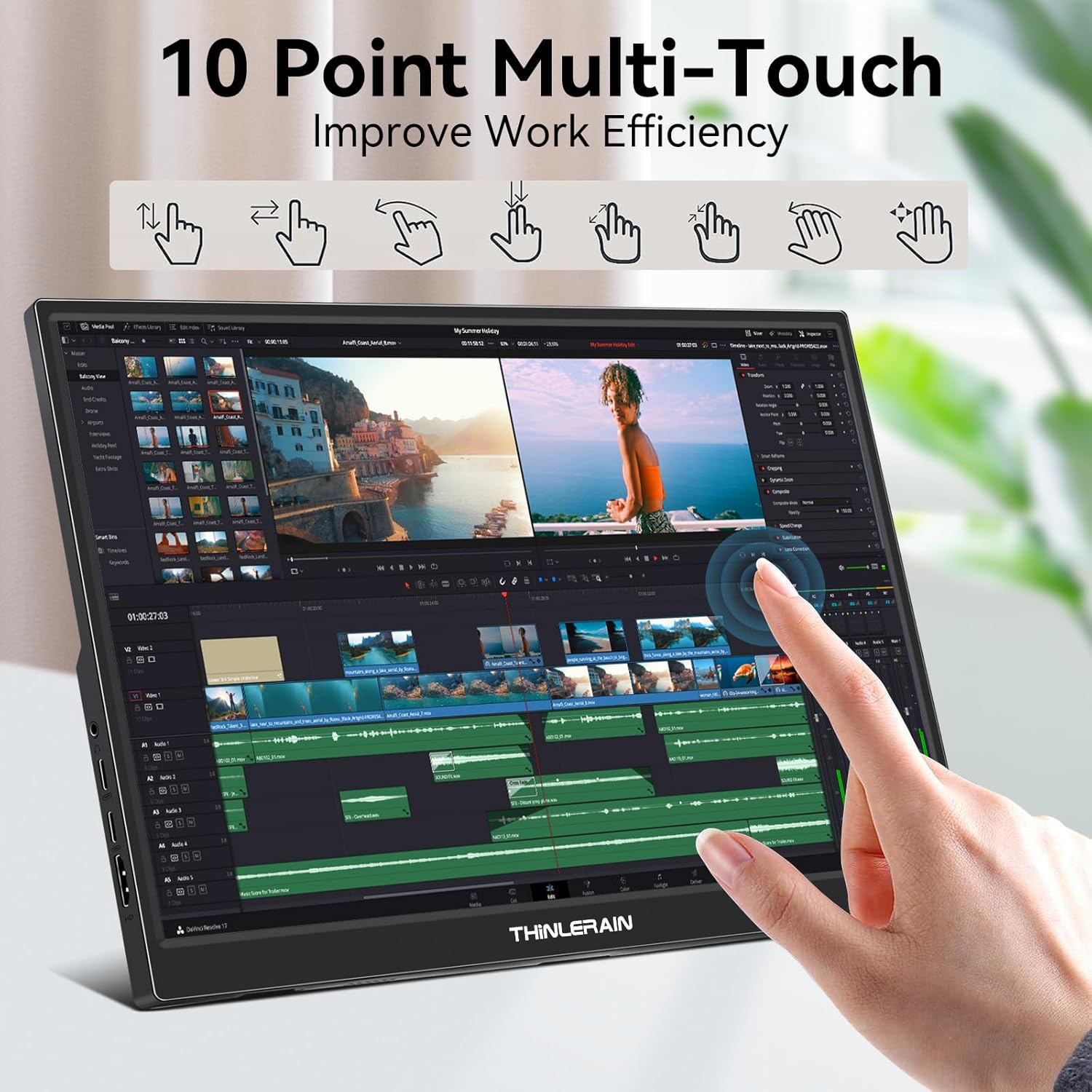
Image: A hand using multiple fingers to interact with the monitor's 10-point multi-touch display, showing improved work efficiency.

Image: The side profile of the monitor highlighting its various input/output ports: 3.5mm audio, USB Type-C (x2), and HDMI.

Image: The monitor's integrated kickstand, demonstrating its ability to adjust the screen angle up to 90 degrees for optimal viewing.
4. Setup Instructions
Follow these steps to connect your Thinlerain portable monitor to your devices.
4.1 Connecting to a Laptop/PC with USB Type-C 3.1 (Full-Featured)
- Connect one end of the Type-C to Type-C Cable to the USB Type-C 3.1 port on your laptop/PC.
- Connect the other end of the Type-C to Type-C Cable to one of the USB Type-C (Full-Featured) ports on the monitor.
- The monitor should automatically detect the signal and power on. Touch functionality will also be enabled.
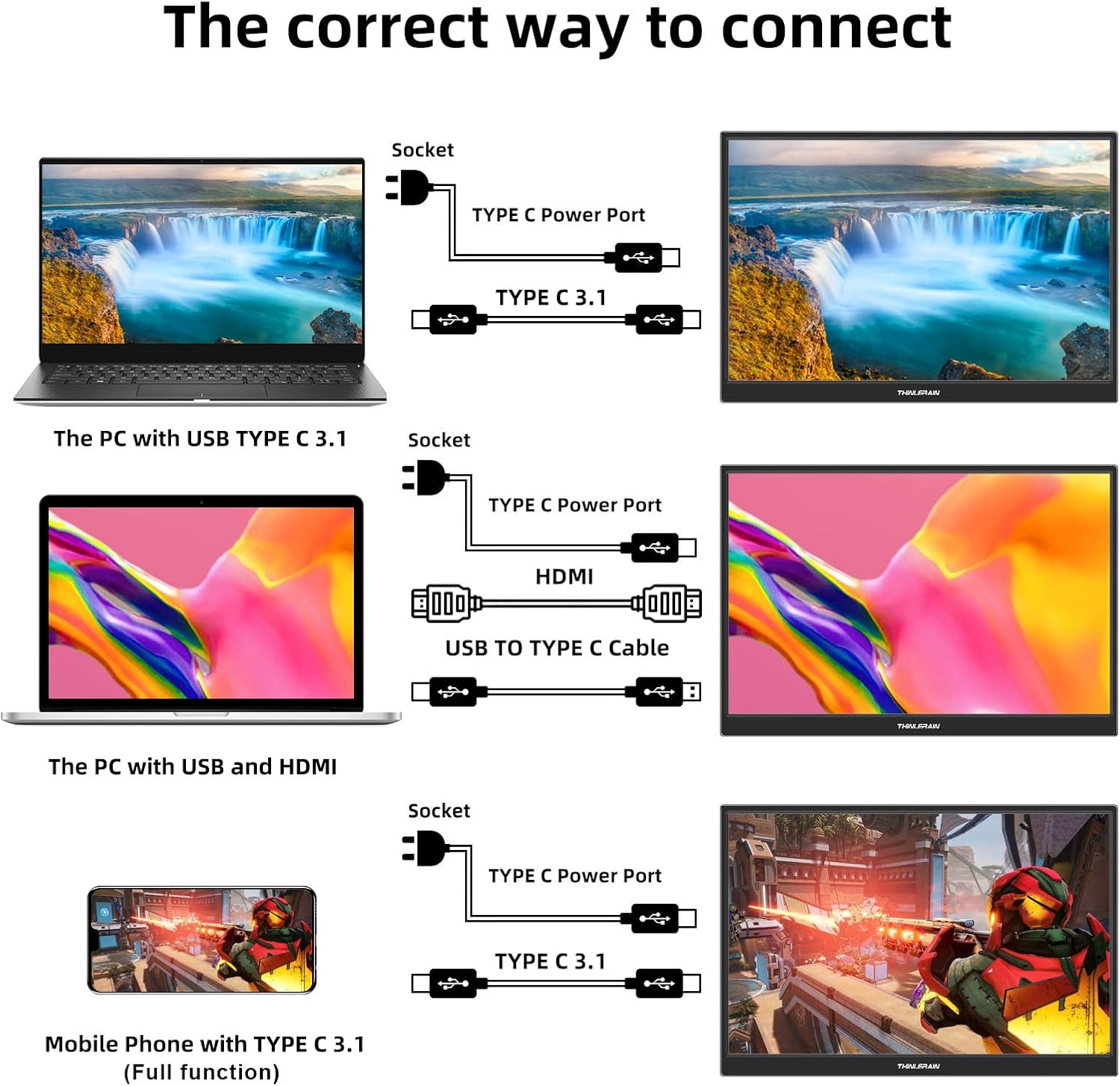
Image: Connection diagram for a PC with USB Type-C 3.1, illustrating a single cable connection for display, touch, and power.
4.2 Connecting to a Laptop/PC with HDMI and USB
- Connect one end of the HDMI Cable to the HDMI port on your laptop/PC.
- Connect the other end of the HDMI Cable to the HDMI port on the monitor.
- Connect one end of the USB to USB Type-C Cable to a USB port on your laptop/PC for power and touch signal.
- Connect the other end of the USB to USB Type-C Cable to one of the USB Type-C ports on the monitor.
- The monitor should display the content from your PC. Touch functionality will be enabled via the USB connection.

Image: Connection diagram for a PC using both HDMI and USB to Type-C cables for display, power, and touch input.
4.3 Connecting to a Mobile Phone with USB Type-C 3.1 (Full-Featured)
- Connect one end of the Type-C to Type-C Cable to the USB Type-C 3.1 port on your mobile phone.
- Connect the other end of the Type-C to Type-C Cable to one of the USB Type-C (Full-Featured) ports on the monitor.
- The monitor should automatically display your phone's screen. Touch functionality will be enabled.
4.4 Using the Integrated Kickstand
The monitor features an integrated kickstand on the back. Gently pull out the kickstand to position the monitor at your desired viewing angle. The kickstand provides stable support for both landscape and portrait orientations.
5. Operating Instructions
5.1 Power On/Off
The monitor typically powers on automatically when a compatible signal is detected via USB-C or HDMI. To manually power on or off, locate the power button on the side of the monitor and press it.
5.2 Touchscreen Functionality
The monitor supports 10-point multi-touch. Once connected via a full-featured USB-C cable or a combination of HDMI and USB for touch data, you can interact with the display directly using your fingers. Standard gestures like tap, swipe, pinch-to-zoom, and drag are supported.
Video: A demonstration of the Thinlerain 14 Inch Portable Monitor's IPS Touchscreen functionality, showing connection to a laptop and interactive use.
5.3 On-Screen Display (OSD) Menu
The OSD menu allows you to adjust various display settings such as brightness, contrast, color temperature, and input source. Refer to the physical buttons on the side of the monitor to navigate and select options within the OSD menu.
6. Maintenance
To ensure the longevity and optimal performance of your monitor, follow these maintenance guidelines:
- Cleaning the Screen: Use a soft, lint-free cloth slightly dampened with water or a screen-cleaning solution. Avoid harsh chemicals, alcohol, or abrasive materials.
- Cleaning the Casing: Wipe the monitor's casing with a soft, dry cloth.
- Storage: When not in use, store the monitor in a cool, dry place, away from direct sunlight and extreme temperatures. It is recommended to use the original packaging or a protective sleeve for transport.
- Avoid Impact: The monitor is designed to be portable but is still a delicate electronic device. Avoid dropping it or subjecting it to strong impacts.
7. Troubleshooting
If you encounter issues with your monitor, please refer to the following common problems and solutions:
- No Signal/Black Screen:
- Ensure all cables (USB-C, HDMI) are securely connected to both the monitor and the source device.
- Verify that your source device (laptop, phone) is powered on and configured to output to an external display.
- If using HDMI, ensure the USB-C power cable is also connected to provide sufficient power to the monitor.
- Check the input source setting in the monitor's OSD menu to ensure it matches your connection type.
- Touchscreen Not Responding:
- For USB-C connections, ensure you are using a full-featured USB-C 3.1 cable that supports data, video, and power.
- For HDMI connections, ensure the USB to USB Type-C cable is connected from your source device to the monitor to transmit touch data.
- Restart both the monitor and the connected device.
- Flickering Screen:
- Ensure the monitor is receiving adequate power. Try connecting it to a dedicated power adapter if using a single USB-C cable from a device with limited power output.
- Check the cable connections for any looseness or damage.
- Adjust the refresh rate or resolution settings on your source device.
- No Audio:
- Check the volume settings on both the monitor and your source device.
- Ensure the correct audio output device is selected on your source device.
- If using external speakers, ensure they are properly connected to the 3.5mm audio jack.
If the problem persists after trying these solutions, please contact Thinlerain customer support.
8. Specifications
| Feature | Specification |
|---|---|
| Screen Size | 14 Inches |
| Resolution | FHD 1920x1200 Pixels |
| Aspect Ratio | 16:10 |
| Screen Surface Description | Glossy |
| Image Brightness | 330 Candela |
| Product Dimensions | 0.5 x 12.4 x 8.3 inches |
| Item Weight | 2.27 pounds |
| Total USB Ports | 1 (USB-C for power/data, plus two full-featured USB-C ports) |
| Manufacturer | Thinlerain |
| ASIN | B0CMPYWN1N |
| Date First Available | November 6, 2023 |
9. Warranty and Support
9.1 Warranty Information
This Thinlerain portable monitor comes with a 1-year warranty from the date of purchase, covering manufacturing defects. Please retain your proof of purchase for warranty claims. The warranty does not cover damage caused by misuse, accidents, unauthorized modifications, or normal wear and tear.
9.2 Customer Support
For technical assistance, troubleshooting, or warranty inquiries, please contact Thinlerain customer support through the retailer where you purchased the product or visit the official Thinlerain website for contact information.